
Sales Persons in the Sales Transactions
هذا المحتوى غير متوفر بلغتك بعد.
Use the Sales Team table to attribute a sales transaction to one or more Sales Persons. Bravo Hub ERP uses each person’s Contribution (%) to calculate their contribution to the transaction’s Net Total and to populate salesperson reports.
Before you begin
Section titled “Before you begin”Create the required:
- Sales Person hierarchy.
- Employees linked to Sales Persons when employee attribution is required.
- Customer records and sales transactions.
Decide how your team will allocate shared sales. The total contribution on a transaction must equal 100%.
Add a default Sales Team to a Customer
Section titled “Add a default Sales Team to a Customer”- Open the Customer.
- Find the Sales Team table.
- Add the Sales Person and Contribution (%).
- Add additional rows when several people normally share the Customer.
- Save.
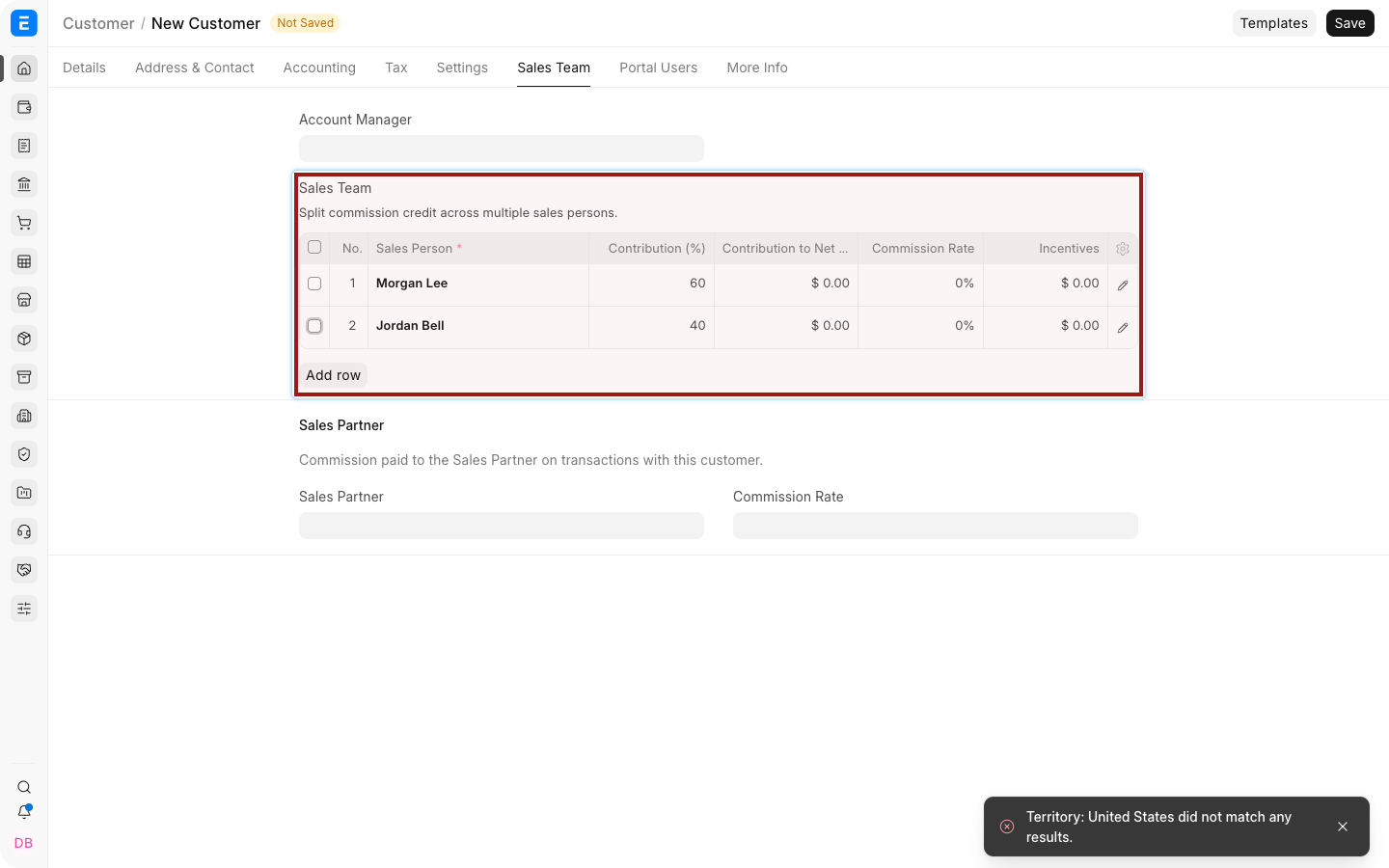
Bravo Hub ERP can carry this allocation into new sales transactions for that Customer. Review it on each document because responsibility may differ for a particular deal.
Add Sales Persons to a transaction
Section titled “Add Sales Persons to a transaction”The Sales Team table is available in supported transactions such as a Quotation, Sales Order, Delivery Note, and Sales Invoice.
- Open or create the transaction.
- Select the Customer and add the Items.
- Open the Sales Team section or tab.
- Add a Sales Person.
- Enter Contribution (%).
- Add other Sales Persons when the sale is shared.
- Confirm that the total contribution is 100%, then save or submit the transaction.
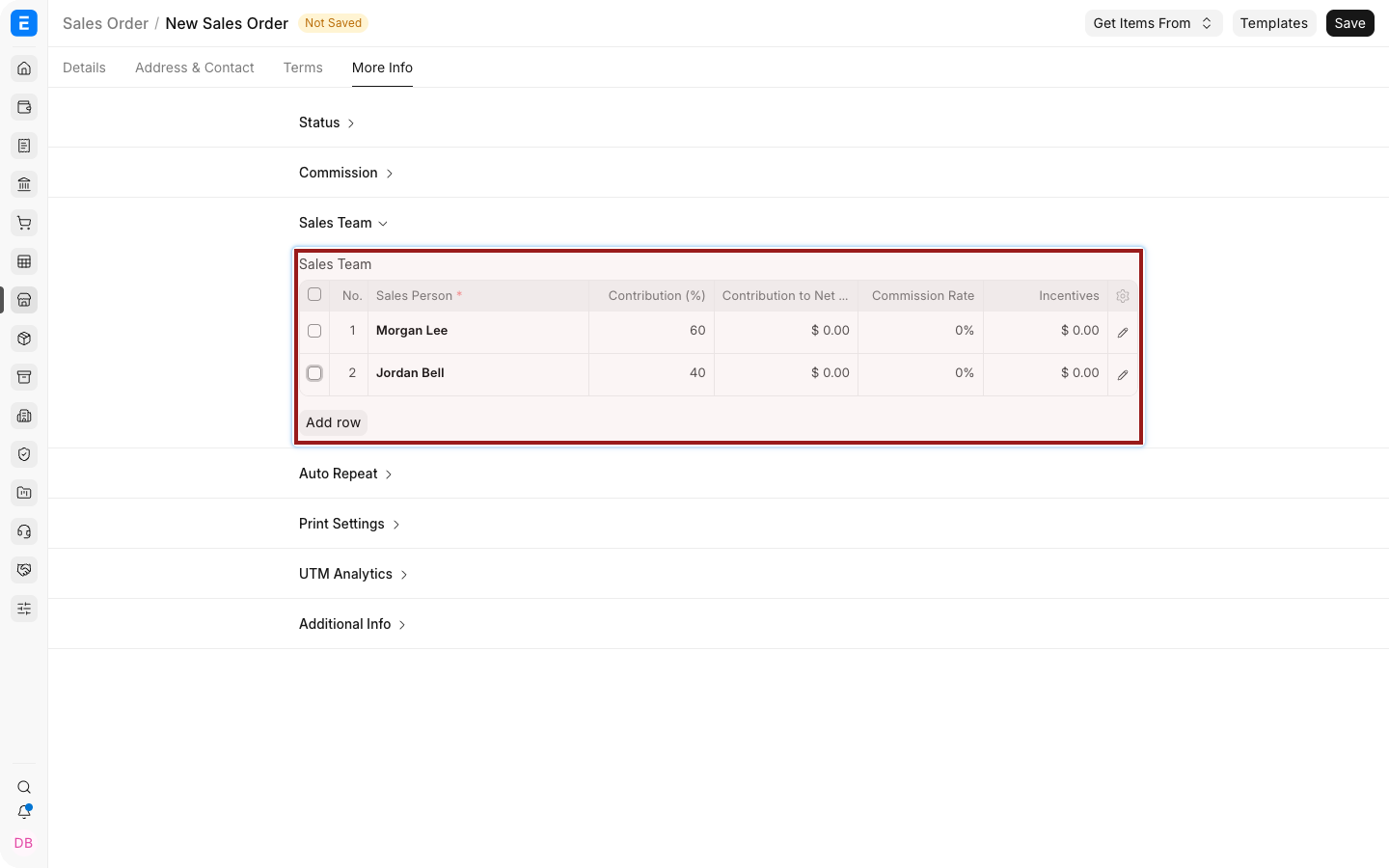
Select the highlighted pencil icon to open the full child-row editor when you need fields that are not visible in the table.
Contribution calculation
Section titled “Contribution calculation”Bravo Hub ERP calculates Contribution to Net Total from the document’s Net Total and each row’s Contribution (%).
For a Sales Order with a Net Total of $20,000:
| Sales Person | Contribution | Contribution to Net Total |
|---|---|---|
| Morgan Lee | 60% | $12,000 |
| Jordan Bell | 40% | $8,000 |
Taxes and the Grand Total do not replace the Net Total as the contribution basis shown in the Sales Team table.
Carrying the Sales Team through the sales cycle
Section titled “Carrying the Sales Team through the sales cycle”When you create a downstream document from an upstream transaction, verify the mapped Sales Team before submitting. The sales cycle can include:
- Quotation to Sales Order.
- Sales Order to Delivery Note.
- Sales Order or Delivery Note to Sales Invoice.
Changes to the Customer’s default Sales Team do not retroactively update existing transactions. Likewise, editing an upstream document does not automatically rewrite already-created downstream documents.
Review salesperson performance
Section titled “Review salesperson performance”Open Sales Person-wise Transaction Summary from Selling reports. Select the Company, date range, Sales Person, and transaction type required by your analysis.
Use Sales Person Target Allocation and target-variance reports when planned quantity or revenue must be compared with actual sales.
Sales Person contribution and commission
Section titled “Sales Person contribution and commission”Contribution attributes transaction value to internal Sales Persons. It does not by itself calculate a payroll incentive.
For internal incentive calculations, see Calculate Incentive for Sales Team. For an external reseller or referral partner, use a Sales Partner and Sales Partner Commission.
Troubleshooting
Section titled “Troubleshooting”| Problem | What to check |
|---|---|
| Contribution total validation appears | Ensure all Sales Team rows total exactly 100% |
| A Sales Person is missing from the report | Confirm the person is on the submitted transaction and the report filters include its date and Company |
| The Customer’s default team was not fetched | Save the Customer allocation, then select the Customer again on a new transaction |
| Downstream documents show the wrong split | Review the Sales Team before submitting each mapped document |
| Commission is not calculated | Sales Person contribution is not the same as Sales Partner commission |
Frequently asked questions
Section titled “Frequently asked questions”Can one transaction have several Sales Persons?
Section titled “Can one transaction have several Sales Persons?”Yes. Add one row per person and divide Contribution (%) so the total is 100%.
Can I change the Sales Team after submission?
Section titled “Can I change the Sales Team after submission?”Availability depends on the field’s after-submit configuration and your permissions. Prefer correcting attribution before submission.
Does a Sales Person need to be a system user?
Section titled “Does a Sales Person need to be a system user?”No. A Sales Person can be linked to an Employee without being a login user.
Which amount is used for contribution?
Section titled “Which amount is used for contribution?”Bravo Hub ERP displays contribution against the transaction’s Net Total.