
Payment Reconciliation
هذا المحتوى غير متوفر بلغتك بعد.
Payment Reconciliation links a submitted payment or credit with one or more outstanding invoices for the same Customer or Supplier. Use it when money has already been recorded in Bravo Hub ERP but the correct invoice was not selected in the original transaction.
Reconciliation does not create another bank movement. It updates how the existing amount is allocated and recalculates the invoice outstanding balance.
Before you begin
Section titled “Before you begin”Confirm that the invoice and payment are submitted, belong to the same Company and party, use the same receivable or payable account, and still have an outstanding or unallocated amount.
For this example, Northstar Retail has an outstanding Sales Invoice of $1,796 and an unallocated Payment Entry of $525.
Reconcile a payment against an invoice
Section titled “Reconcile a payment against an invoice”1. Select the company and party
Section titled “1. Select the company and party”Open Payment Reconciliation. Select the Company, Party Type, and Party. Bravo Hub ERP fills the relevant Receivable / Payable Account when a default account is available.
Use the optional Filters section when you need to narrow a long list by invoice date, payment date, amount, bank or cash account, or result limit.
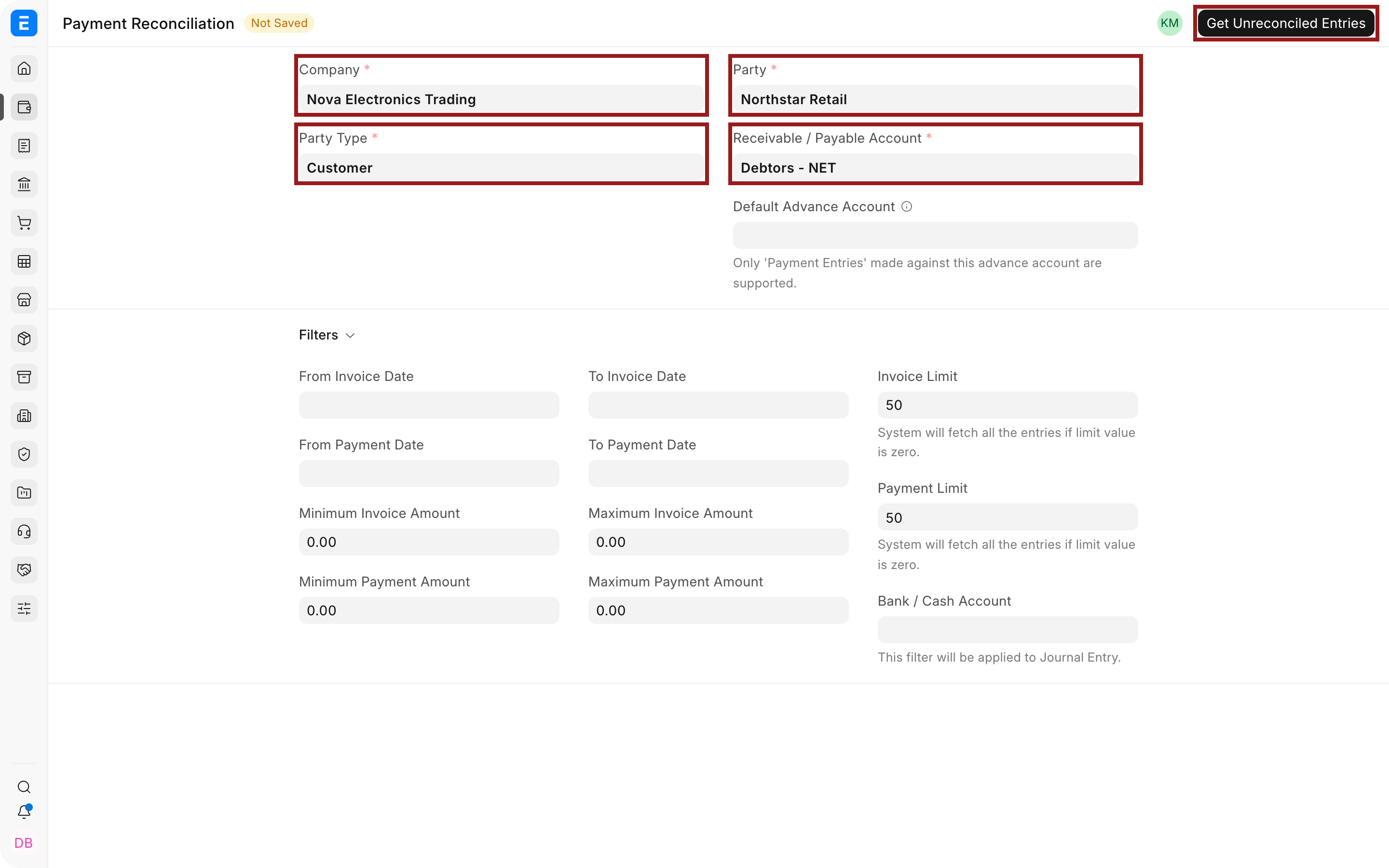
Click Get Unreconciled Entries.
2. Review the unreconciled entries
Section titled “2. Review the unreconciled entries”Bravo Hub ERP displays outstanding invoices on the left and unallocated payments or credits on the right. Check the document number, date, and amount before selecting anything.
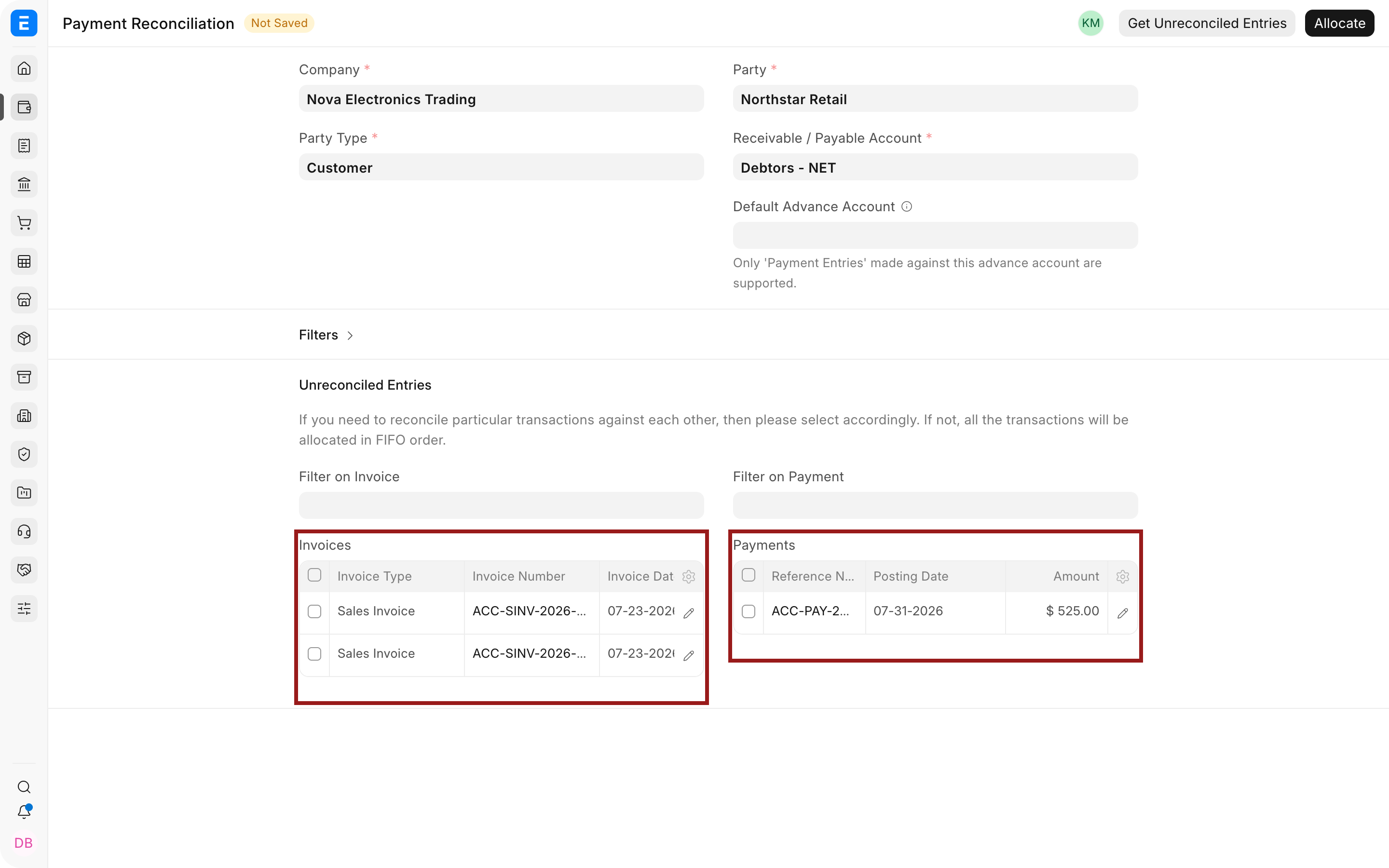
If no rows are selected, Bravo Hub ERP can allocate entries in first-in, first-out order. Select rows when you need to control exactly which payment settles which invoice.
3. Select the invoice and payment
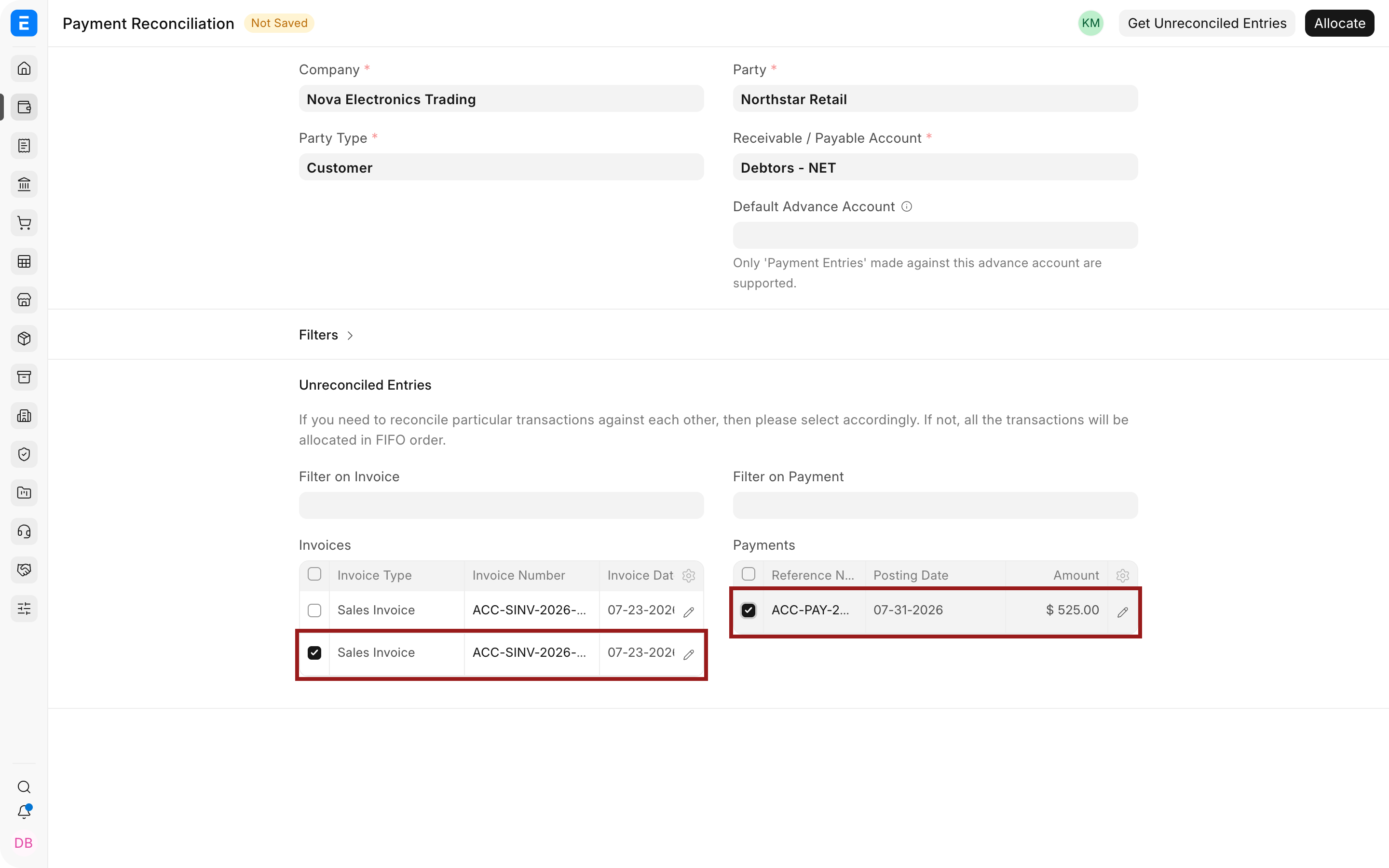
Section titled “3. Select the invoice and payment”Select the invoice that should receive the payment. Then select the matching Payment Entry or credit.
In this example, Payment Entry ACC-PAY-2026-00010 is matched with Sales Invoice ACC-SINV-2026-00009.
4. Create the allocation
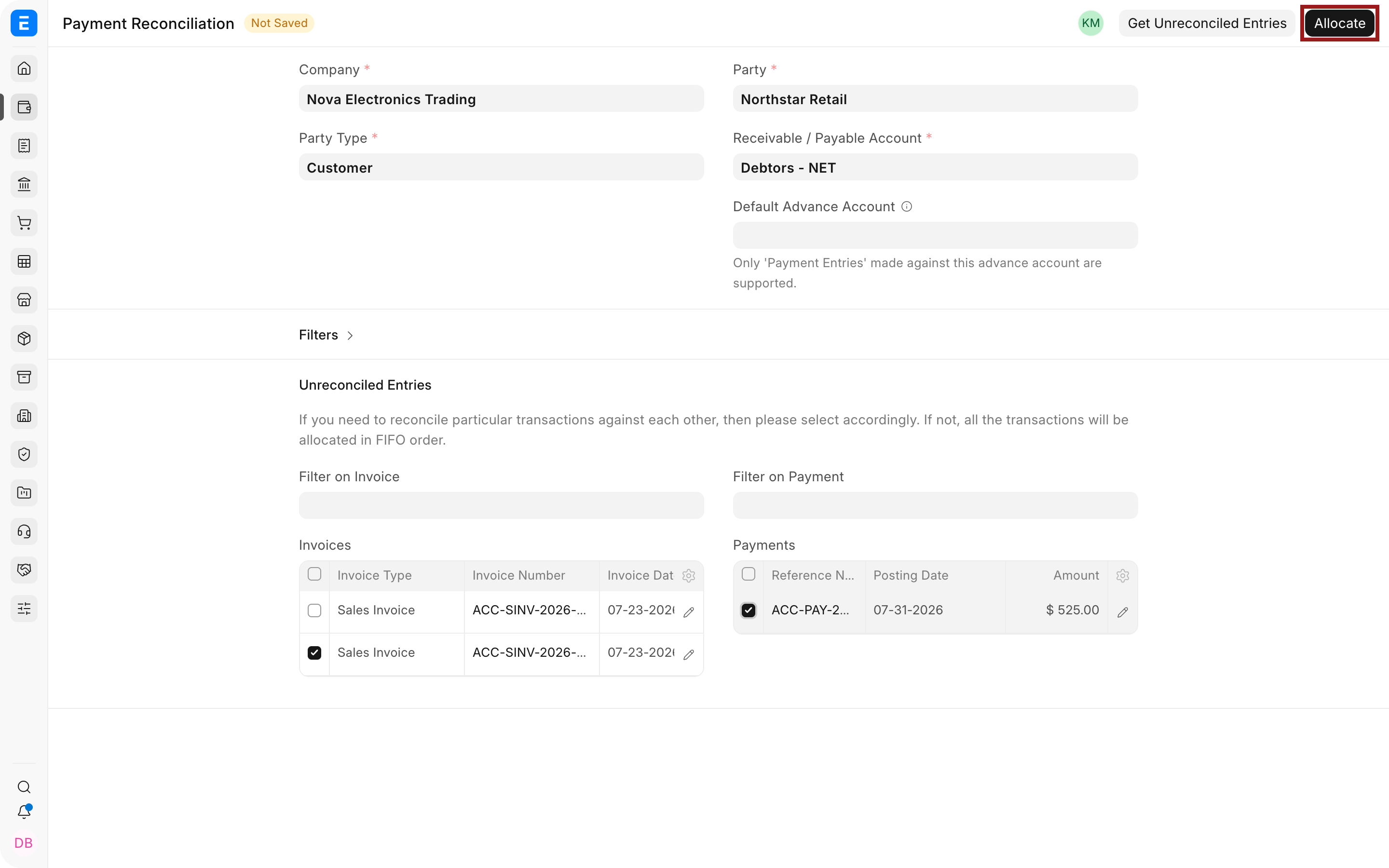
Section titled “4. Create the allocation”Click Allocate. Bravo Hub ERP proposes an allocation based on the smaller of the invoice outstanding amount and the payment amount.
5. Review and reconcile
Section titled “5. Review and reconcile”Review every row under Allocated Entries. Confirm the Payment Entry, invoice, Allocated Amount, and Difference Amount. Edit a row if only part of the available payment should be applied.
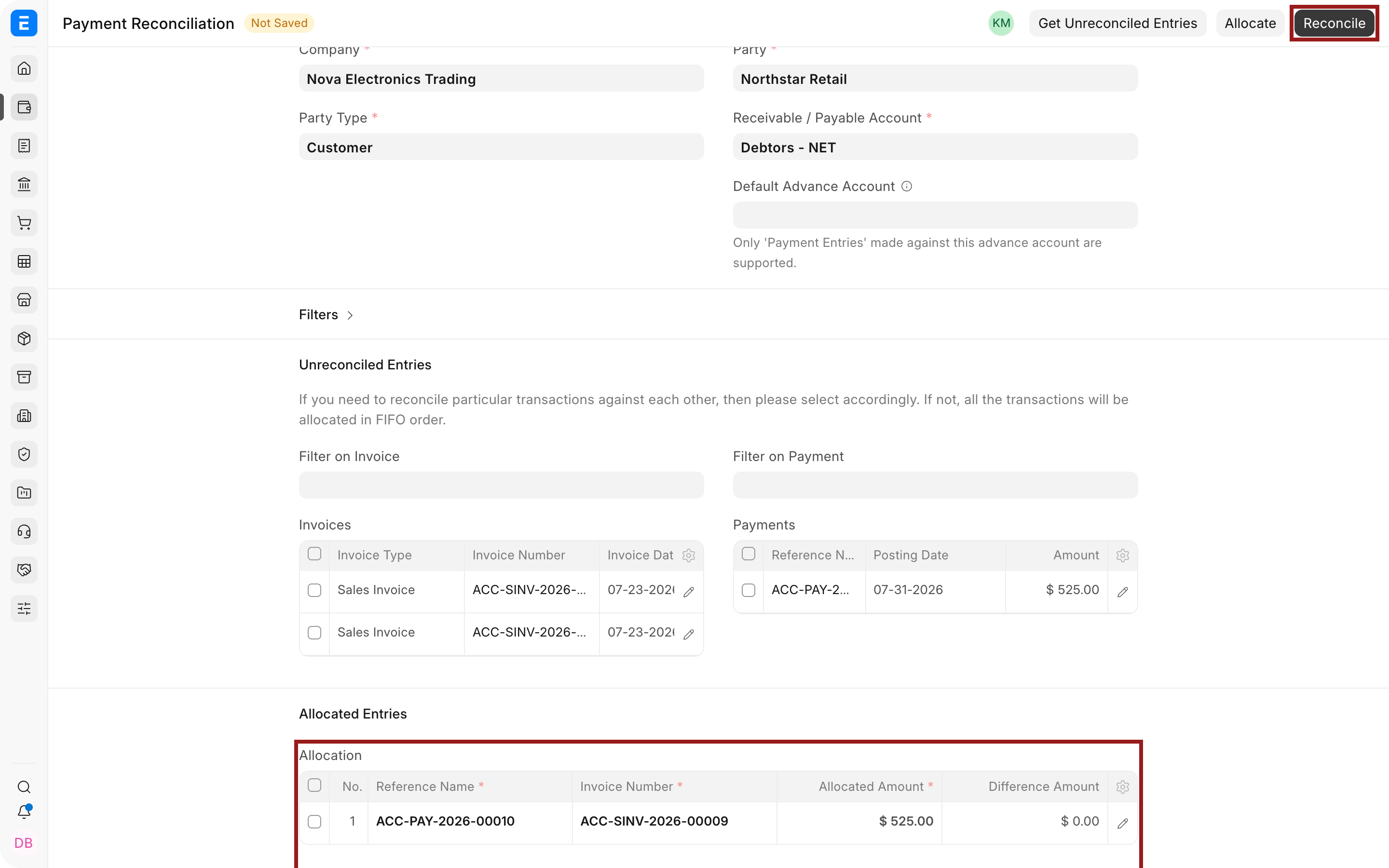
Click Reconcile only after the allocation is correct.
6. Verify the result
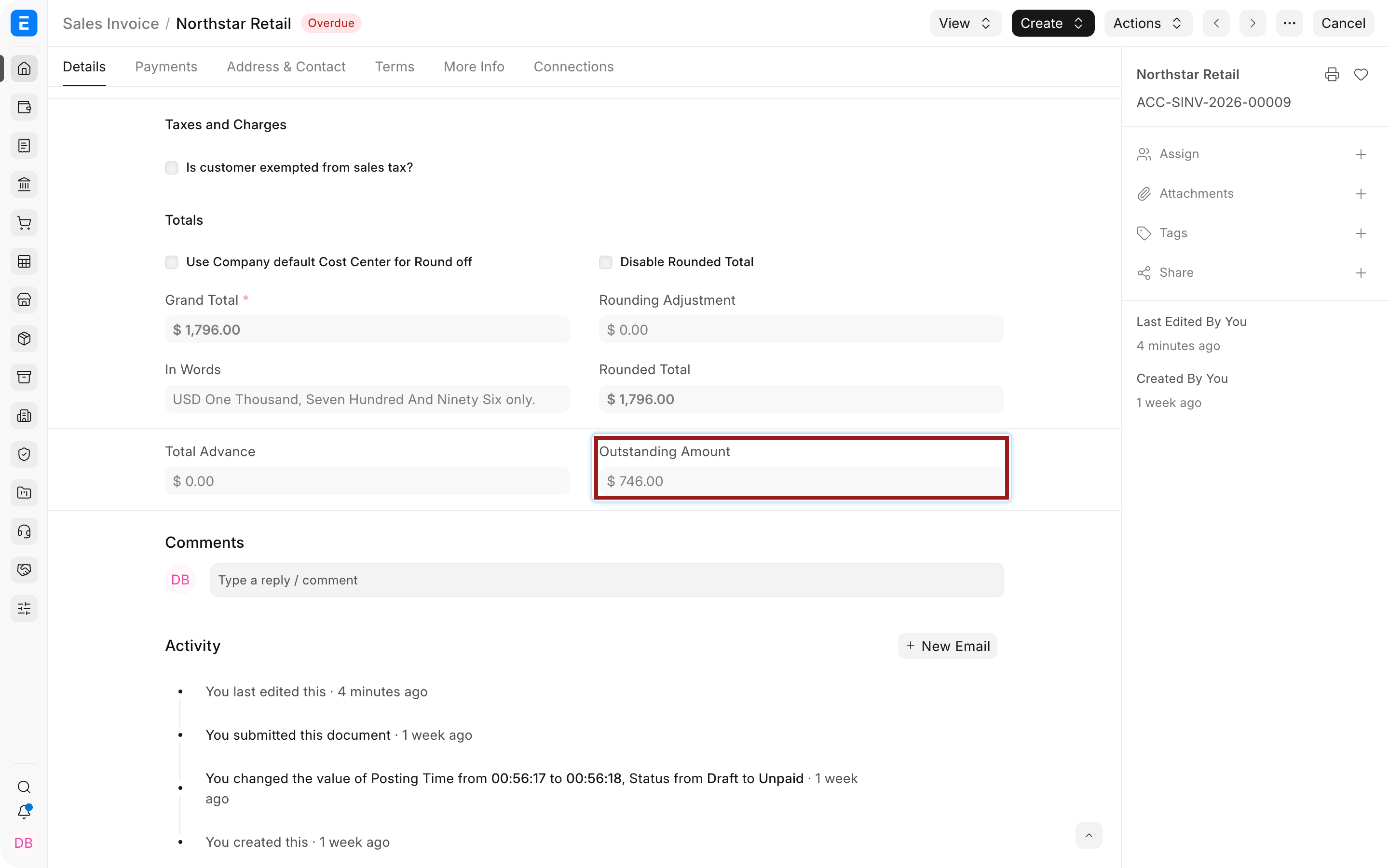
Section titled “6. Verify the result”Before reconciliation, Sales Invoice ACC-SINV-2026-00009 had an outstanding amount of $746. After the $525 payment was reconciled, the outstanding amount became $221.
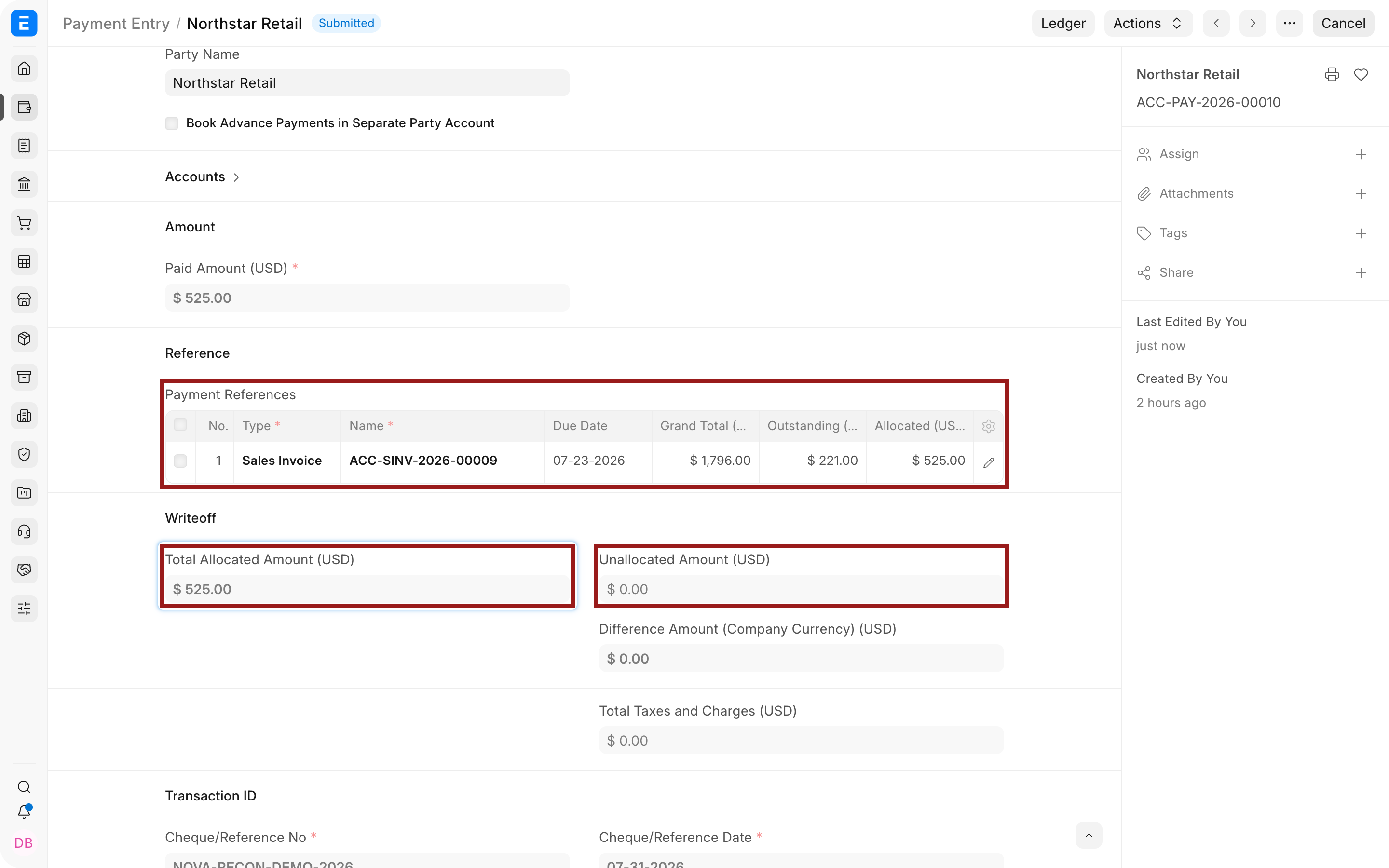
Open Payment Entry ACC-PAY-2026-00010 and verify that the invoice appears under Payment References. The Total Allocated Amount is $525, while Unallocated Amount is $0.
You can also open the Accounts Receivable report and confirm that it shows the reduced invoice balance.
Video demo
Section titled “Video demo”Important fields and what they mean
Section titled “Important fields and what they mean”| Field | What it controls |
|---|---|
| Company | Limits the tool to one legal entity and its accounts. |
| Party Type | Chooses whether you are reconciling a Customer or Supplier. |
| Party | Loads documents for the selected Customer or Supplier. |
| Receivable / Payable Account | Limits results to documents posted to the same control account. |
| Default Advance Account | Includes supported Payment Entries posted to the selected advance account. |
| Invoice and Payment filters | Narrow results by date, amount, document name, bank account, or result limit. |
| Invoices | Lists submitted documents with an outstanding balance. |
| Payments | Lists submitted Payment Entries, Journal Entries, and supported credits with an amount available to allocate. |
| Allocated Amount | Amount from the payment or credit that will be applied to the invoice. |
| Difference Amount | Amount left unmatched in that allocation row. |
What changes after reconciliation
Section titled “What changes after reconciliation”Bravo Hub ERP adds or updates the payment reference, reduces the invoice outstanding amount, and reduces the payment unallocated amount. The original bank or cash posting remains unchanged because the money was already recorded when the payment was submitted.
Troubleshooting
Section titled “Troubleshooting”The invoice or payment is missing
Section titled “The invoice or payment is missing”Check the Company, party, receivable or payable account, document status, currency, filters, and date range. A fully allocated payment or fully settled invoice is not an unreconciled entry.
The payment and invoice use different receivable or payable accounts
Section titled “The payment and invoice use different receivable or payable accounts”The tool cannot match entries across different control accounts. Correct the account on the source document through the supported cancellation and amendment workflow, or use an appropriate accounting adjustment reviewed by your finance team.
Allocate uses the wrong invoice
Section titled “Allocate uses the wrong invoice”Select the exact invoice and payment before clicking Allocate. Leaving rows unselected allows FIFO allocation.
The allocation amount is too high
Section titled “The allocation amount is too high”Open the allocation row and reduce Allocated Amount. It cannot exceed the available payment amount or invoice outstanding amount.
A payment was reconciled incorrectly
Section titled “A payment was reconciled incorrectly”Use Unreconcile Payments to remove the incorrect link, verify the restored balances, and then reconcile the payment again.
Frequently asked questions
Section titled “Frequently asked questions”When should I use Payment Reconciliation instead of Payment Entry?
Section titled “When should I use Payment Reconciliation instead of Payment Entry?”Use Payment Entry when recording the receipt or payment and you already know the invoices to settle. Use Payment Reconciliation when the payment or credit already exists but remains unallocated or was not linked to the right invoice.
Can one payment settle several invoices?
Section titled “Can one payment settle several invoices?”Bravo Hub ERP supports this. Select the payment and the required invoices, allocate the available amount across them, and review every allocation row before reconciling.
Can one invoice be settled by several payments?
Section titled “Can one invoice be settled by several payments?”Bravo Hub ERP supports this. Reconcile each available payment against the same invoice until its outstanding amount reaches zero.
Can I allocate only part of a payment?
Section titled “Can I allocate only part of a payment?”Bravo Hub ERP supports this. Edit Allocated Amount before reconciling. The remaining amount stays unallocated and can be used later.
Does Payment Reconciliation change the bank balance?
Section titled “Does Payment Reconciliation change the bank balance?”Payment Reconciliation does not change the bank balance. It changes the link between existing accounting entries and does not post the receipt or payment again.
Is this the same as Bank Reconciliation?
Section titled “Is this the same as Bank Reconciliation?”These tools serve different purposes. Payment Reconciliation matches Bravo Hub ERP payments and credits with Bravo Hub ERP invoices. Bank Reconciliation matches Bravo Hub ERP bank ledger entries with transactions shown by the bank.