
Sales Person
A Sales Person represents an individual or team responsible for selling to customers. Assigning Sales Persons to transactions lets Bravo Hub ERP attribute revenue, calculate contribution percentages, track targets, and report performance across a hierarchy.
Sales Persons can be arranged under group nodes such as Retail Sales, Enterprise Sales, or regional teams. This structure lets managers review both individual and rolled-up team performance.
Before you begin
Section titled “Before you begin”Decide:
- Whether the record represents an individual or a group.
- Where it belongs in the Sales Person hierarchy.
- Whether it should be linked to an Employee.
- Which commission rate, if any, should be stored as the default.
- Whether you will allocate targets by Item Group and Fiscal Year.
Create a Sales Person
Section titled “Create a Sales Person”- Open Sales Person in the Selling or CRM workspace.
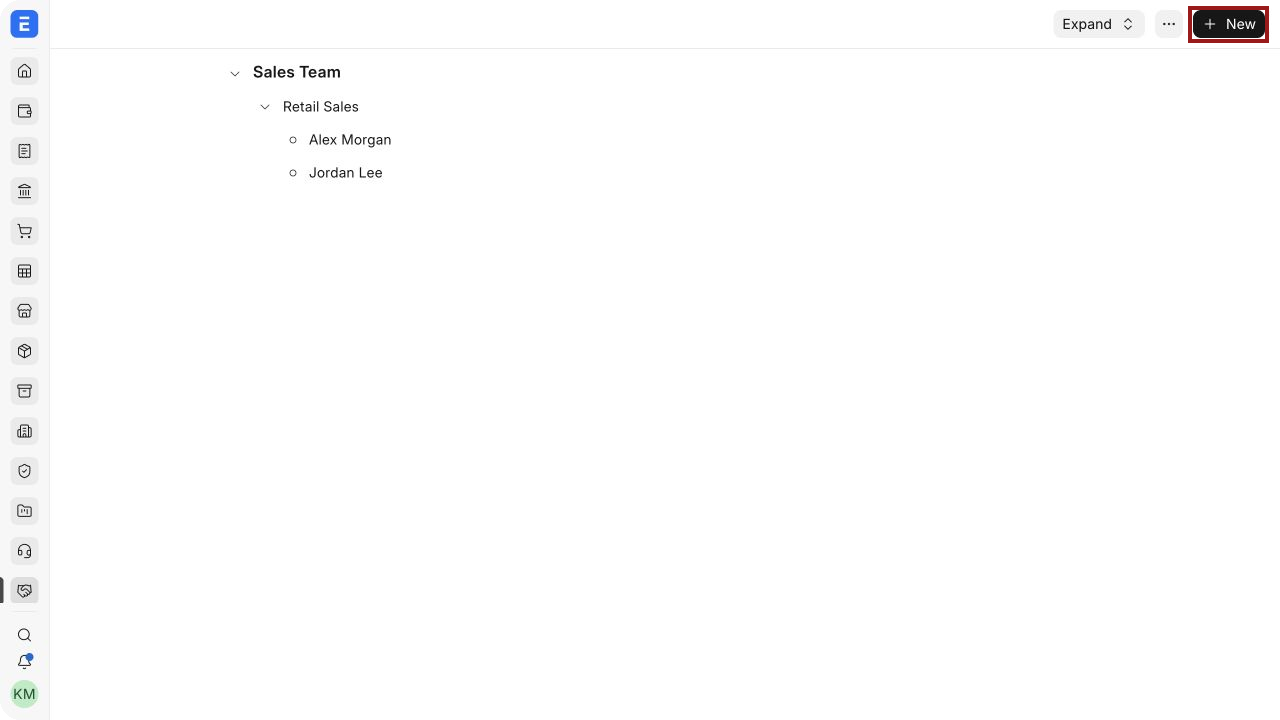
- Review the hierarchy and select New, as highlighted.
- Enter the Sales Person Name.
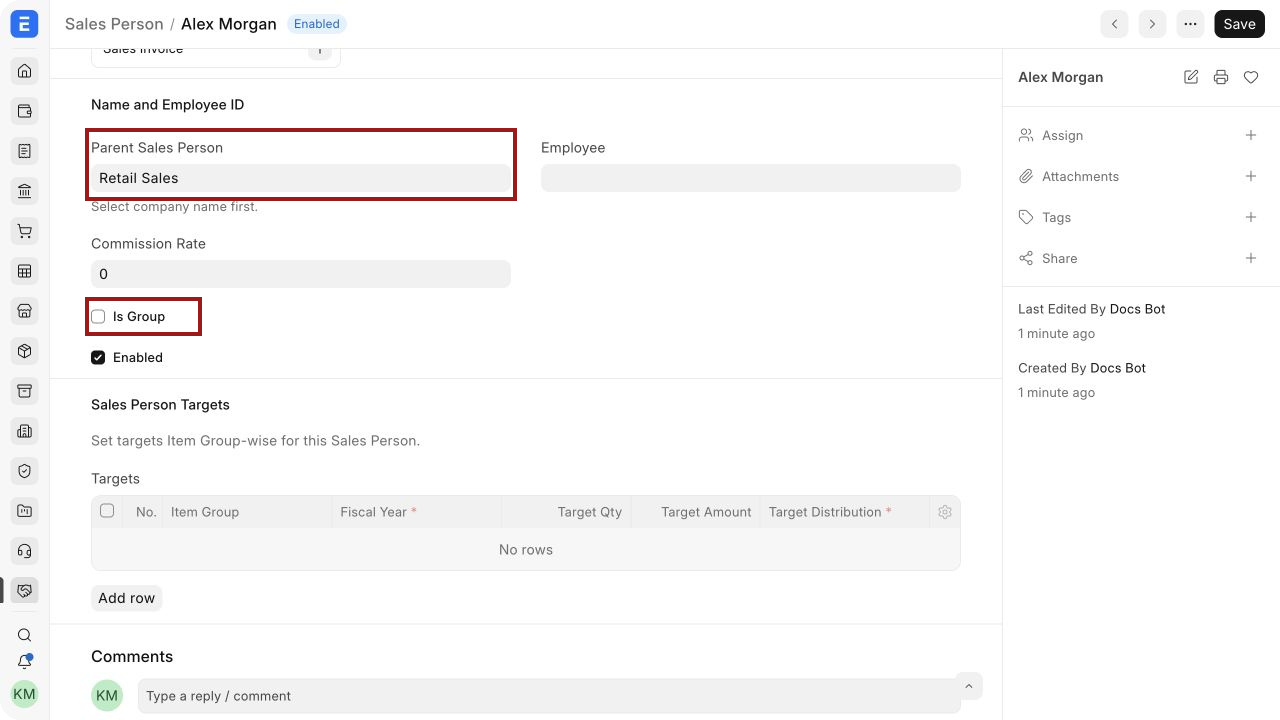
- Select the Parent Sales Person.
- Link an Employee when the salesperson is also maintained in Bravo Hub HR.
- Enter a Commission Rate if your process uses it as a default reference.
- Select Is Group only when the record will contain child Sales Persons.
- Keep Enabled selected for an active salesperson.
- Save.
The highlighted fields show how an individual Sales Person is placed under a parent group. Use Is Group for team or regional nodes, not for an individual.
Important fields and what they mean
Section titled “Important fields and what they mean”| Field | What it controls |
|---|---|
| Sales Person Name | The name shown in transactions, reports, and the hierarchy |
| Parent Sales Person | The group or manager node under which the record appears |
| Employee | Optional link to the corresponding employee record |
| Commission Rate | Default commission percentage associated with the Sales Person |
| Is Group | Allows child Sales Persons below this record; group nodes are not intended for direct individual attribution |
| Enabled | Determines whether the Sales Person is available for current use |
| Targets | Item Group-wise quantity or amount goals for a Fiscal Year |
Build a useful hierarchy
Section titled “Build a useful hierarchy”Use group nodes to match how performance is reviewed. For example:
- Sales Team
- Retail Sales
- Alex Morgan
- Jordan Lee
- Enterprise Sales
- Casey Brooks
- Retail Sales
A clean hierarchy provides several benefits:
- Team totals can roll up from individual Sales Persons.
- transaction attribution remains consistent when the organization grows.
- reports can compare individuals, teams, or branches of the sales structure.
- targets can be assigned at the level that managers actually review.
Avoid creating duplicate individuals under several groups. A sales transaction can already split contribution among multiple Sales Persons when several people share credit.
Add Sales Persons to transactions
Section titled “Add Sales Persons to transactions”Sales Persons are added in the Sales Team child table of supported transactions such as a Quotation, Sales Order, Delivery Note, and Sales Invoice.
For each row:
- Select the Sales Person.
- Enter the Contribution (%).
- Use the highlighted pencil icon to open the child row when more fields are needed.
- Ensure the total contribution across rows is 100% when the full transaction value must be allocated.
Contribution controls how Bravo Hub ERP attributes the transaction amount to each Sales Person. It does not by itself create a payroll payment or accounting entry.
Read Sales Persons in Sales Transactions for transaction-level examples.
Set and review targets
Section titled “Set and review targets”Use the Targets table to assign Item Group-wise goals for a Fiscal Year. A target can be based on quantity, amount, or both, and can use a Monthly Distribution to spread the goal across the year.
See Sales Person Target Allocation for the complete setup and reporting workflow.
Commission and incentives
Section titled “Commission and incentives”The Commission Rate on the Sales Person is a stored percentage that can support commission calculations and reports. The actual incentive process can depend on contribution, transaction status, collected revenue, custom rules, or payroll policy.
For team incentive workflows, see Calculate Incentive for Sales Team and Sales Commission.
Disable or reorganize a Sales Person
Section titled “Disable or reorganize a Sales Person”Disable a Sales Person when they should no longer be selected in new transactions. Historical transaction links remain available.
To reorganize the hierarchy, change the parent or use the tree controls according to your permissions. Review reports after moving a record because the new hierarchy can change how future roll-up analysis is presented.
Troubleshooting
Section titled “Troubleshooting”A Sales Person is missing from a transaction
Section titled “A Sales Person is missing from a transaction”Confirm that the record is enabled and is not a group node. Also check user permissions and any company-specific restrictions.
Contribution totals are incorrect
Section titled “Contribution totals are incorrect”Review every row in the Sales Team table. The percentages should match how credit is shared and normally total 100%.
Performance reports show no value
Section titled “Performance reports show no value”Confirm that the Sales Person is present on submitted transactions, the report dates and company are correct, and the relevant document status is included.
The hierarchy is hard to maintain
Section titled “The hierarchy is hard to maintain”Use a small number of durable group nodes based on teams, channels, or regions. Avoid mirroring every temporary reporting relationship.
Frequently asked questions
Section titled “Frequently asked questions”Must every Sales Person be linked to an Employee?
Section titled “Must every Sales Person be linked to an Employee?”No. The Employee link is optional, but it is useful when sales responsibility and HR records should connect.
Can one transaction have several Sales Persons?
Section titled “Can one transaction have several Sales Persons?”Yes. Add multiple rows and divide contribution among them.
Does disabling a Sales Person remove historical sales?
Section titled “Does disabling a Sales Person remove historical sales?”No. Existing links and reports remain available.
Can a group node receive transaction credit?
Section titled “Can a group node receive transaction credit?”Use individual Sales Persons for direct attribution. Group nodes are intended to organize and roll up the hierarchy.