
Customise Cash Flow Report
هذا المحتوى غير متوفر بلغتك بعد.
Nova Industries’s default Cash Flow report explains how cash moved through operating, investing, and financing activities. Finance wants a reusable IFRS-style presentation with clearer lines for profit before tax, depreciation, finance costs, receivables, payables, inventory, equipment purchases, and financing.
In the current Bravo Hub ERP develop version, Nova can create or adapt a Financial Report Template with Report Type set to Cash Flow. The template controls report headings, account selection, calculations, indentation, signs, hidden rows, and charts. It changes presentation, not the underlying General Ledger entries.
Before you begin
Section titled “Before you begin”- Run the standard Cash Flow Report and reconcile it with the General Ledger.
- Have an accountant approve the required headings, classifications, signs, and calculations.
- Review the Chart of Accounts and assign consistent Account Categories where template rows use them.
- Test the template with representative transactions before using it for management or external reporting.
Review the current report
Section titled “Review the current report”Run Cash Flow for Nova Industries with a period containing operating, investing, and financing transactions. Save the baseline totals before enabling a custom format.
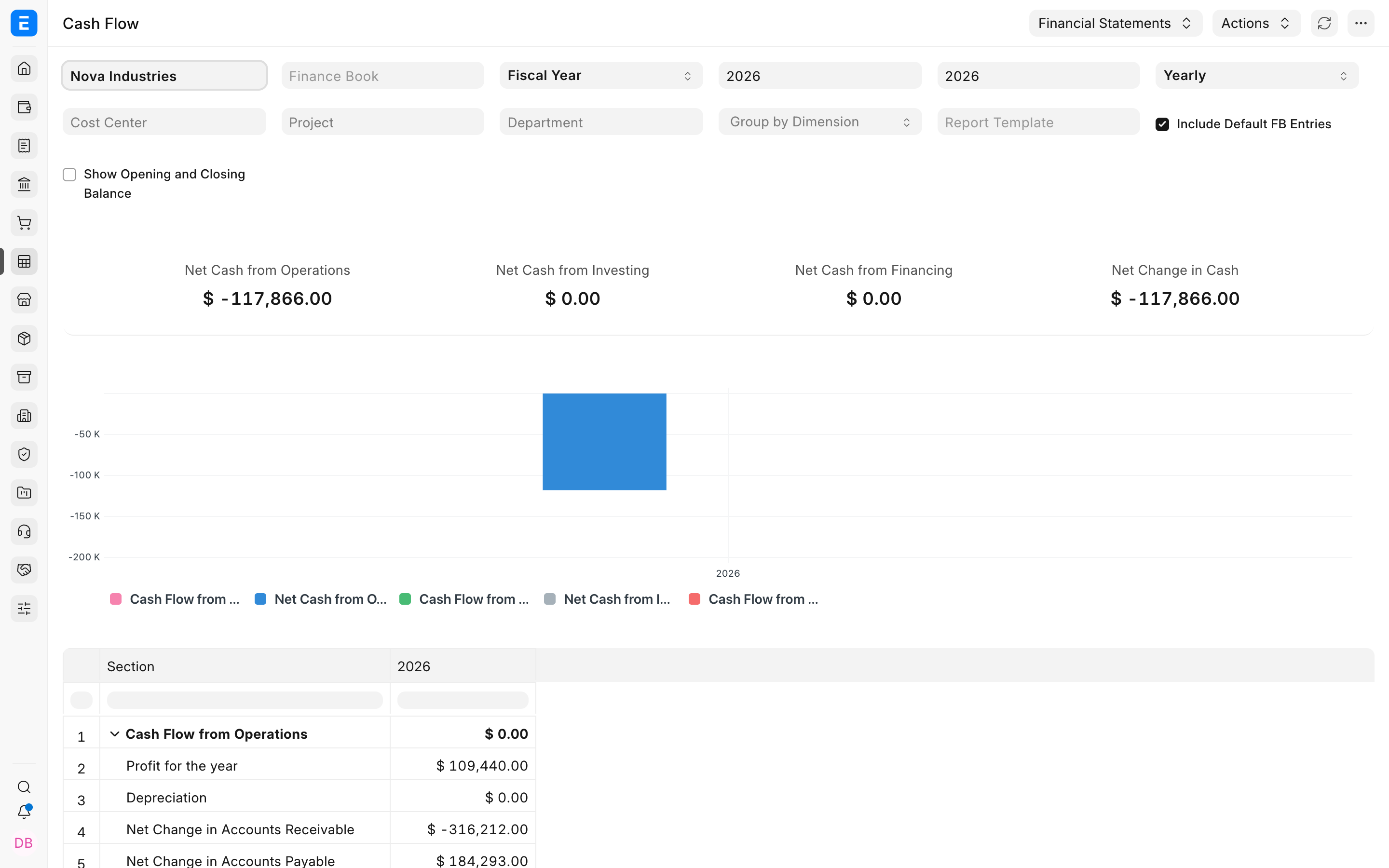
Create or copy a Cash Flow template
Section titled “Create or copy a Cash Flow template”- Open Financial Report Template.
- Create a template, or copy an existing Cash Flow template when it is a suitable starting point.
- Set Report Type to Cash Flow.
- Enter a clear Template Name and keep the template enabled.
Build and arrange the report lines
Section titled “Build and arrange the report lines”Add rows to Report Line Items in the exact order they should appear. Use blank or visual rows for section headings, Account Data rows for ledger-derived values, and Calculated Amount rows for subtotals. Indent supporting lines beneath their section and use stable Line References for formulas.
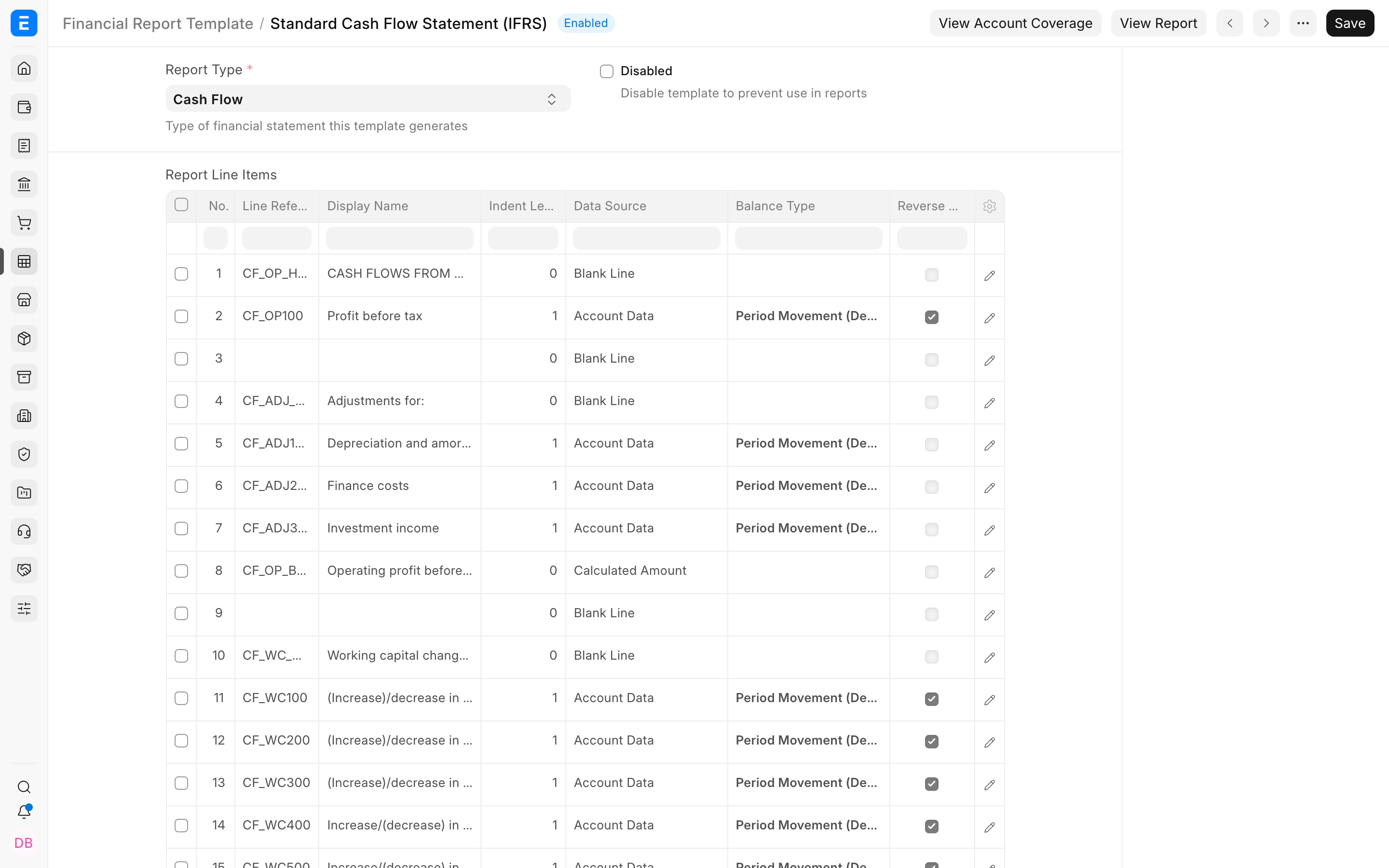
| Example line | Typical source | Presentation |
|---|---|---|
| Cash flows from operating activities | Visual or blank row | Section heading at indent level 0 |
| Profit before tax | Account Data | Period movement with the appropriate sign |
| Depreciation and amortisation | Account Data | Indented non-cash adjustment |
| Operating profit before working-capital changes | Calculated Amount | Formula based on earlier Line References |
| Change in trade receivables | Account Data | Working-capital movement with reversed sign when required |
Verify the custom report
Section titled “Verify the custom report”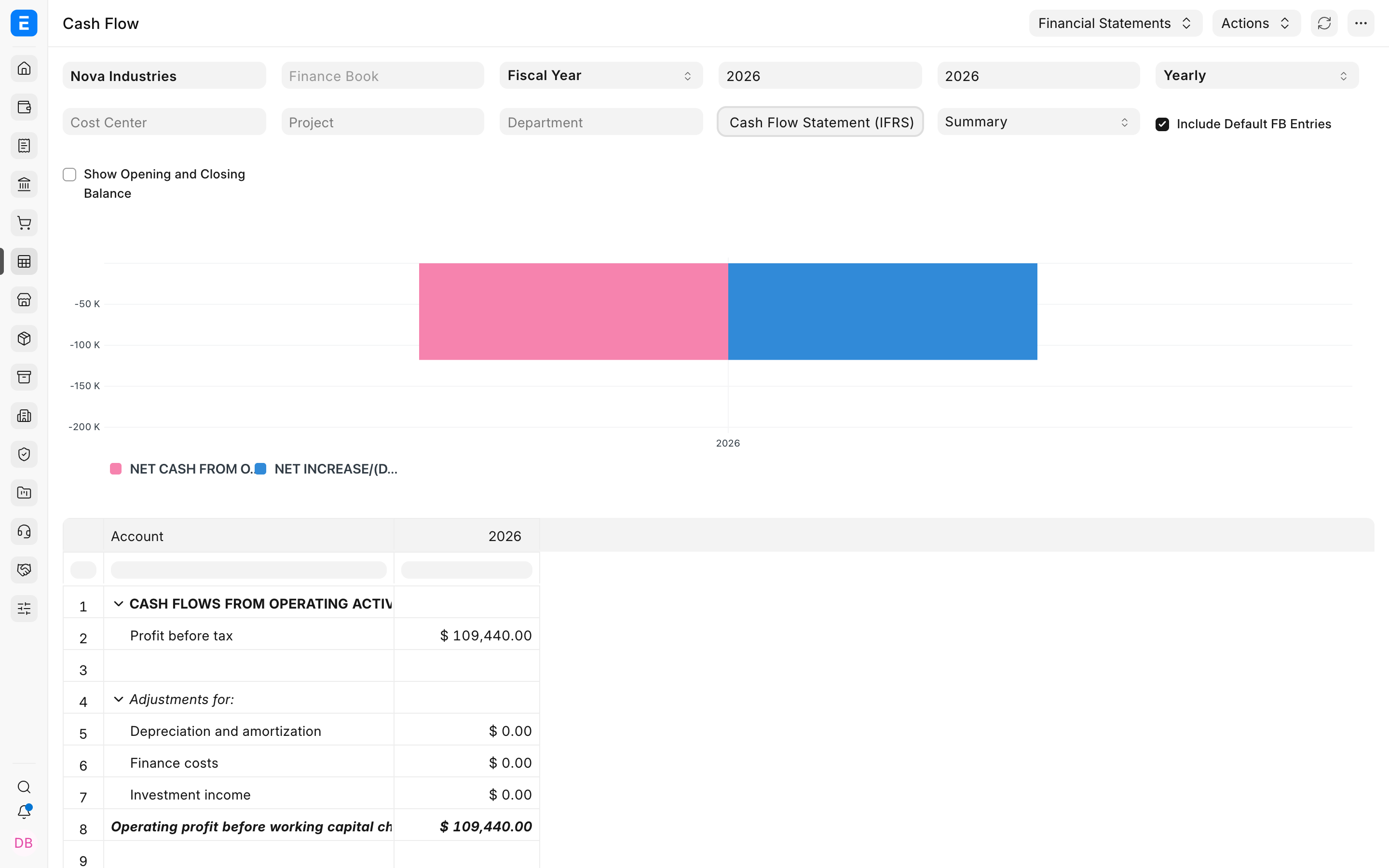
- Refresh Cash Flow for the same company and period used for the baseline.
- Confirm every expected line appears under the correct section.
- Compare section totals and closing cash with the standard report and General Ledger.
- Open unusual balances and verify the mapped accounts.
- Repeat the test for a second period before relying on the format.
Troubleshooting
Section titled “Troubleshooting”A line is missing
Section titled “A line is missing”Confirm that the row is enabled, its Account Data filter matches the intended accounts, and the selected period contains relevant ledger activity. Check whether Hide If Zero is suppressing the row.
A value appears twice
Section titled “A value appears twice”Review the template’s account coverage for overlap. The same account may be included by more than one Account Data row, or a parent account and its children may both be selected.
Net cash does not reconcile
Section titled “Net cash does not reconcile”Run the template and standard Cash Flow report with identical company, dates, Finance Book, dimensions, currency, and opening-balance options. Then check omitted accounts, duplicated coverage, formulas, Line References, and sign reversal.
Frequently asked questions
Section titled “Frequently asked questions”Does customisation change ledger entries?
Section titled “Does customisation change ledger entries?”The configuration changes how existing balances are classified and displayed. It does not repost transactions.
Can I add a fourth cash-flow section?
Section titled “Can I add a fourth cash-flow section?”The standard structure uses Operating, Investing, and Financing Activities. Use approved labels and mappings inside those sections unless a current product extension explicitly supports another structure.
Should parent or child accounts be mapped?
Section titled “Should parent or child accounts be mapped?”Use an approach that avoids overlap and matches how the account tree is maintained. Parent accounts work best when all children share the same cash-flow treatment.