
Process Payment Reconciliation Tool
هذا المحتوى غير متوفر بلغتك بعد.
Use the Process Payment Reconciliation Tool when you have several submitted payments and invoices that Bravo Hub ERP can match for the same party and account. You define the scope once, queue the process, and review the completed allocations.
This example uses Northstar Retail. The customer has an unallocated payment of USD 600 and an outstanding sales invoice of USD 3,753.
Before you begin
Section titled “Before you begin”Confirm that the payments and invoices are submitted, use the same Company and party account, and have an amount available to reconcile.
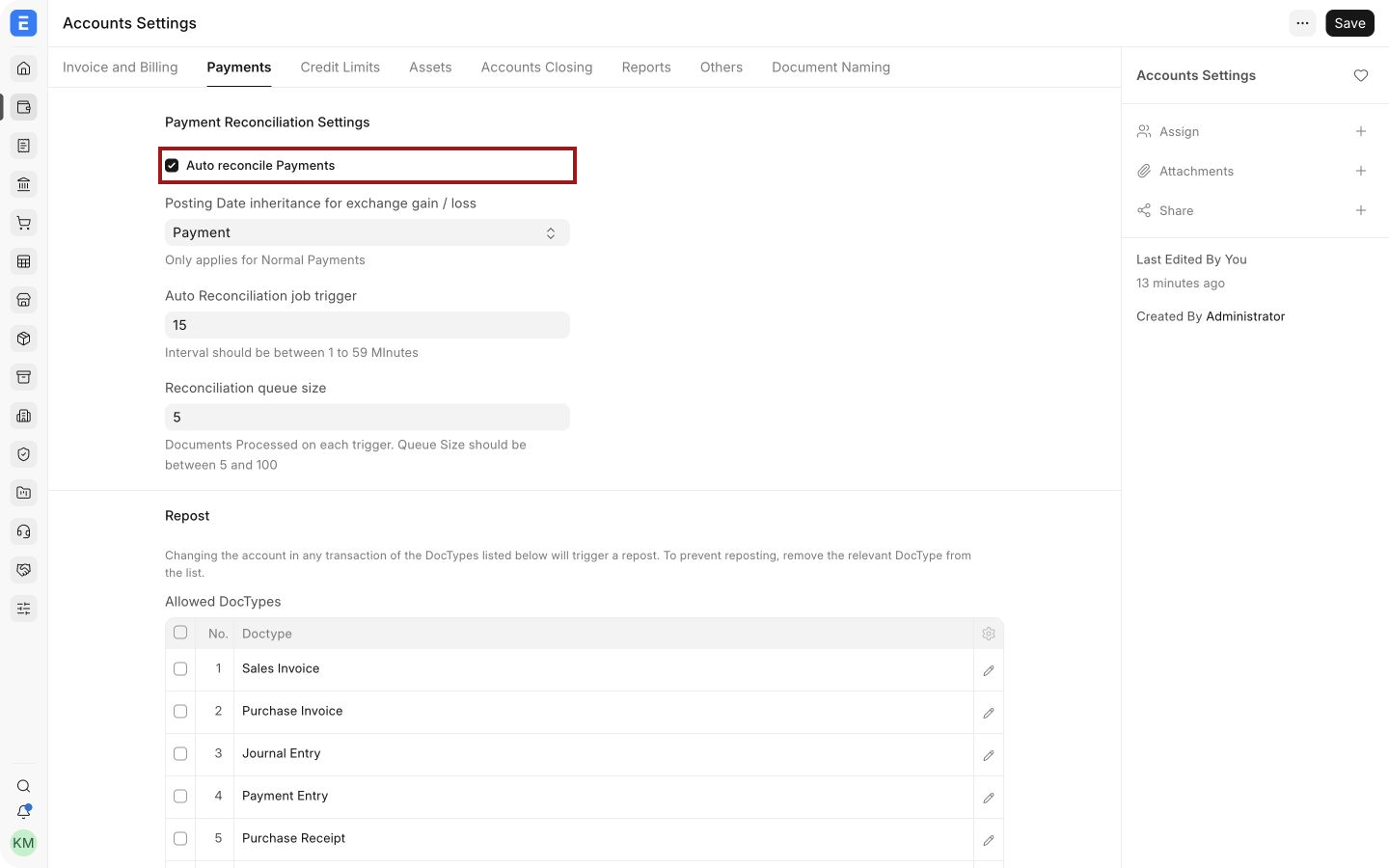
Open Accounts Settings, select the Payments tab, enable Auto reconcile Payments, and save. The job trigger controls how often queued work is picked up. The queue size controls how many documents are processed in each run.
Create and run a reconciliation process
Section titled “Create and run a reconciliation process”1. Open the tool
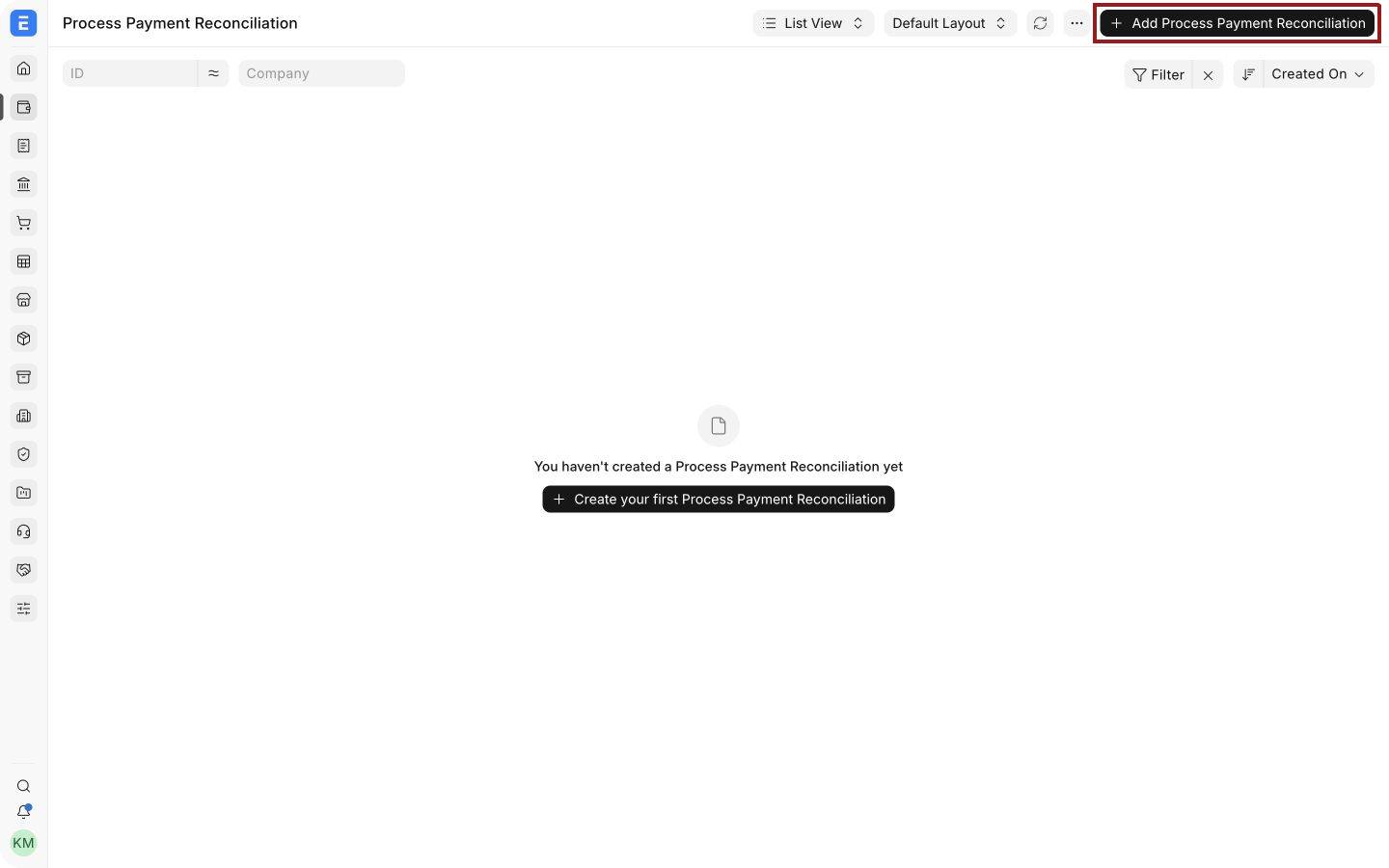
Section titled “1. Open the tool”Open Process Payment Reconciliation and click Add Process Payment Reconciliation.
2. Define the scope
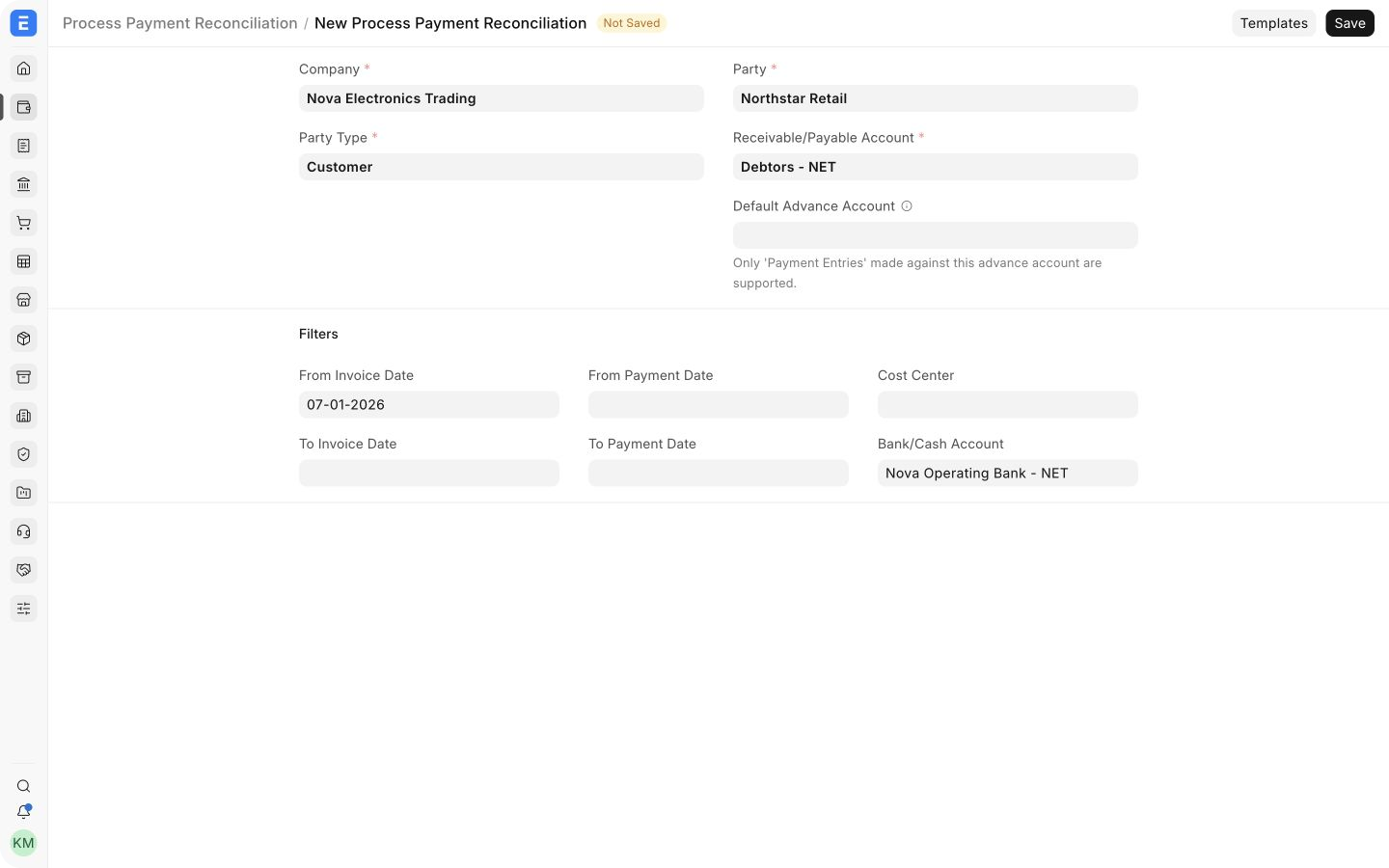
Section titled “2. Define the scope”Select the Company, Party Type, Party, and Receivable/Payable Account. Add date, Cost Center, or Bank/Cash Account filters when you need to narrow the eligible entries.
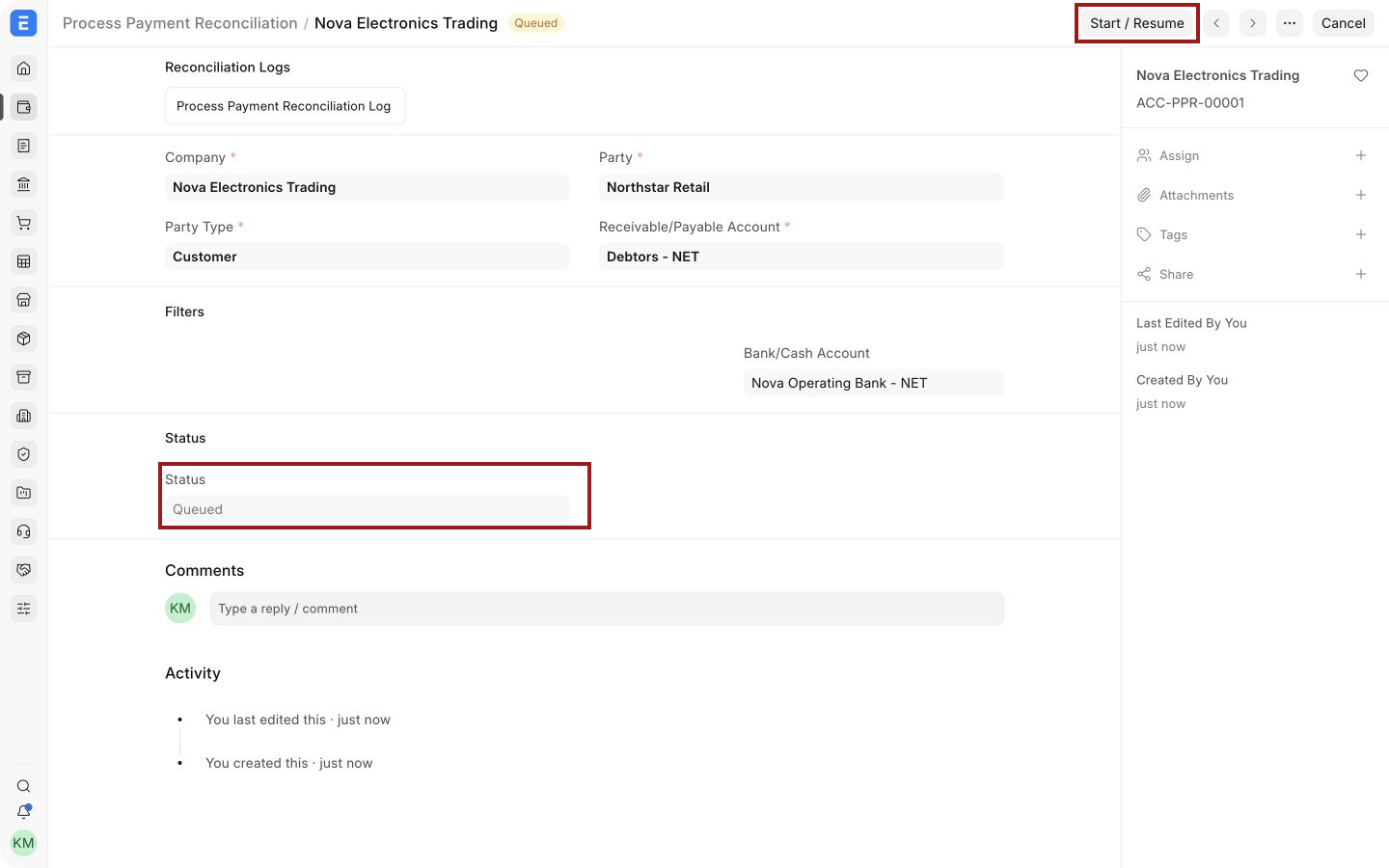
In this example, select Nova Electronics Trading, Customer, Northstar Retail, Debtors - NET, and Nova Operating Bank - NET.
3. Save and submit
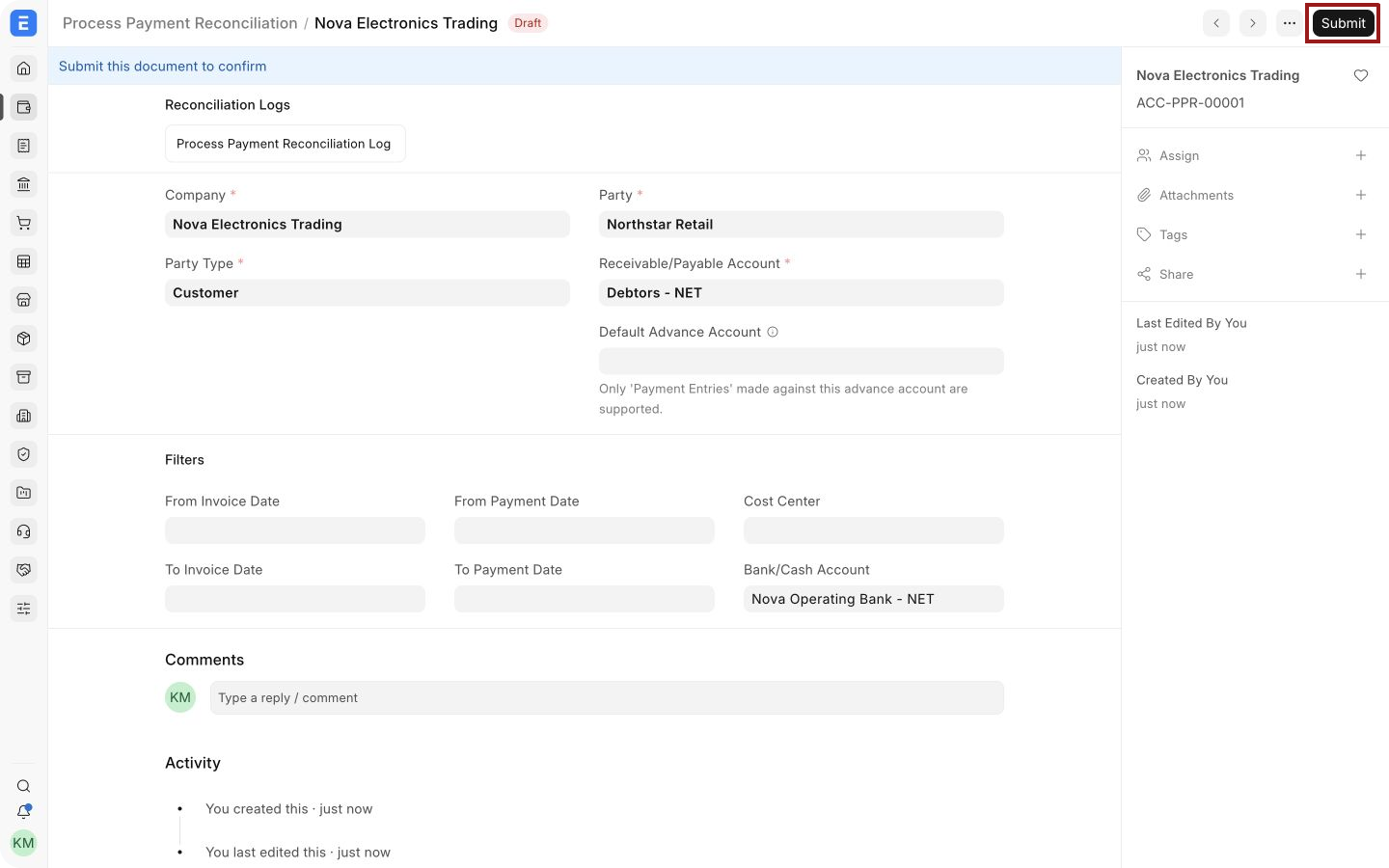
Section titled “3. Save and submit”Save the record, review the scope, and click Submit. Submitting places the process in the queue. It does not itself confirm that every entry was reconciled.
4. Start the queued process
Section titled “4. Start the queued process”When the status is Queued, click Start / Resume to begin processing immediately.
5. Monitor progress
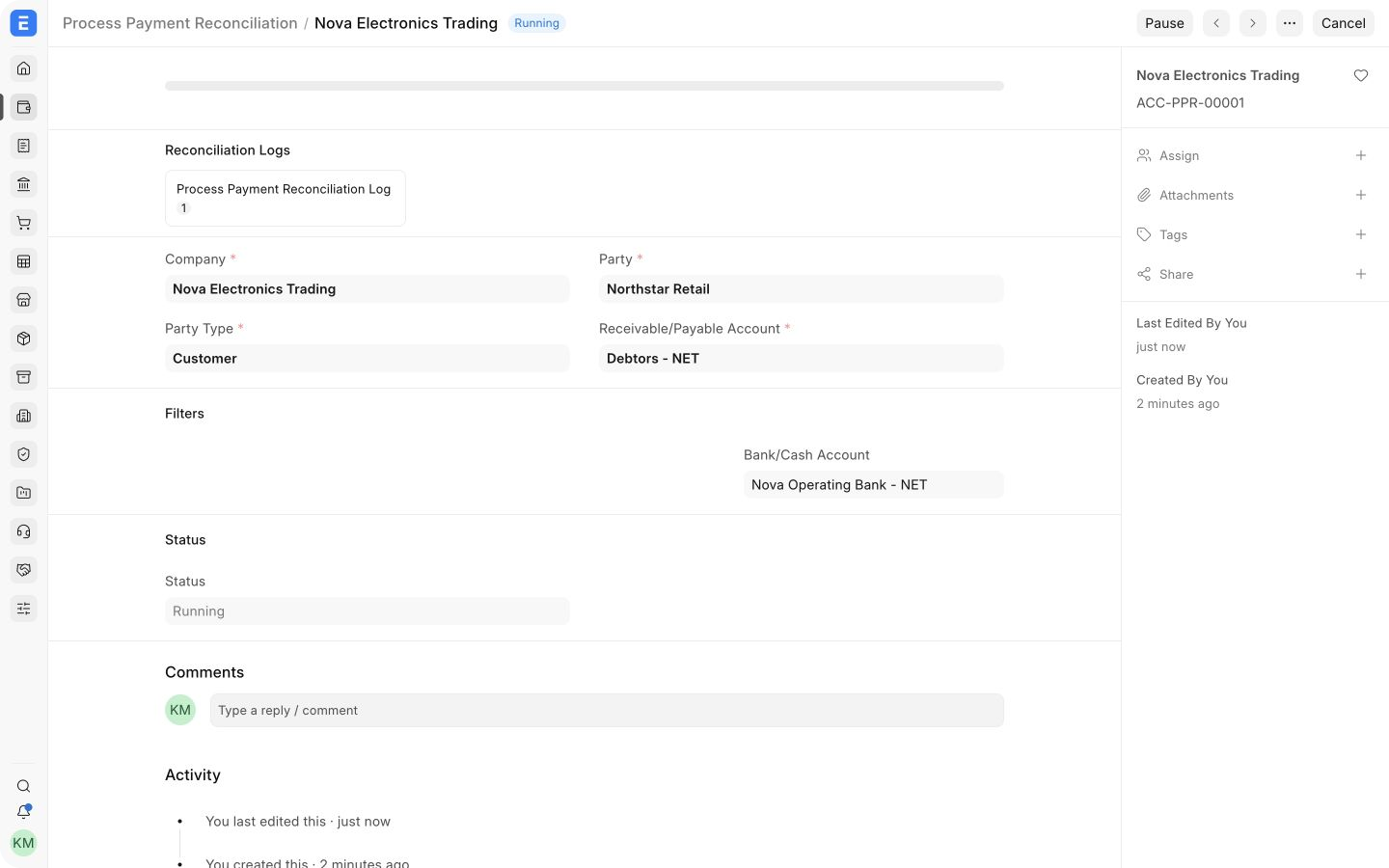
Section titled “5. Monitor progress”Keep the record open while Bravo Hub ERP processes the eligible entries. The progress area, reconciliation log count, and Running status show that the job is active.
6. Review the completed process
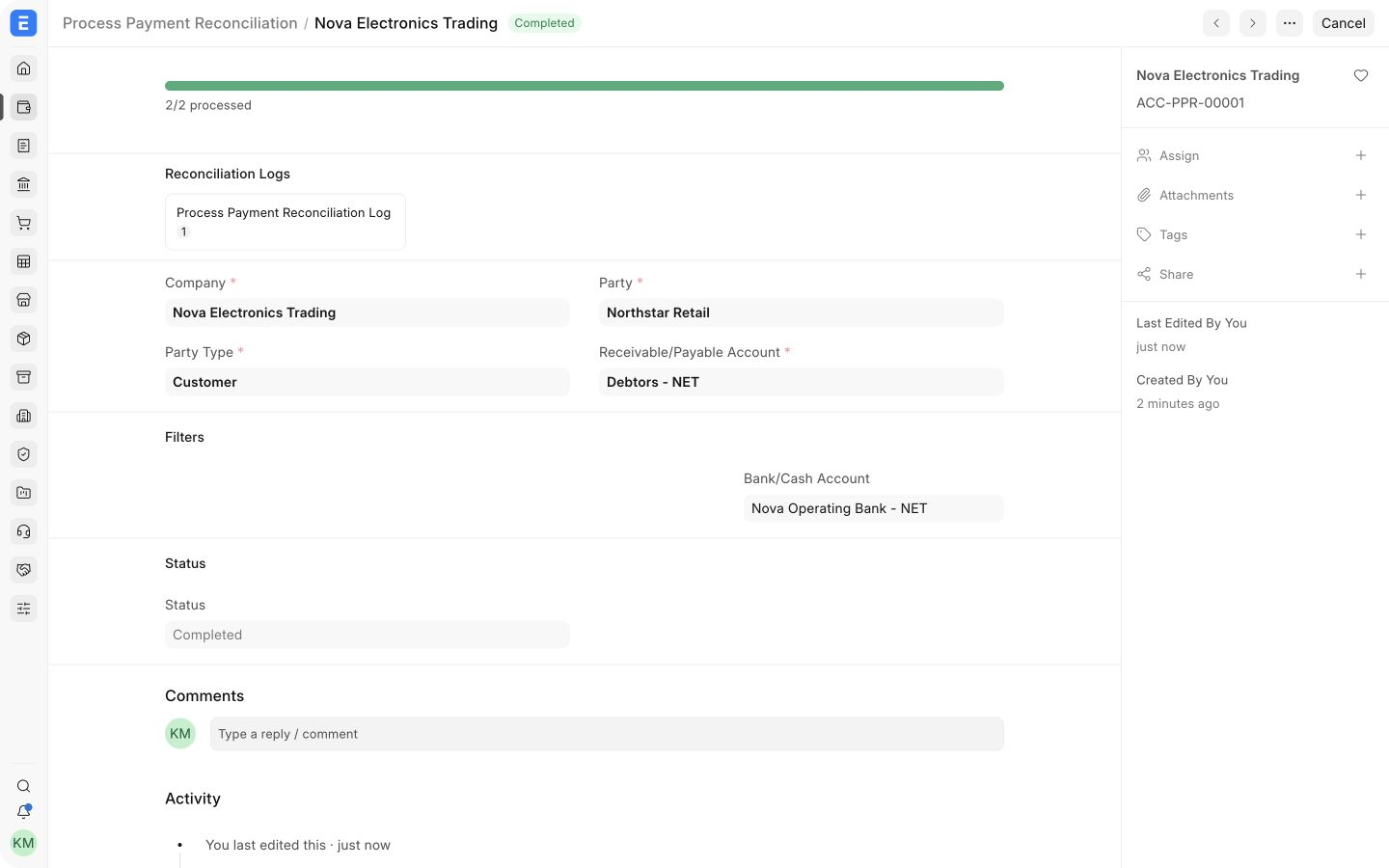
Section titled “6. Review the completed process”Wait for the status to become Completed. In this example, Bravo Hub ERP processed 2/2 eligible entries.
7. Verify the accounting result
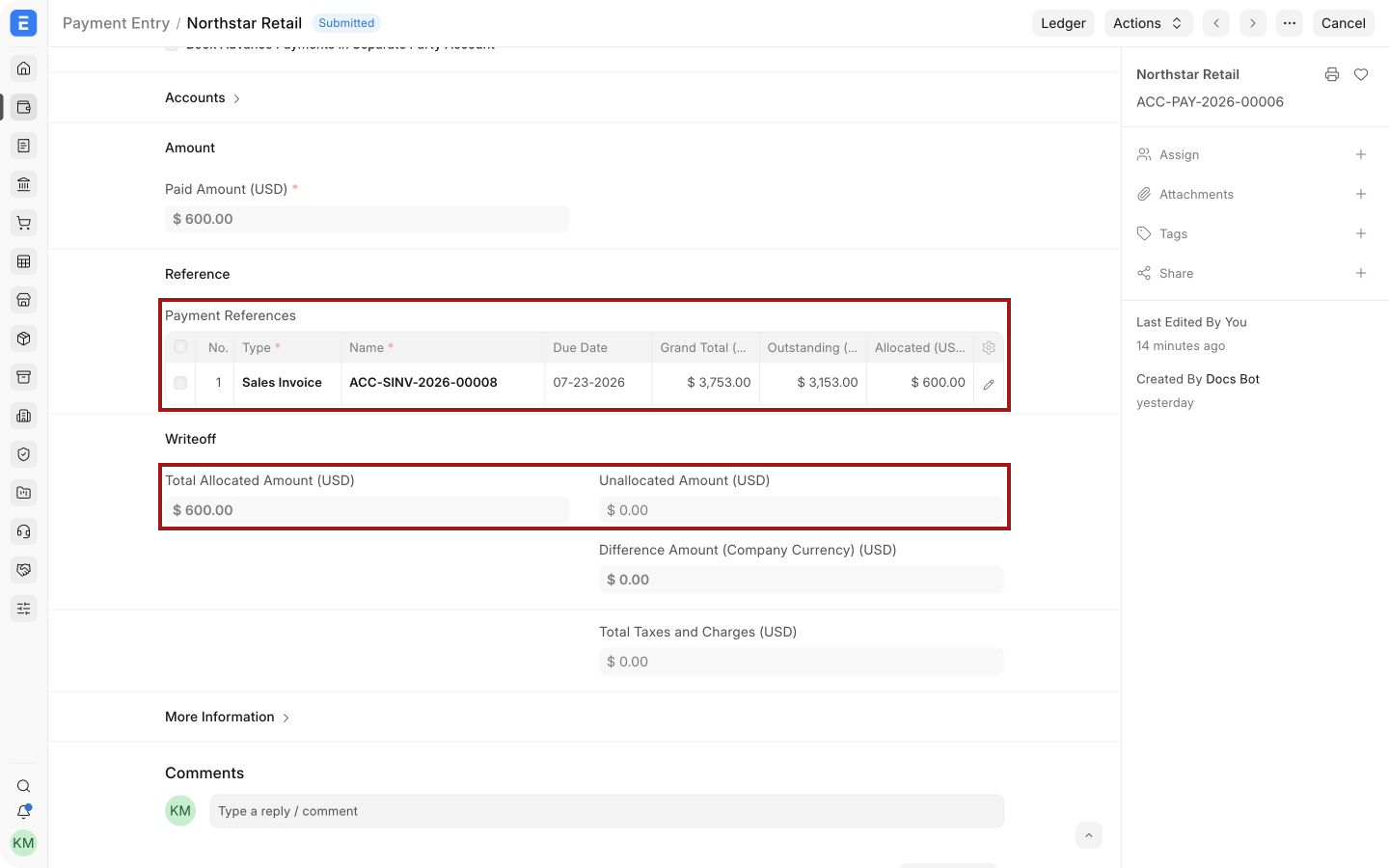
Section titled “7. Verify the accounting result”Open the affected Payment Entry or invoice and verify the allocation. Payment Entry ACC-PAY-2026-00006 now contains a USD 600 reference to ACC-SINV-2026-00008. Its Unallocated Amount is USD 0, and the invoice outstanding amount is USD 3,153.
Important fields and what they mean
Section titled “Important fields and what they mean”| Field | What it controls |
|---|---|
| Company | Company whose receivable or payable entries are included. |
| Party Type | Whether the process is for a Customer or Supplier. |
| Party | Customer or Supplier whose entries are evaluated. |
| Receivable/Payable Account | Party account that must match the eligible invoices and payments. |
| Default Advance Account | Limits the process to Payment Entries made against the selected advance account. |
| Invoice Date and Payment Date | Optional ranges that narrow the documents included. |
| Cost Center | Optional filter for entries assigned to a specific Cost Center. |
| Bank/Cash Account | Optional filter for payments made through a specific bank or cash ledger. |
| Status | Shows whether the process is Queued, Running, Paused, Completed, or failed. |
Troubleshooting
Section titled “Troubleshooting”The process remains queued
Section titled “The process remains queued”Enable Auto reconcile Payments in the Payments tab of Accounts Settings. Then return to the submitted process and click Start / Resume. Also confirm that background jobs are running on the site.
The process finds no eligible entries
Section titled “The process finds no eligible entries”Check the Company, Party Type, Party, receivable or payable account, date range, Cost Center, and Bank/Cash Account. The source invoices and payments must be submitted. The payment must still have an unallocated amount, and the invoice must still have an outstanding amount.
The process completes but an expected payment is unchanged
Section titled “The process completes but an expected payment is unchanged”Open the reconciliation log and compare the payment with the process filters. Check the party, currency, account, posting dates, and remaining amounts. Use Payment Reconciliation when the match needs manual judgment.
A process is paused or interrupted
Section titled “A process is paused or interrupted”Correct the underlying data or background-job issue, then use Start / Resume. Review the existing log and current outstanding amounts before rerunning the same scope.
Frequently asked questions
Section titled “Frequently asked questions”How does this differ from Payment Reconciliation?
Section titled “How does this differ from Payment Reconciliation?”Process Payment Reconciliation handles eligible entries automatically for a defined scope. Payment Reconciliation lets you manually select exact payments, invoices, and allocation amounts for one party.
Does submitting the process change the ledger immediately?
Section titled “Does submitting the process change the ledger immediately?”Submission queues the process. Review the status, progress, reconciliation logs, Payment Entry references, and outstanding amounts before treating the work as complete.
Can I restrict the process to one bank account or date range?
Section titled “Can I restrict the process to one bank account or date range?”You can use the Bank/Cash Account and invoice or payment date filters before saving the process.
Does the tool import bank transactions?
Section titled “Does the tool import bank transactions?”The tool does not import bank transactions. It allocates existing accounting entries. Use Bank Transaction and Bank Reconciliation for statement import and bank matching.