
Request for Raw Materials from Sales Order
هذا المحتوى غير متوفر بلغتك بعد.
Create a Material Request directly from one submitted Sales Order when you need to procure raw materials for its manufactured Items. Use a Production Plan when planning several Sales Orders or broader production demand together.
Before you begin
Section titled “Before you begin”Confirm:
- The Sales Order is submitted.
- Each manufactured Item has an active default Bill of Materials.
- BOM quantities and UOMs are correct.
- Warehouses and projected quantities are current.
- You have permission to create and submit Material Requests.
This action is intended for manufactured Items. A purchased finished good without a BOM will not produce raw-material requirements.
Create the Material Request
Section titled “Create the Material Request”- Open the submitted Sales Order.
- Select Create.
- Select Request for Raw Materials.
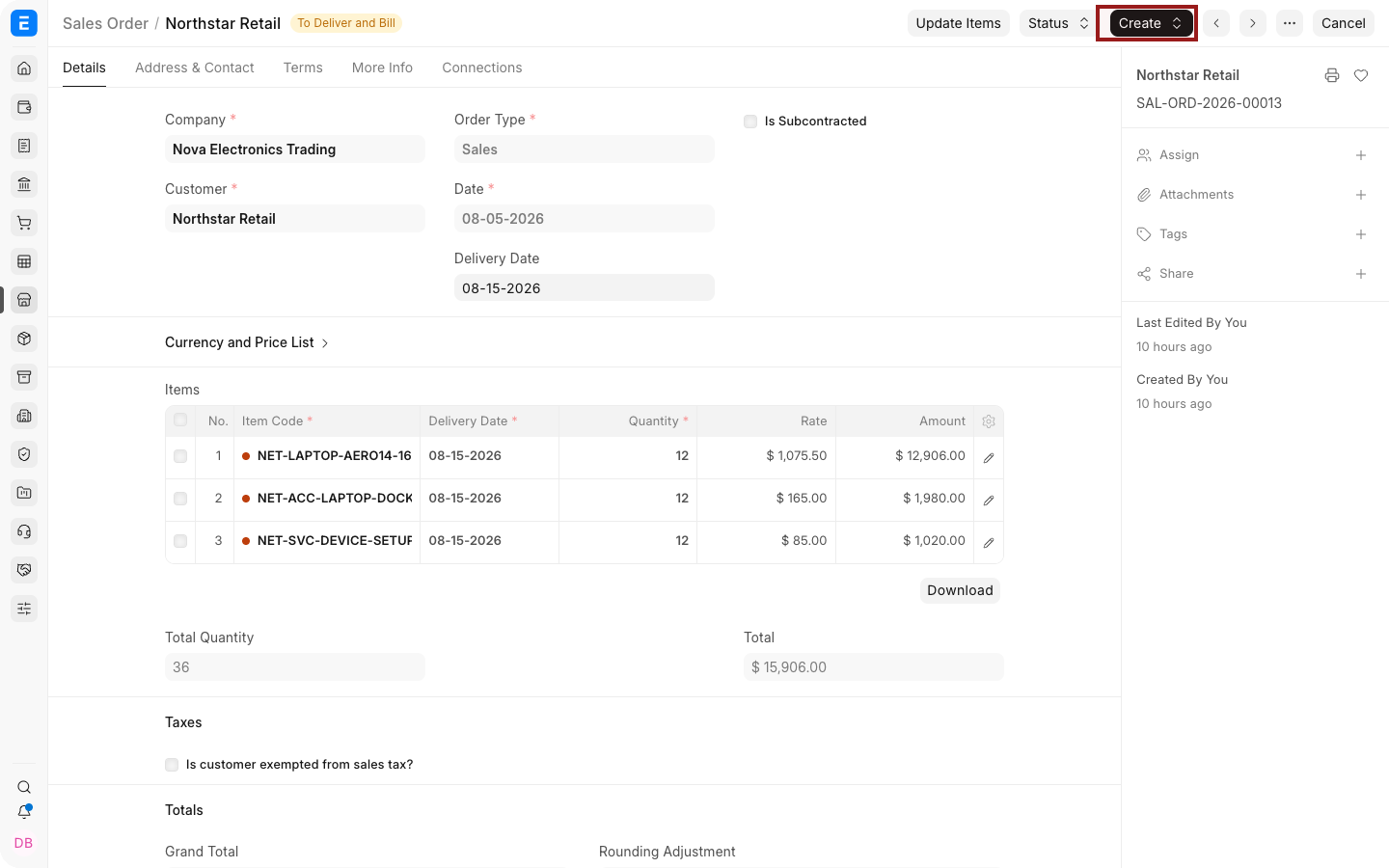
Bravo Hub ERP opens a dialog containing eligible finished Items with BOMs.
- Review the finished Items and required quantities.
- Change the BOM only when another valid BOM should be used.
- Select the source and target Warehouses or other options shown by your version.
- Choose whether to include exploded Items or ignore existing ordered quantity.
- Select Create or Make.
Bravo Hub ERP creates a Material Request containing the calculated raw materials.
Review the Material Request
Section titled “Review the Material Request”Check:
- Material Request Type.
- Schedule Date.
- Item, Quantity, UOM, and Warehouse.
- Links to the Sales Order and BOM.
- Projected stock and existing supply.
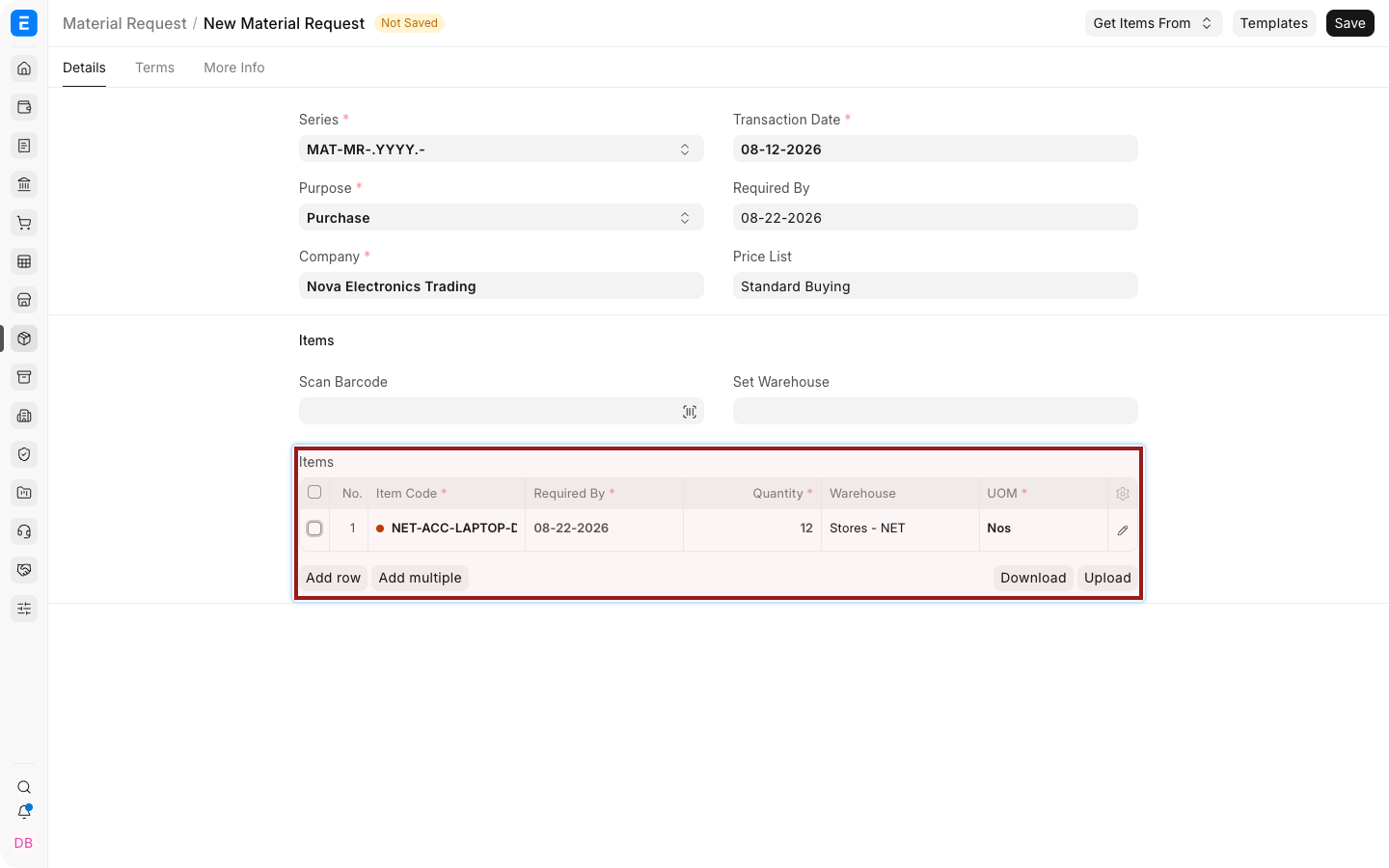
The dot before an Item Code shows stock availability at a glance: green means in stock and red means out of stock. Select the highlighted pencil icon to open the full child-row editor when you need additional planning fields.
Submit the Material Request only after confirming that it will not duplicate existing procurement or production supply.
Options in the dialog
Section titled “Options in the dialog”| Option | Effect |
|---|---|
| Include Exploded Items | Uses lower-level raw materials from multi-level BOMs instead of only the immediate components |
| Ignore Existing Ordered Qty | Requests the calculated requirement without reducing it for quantities already ordered |
| BOM | Selects which active BOM supplies the component structure |
Field labels can vary by version. Review the generated Items rather than relying only on the option name.
Choose this workflow or Production Plan
Section titled “Choose this workflow or Production Plan”| Requirement | Recommended workflow |
|---|---|
| One Sales Order needs raw-material procurement | Request for Raw Materials from Sales Order |
| Several Sales Orders need consolidated planning | Production Plan |
| Manufacture and operations must be scheduled | Production Plan and Work Orders |
| Replenishment is driven by stock levels | Reorder or Material Request planning |
Troubleshooting
Section titled “Troubleshooting”| Problem | What to check |
|---|---|
| Menu action is missing | Confirm the Sales Order is submitted and contains a manufactured Item with a valid BOM |
| Finished Item is absent from the dialog | Check the default and active BOM |
| Quantities are unexpected | Review Sales Order Qty, BOM Qty, conversion factors, scrap, and exploded-item behavior |
| Duplicate procurement is suggested | Review projected quantity and avoid Ignore Existing Ordered Qty unless intentional |
| Wrong Warehouse is used | Review Item, BOM, Company, and dialog Warehouse defaults |
Frequently asked questions
Section titled “Frequently asked questions”Does this create a Purchase Order?
Section titled “Does this create a Purchase Order?”No. It creates a Material Request. Continue through your procurement workflow to create a Request for Quotation or Purchase Order.
Is the Material Request submitted automatically?
Section titled “Is the Material Request submitted automatically?”Confirm the resulting document’s status in your current version and approval workflow. Review it before submission.
Can I use a non-default BOM?
Section titled “Can I use a non-default BOM?”Yes, when the dialog permits selecting another active BOM.
Should I enable Ignore Existing Ordered Qty?
Section titled “Should I enable Ignore Existing Ordered Qty?”Only when you intentionally want to request the full requirement despite existing supply.