
Tax Inclusive Accounting
هذا المحتوى غير متوفر بلغتك بعد.
Use tax-inclusive accounting when the item price entered on a sales or purchase transaction already contains tax. Bravo Hub ERP back-calculates the tax and taxable value instead of adding the tax on top of the entered price.
For example, an item price of $108 includes 8% tax. Bravo Hub ERP separates it into:
| Component | Amount |
|---|---|
| Tax-exclusive value | $100.00 |
| Included tax | $8.00 |
| Customer-facing total | $108.00 |
Without the inclusive setting, an 8% tax row would add $8.64 to $108 and produce $116.64. The checkbox therefore changes how Bravo Hub ERP interprets the entered price.
Before you begin
Section titled “Before you begin”Confirm that the displayed or agreed item rate is tax-inclusive. Do not enable the option simply to keep a desired Grand Total. The commercial price, printed rate, tax rule, and accounting treatment must all describe the same arrangement.
You need:
- A tax Account Head in the Chart of Accounts.
- A Sales Taxes and Charges Template or Purchase Taxes and Charges Template.
- The applicable tax rate.
- A small example whose net value and included tax you can calculate manually.
If different items use different rates, prepare the relevant Item Tax Templates before testing the transaction.
Understand the back-calculation
Section titled “Understand the back-calculation”For one inclusive percentage tax, Bravo Hub ERP derives the tax-exclusive value using:
Inclusive price ÷ (1 + tax rate ÷ 100)
For an entered price of $108 and an 8% rate:
$108 ÷ 1.08 = $100
The included tax is:
$108 - $100 = $8
The original documentation used a $100 price that included 10% tax. The same principle produces approximately $90.91 net and $9.09 tax, with display rounding commonly shown as $9.10 depending on currency precision. The current demo uses $108 at 8% so the result is easier to verify exactly.
Configure an inclusive tax row
Section titled “Configure an inclusive tax row”Create or open the reusable tax template.
- Add a tax row.
- Set Type to the required calculation, commonly On Net Total.
- Select the correct Account Head.
- Enter the Tax Rate.
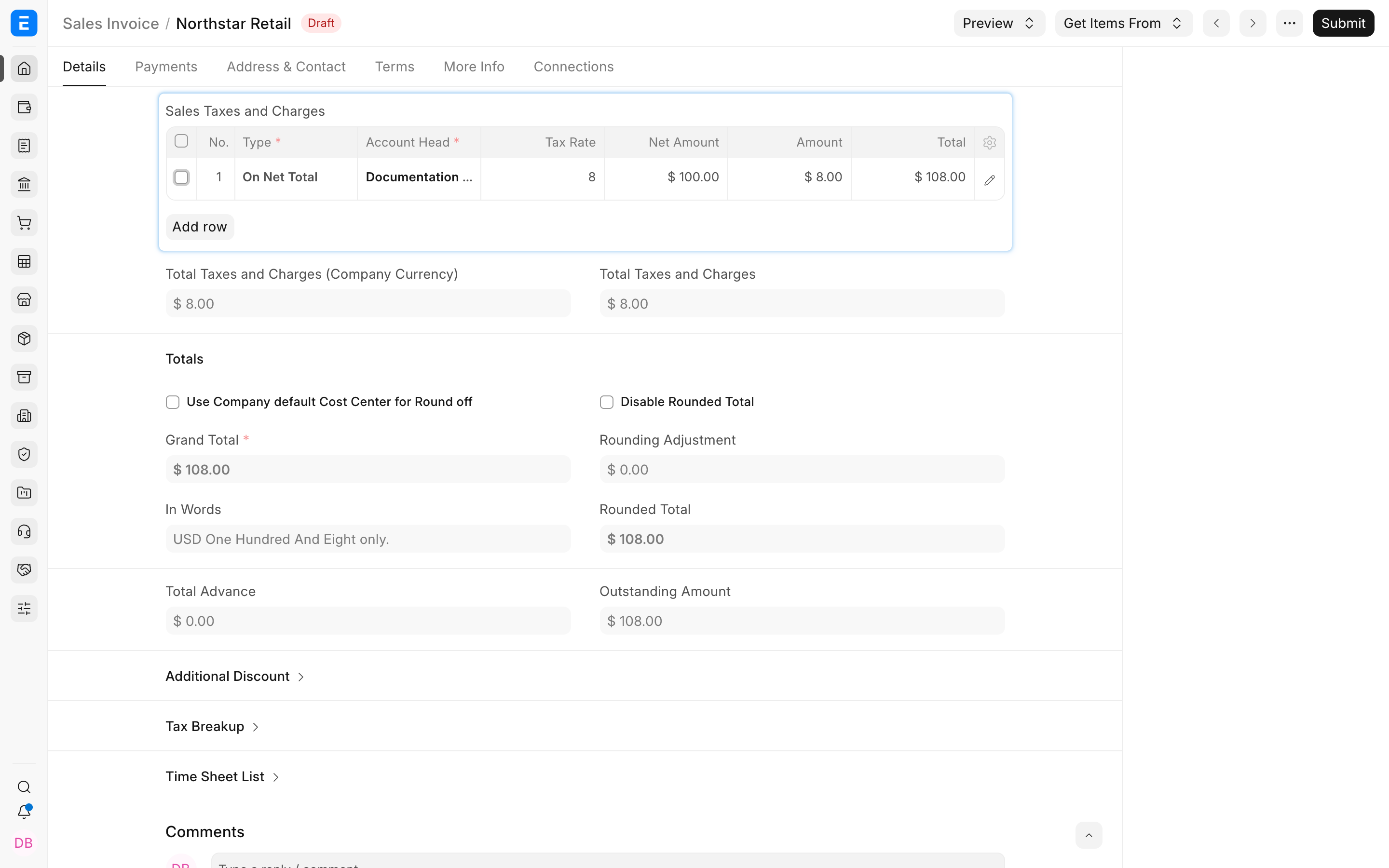
- Open the row using its pencil icon.
In the row editor, select Is this Tax included in Basic Rate?. The field description explains that the tax amount is already included in the Print Rate or Print Amount.
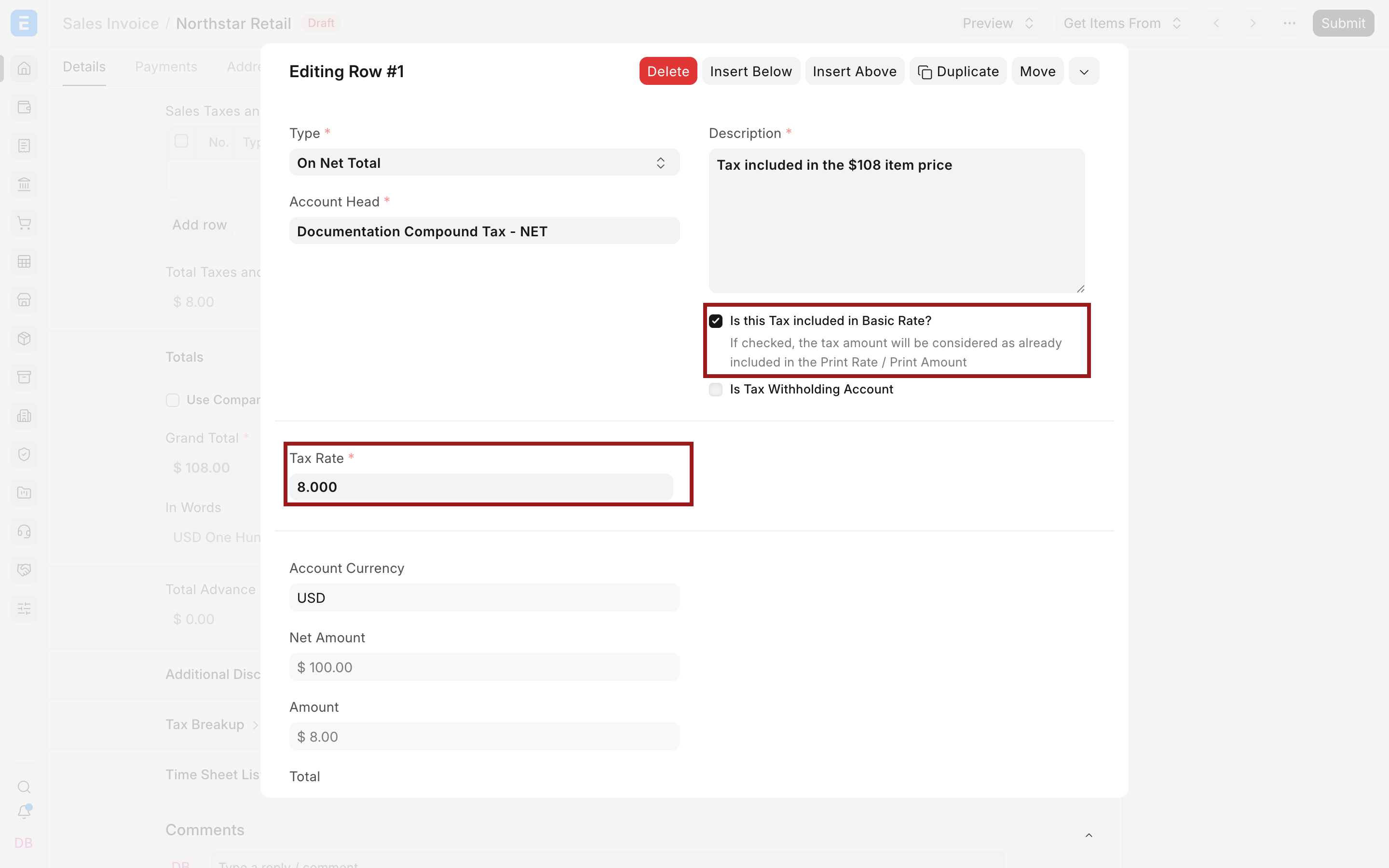
The calculation Type and the inclusive checkbox have different purposes. Type determines the calculation base. The checkbox tells Bravo Hub ERP that the calculated tax is already inside the entered item rate.
Apply the template to a transaction
Section titled “Apply the template to a transaction”Select the template on a draft Sales Invoice, Quotation, Sales Order, Purchase Invoice, or another supported transaction.
Enter the tax-inclusive item rate. In this example, the item row uses $108. Bravo Hub ERP displays:
- Net Total: $100.00.
- Tax Amount: $8.00.
- Grand Total: $108.00.
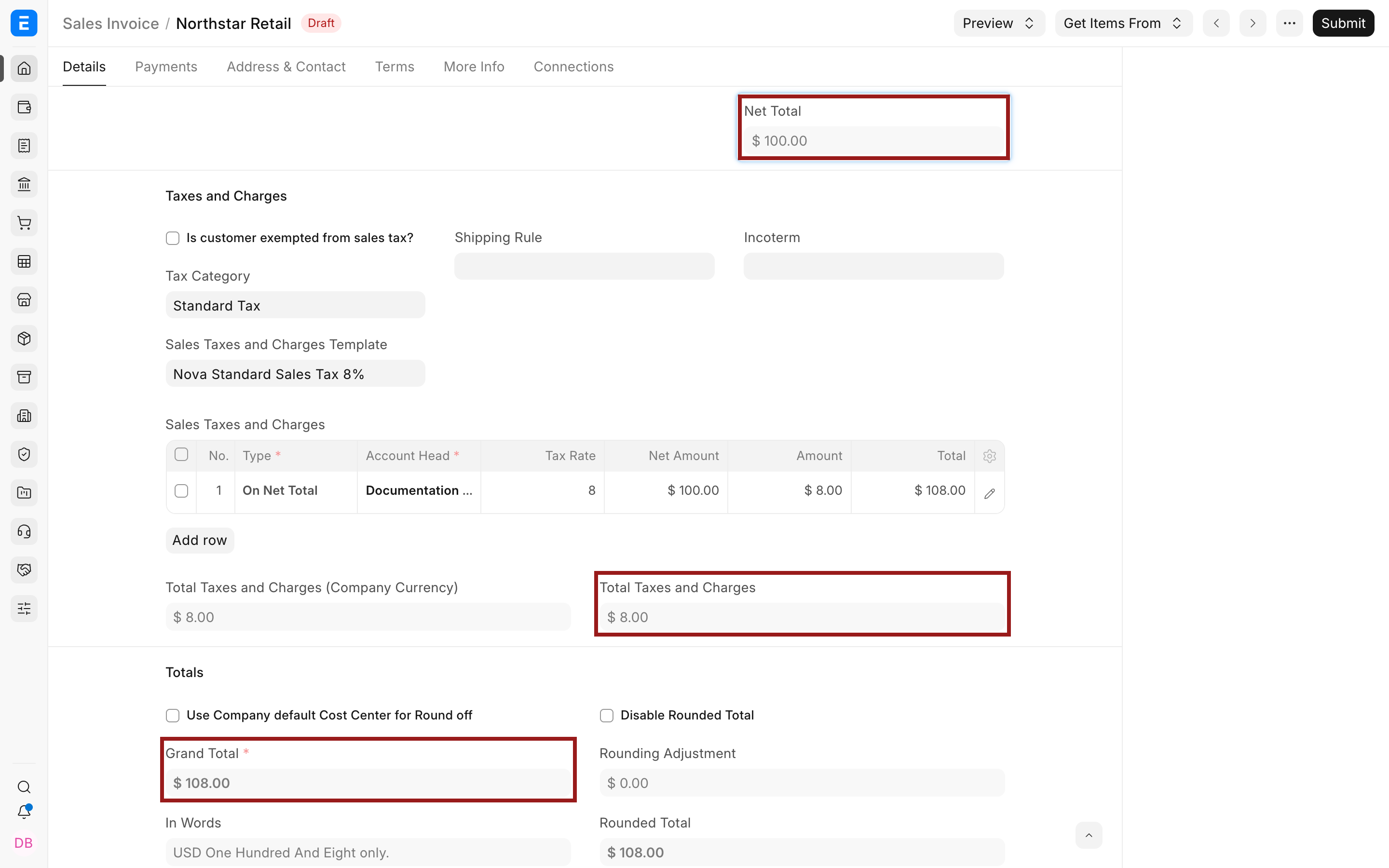
The customer still pays $108. Bravo Hub ERP posts the net value and tax to their respective accounts rather than treating the complete $108 as income.
Understand Rate, Net Rate, and printed values
Section titled “Understand Rate, Net Rate, and printed values”Inclusive pricing can expose both commercial and accounting values:
| Value | Meaning in the example |
|---|---|
| Entered or Print Rate | $108.00, the price communicated to the customer |
| Net Rate | $100.00, the rate after removing included tax |
| Tax Amount | $8.00 |
| Grand Total | $108.00 |
Review the selected Print Format to ensure the invoice communicates prices and taxes as required. Whether tax must be shown separately depends on local rules even when it is included in the displayed price.
Use multiple inclusive taxes carefully
Section titled “Use multiple inclusive taxes carefully”When more than one tax is included in the item rate, row order and calculation type matter. A second row might apply to Net Total, another tax Amount, or a previous running Total.
Build the sequence using Types in Tax Template, then verify every row with a manual example. Do not assume Bravo Hub ERP divides the inclusive price equally between taxes.
If a tax is calculated on another tax, confirm whether the required type is On Previous Row Amount or On Previous Row Total. The two bases produce different results.
Use item-specific inclusive tax rates
Section titled “Use item-specific inclusive tax rates”When a transaction contains items taxed at different rates, apply Item Tax Templates to those items. The transaction tax table must still contain the matching tax Account Head so Bravo Hub ERP can calculate and post the item-wise amounts.
Test a mixed transaction containing:
- A standard-rate item.
- A reduced-rate item.
- An exempt item, if applicable.
Confirm each item’s Net Rate and the tax breakup. Also verify the Tax Category and Tax Rule if Bravo Hub ERP selects templates automatically.
Discounts and inclusive tax
Section titled “Discounts and inclusive tax”A discount can change the taxable value and included tax. The exact result depends on whether the discount is applied to the item rate, Net Total, or Grand Total.
Use a controlled example to confirm the intended sequence. Compare the entered Rate, Net Rate, Net Total, tax Amount, discount, and Grand Total. Avoid manually editing the tax Amount to force the result because that can hide an incorrect configuration.
Verify accounting after submission
Section titled “Verify accounting after submission”Submit a controlled invoice and open the General Ledger.
For a simple $108 sale with $8 included tax, the high-level effect is:
| Account effect | Debit | Credit |
|---|---|---|
| Customer receivable | $108.00 | |
| Income | $100.00 | |
| Tax liability | $8.00 |
Actual account names and additional entries depend on company configuration and whether stock is updated. The total credit should still reconcile to the customer debit for this simple example.
Troubleshooting
Section titled “Troubleshooting”Bravo Hub ERP adds tax on top of the displayed price
Section titled “Bravo Hub ERP adds tax on top of the displayed price”Open the tax row and confirm that Is this Tax included in Basic Rate? is selected. Also verify that the correct template and row are applied to the transaction.
The calculated tax differs by a cent
Section titled “The calculated tax differs by a cent”Inclusive tax often requires division and rounding. Review currency precision, item quantity, per-line rounding, and the document’s rounding adjustment before treating a small difference as a configuration error.
The total is correct but income is overstated
Section titled “The total is correct but income is overstated”The entire entered rate may be posting as income because the inclusive tax row is missing, uses the wrong Account Head, or was not applied. Review the transaction tax breakup and General Ledger.
An exempt item still receives tax
Section titled “An exempt item still receives tax”Check its Item Tax Template, item row selection, matching transaction tax Account Head, and the Tax Rule or Tax Category that selected the main template.
Frequently asked questions
Section titled “Frequently asked questions”Does inclusive tax reduce the amount the customer pays?
Section titled “Does inclusive tax reduce the amount the customer pays?”- It separates tax from a price that already contains it. In the $108 example, the customer pays $108 while Bravo Hub ERP records $100 net income and $8 tax.
Should I enter $100 or $108 as the item rate?
Section titled “Should I enter $100 or $108 as the item rate?”Enter $108 when $108 is the agreed tax-inclusive price. Enter $100 when the agreed price is tax-exclusive and tax should be added on top.
Can purchase prices be tax-inclusive?
Section titled “Can purchase prices be tax-inclusive?”Y
es. Use the inclusive setting on purchase tax rows when the supplier’s entered price includes tax, then verify recoverability and valuation treatment with your accountant.
Can some tax rows be inclusive and others exclusive?
Section titled “Can some tax rows be inclusive and others exclusive?”Yes, but the sequence can become complex. Configure each row according to the real calculation and verify the resulting bases and totals manually.
Why is included tax not exactly rate multiplied by the entered price?
Section titled “Why is included tax not exactly rate multiplied by the entered price?”Because the entered price already contains tax. Bravo Hub ERP first derives the tax-exclusive base, then calculates the included tax from that base.