Payroll Settings
هذا المحتوى غير متوفر بلغتك بعد.
Payroll Settings allow you to configure global settings for the Payroll module.
To access Payroll Settings, go to: > Home > Payroll > Settings > Payroll Settings
1. Working Days & Hours
Section titled “1. Working Days & Hours”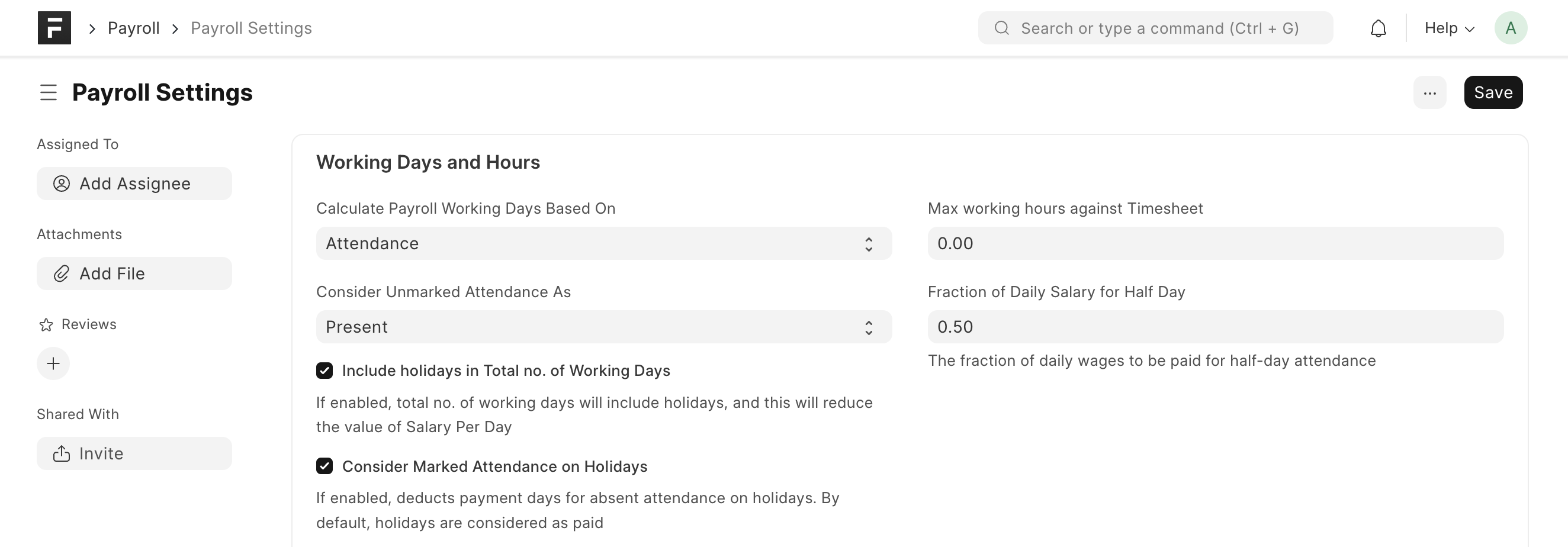
1.1 Calculate Payroll Working Days Based On
Section titled “1.1 Calculate Payroll Working Days Based On”Working Days in Salary Slip can be calculated based on Leave Application or Attendance records.
1.2 Consider Unmarked Attendance As
Section titled “1.2 Consider Unmarked Attendance As”If you set payroll based on Attendance, this option will be shown. It allows you to control the status of unmarked attendance. Eg: If you set it as Present, you don’t need to explicitly mark attendance for every employee throughout the month. Just mark the absent days and the rest would be considered as Present by default.
1.3 Include holidays in Total no. of Working Days
Section titled “1.3 Include holidays in Total no. of Working Days”If checked, the total number of working days will include holidays, and this will reduce the value of salary per day. Eg: If there are 10 holidays in a 30-day month, the Total Working Days will be considered as 30 if this checkbox is enabled and 20 if disabled. Then attendance will be checked for these 30/20 days to find out the payment days.
1.4 Consider Marked Attendance on Holidays
Section titled “1.4 Consider Marked Attendance on Holidays”By default, holidays are considered as paid days. If this is enabled and you mark attendance on a holiday, the marked attendance will override holiday status on that day. Eg: if you mark an employee as Absent on a holiday, it will be counted as an absent day and not a paid one.
1.5 Max working hours against Timesheet
Section titled “1.5 Max working hours against Timesheet”For salary slips based on the timesheet, you can set the maximum allowed hours against a single timesheet. Set this value to zero to disable this validation.
1.6 Fraction of Daily Salary for Half Day
Section titled “1.6 Fraction of Daily Salary for Half Day”Based on this fraction, the salary for Half Day will be calculated. For example, if the value is set as 0.75, then the three-fourth salary will be given for half-day attendance.
2. Salary Slip
Section titled “2. Salary Slip”
2.1 Disable Rounded Total
Section titled “2.1 Disable Rounded Total”If enabled, hides and disables Rounded Total field in Salary Slips
2.2 Show Leave Balances in Salary Slip
Section titled “2.2 Show Leave Balances in Salary Slip”3. Email
Section titled “3. Email”
3.1 Email Salary Slip to Employee
Section titled “3.1 Email Salary Slip to Employee”An email with the salary slip is sent to the respective employee’s preferred email address on submission of the salary slip.
3.2 Encrypt Salary Slips in Emails
Section titled “3.2 Encrypt Salary Slips in Emails”The salary slip PDF sent to the employee is encrypted using the mentioned Password Policy.
3.3 Password Policy
Section titled “3.3 Password Policy”This field becomes visible and mandatory on checking the above option for encrypting the salary slip in email.
Here is an example of how to set a Password Policy for the salary slip PDF.
Example:
SAL-{first_name}-{date_of_birth.year}This will generate a password like SAL-Jane-1972
4. Other Settings
Section titled “4. Other Settings”
4.1 Define Opening Balance for Earning and Deduction
Section titled “4.1 Define Opening Balance for Earning and Deduction”If enabled, it will allow you to set up opening entries for Taxable Earnings till Date and Tax Deducted till Date in the Salary Structure Assignment if there are no existing salary slips for the employee.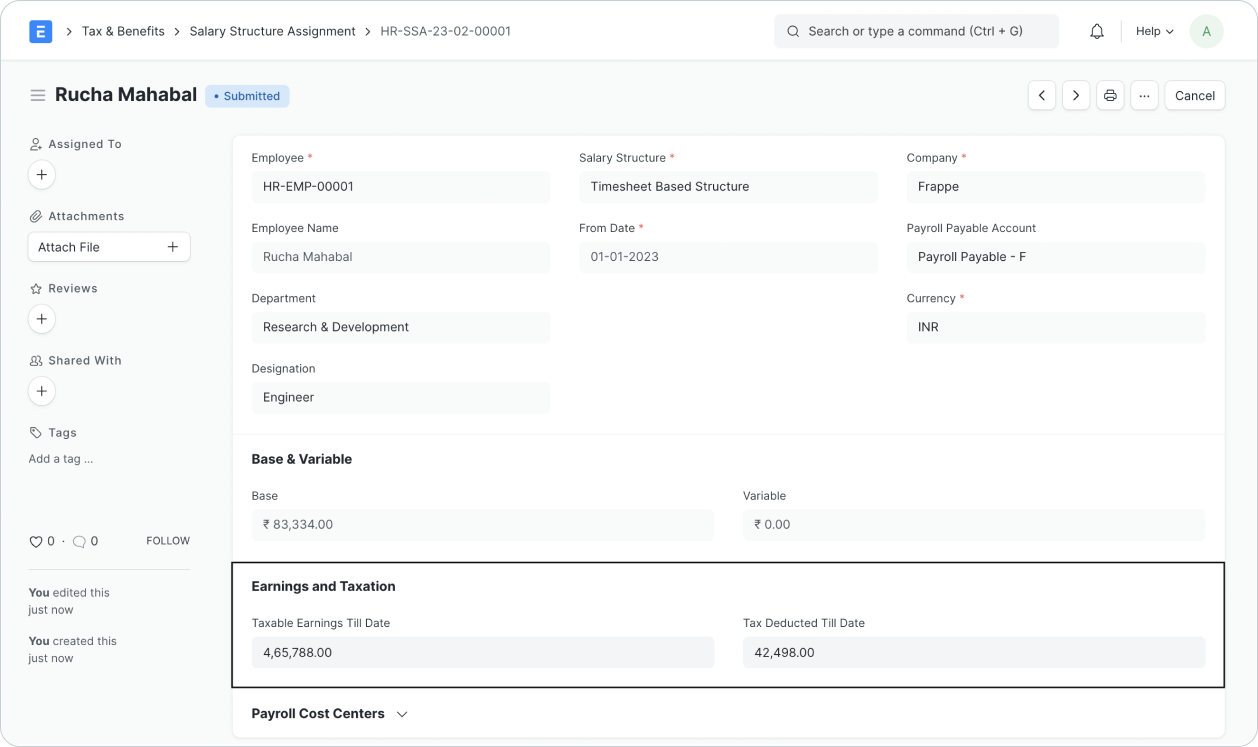
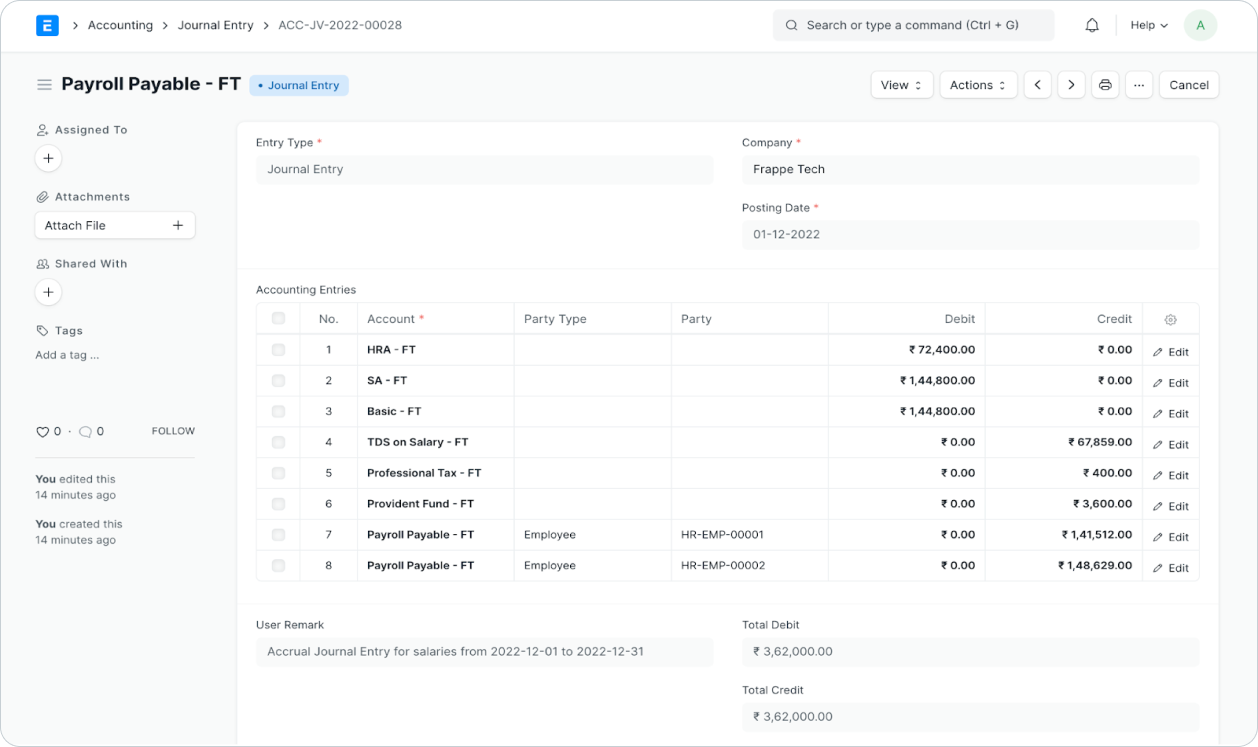
4.2 Process Payroll Accounting Entry based on Employee
Section titled “4.2 Process Payroll Accounting Entry based on Employee”By default, a consolidated Journal Entry is created against the Payroll Entry for all the employees. If you want a better breakup of payroll amounts per employee, enable this to process employee-wise accounting entries.