
Customize Print Format
هذا المحتوى غير متوفر بلغتك بعد.
Print Formats are the layouts that are generated when you want to Print or Email a transaction.
This feature comes handy for all the transactions in Bravo Hub ERP like all the sales and purchase transactions, HR documents and lot more.
In Bravo Hub ERP, there are three types of Print Formats, namely, Standard Print Format, Custom Print Format and HTML Print Format.
Standard Print Format
Section titled “Standard Print Format”Every Printable Document Type in Bravo Hub ERP will have it’s own Standard Print Format which gets generated by the Bravo Hub Framework. The field placement in the Standard Print Formats will be dependent on the position of the respective fields in the document.
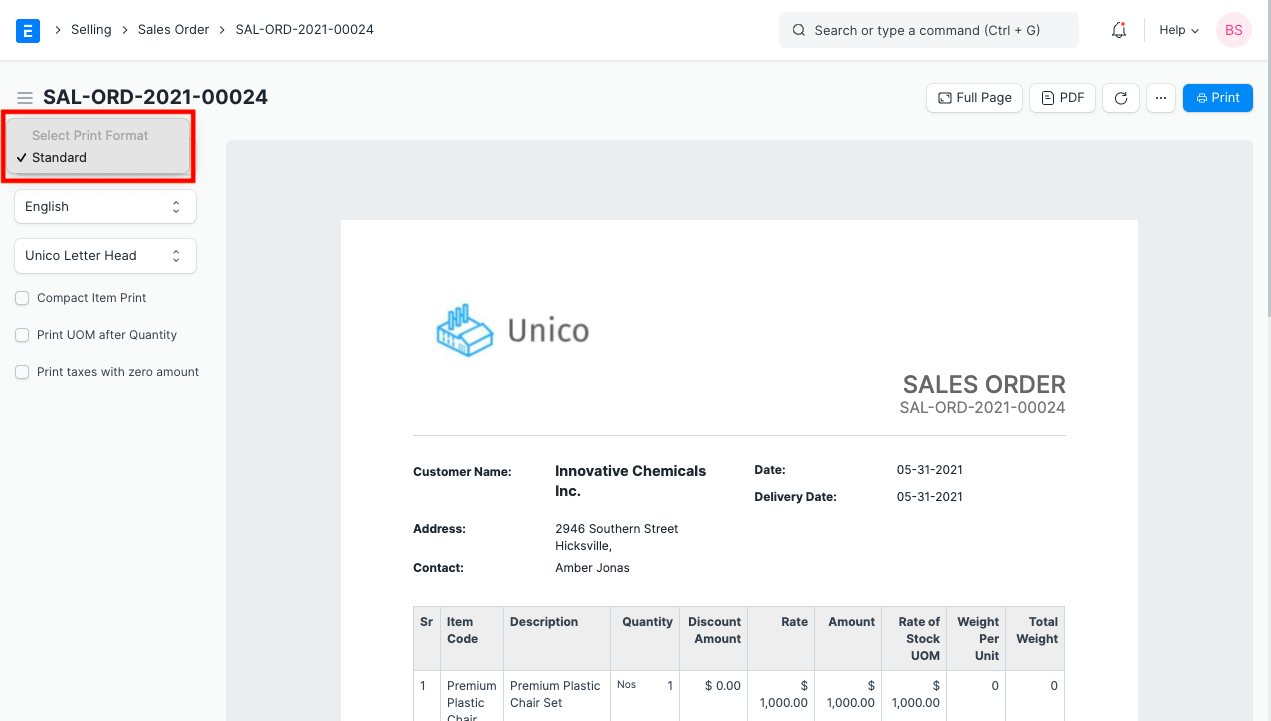
Any changes made to the Standard Print Format will have to be done using a Customize Form. You can also checkout adding fields in Print Formats.
Custom Print Format
Section titled “Custom Print Format”You can also create your own custom Print Formats by using a tool called Print Format Builder. This tool will help you in making a simple Customized Print Format by dragging and dropping fields in a format as per your preference.
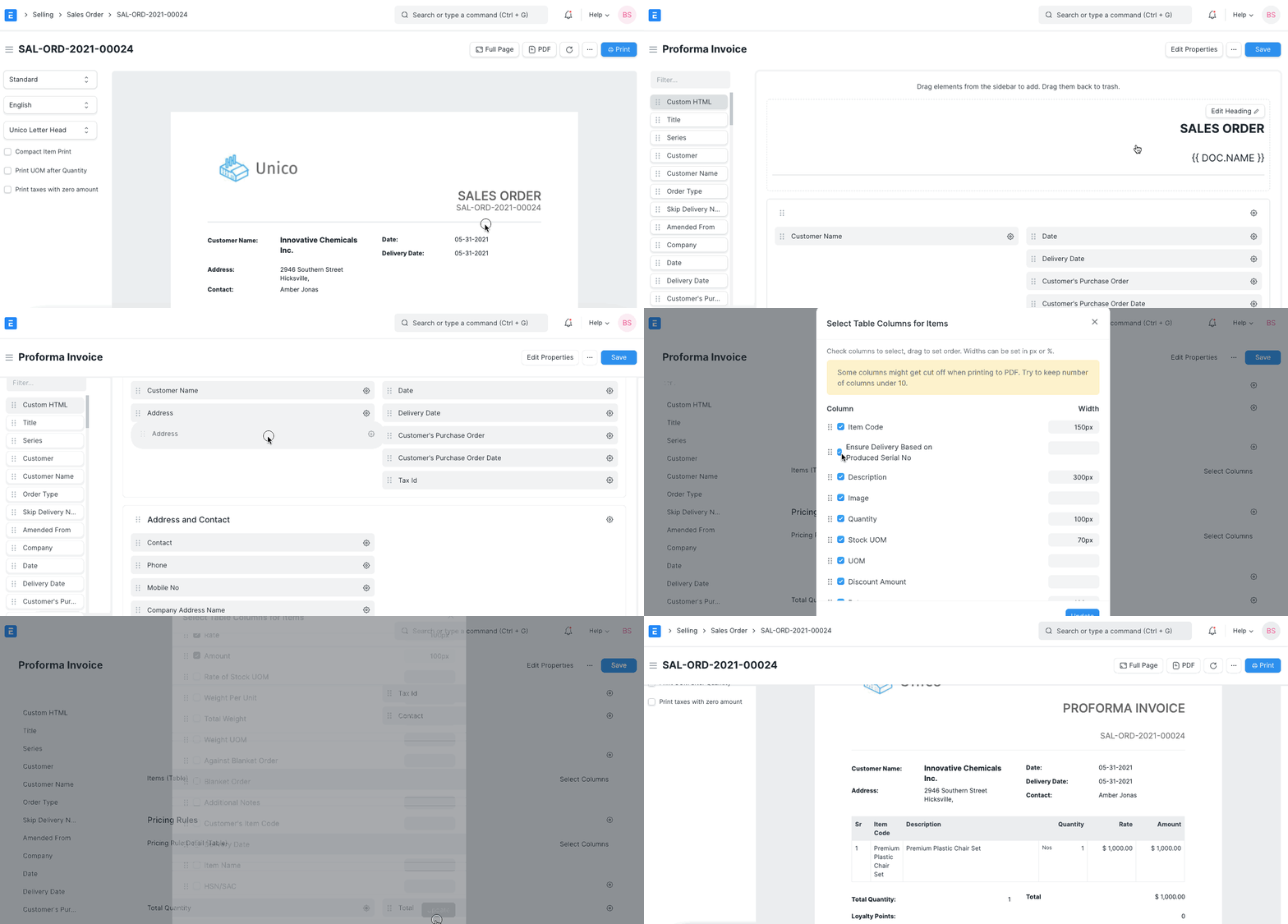
For creating Custom Print Formats, Bravo Hub ERP comes with several pre-defined templates in three styles, namely, Modern, Monochrome and Classic.
To create your versions, open an existing template from:
Build > Views > Print Format
Print Settings
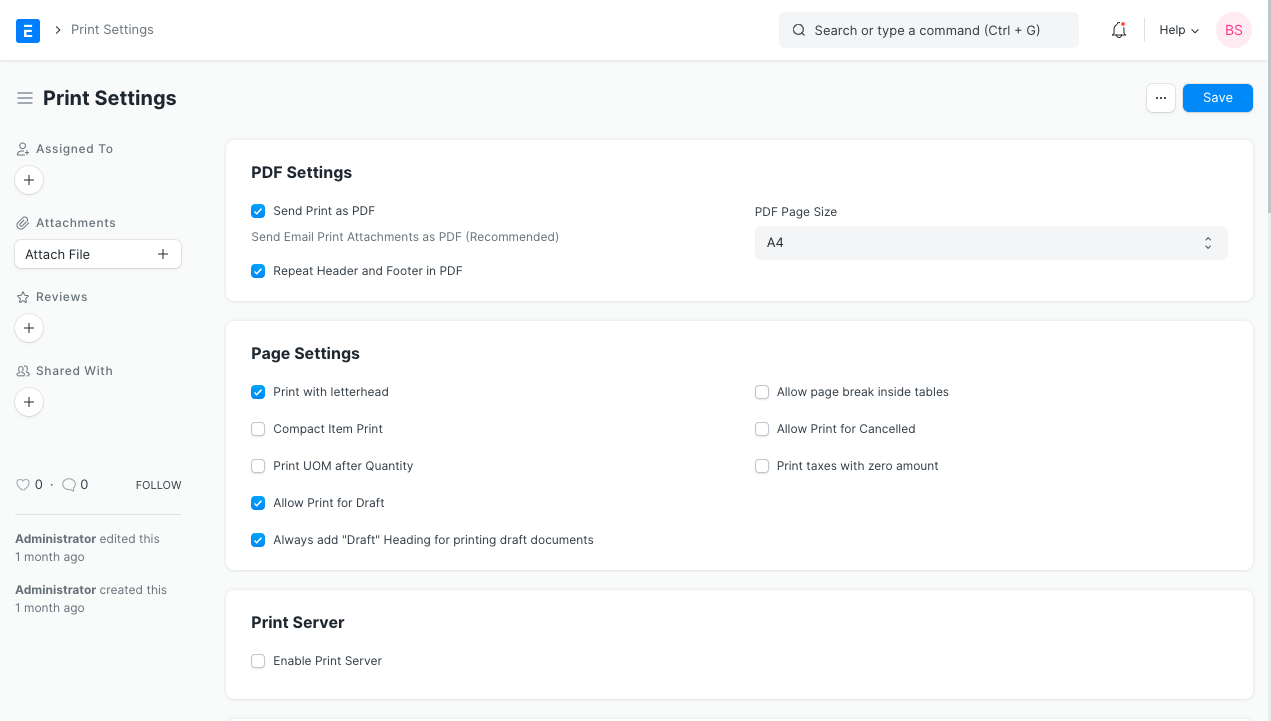
Section titled “Print Settings”To edit/update your print and PDF settings, go to:
Settings > Print Settings
HTML Print Format
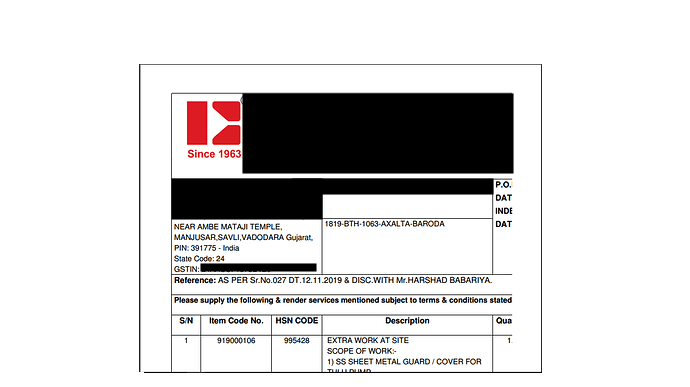
Section titled “HTML Print Format”For creating an HTML Print Format, you would require some knowledge of HTML, CSS, and Python. Here is an example of how a Print Format can be design which has very specific format.
Print Formats are provided on the server-side using the Jinja Templating Language. All forms have access to the doc object which contains information about the document that is being formatted. You can also access common utilities via the frappe module. To avail support when creating an HTML based print format, you can refer to Bravo Hub ERP Community forum, or start a new post for your query.
For styling, the Bootstrap CSS Framework is provided and you can enjoy the full range of classes.
References
Section titled “References”Example
Section titled “Example”<h3>{{ doc.select_print_heading or "Invoice" }}</h3><div class="row"> <div class="col-md-3 text-right">Customer Name</div> <div class="col-md-9">{{ doc.customer_name }}</div></div><div class="row"> <div class="col-md-3 text-right">Date</div> <div class="col-md-9">{{ doc.get_formatted("invoice_date") }}</div></div>
{%- for row in doc.items -%}
{%- endfor -%} <table class="table table-bordered"> <tbody> <tr> <th>Sr</th> <th>Item Name</th> <th>Description</th> <th class="text-right">Qty</th> <th class="text-right">Rate</th> <th class="text-right">Amount</th> </tr><tr> <td style="width: 3%;">{{ row.idx }}</td> <td style="width: 20%;"> {{ row.item_name }} {% if row.item_code != row.item_name -%} <br>Item Code: {{ row.item_code}} {%- endif %} </td> <td style="width: 37%;"> <div style="border: 0px;">{{ row.description }}</div> </td> <td style="width: 10%; text-align: right;"> {{ row.qty }} {{ row.uom or row.stock_uom }} </td> <td style="width: 15%; text-align: right;"> {{ row.get_formatted("rate", doc) }} </td> <td style="width: 15%; text-align: right;"> {{ row.get_formatted("amount", doc) }} </td> </tr></tbody></table>- To get date and currency formatted values use,
doc.get_formatted("fieldname") - For translatable strings, use
{{ _("This string is translated") }}