
Repost Accounting Ledger
هذا المحتوى غير متوفر بلغتك بعد.
Nova Industries corrects a supported accounting field on a submitted transaction, but a report still reflects the earlier ledger values. The business document is now correct, yet its General Ledger entries must be rebuilt so reports agree with it.
Repost Accounting Ledger regenerates ledger entries for selected submitted transactions. It is an administrative repair tool, not a way to change the commercial meaning of a transaction.
Use it only for supported corrections or system repairs, then verify the affected document and accounting reports before treating the issue as resolved.
Before you begin
Section titled “Before you begin”Confirm the following:
- You have the System Manager role. Standard Accounts roles do not have permission to create or submit this administrative record.
- The source transaction is submitted and belongs to the company you will select.
- The source document now contains the correct accounts, dimensions, amounts, taxes, and valuation information.
- The voucher type is listed under Allowed DocTypes in Accounts Settings.
- The affected posting period is open. Bravo Hub ERP does not repost vouchers covered by a submitted Period Closing Voucher.
- You have a backup and a test plan before processing a large or production-critical correction.
Reposting is supported only for configured voucher types. Common examples include Sales Invoice, Purchase Invoice, Payment Entry, Journal Entry, Purchase Receipt, and Expense Claim.
Allow a voucher type to be reposted
Section titled “Allow a voucher type to be reposted”Open Accounts Settings and select the Payments tab. In the Repost section, add each permitted transaction type to Allowed DocTypes, then save.
Changing supported accounting fields after submission can trigger reposting for the DocTypes listed here. Remove a DocType when your organization does not want those post-submit changes to initiate a repost.
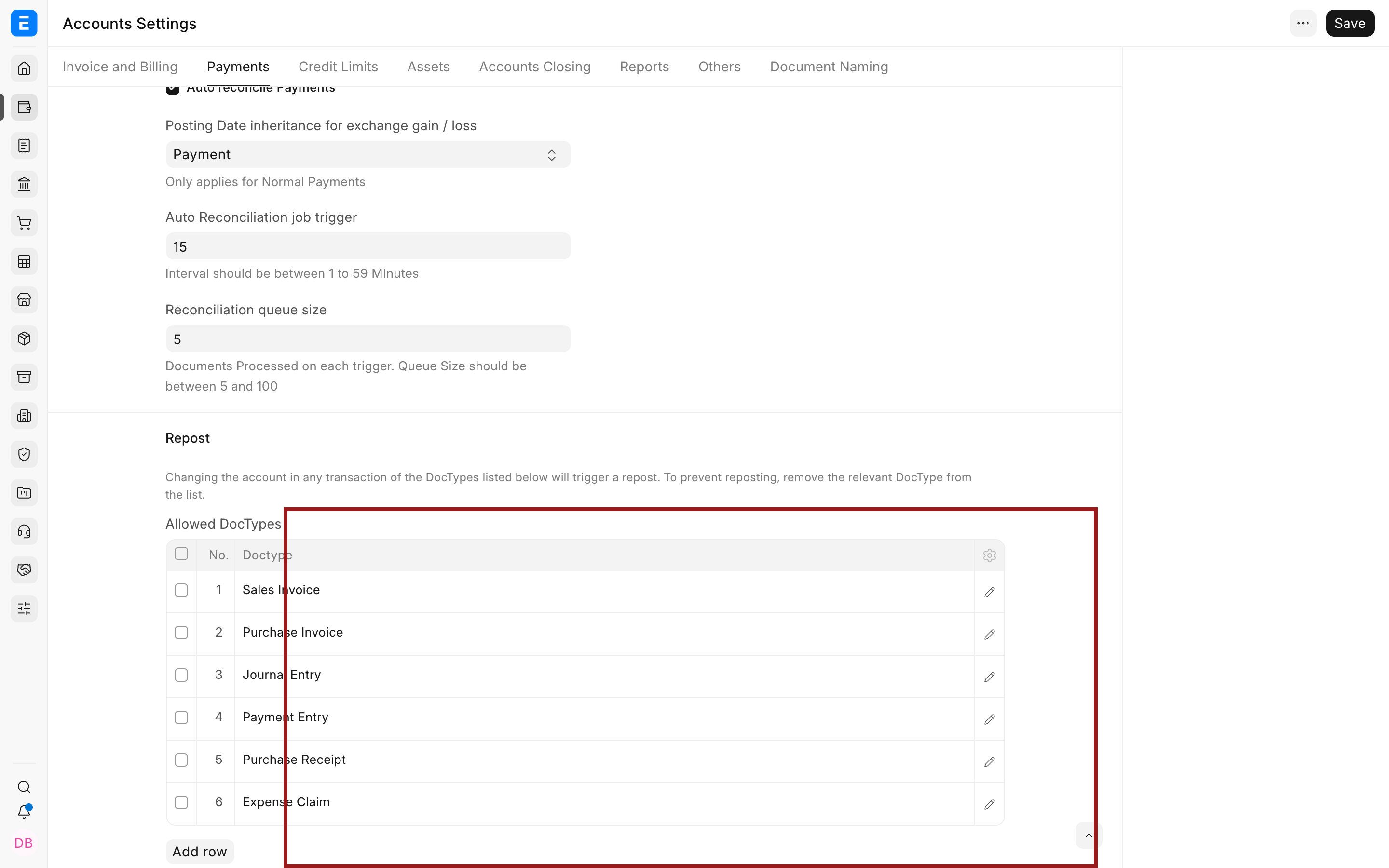
Keep the list deliberate. Adding a DocType authorizes a sensitive accounting repair workflow; it is not a requirement to add every accounting transaction.
Create a Repost Accounting Ledger record
Section titled “Create a Repost Accounting Ledger record”Search for Repost Accounting Ledger from the Awesome Bar. The list shows draft and submitted repost records.
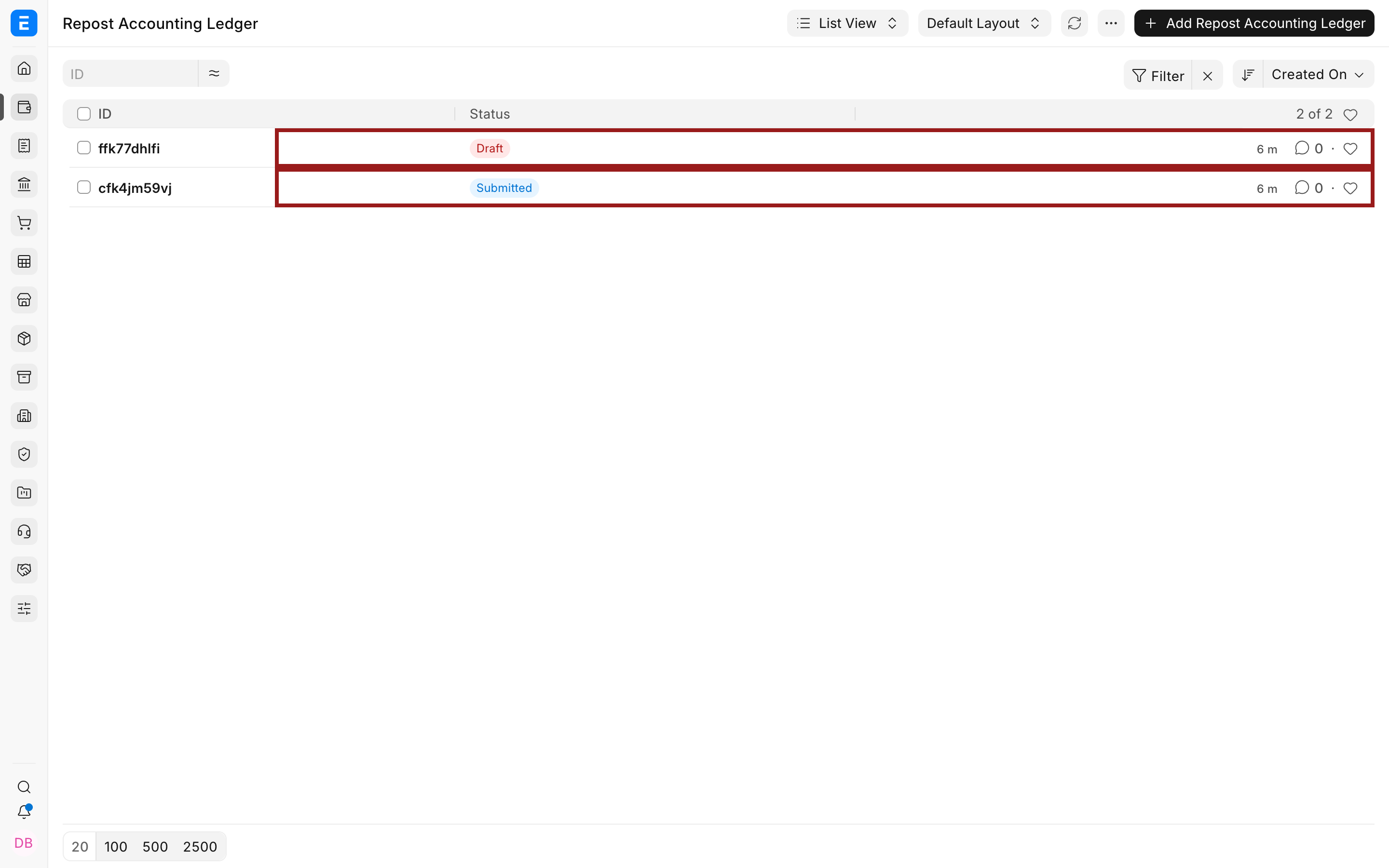
Select Add Repost Accounting Ledger.
Choose the Company that owns the source vouchers. Leave Delete Cancelled Ledger Entries cleared for a normal repost.
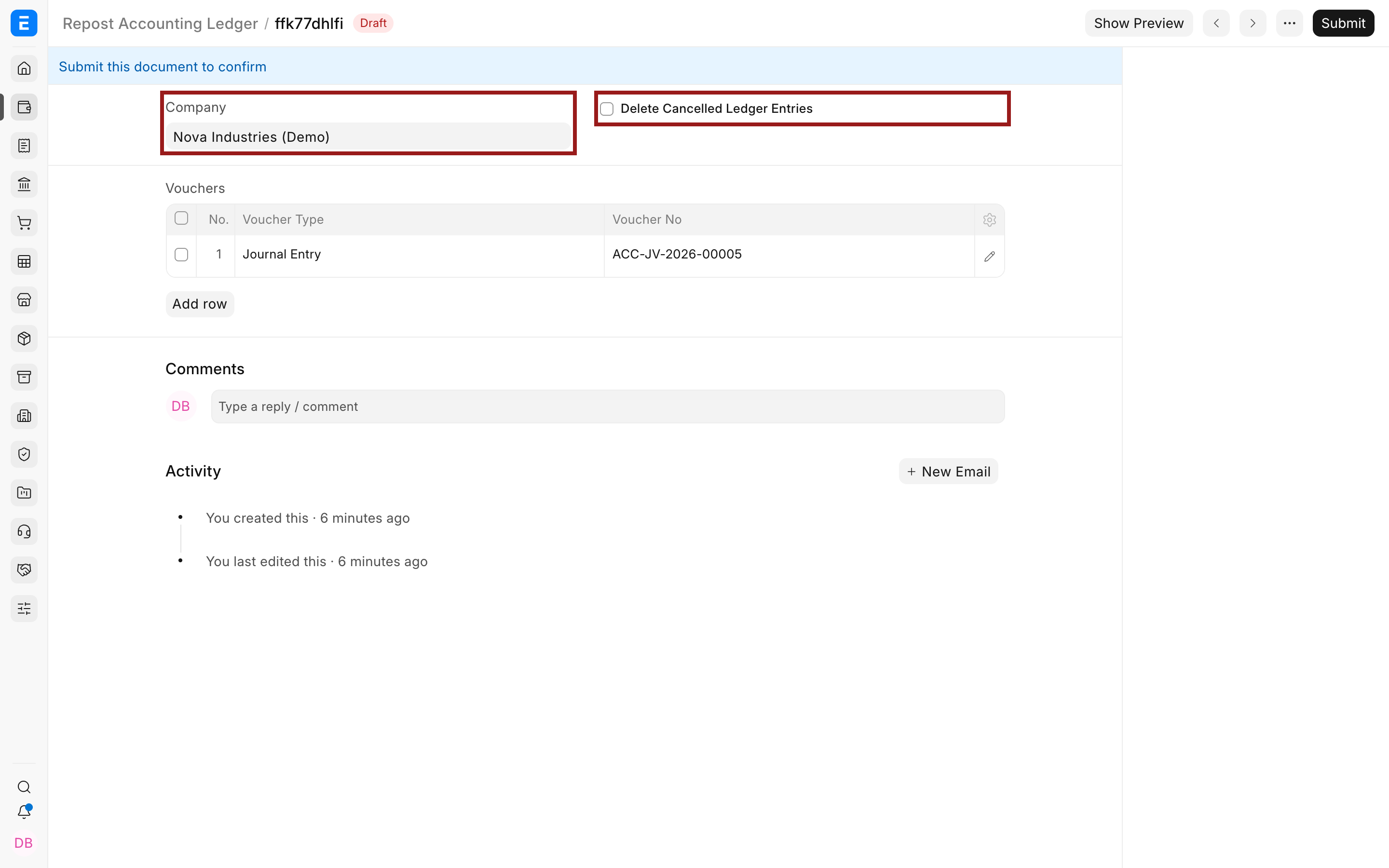
In Vouchers, add the submitted documents that need recalculation. Select a Voucher Type, then select the corresponding Voucher No. The voucher list is restricted to submitted records from the selected company.
Select the pencil icon when you need to open and review the child-table row.
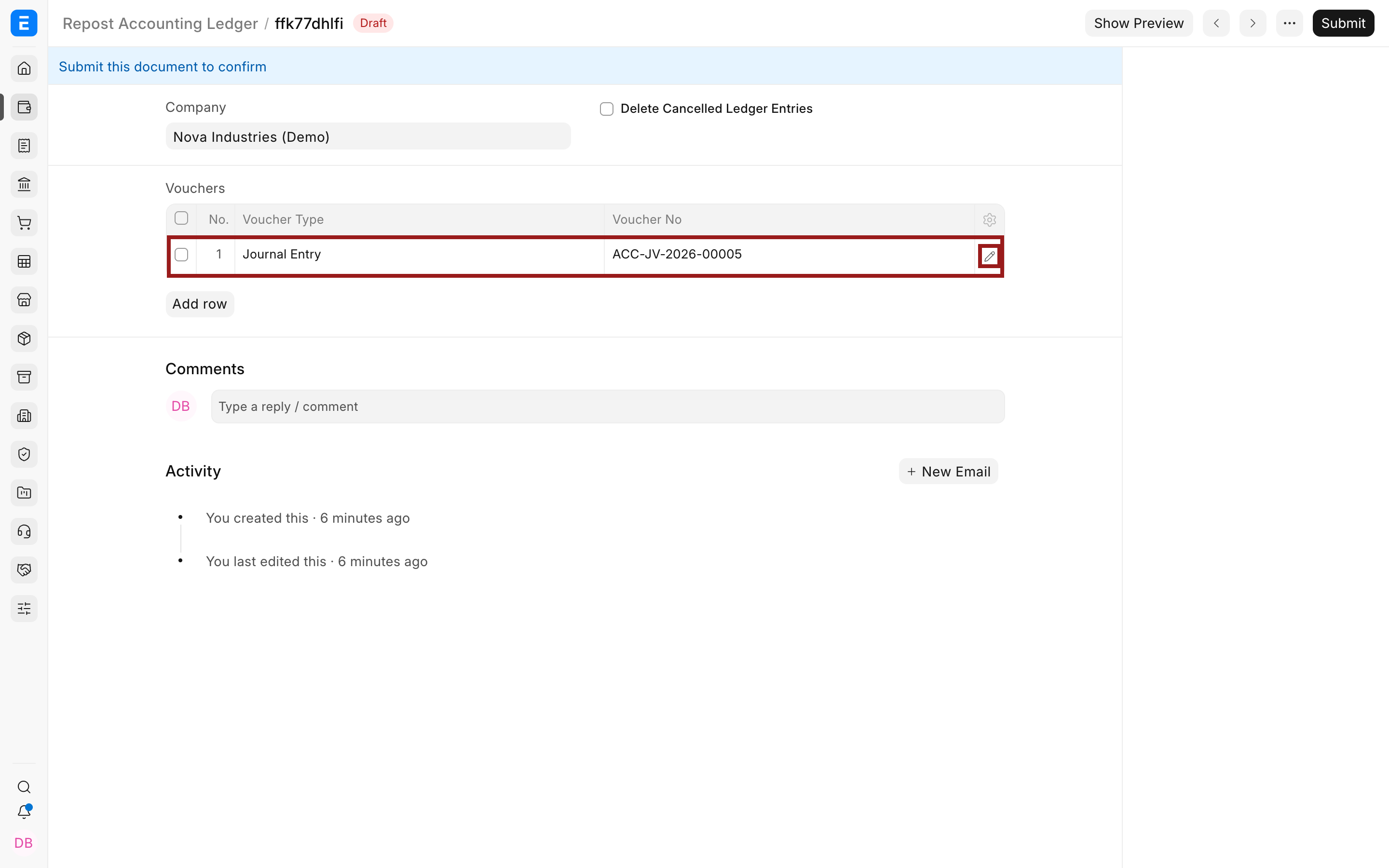
The example uses Journal Entry ACC-JV-2026-00005, a $250 transfer from Demo Bank Account to Cash.
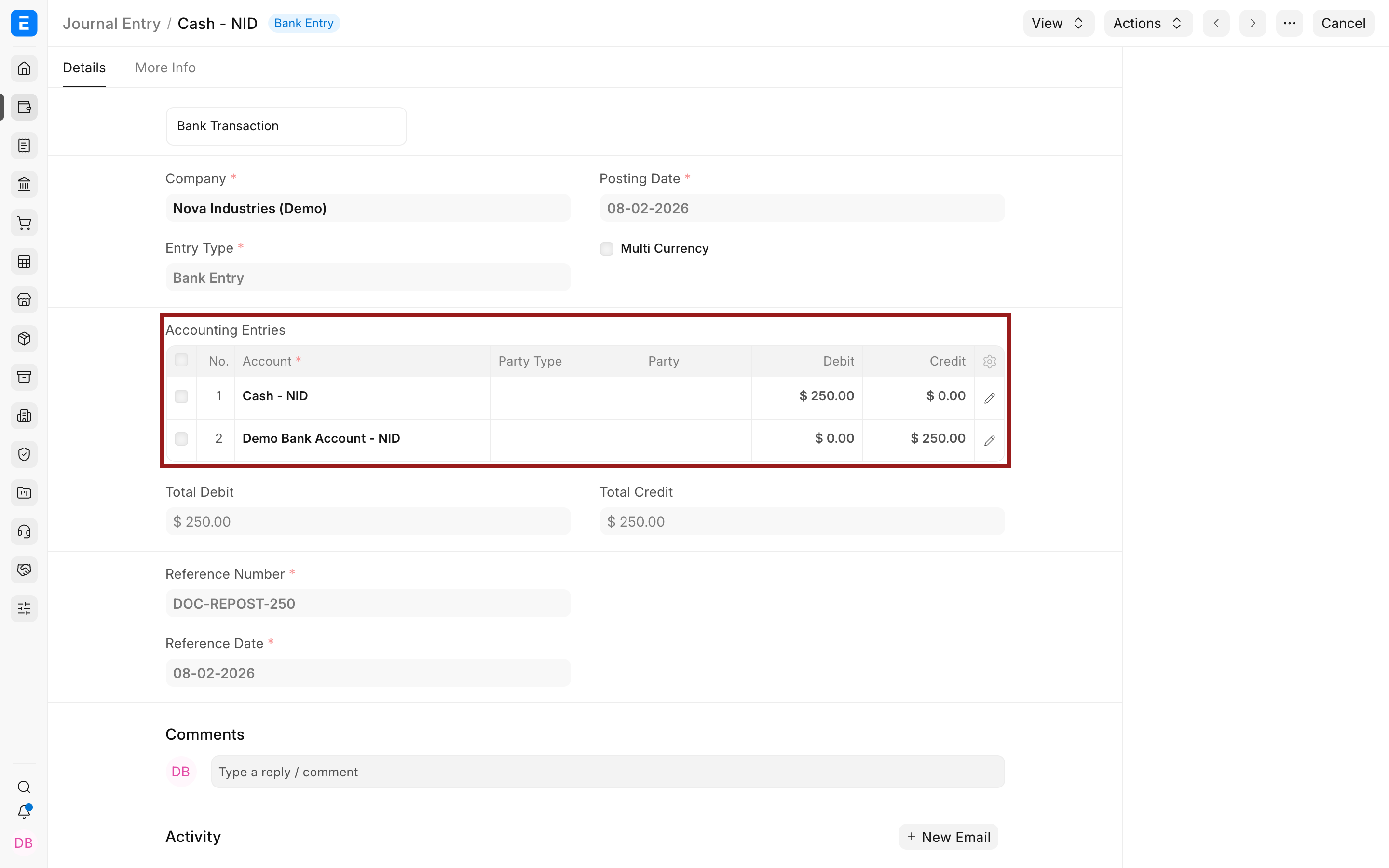
Save the repost as a draft.
Preview the regenerated entries
Section titled “Preview the regenerated entries”Select Show Preview before submitting. Bravo Hub ERP generates the ledger map again from the current source document and compares it with the existing entries.
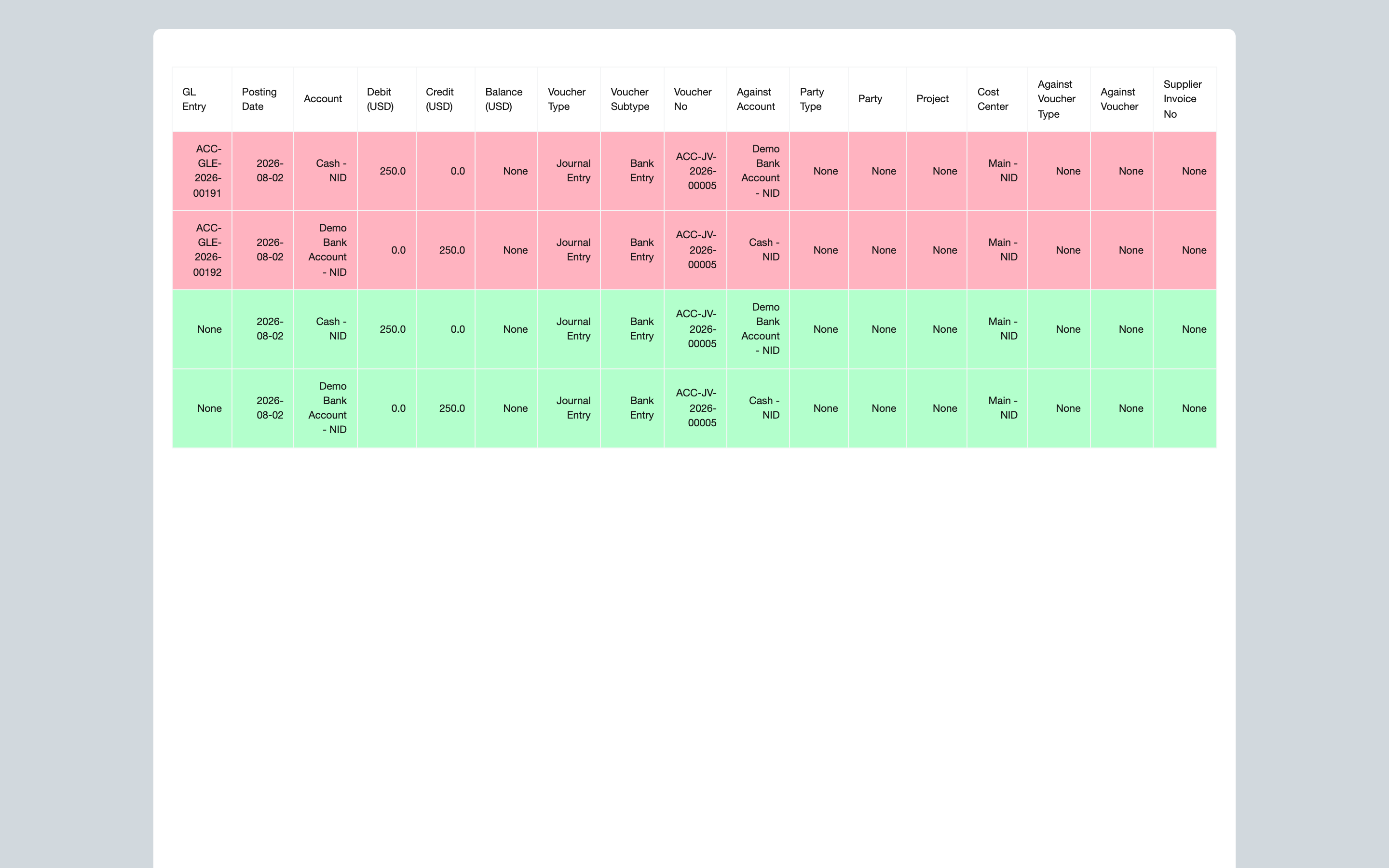
In the preview:
- Red rows are the existing General Ledger entries that will be replaced or reversed.
- Green rows are the entries Bravo Hub ERP will generate from the current source document.
Check the accounts, debit and credit values, voucher number, Cost Center, and other dimensions. If a proposed row is wrong, return to the source transaction and correct it before continuing. Do not submit the repost in the hope that it will correct an incorrect source document.
Submit and verify the repost
Section titled “Submit and verify the repost”Submit the Repost Accounting Ledger record only after the preview is correct.
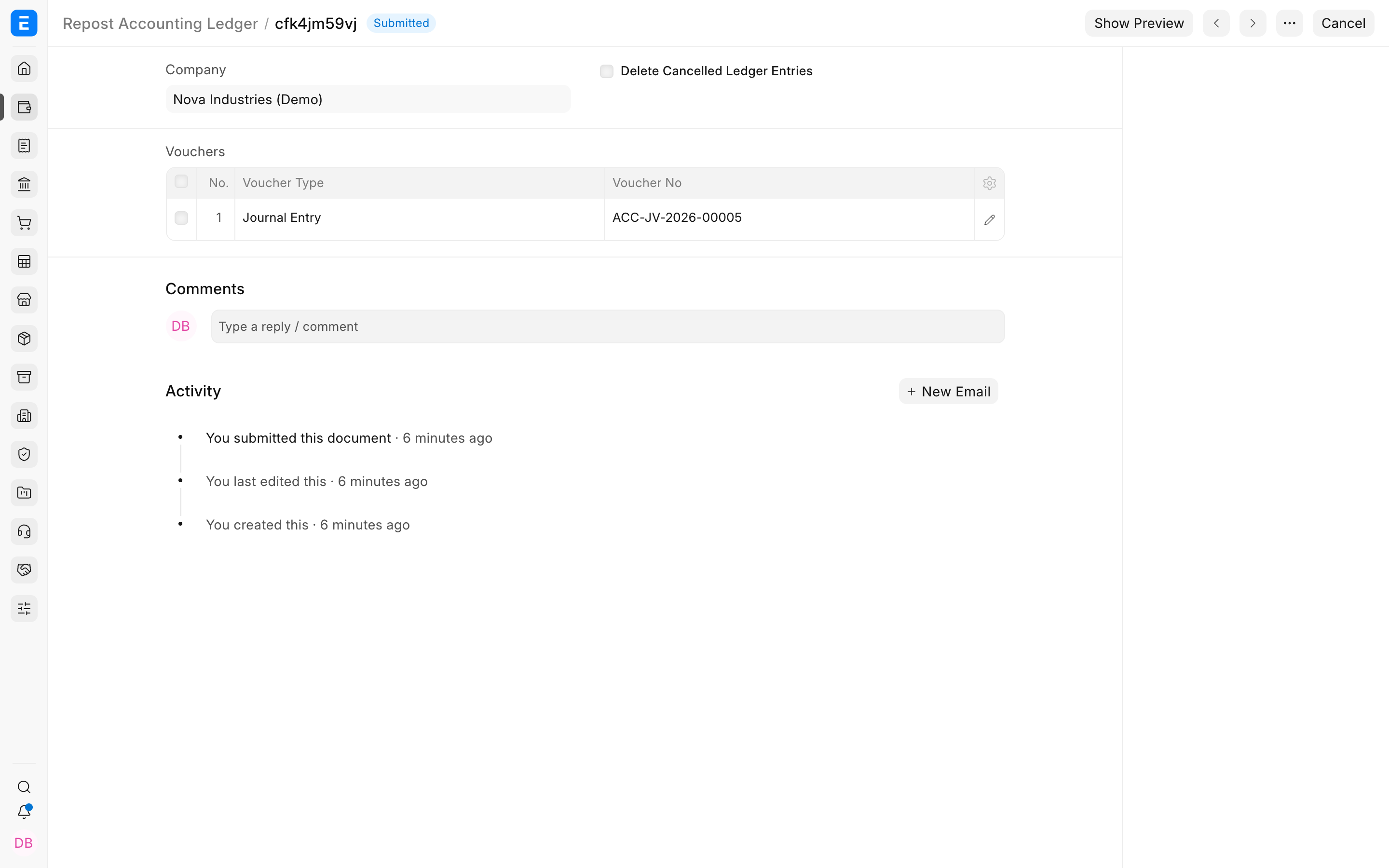
Bravo Hub ERP processes five or fewer selected vouchers immediately. When the record contains more than five vouchers, it queues the work in the background and displays a message that reposting has started.
After processing, open each source voucher and use View > Ledger, or run the General Ledger report with the voucher number. Confirm that:
- The intended accounts and dimensions are present.
- Total debit equals total credit.
- Old values no longer affect the report.
- The related financial report now shows the expected result.
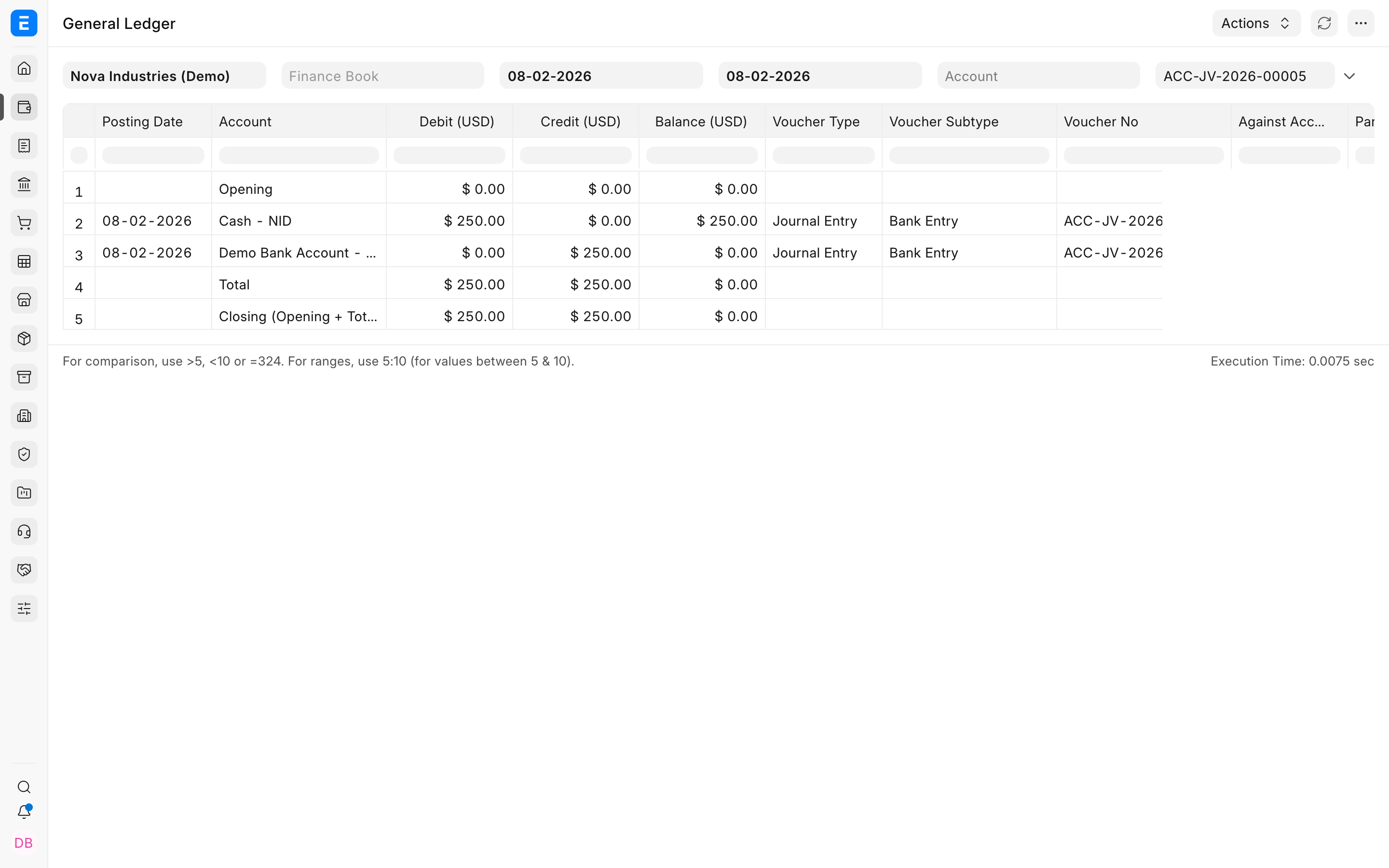
Reposting changes ledger entries, not the submitted status or commercial meaning of the source transaction. If the transaction itself should be reversed, use its supported cancellation, return, credit note, debit note, or amendment workflow instead.
Important fields and what they mean
Section titled “Important fields and what they mean”| Field | What it controls | Guidance |
|---|---|---|
| Company | Limits the selectable vouchers and ledger rebuild to one company | Select the company that owns every voucher in the table. |
| Delete Cancelled Ledger Entries | Deletes existing cancelled GL, Payment Ledger, and Advance Payment Ledger rows before regeneration | Leave this cleared for normal use. Use it only for a diagnosed cleanup case under technical or implementation guidance. |
| Voucher Type | Identifies the transaction DocType to regenerate | The type must be present in Accounts Settings under Allowed DocTypes. |
| Voucher No | Identifies the submitted source document | Review the source document and its current ledger before adding it. |
| Show Preview | Compares current entries with the newly generated ledger map | Treat the preview as a required review step, especially when accounts or dimensions changed. |
Restrictions and safeguards
Section titled “Restrictions and safeguards”Closed fiscal periods
Section titled “Closed fiscal periods”Bravo Hub ERP blocks reposting when a selected voucher falls on or before the latest submitted Period Closing Voucher date for that company. Reopen or correct a closed period only through your approved accounting controls.
Deferred revenue and expense
Section titled “Deferred revenue and expense”A Sales Invoice with deferred revenue or a Purchase Invoice with deferred expense cannot be reposted through this tool. Use the supported Deferred Accounting workflow and verify the related schedules and entries.
Immutable ledger
Section titled “Immutable ledger”Reposting preserves the audit-oriented behavior of the immutable ledger. With the normal option, Bravo Hub ERP reverses the old accounting effect and creates the regenerated effect through supported ledger logic instead of inviting users to edit GL Entry rows directly.
Large batches
Section titled “Large batches”Do not combine unrelated corrections merely to process them together. Test a representative voucher first, process the smallest useful batch, wait for background work to complete, and verify reports before continuing.
Troubleshooting
Section titled “Troubleshooting”The Voucher Type is not available
Section titled “The Voucher Type is not available”Add the DocType to Accounts Settings > Payments > Repost > Allowed DocTypes, save the settings, then reopen the repost record. If the type should not permit post-submit accounting changes in your organization, do not add it merely to bypass the restriction.
The voucher number is not available
Section titled “The voucher number is not available”Confirm that the Company matches the source document, the voucher is submitted, and the selected Voucher Type is correct. Draft and cancelled vouchers are not offered for a normal repost.
Bravo Hub ERP says the voucher is in a closed fiscal year
Section titled “Bravo Hub ERP says the voucher is in a closed fiscal year”The voucher date is covered by a submitted Period Closing Voucher. Do not bypass the close casually. Follow your controlled period-reopening process and obtain the required accounting approval.
Bravo Hub ERP says deferred accounting is enabled
Section titled “Bravo Hub ERP says deferred accounting is enabled”The selected invoice contains deferred revenue or deferred expense. Reposting that invoice is blocked because it can conflict with its deferred schedules. Review the deferred accounting records and use the appropriate process for that feature.
The preview does not match the intended correction
Section titled “The preview does not match the intended correction”Stop and inspect the source transaction. Check its account, amount, tax, Cost Center, dimensions, exchange rate, and linked stock valuation. The preview reflects the source document as it exists now.
The report still shows an unexpected balance
Section titled “The report still shows an unexpected balance”Refresh the report and confirm its company, date range, finance book, currency, account, and voucher filters. Then compare the source document, preview, and General Ledger. Another voucher may also contribute to the balance.
Does reposting change the source document?
Section titled “Does reposting change the source document?”No, It recalculates ledger entries from the source document’s current data. It does not change the document’s submitted status, items, party, or commercial purpose.
Should I use this instead of cancelling and amending a wrong transaction?
Section titled “Should I use this instead of cancelling and amending a wrong transaction?”No, Correct the transaction through its supported business workflow when the source document itself is wrong. Repost only when the source is correct and its accounting entries need regeneration.
Can I repost several vouchers together?
Section titled “Can I repost several vouchers together?”Yes, Add multiple vouchers from the same company. Five or fewer are processed immediately; more than five are queued in the background. Smaller, related batches are easier to verify.
What does Delete Cancelled Ledger Entries do?
Section titled “What does Delete Cancelled Ledger Entries do?”It removes existing cancelled GL, Payment Ledger, and Advance Payment Ledger rows for the selected vouchers before rebuilding them. It is an exceptional cleanup option, not the default way to repost.
Why are the old and new rows identical in the preview?
Section titled “Why are the old and new rows identical in the preview?”That can be correct when you are verifying or rebuilding entries without changing their accounting values. If you expected a difference, confirm that the intended source-field correction was saved before generating the preview.
Does a draft repost affect accounting reports?
Section titled “Does a draft repost affect accounting reports?”No, Saving the record and generating a preview do not replace the ledger entries. The accounting rebuild occurs when the repost is submitted and processed.