
Sales Invoice
Nova Industries has delivered two phones to Northstar Retail. The sale is operationally complete, but until finance issues a Sales Invoice, the customer has no formal bill and Nova has no posted receivable or sales income.
A Sales Invoice converts that sale into an amount the Customer owes. When it is submitted, Bravo Hub ERP records the receivable, income, and taxes in the general ledger. If Update Stock is enabled, the same invoice can also record the goods leaving the Warehouse, which is useful for a direct sale without a Delivery Note.
Create the invoice from a Sales Order or Delivery Note when those documents already exist. Create it directly for a service sale or an immediate stock sale. This guide explains how to prepare the invoice, choose the correct stock flow, submit it, and understand its accounting effect.
Before you begin
Section titled “Before you begin”Prepare these records before creating an invoice:
- A Customer with the correct billing address, contact, currency, and receivable account.
- Each product or service as an Item, with its income account and default Unit of Measure.
- A selling Price List if rates should be fetched automatically.
- Sales tax accounts or a Sales Taxes and Charges Template if tax applies.
- Payment Terms if the Customer pays in installments.
- A Warehouse and available stock if the invoice will update stock.
Create a Sales Invoice
Section titled “Create a Sales Invoice”- Go to Accounting > Sales and Receivables > Sales Invoice.
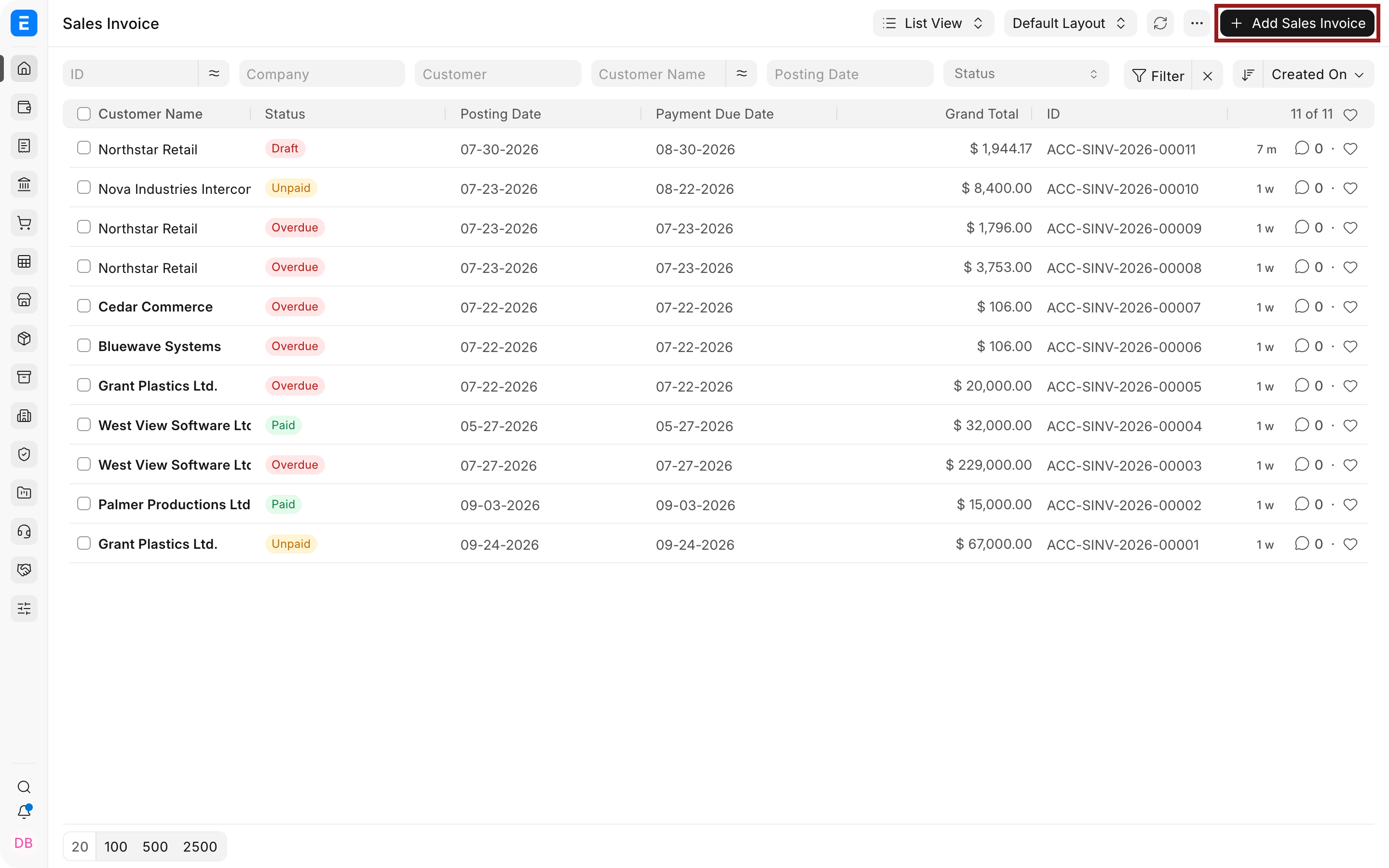
- Click Add Sales Invoice.
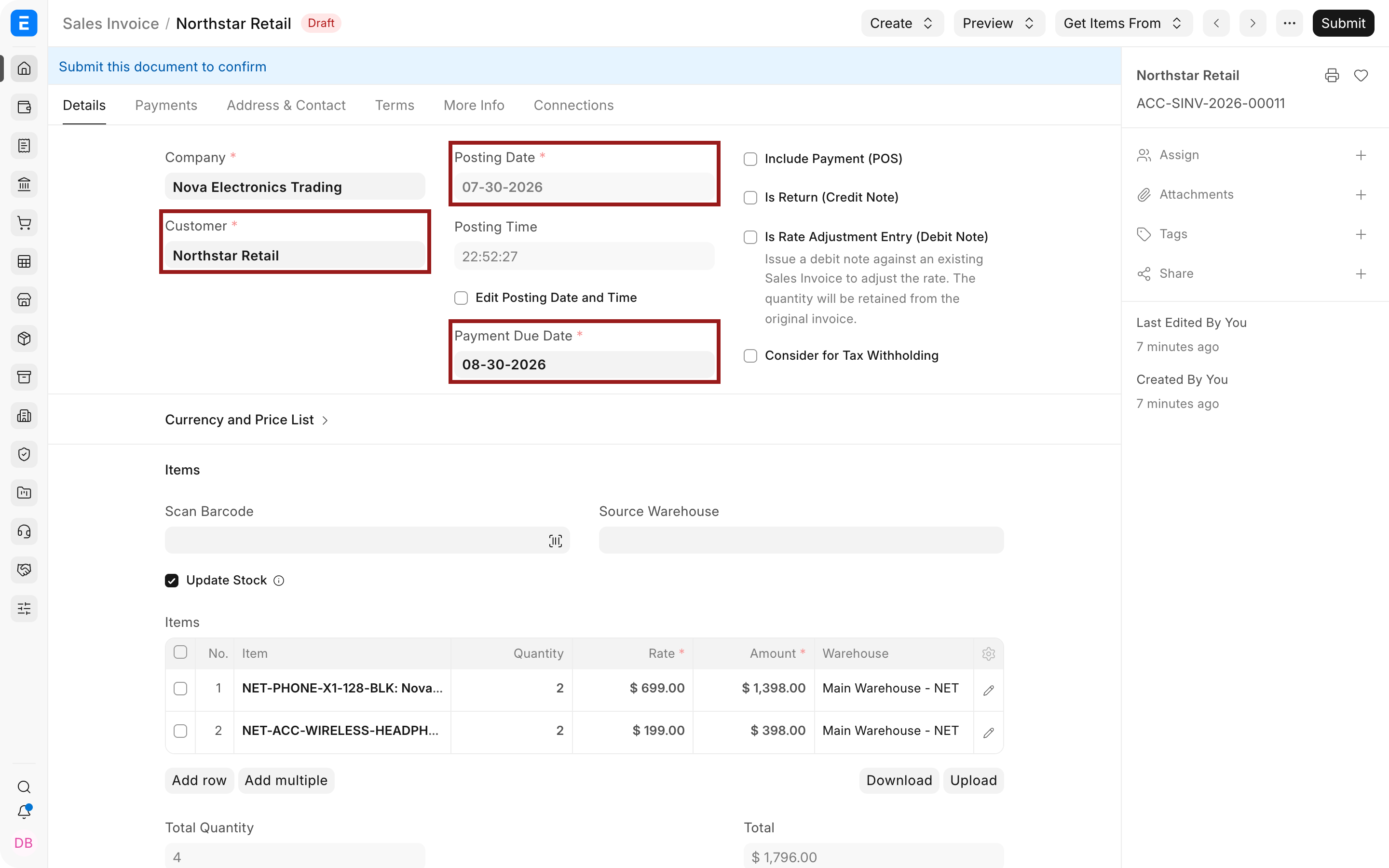
- Select the Company and Customer. Bravo Hub ERP fetches the Customer’s billing address, contact, currency, price list, and receivable account when defaults exist.
- Check the Posting Date and Payment Due Date. The posting date decides the accounting period. The due date is used to determine whether the invoice is overdue.
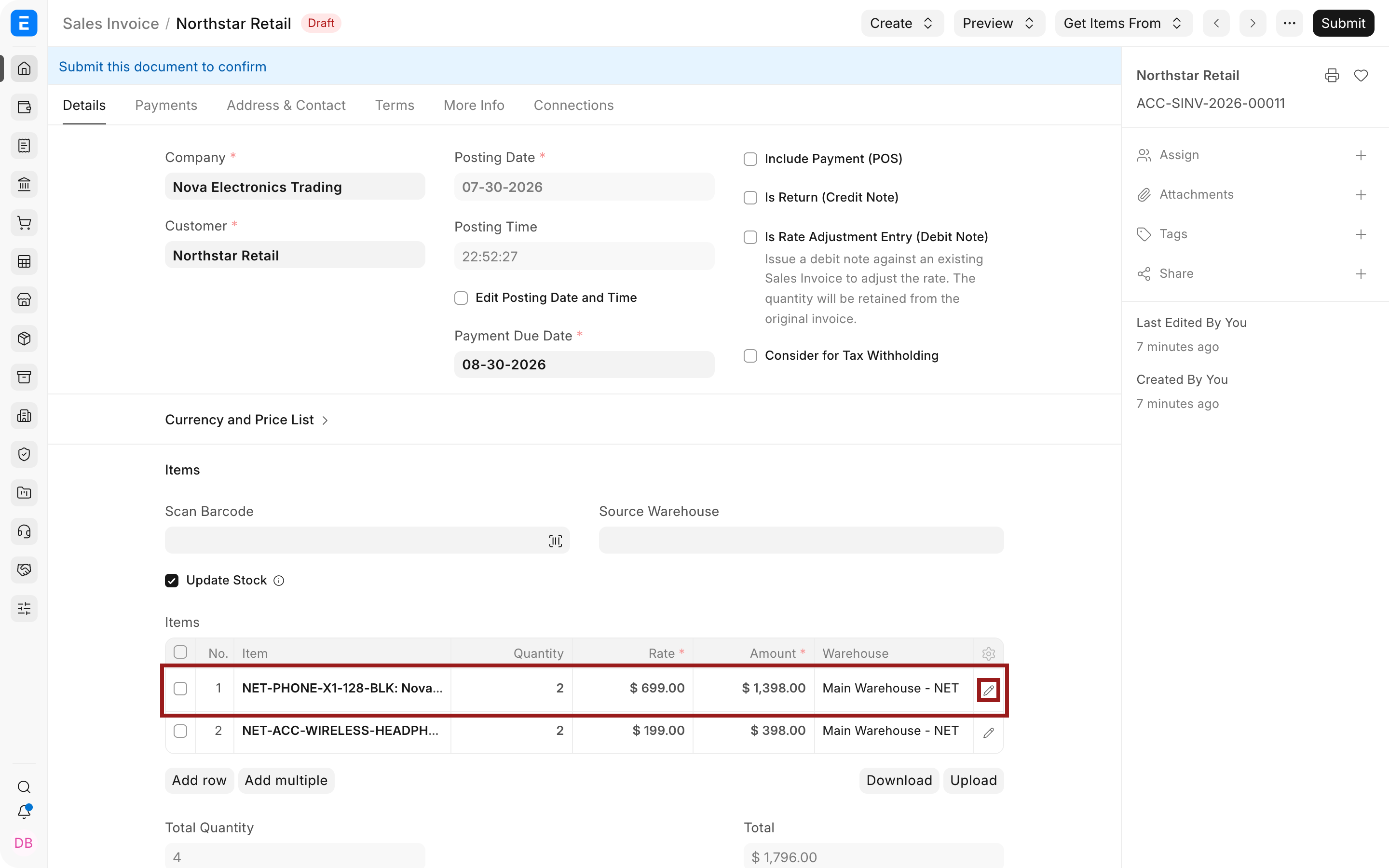
- In Items, add each product or service. Check the Quantity, Rate, Amount, and Warehouse.
The dot before an Item Code shows stock availability at a glance: green means in stock and red means out of stock.
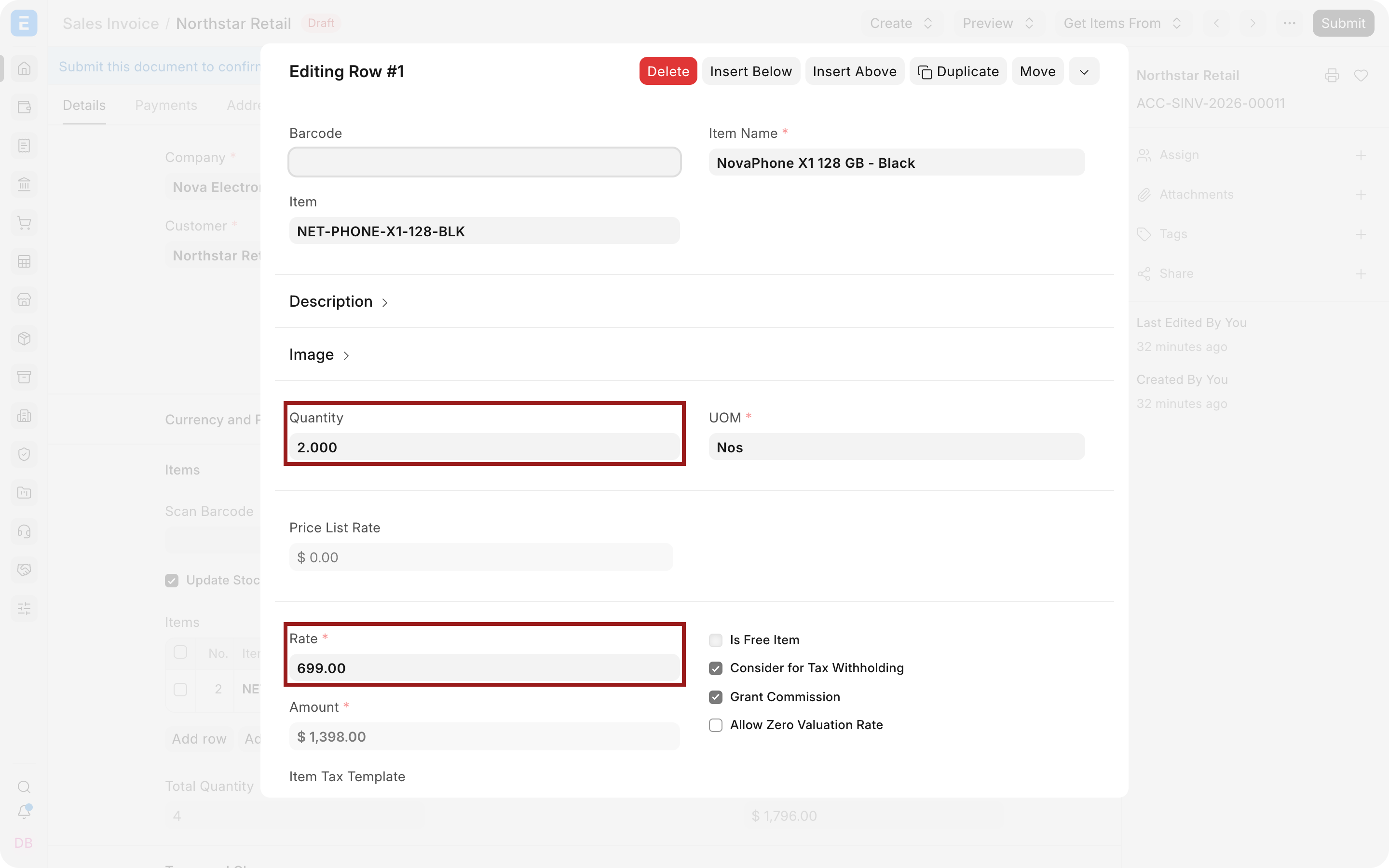
- Click the pencil icon to edit a row. This opens fields that do not fit in the table, including UOM, Income Account, Cost Center, Project, Warehouse, serial or batch details, and deferred revenue settings.
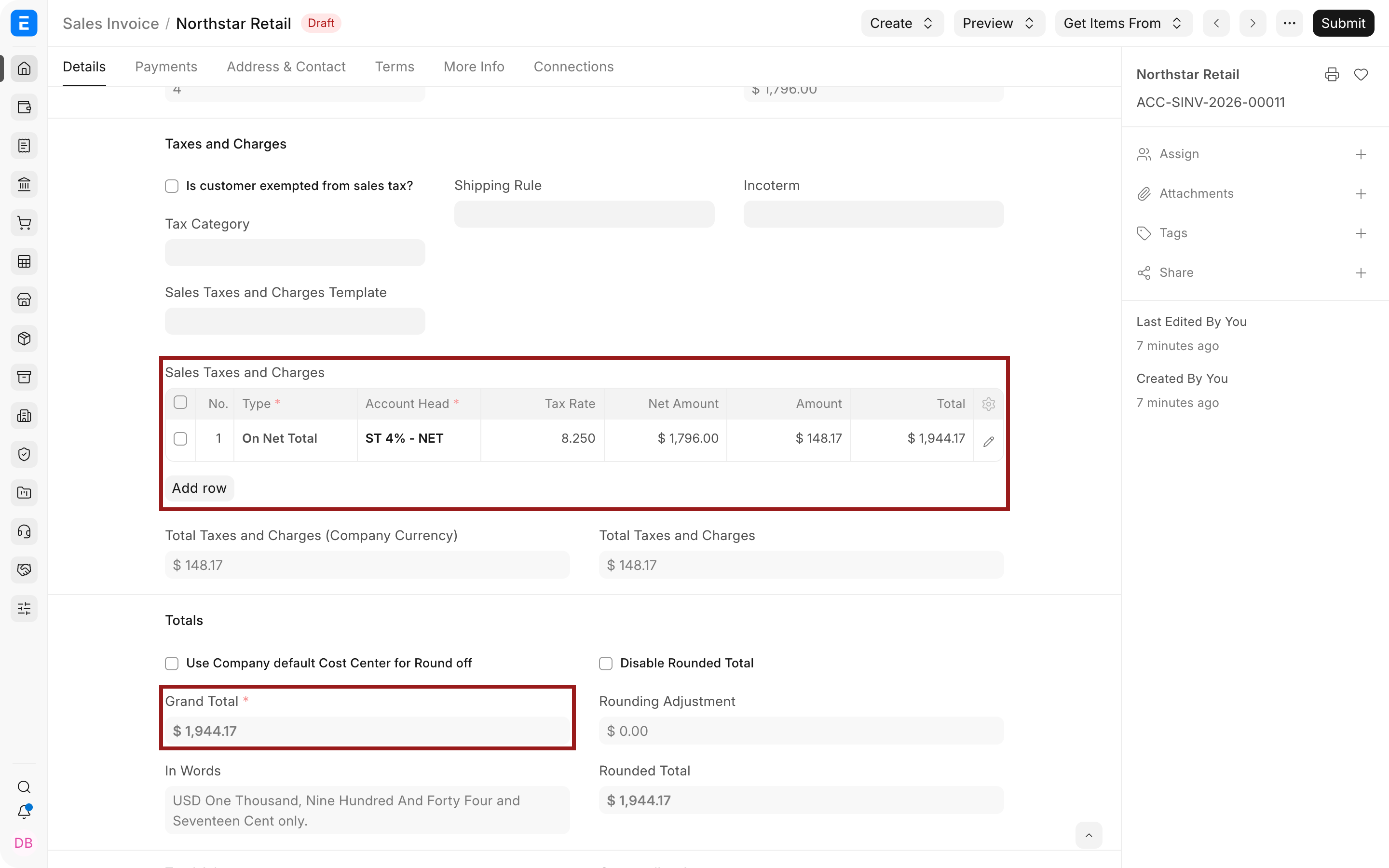
- Add the applicable taxes or select a Sales Taxes and Charges Template. Review the tax amount and Grand Total.
- Open the Payments tab. Review the payment schedule, allocate any advances, and confirm the payment terms.
- Review the billing and shipping addresses, Customer purchase order details, currency, terms, and totals.
- Save the draft, then click Submit when the invoice is ready to affect the books.
Alternative ways to create a Sales Invoice
Section titled “Alternative ways to create a Sales Invoice”Creating the invoice from an upstream document carries forward items, quantities, rates, taxes, addresses, and references. It also lets Bravo Hub ERP update the upstream document’s billed percentage.
From a Sales Order
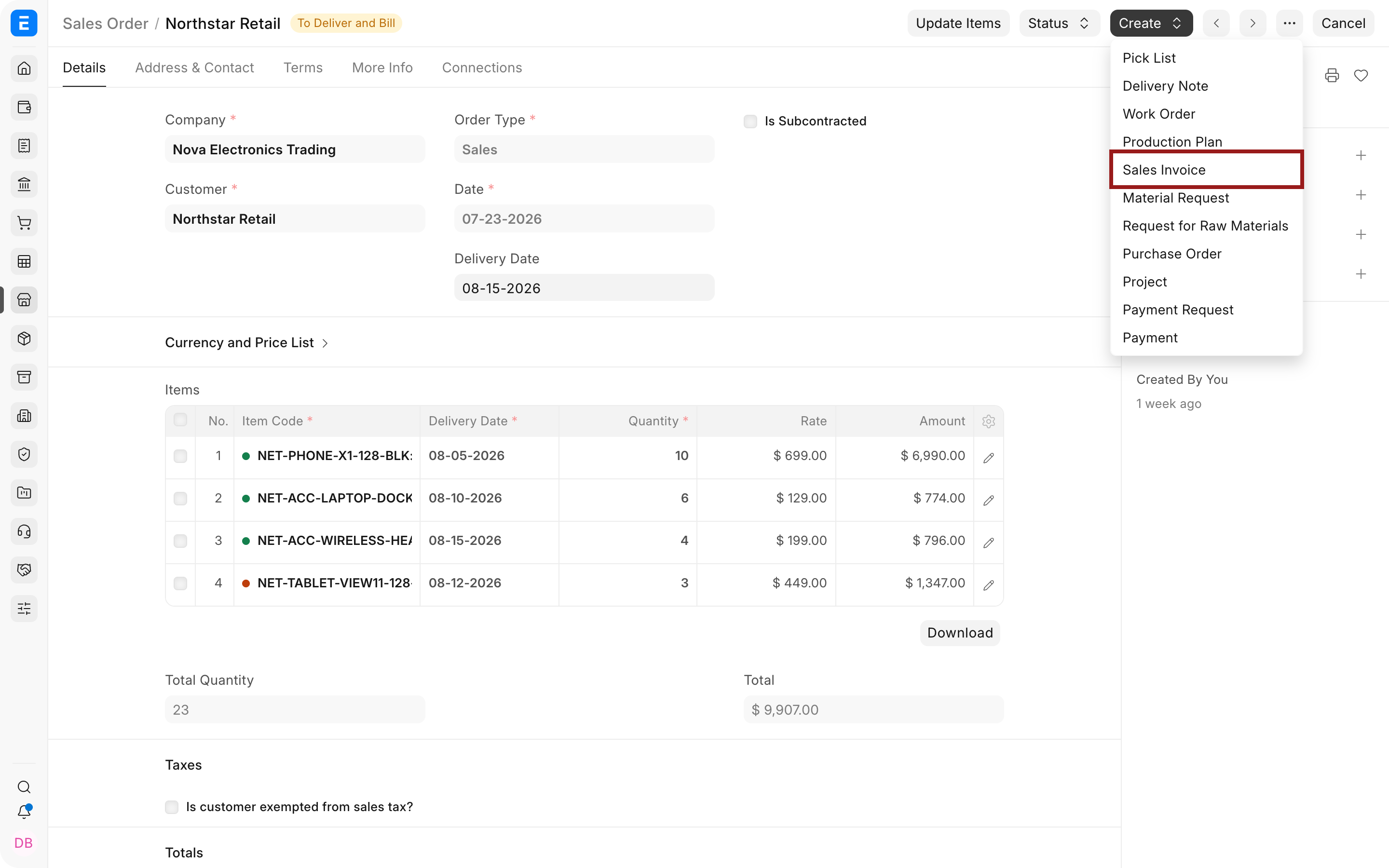
Section titled “From a Sales Order”Open a submitted Sales Order, click Create, and select Sales Invoice. Invoice only the lines and quantities that are ready for billing. You can create several invoices from one order for partial fulfilment.
From a Delivery Note
Section titled “From a Delivery Note”Open a submitted Delivery Note, click Create, and select Sales Invoice. This is the usual route when stock has already been delivered. Do not enable Update Stock on the invoice because the Delivery Note has already updated the Stock Ledger.
Direct invoice with stock update
Section titled “Direct invoice with stock update”For an immediate counter sale or another flow without a Delivery Note, create the invoice directly and enable Update Stock. Select the correct Warehouse on every stock Item.
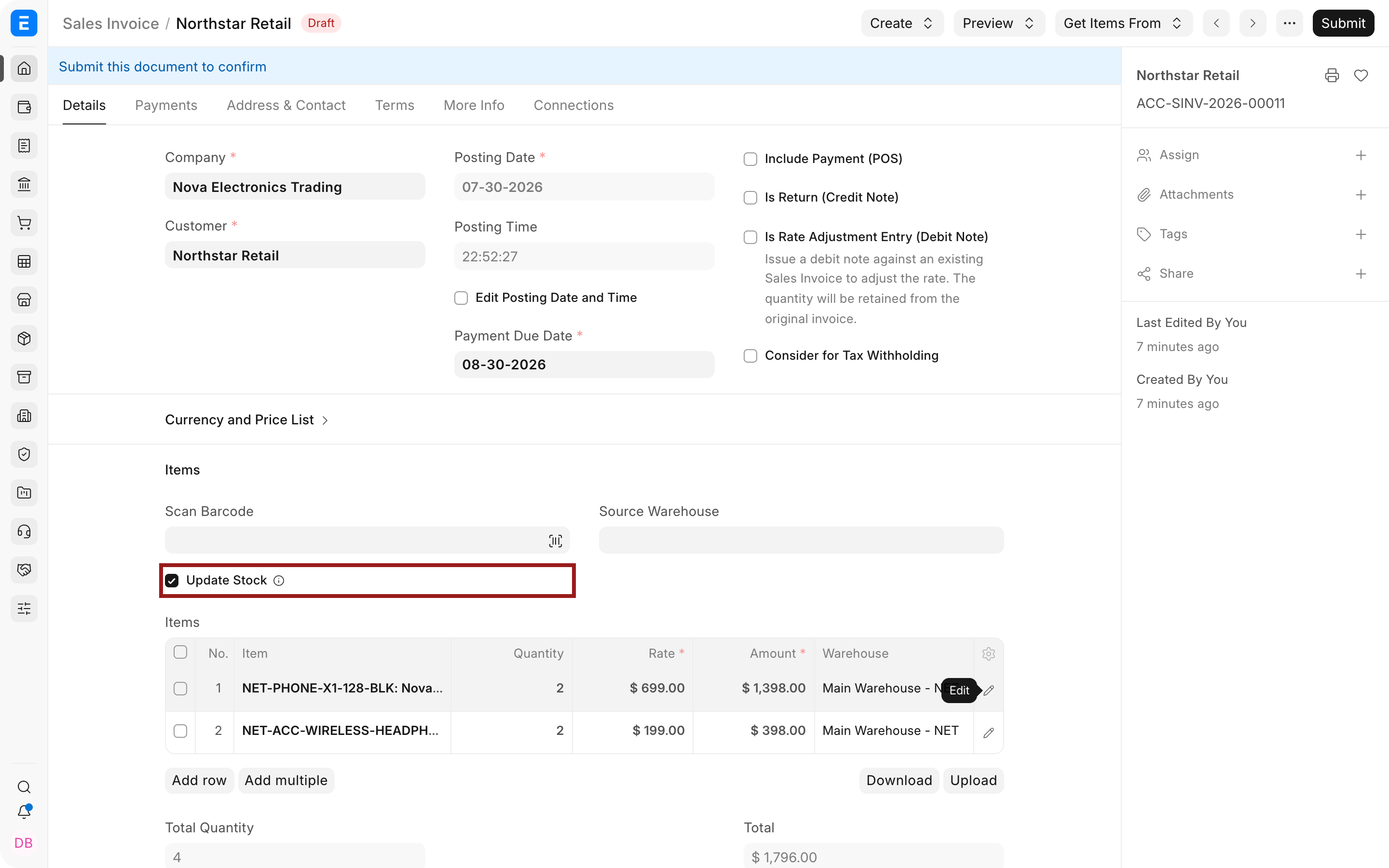
On submission, this single document updates both the Stock Ledger and General Ledger. Do not use this option when a Delivery Note has already recorded the same movement.
Services, projects, and timesheets
Section titled “Services, projects, and timesheets”For services, use non-stock Items and leave Update Stock disabled. You can link a Project and Cost Center to the invoice or its item rows. For time-based billing, use Get Items From > Timesheet to fetch billable hours and rates.
Subscriptions and Auto Repeat can create recurring invoices. Point of Sale can create paid retail invoices with payment and stock effects in one flow.
Important fields and what they mean
Section titled “Important fields and what they mean”| Field | What it controls |
|---|---|
| Customer | The party being billed. It supplies address, contact, currency, price list, tax, and account defaults. |
| Posting Date | The date on which the invoice affects accounting. Backdating may be restricted by frozen accounts or an Accounting Period. |
| Payment Due Date | The date used for aging and Overdue status. Payment Terms can calculate it. |
| Currency and Conversion Rate | The invoice currency and its conversion into the Company’s base currency. |
| Update Stock | Posts the item quantities to the Stock Ledger when the invoice is submitted. |
| Item, Quantity, and UOM | What is billed and how much. The Stock UOM and conversion factor matter when selling in another UOM. |
| Rate and Price List Rate | The charged price and the reference rate fetched from the Price List. Pricing Rules, margins, and discounts can change the final rate. |
| Warehouse | The stock source when Update Stock is enabled. It is also useful as a reference on other invoices. |
| Income Account | The income ledger credited for the item value. Defaults normally come from the Item or Item Group. |
| Cost Center, Project, and Accounting Dimensions | Tags income and related postings for management reporting. |
| Sales Taxes and Charges | Calculates tax, shipping, or other charges and posts each amount to its Account Head. |
| Debit To | The receivable account debited for the Customer. |
| Payment Terms Template and Payment Schedule | Splits the invoice into due dates and amounts. |
| Allocate Advances Automatically | Applies eligible Customer advances against the invoice. Review every allocation before submission. |
| Is Return (Credit Note) | Creates a return or credit note. Prefer creating it from the original invoice so references and amounts are carried forward. |
| Is Rate Adjustment Entry (Debit Note) | Adjusts the rate of an existing invoice while retaining its quantity. |
| Customer PO Number and Date | Stores the Customer’s purchase reference for matching and duplicate control. |
| Terms and Conditions | Adds the commercial or legal text used on the invoice print. |
Submit and next steps
Section titled “Submit and next steps”Submitting a normal accrual invoice usually creates these General Ledger entries:
| Entry | Debit | Credit |
|---|---|---|
| Customer receivable | Grand Total | |
| Income accounts | Net item amount | |
| Tax and charge accounts | Applicable tax or charge amount |
If Update Stock is enabled, Bravo Hub ERP also posts Stock Ledger entries and the related cost-of-goods accounting entries when perpetual inventory is enabled.
After submission, use Create > Payment to make a Payment Entry. The payment reduces the invoice’s outstanding amount.
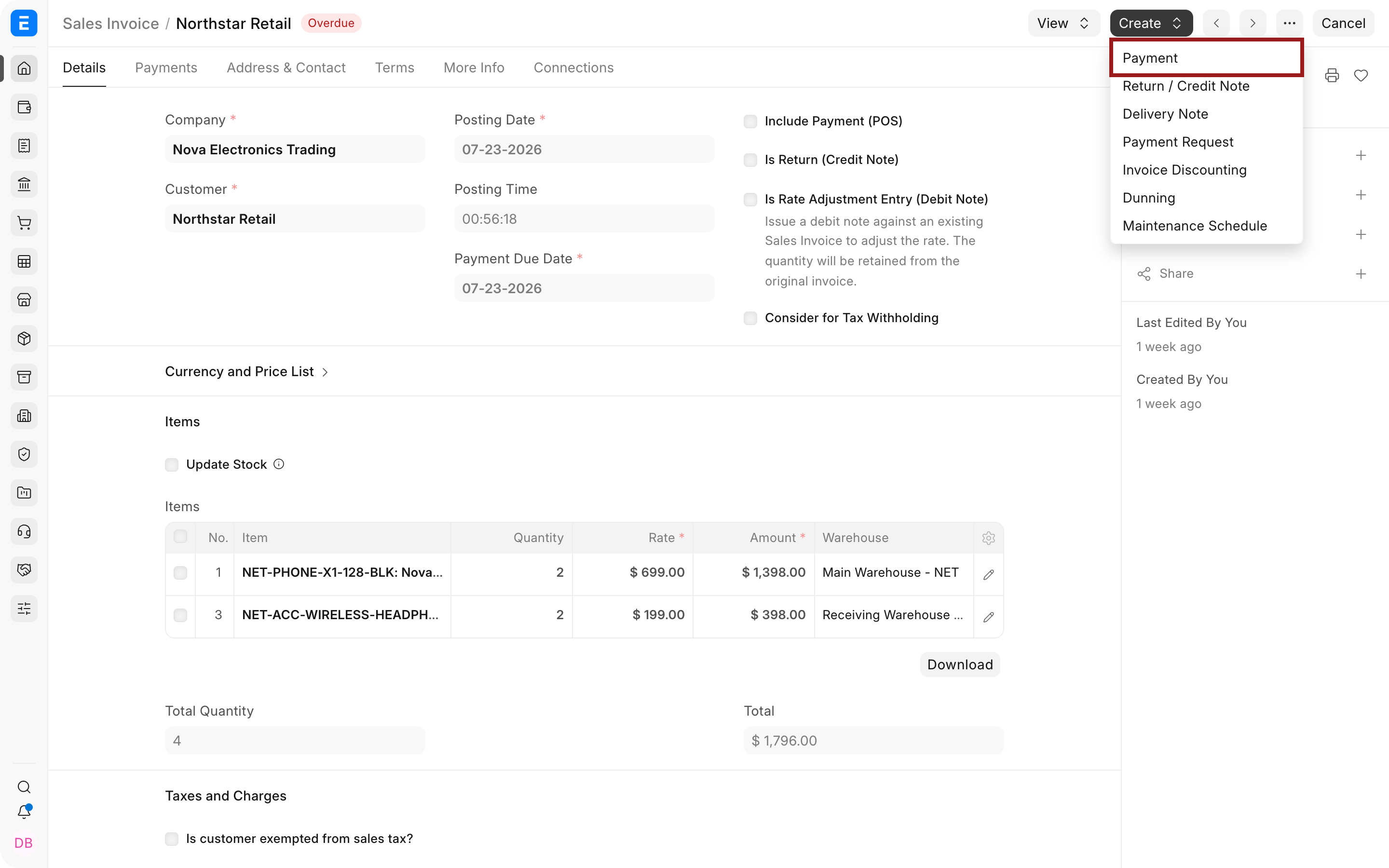
You can also create a Payment Request, a return or Credit Note, or a Dunning document. Use View Ledger to inspect the accounting entries. Cancel only after handling linked payments, returns, and stock transactions.
Status
Section titled “Status”| Status | Meaning |
|---|---|
| Draft | Saved but not submitted. It has no ledger effect. |
| Unpaid | Submitted with an outstanding amount that is not yet overdue. |
| Overdue | The due date has passed and an amount remains outstanding. |
| Partly Paid | A payment or credit has reduced, but not cleared, the outstanding amount. |
| Paid | The outstanding amount is zero. |
| Credit Note Issued | A submitted return or credit note exists against the invoice. |
| Return | The document is itself a submitted credit note. |
| Cancelled | The invoice was cancelled and its ledger effects were reversed. |
Troubleshooting
Section titled “Troubleshooting”The invoice does not update the Sales Order’s billed percentage
Section titled “The invoice does not update the Sales Order’s billed percentage”Create the invoice from the Sales Order or use Get Items From so each invoice item retains its Sales Order reference. A manually created invoice without that link does not update the order.
Payment was received, but the invoice is still outstanding
Section titled “Payment was received, but the invoice is still outstanding”Confirm the Payment Entry is submitted and allocated to this invoice. If the payment was recorded without an invoice reference, use Payment Reconciliation to allocate it.
The tax or rate is unexpected
Section titled “The tax or rate is unexpected”Check the Customer’s Tax Category, Item Tax Template, Sales Taxes and Charges Template, Price List, Pricing Rules, and transaction date. Review the calculated rows before submission.
Bravo Hub ERP reports insufficient stock
Section titled “Bravo Hub ERP reports insufficient stock”Check Update Stock, the Warehouse on each row, available quantity, reserved stock, and serial or batch selection. If stock was already delivered through a Delivery Note, disable Update Stock on the invoice.
The invoice posts to the wrong account or Cost Center
Section titled “The invoice posts to the wrong account or Cost Center”Check the Item row’s Income Account, Cost Center, Project, and other Accounting Dimensions. Correct the defaults on the Item or Item Group to prevent the same issue on later invoices.
Can I invoice a Customer without a Sales Order?
Section titled “Can I invoice a Customer without a Sales Order?”Yes, unless Selling Settings or the Customer requires a Sales Order. Direct invoices are common for services and immediate sales.
Can one Sales Order have multiple Sales Invoices?
Section titled “Can one Sales Order have multiple Sales Invoices?”Y
es. Create an invoice for selected lines or partial quantities, then create more invoices for the remaining balance.
Do I need a Delivery Note?
Section titled “Do I need a Delivery Note?”Not always. Use a Delivery Note when delivery needs separate control or proof. For a direct stock sale, enable Update Stock on the invoice. For services, neither a Delivery Note nor stock update is required.
How do I correct a submitted invoice?
Section titled “How do I correct a submitted invoice?”Use a Credit Note for a return or reduction. Use a rate adjustment Debit Note when the current version and your accounting policy support it. Amend the invoice only after cancellation and after resolving linked documents.
Can I bill in another currency?
Section titled “Can I bill in another currency?”You can bill in another currency. Select the transaction currency and verify the exchange rate. The receivable account must support the chosen currency when the balance is maintained in that currency.