VAT/EXCISE Tax Implementation for UAE/KSA
هذا المحتوى غير متوفر بلغتك بعد.
1. Setting up Tax Registration No for customer, supplier and company
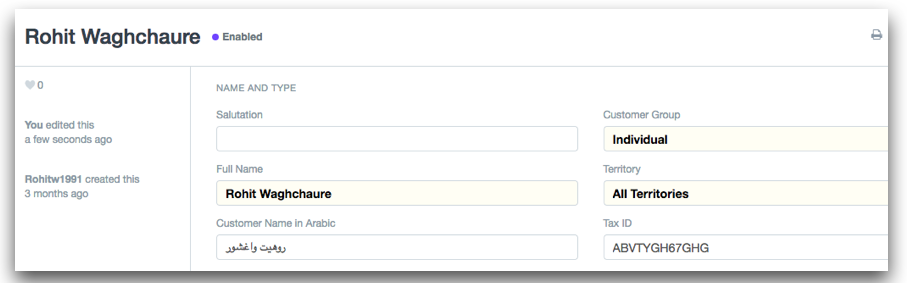
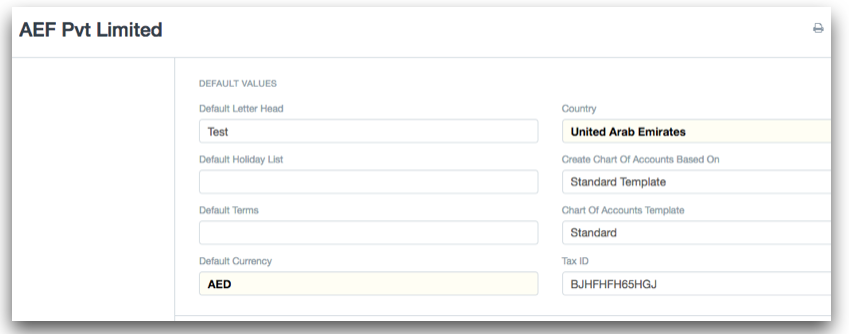
Section titled “1. Setting up Tax Registration No for customer, supplier and company”Set Tax Registration Number in the field, Tax ID for the Customer, Supplier, and Company.
- For Customer
- For Company
2. Setting up TAX Code for Products
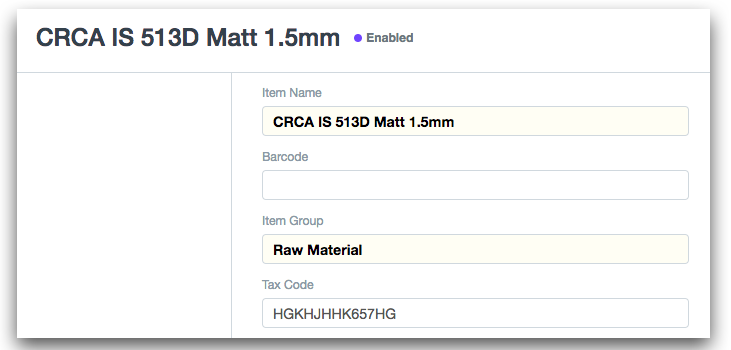
Section titled “2. Setting up TAX Code for Products”Setup tax code in the item master, system will fetch same code in the sales/purchase invoice on selection of an item.
3. Default Tax Templates
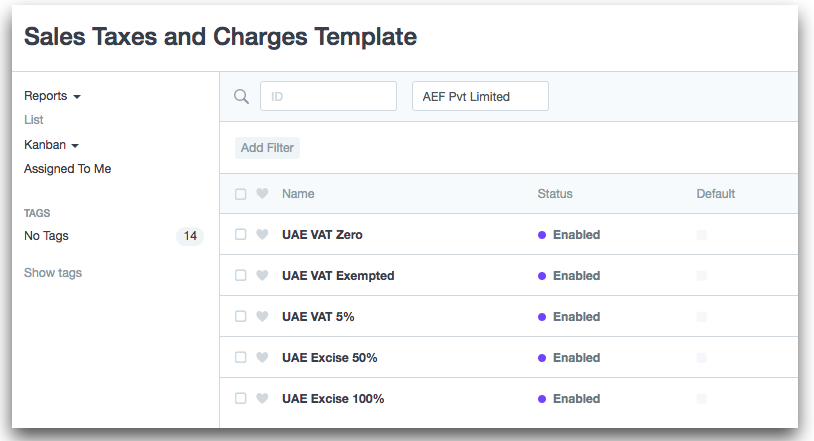
Section titled “3. Default Tax Templates”Bravo Hub ERP provides you default tax template for vat(5%, zero, exempted) and excise(50%, 100%). You can create your own tax template.
3. Making VAT Ready Invoices
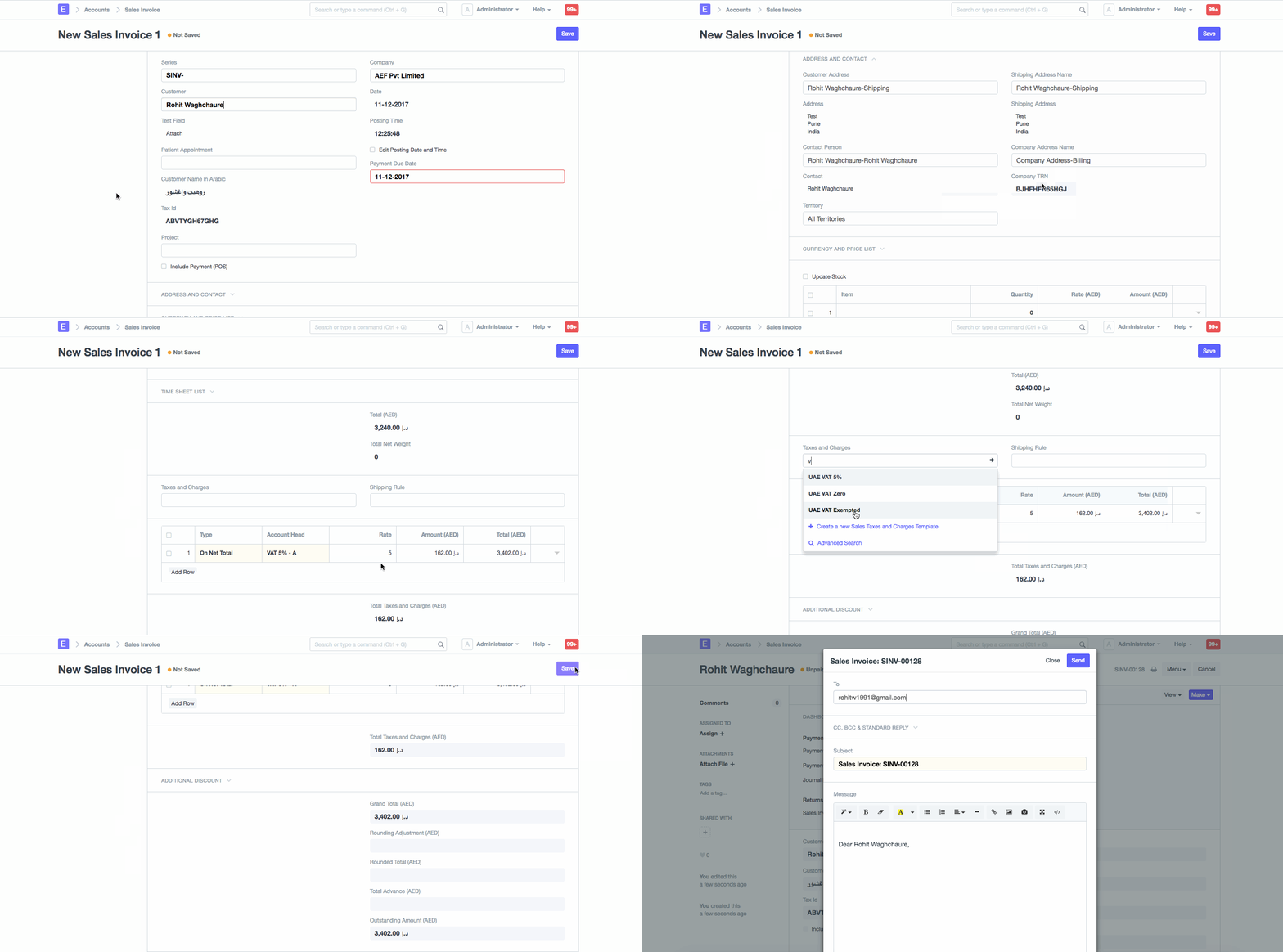
Section titled “3. Making VAT Ready Invoices”If you have setup the TRN of your Customers and Suppliers, and your tax template, you are ready to go for making VAT Ready Invoices!
For Sales Invoice,
- Select the correct Customer and Item and the address where the transaction will happen.
- Check if the TRN of your Company and Supplier have been correctly set.
- Check if the TAX Code has been set in the Item
- Select the template that you have created based on the type of transaction
- Save and Submit the Invoice
4. Print Tax Invoice
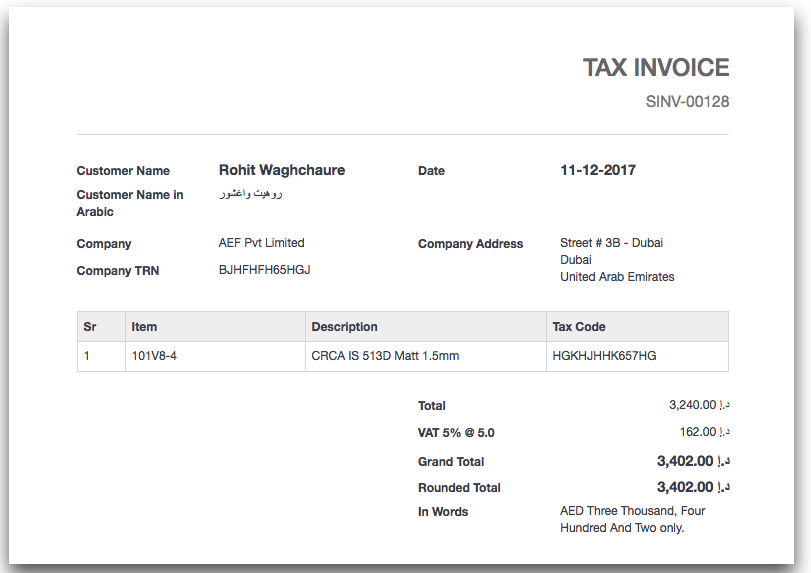
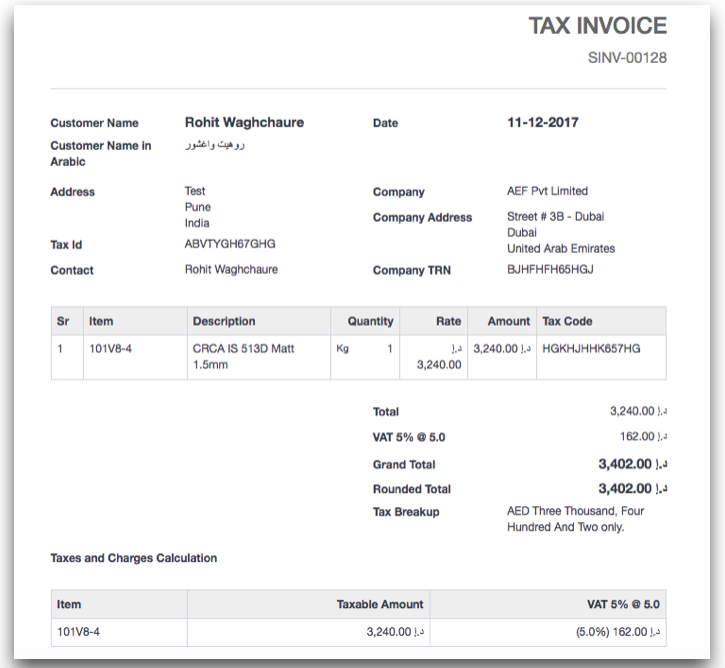
Section titled “4. Print Tax Invoice”Bravo Hub ERP provides two default print format
- Simplified Tax Invoice
- Detailed Tax Invoice
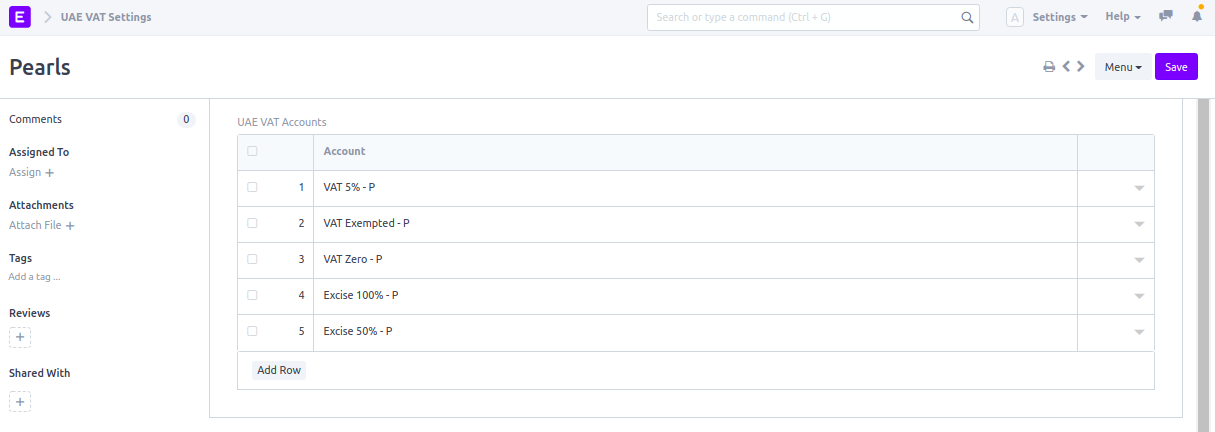
5. Set-up VAT Accounts
Section titled “5. Set-up VAT Accounts”Select the accounts that will be used for creating VAT invoices here.