
Amazon SP-API Integration
هذا المحتوى غير متوفر بلغتك بعد.
The Amazon Connector pulls Products and Sales Orders from the Amazon marketplace.
How to Setup Amazon SP-API Connector?
Section titled “How to Setup Amazon SP-API Connector?”Amazon Connector is moved out from Bravo Hub ERP and is available through a Bravo Hub App on Bravo Hub Cloud Marketplace
App Installation
Section titled “App Installation”- If you are hosting your Bravo Hub ERP site on Bravo Hub Cloud, you can quickly install the app by going to your site Dashboard. The app is available in Bravo Hub Cloud Marketplace
- If your site is hosted by Bravo Hub, please raise a support ticket to get the app installed on your site.
- If you are self-hosting Bravo Hub ERP you can install the app using Bravo Hub bench. Refer to bench documentation for installing Bravo Hub Apps.
bench get-app ecommerce_integrations --branch main
The repository for the app is hosted on GitHub: http://github.com/frappe/ecommerce\_integrations/
Setting Up Credentials in Bravo Hub ERP
Section titled “Setting Up Credentials in Bravo Hub ERP”You can request the developer credentials from Amazon Seller Central once you are a registered seller on their website. For more details on the same, click here.
1. Setup SP-API Credentials
Section titled “1. Setup SP-API Credentials”Enter the IAM ARN, Refresh Token, Client ID, Client Secret, AWS Access Key, AWS Secret Key and Country. 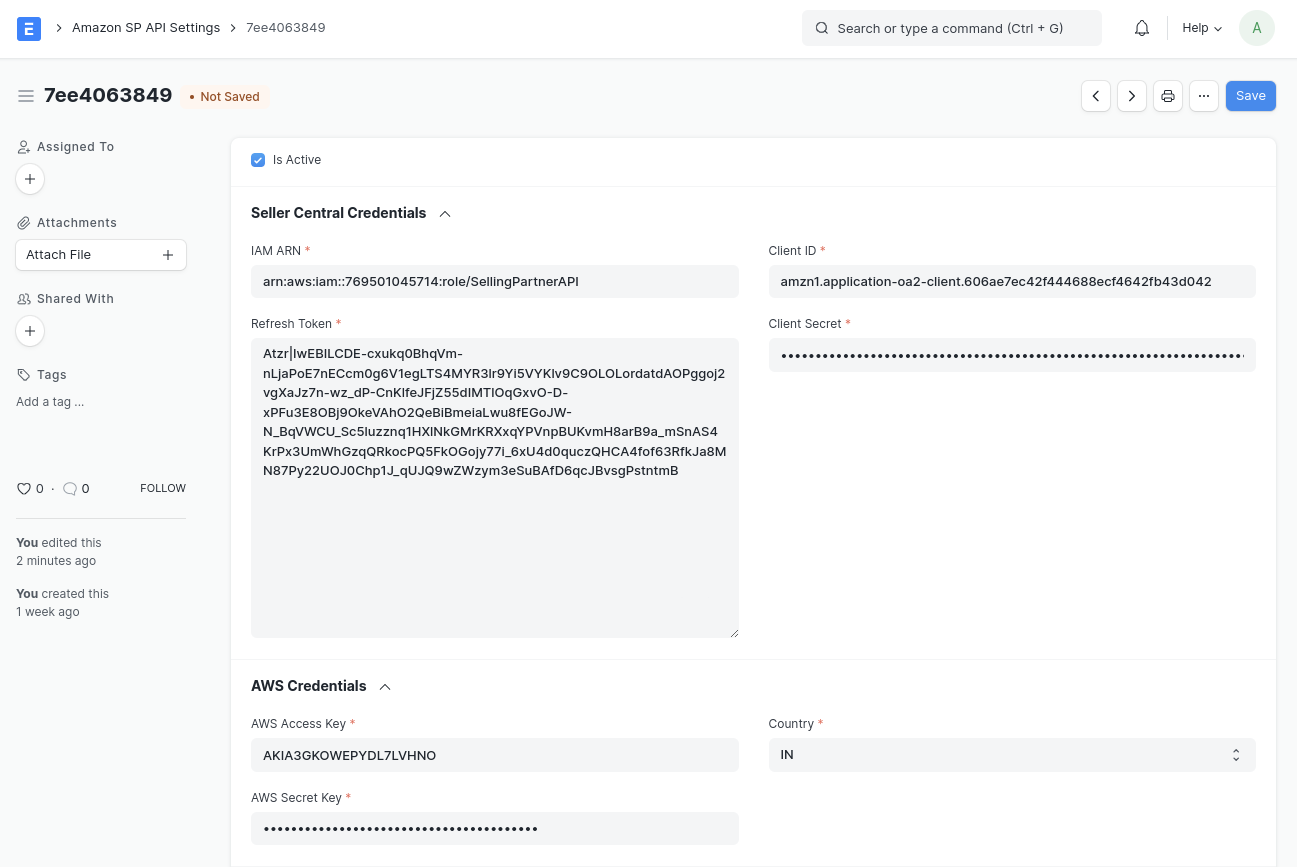
2. Set up Order Details
Section titled “2. Set up Order Details”Set up Company, Warehouse, Parent Item Group, Price List, Customer Group, Territory, Customer Type and Account Group. The Account Group is used to hold commissions, taxes etc. that Amazon charges. 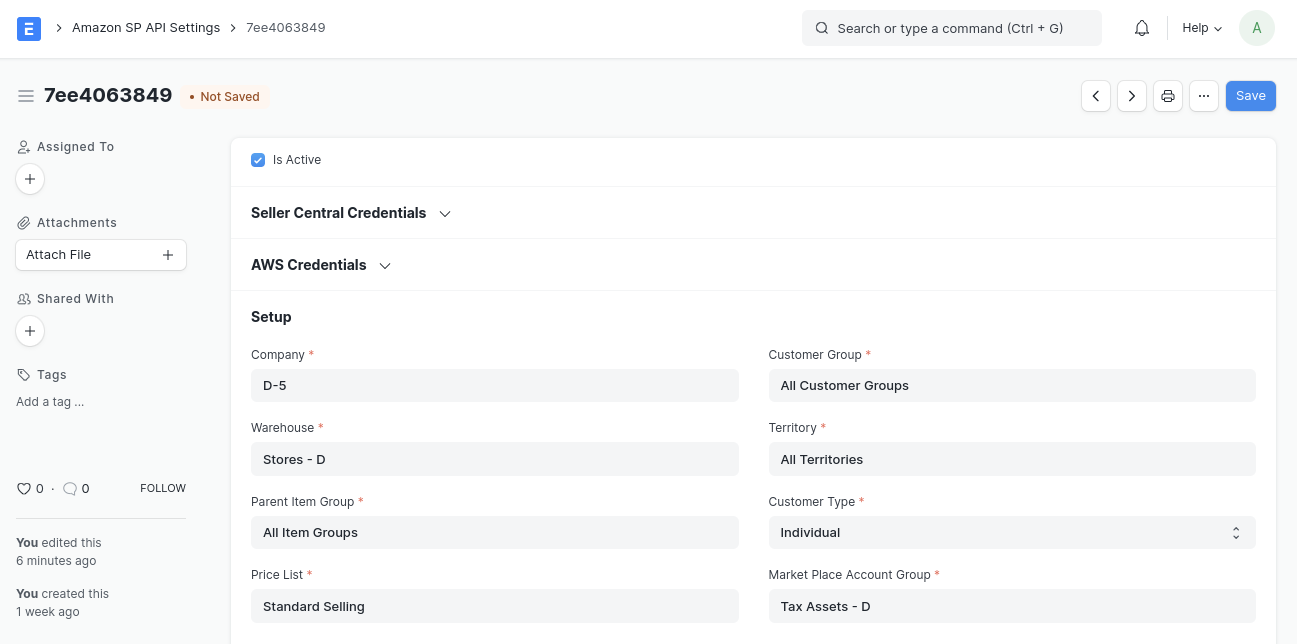
3. Setup Sync Configurations
Section titled “3. Setup Sync Configurations”Using the After Date, you can sync orders created after a particular date. In case you are importing a lot of historic data, it is suggested to start in the reverse chronological order of the After Date and import data in small chunks. 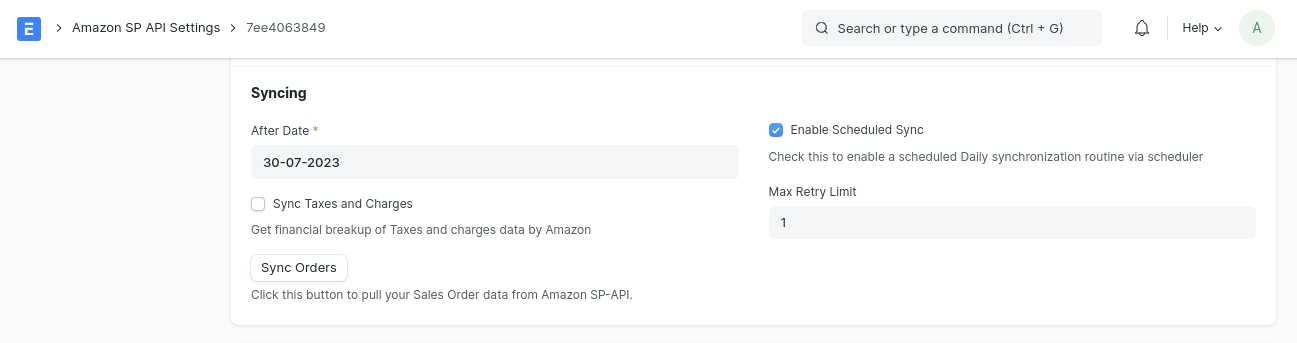 After setting up all the configurations, click on Is Active and save the settings. You are now ready to use the integration.
4. Amazon - Bravo Hub ERP Item Mapping
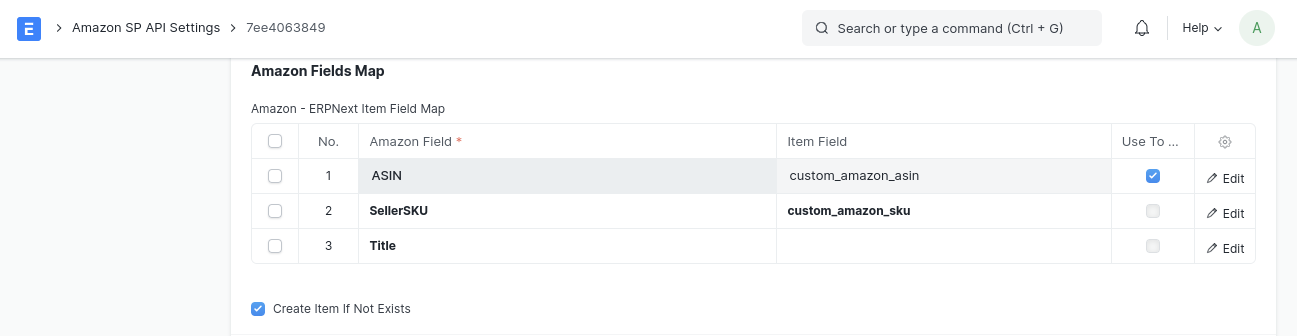
Section titled “4. Amazon - Bravo Hub ERP Item Mapping”Both ASIN and SellerSKU can be utilized to map Amazon items with corresponding Bravo Hub ERP items. For instance, if you have pre-existing items in your system, created through other integrations, you can establish a custom field within the Item Master by using the Customize Form feature and setting the ASIN/SellerSKU as the value.
During the process of syncing orders from Amazon, the system will attempt to find the Item Code using the field configured to find the Item Code in the Amazon - Bravo Hub ERP Item Mapping table. If the item is not found in the mapping table, you have the option to create a new item by checking the Create Item If Not Exists box.
5. Sync Orders
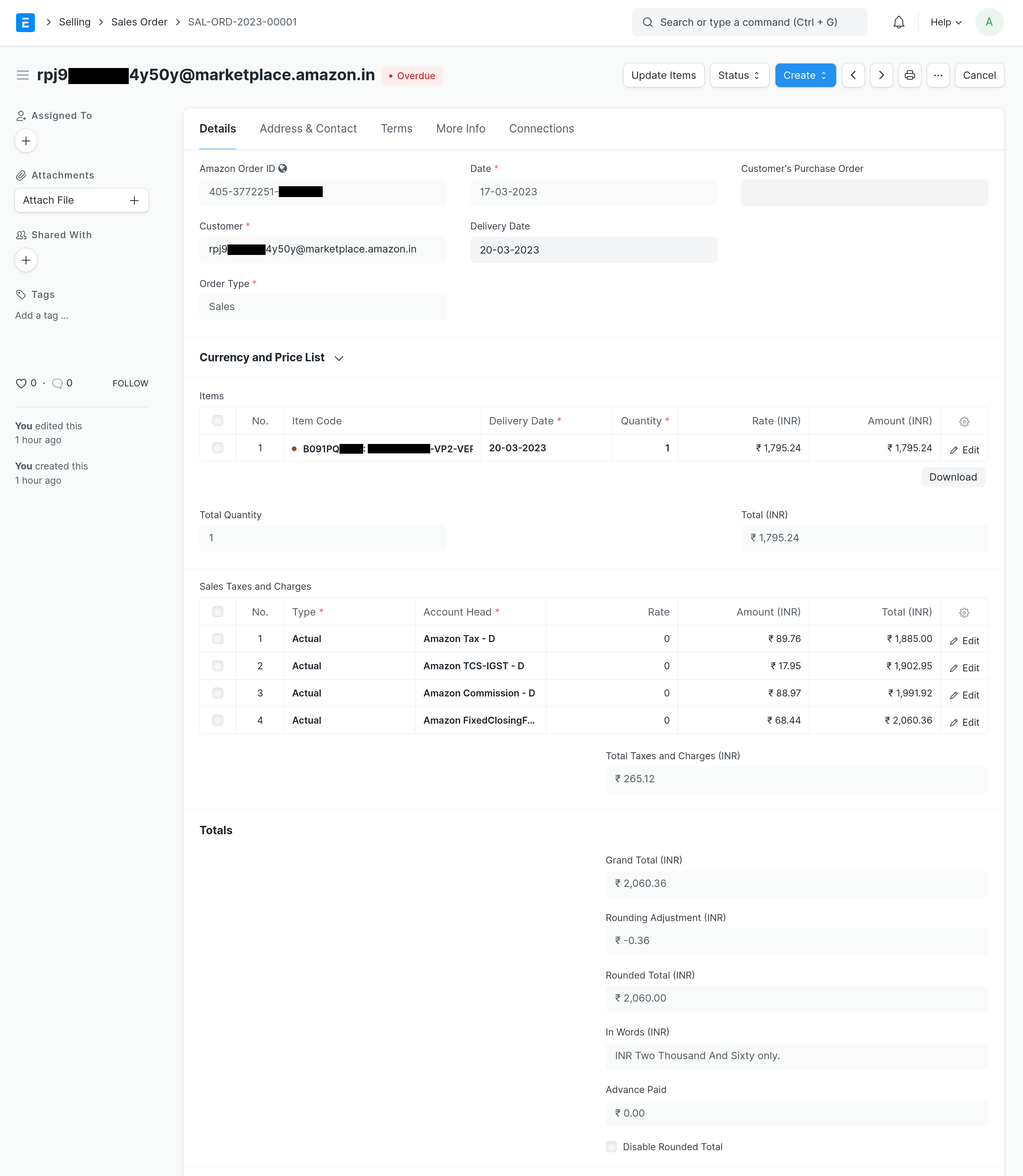
Section titled “5. Sync Orders”Click on this button to sync sales orders. Once this is successful you should see your Amazon Orders as Sales Orders in Bravo Hub ERP. You can also set up a scheduler to sync orders automatically.
In case your developer account does not have access to personally identifiable information. The customer name would be stored as a combination of the BuyerName +
or Marketplace email ID.
The connector won’t handle Order cancellation. If you cancel any order in Amazon then manually you have to cancel the respective Sales Order and other documents in Bravo Hub ERP.