
Employee Grade
هذا المحتوى غير متوفر بلغتك بعد.
An Employee Grade is a grouping of employees with similar positions or values in order to assign compensation rates and salary structures.
Bravo Hub HR allows you to configure Employee Grades, helping you to easily categorize employees based on seniority or any other criteria.
Employee Grade also helps you fetch Employee records in bulk based on their grades while processing payroll, allocating leaves, etc.
To access Employee Grade, go to:
Home > Human Resources > Employee > Employee Grade
1. Prerequisites
Section titled “1. Prerequisites”Before creating an Employee Grade, it is advisable you create the following:
2. How to create an Employee Grade
Section titled “2. How to create an Employee Grade”- Go to Employee Grade list, click on New.
- Enter the Name of the Employee Grade.
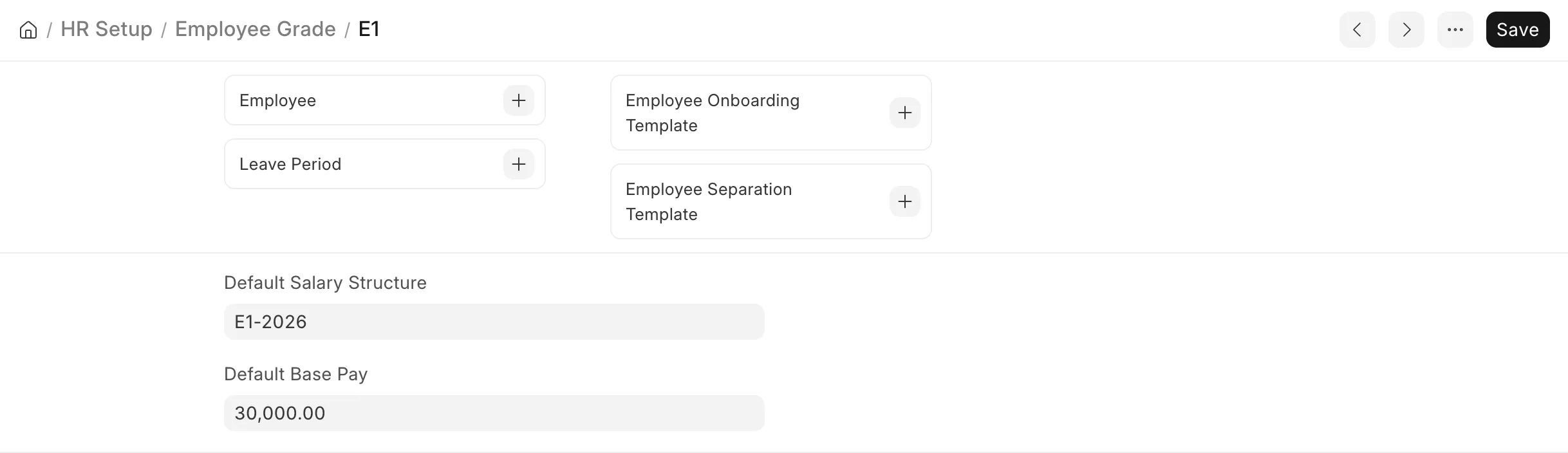
- Select the Default Salary Structure for that Grade.
- Enter the Default Base Pay for that Grade.
- Save.
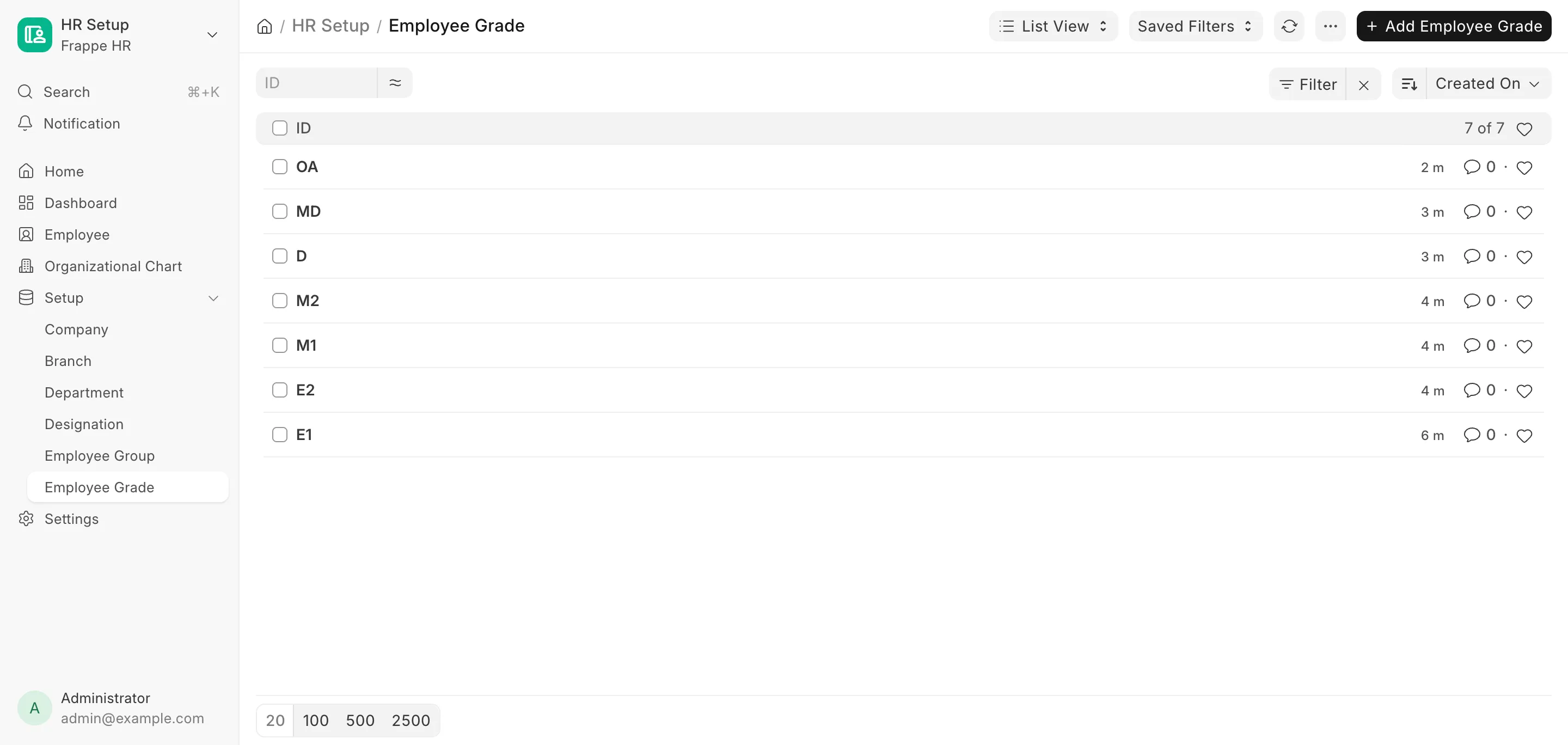
Shown below are the different Employee Grades created.
You also can access Employee, Employee Onboarding Template and Employee Separation Template.
3. Features
Section titled “3. Features”3.1 Default Salary Structure
Section titled “3.1 Default Salary Structure”The Default Salary Structure is the Salary Structure assigned to Employees of this Grade. Only submitted and active Salary Structures can be selected.
When assigning a Salary Structure through Salary Structure Assignment, the Salary Structure is automatically set based on the Default Salary Structure configured for the Employee’s Grade. You can change the Salary Structure for an individual Employee before submitting the assignment.
3.2 Default Base Pay
Section titled “3.2 Default Base Pay”The Default Base Pay is the base salary amount for Employees of this Grade in the selected Currency.
When assigning a Salary Structure through Salary Structure Assignment, the Base amount for each Employee is automatically set based on the Default Base Pay of their Grade. You can change the Base amount for an individual Employee before submitting the assignment.
This allows you to define a standard compensation amount at the Grade level instead of setting it separately for each Employee.