
Address
هذا المحتوى غير متوفر بلغتك بعد.
An Address stores a physical or mailing location and can be linked to a Customer, Supplier, Lead, shareholder, sales partner, Warehouse, or Company. One party can have several billing, shipping, office, and branch addresses.
Keep locations as linked Address records instead of creating duplicate Customers or Suppliers for each site.
Before you begin
Section titled “Before you begin”Confirm:
- the party or parties to link;
- whether the location is used for billing, shipping, or another purpose;
- which address should be preferred;
- the correct country and postal format; and
- any regional tax identifiers that belong to the location.
The selected Country determines the country-specific Address Template used when Bravo Hub ERP renders the address.
Create an Address
Section titled “Create an Address”- Open CRM > Address and select Add Address.
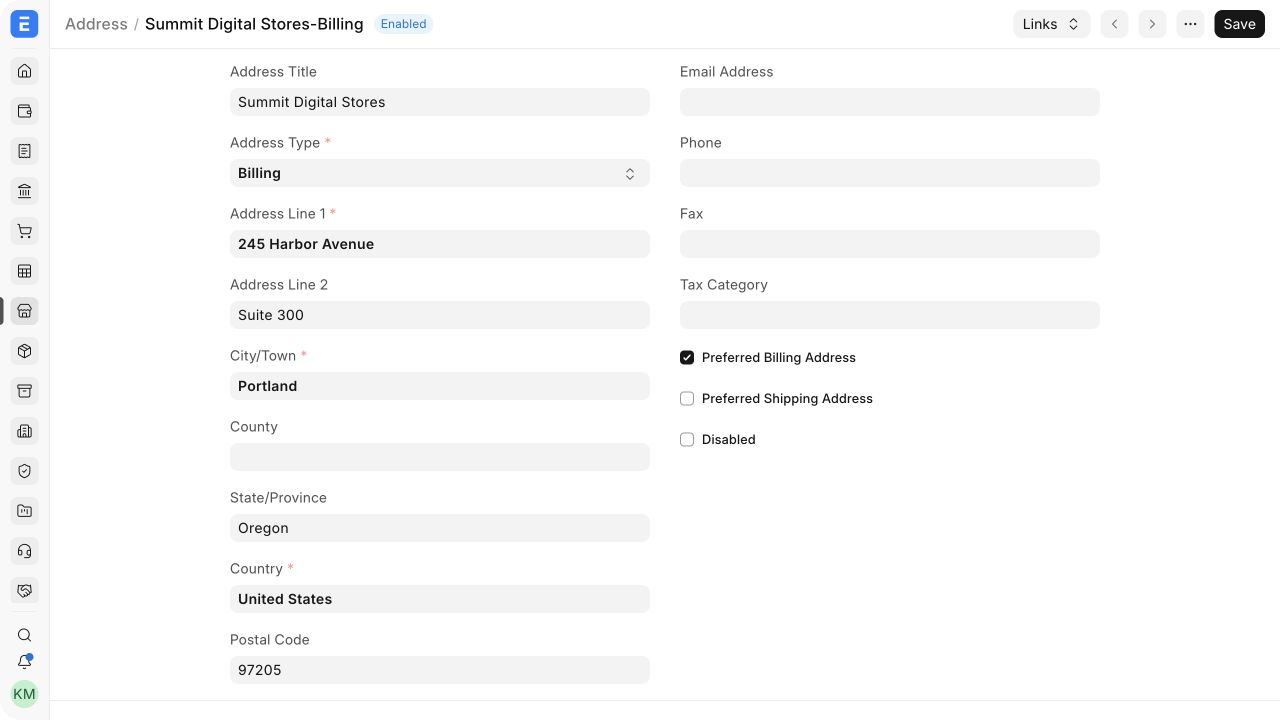
- Enter the Address Title and select the Address Type.
- Enter Address Line 1, optional Address Line 2, City/Town, County, State/Province, Country, and Postal Code.
- Add phone, fax, email, or tax category when required.
- Set preferred billing or shipping status when this is the normal location.
- Add the party link.
- Save the Address.
When created from a party, Bravo Hub ERP normally derives a title such as Party Name-Address Type. A standalone Address needs a clear manual title.
Create an Address from a party
Section titled “Create an Address from a party”- Open the Customer or Supplier.
- Select Address & Contact.
- Select New Address.
- Complete the location and save.
Bravo Hub ERP adds the originating party link automatically. This route reduces link errors and is recommended for normal onboarding.
Alternative ways to create Addresses
Section titled “Alternative ways to create Addresses”- Use Data Import for a controlled batch and include the correct Dynamic Link rows.
- Create an Address from a sales or purchase transaction when permitted.
- Use an approved integration when another system owns delivery locations.
- Create a standalone location and link it later.
Important fields and what they mean
Section titled “Important fields and what they mean”| Field | What it controls |
|---|---|
| Address Title | Searchable label and part of the generated Address ID |
| Address Type | Classifies Billing, Shipping, Office, Personal, or another supported use |
| Address Line 1 / 2 | Street, building, suite, floor, or unit information |
| City/Town, County, State/Province | Regional location components used by templates and tax logic |
| Country | Selects the country-specific Address Template and regional fields |
| Postal Code | ZIP, PIN, or other postal identifier |
| Preferred Billing Address | Makes the Address the normal billing selection for the linked party |
| Preferred Shipping Address | Makes the Address the normal shipping selection |
| Disabled | Prevents new selection while retaining history |
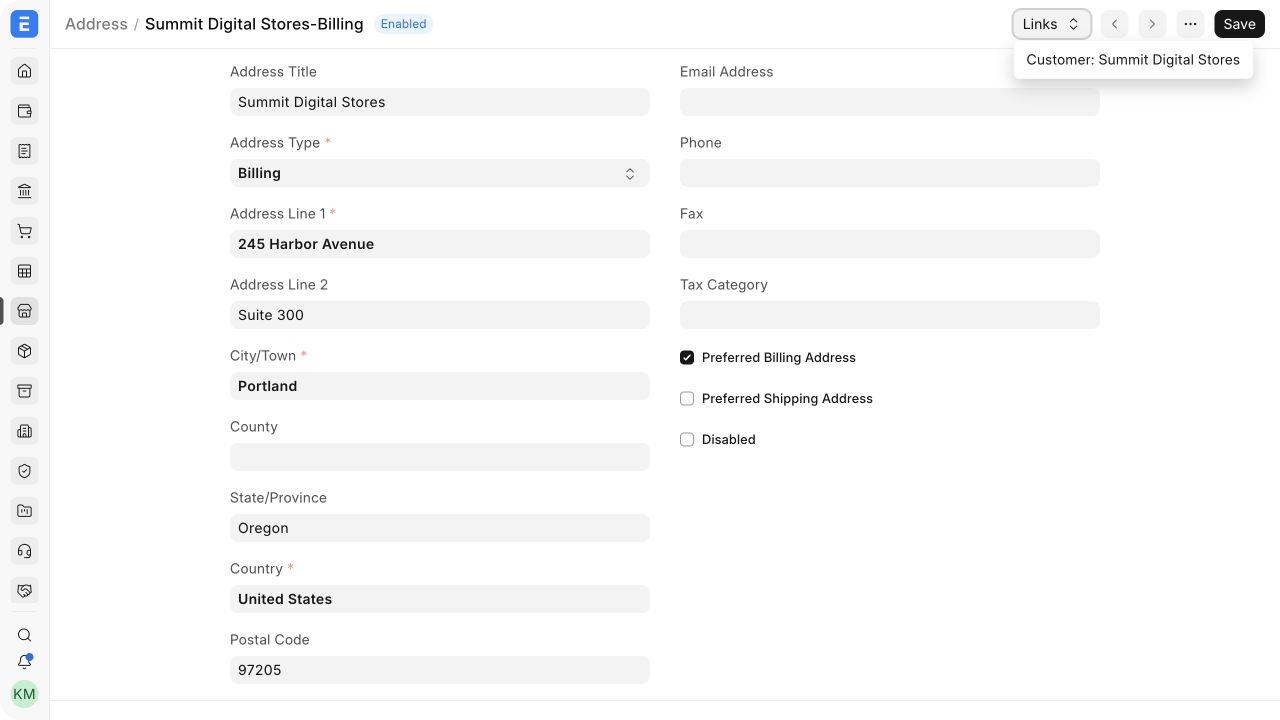
| Links | Connects the Address to one or more supported parties or masters |
| Is Your Company Address | Identifies a facility belonging to your own Company |
Link an Address to multiple parties
Section titled “Link an Address to multiple parties”Use Links to review every party connected to the Address. Add another link only when the same physical location genuinely serves multiple parties.
Do not link unrelated Customers merely because they share a building. Separate Address records preserve independent primary flags and tax details.
Preferred billing and shipping addresses
Section titled “Preferred billing and shipping addresses”A preferred billing Address can be fetched into Sales Orders, Sales Invoices, Delivery Notes, purchase documents, and other supported transactions. The preferred shipping Address supplies the normal delivery destination.
One location may be both preferred billing and preferred shipping. For Summit Digital Stores, the Harbor Avenue office is billing and the Meridian Parkway warehouse is shipping.
Users can select another linked Address on a transaction. Submitted documents preserve the address text they used.
Regional tax details
Section titled “Regional tax details”Regional apps can add fields and validation to Address. For India GST, store GSTIN and GST State on the Address—not only on the Customer or Supplier—because one party can have registrations in several states. Sales documents then fetch the registration belonging to the selected location.
For your own facilities, enable Is Your Company Address and link the Company. Verify regional requirements against the installed compliance app and current law.
Save and next steps
Section titled “Save and next steps”Address is saved rather than submitted. After saving:
- verify its Links menu;
- confirm preferred billing and shipping flags;
- select it on a test Quotation or transaction;
- check the formatted result; and
- disable obsolete locations instead of deleting history.
Address types and availability
Section titled “Address types and availability”| Type or state | Use |
|---|---|
| Billing | Invoice and statement location |
| Shipping | Delivery or receiving location |
| Office | General business location |
| Preferred | Normal automatic selection for a linked party |
| Disabled | Retained but unavailable for new selections |
| Company Address | One of your organization’s facilities |
Troubleshooting
Section titled “Troubleshooting”| Problem | What to check |
|---|---|
| Wrong Address appears on a transaction | Review party links, preferred flags, and the selected transaction Address |
| Address formatting is wrong | Check Country and the applicable Address Template |
| Address cannot be found | Search the generated title and verify it is not disabled |
| Import creates unlinked Addresses | Correct Link DocType and Link Name child rows |
| Regional tax fields are missing | Check Country, installed regional app, and company configuration |
Frequently asked questions
Section titled “Frequently asked questions”Can one party have several billing or shipping Addresses?
Section titled “Can one party have several billing or shipping Addresses?”Yes. Mark the normal choice as preferred and select alternatives per transaction.
Can an Address link to multiple Customers or Suppliers?
Section titled “Can an Address link to multiple Customers or Suppliers?”Yes, when the location is genuinely shared.
Should I edit an old Address after it changes?
Section titled “Should I edit an old Address after it changes?”For a minor correction, edit it. For a materially different location, create a new Address and disable the obsolete one.
Does editing an Address change submitted documents?
Section titled “Does editing an Address change submitted documents?”No. Submitted documents preserve the address text stored at posting.
Where should regional tax registration be stored?
Section titled “Where should regional tax registration be stored?”Use the Address when the registration belongs to a location, following the relevant regional app.