
Payment Entry
هذا المحتوى غير متوفر بلغتك بعد.
Why use a Payment Entry?
Section titled “Why use a Payment Entry?”Use a Payment Entry when money is received, paid, or transferred between bank and cash accounts. It is the standard operational document for recording a customer receipt, supplier payment, advance, partial payment, payment covering several invoices, or internal account transfer.
A Payment Entry does more than create debit and credit postings. It can link the money to a Sales Invoice, Purchase Invoice, Sales Order, Purchase Order, or another supported reference. Bravo Hub ERP then updates the allocated and outstanding amounts. An advance or standalone payment can remain unallocated and be matched later using Payment Reconciliation.
The guided form also records the party, payment mode, bank or cash accounts, reference number, currencies, exchange rates, deductions, and invoice allocations. This provides a clearer payment trail and reduces the risk of manually choosing the wrong debit or credit account.
How a Payment Entry affects the ledger
Section titled “How a Payment Entry affects the ledger”Submitting a Payment Entry creates General Ledger entries. The exact account names depend on your Chart of Accounts, but the usual postings are:
| Payment type | Debit | Credit | Operational result |
|---|---|---|---|
| Receive | Bank or Cash | Customer receivable | Money increases in the selected bank or cash account. When allocated to a Sales Invoice, its outstanding amount decreases. |
| Pay | Supplier payable | Bank or Cash | The supplier liability decreases and money leaves the selected bank or cash account. When allocated to a Purchase Invoice, its outstanding amount decreases. |
| Internal Transfer | Destination bank or cash account | Source bank or cash account | Money moves between company accounts without creating a customer or supplier balance. |
A Payment Entry normally settles an amount already recognized by another transaction. For example, a Sales Invoice records income and the customer receivable. The later Payment Entry moves that amount from receivables to bank or cash. It does not record the sales income again.
Payment Entry or Journal Entry?
Section titled “Payment Entry or Journal Entry?”Use a Payment Entry when the event is primarily a movement of money. Use a Journal Entry when the event is primarily an accounting adjustment and no customer or supplier payment is taking place.
| Situation | Use | Why |
|---|---|---|
| Receive money from a customer | Payment Entry | It records the bank receipt, party, references, and invoice allocation. |
| Pay a supplier | Payment Entry | It records the bank payment and reduces the selected payable. |
| Record an advance or partial payment | Payment Entry | It supports unallocated amounts and later reconciliation. |
| Transfer money between bank or cash accounts | Payment Entry | Internal Transfer provides a guided account-to-account flow. |
| Write off a bad debt, accrue an expense, reclassify a balance, or enter an accounting adjustment | Journal Entry | You control the debit and credit accounts directly because the purpose is a ledger adjustment. |
Use a Payment Entry when money is received, paid, or transferred between accounts. Bravo Hub ERP helps you:
- Select the correct bank, cash, customer, and supplier accounts.
- Record money received from a customer or paid to a supplier.
- Transfer money between bank or cash accounts.
- Link a payment to one or more invoices.
- Update invoice outstanding amounts automatically.
- Record full payments, partial payments, and advances.
- Handle currencies and store bank references, cheque numbers, and payment dates.
- Keep unallocated payments available for later reconciliation.
- Create the required General Ledger entries when you submit.
Why not use a Journal Entry for routine payments?
Section titled “Why not use a Journal Entry for routine payments?”A Journal Entry can also record some bank or cash movements, but you must:
- Choose the debit and credit accounts yourself.
- Enter the correct amount on each side.
- Understand the required accounting treatment.
- Take greater care to avoid posting to the wrong account.
If you use journal entry to record payments, you will not be able to track receivables, reconcile invoices and complete a sales / purchase cycle.
For most customer receipts, supplier payments, advances, and bank transfers, use a Payment Entry. Use a Journal Entry mainly for accounting adjustments where no actual payment is being made.
Where Payment Entry fits in the business cycle
Section titled “Where Payment Entry fits in the business cycle”In the standard invoice-first workflow, Payment Entry is the settlement step at the end of both the selling and buying cycles. The order records the commitment, the delivery or receipt records the movement of goods, the invoice records the amount due, and the Payment Entry records the money received or paid.
Selling cycle
Section titled “Selling cycle”flowchart LR SO["Sales OrderCommitment"] --> DN["Delivery NoteStock delivered"] --> SI["Sales InvoiceReceivable created"] --> PE["Payment EntryReceive payment"] classDef payment fill:#e8f4ff,stroke:#2490ef,stroke-width:2px,color:#1f272e class PE paymentUse a Receive Payment Entry when the customer pays. Bravo Hub ERP debits the bank or cash account, credits Accounts Receivable, and reduces the Sales Invoice outstanding amount.
Buying cycle
Section titled “Buying cycle”flowchart LR PO["Purchase OrderCommitment"] --> PR["Purchase ReceiptStock received"] --> PI["Purchase InvoicePayable created"] --> PE["Payment EntryPay supplier"] classDef payment fill:#e8f4ff,stroke:#2490ef,stroke-width:2px,color:#1f272e class PE paymentUse a Pay Payment Entry when you pay the supplier. Bravo Hub ERP debits Accounts Payable, credits the bank or cash account, and reduces the Purchase Invoice outstanding amount.
| Cycle | Payment Type | Debit | Credit | Result |
|---|---|---|---|---|
| Selling | Receive | Bank or Cash | Accounts Receivable | Customer outstanding reduces |
| Buying | Pay | Accounts Payable | Bank or Cash | Supplier outstanding reduces |
Payment Entry is not always the last document. If you receive a customer advance or pay a supplier advance, create the Payment Entry before the invoice. Link or reconcile that advance with the invoice later to complete the settlement.
Before you begin
Section titled “Before you begin”Confirm the correct Company, currency, receivable or payable account, and bank or cash ledger. Use submitted source documents and keep the bank reference or remittance advice available.
Create a Payment Entry
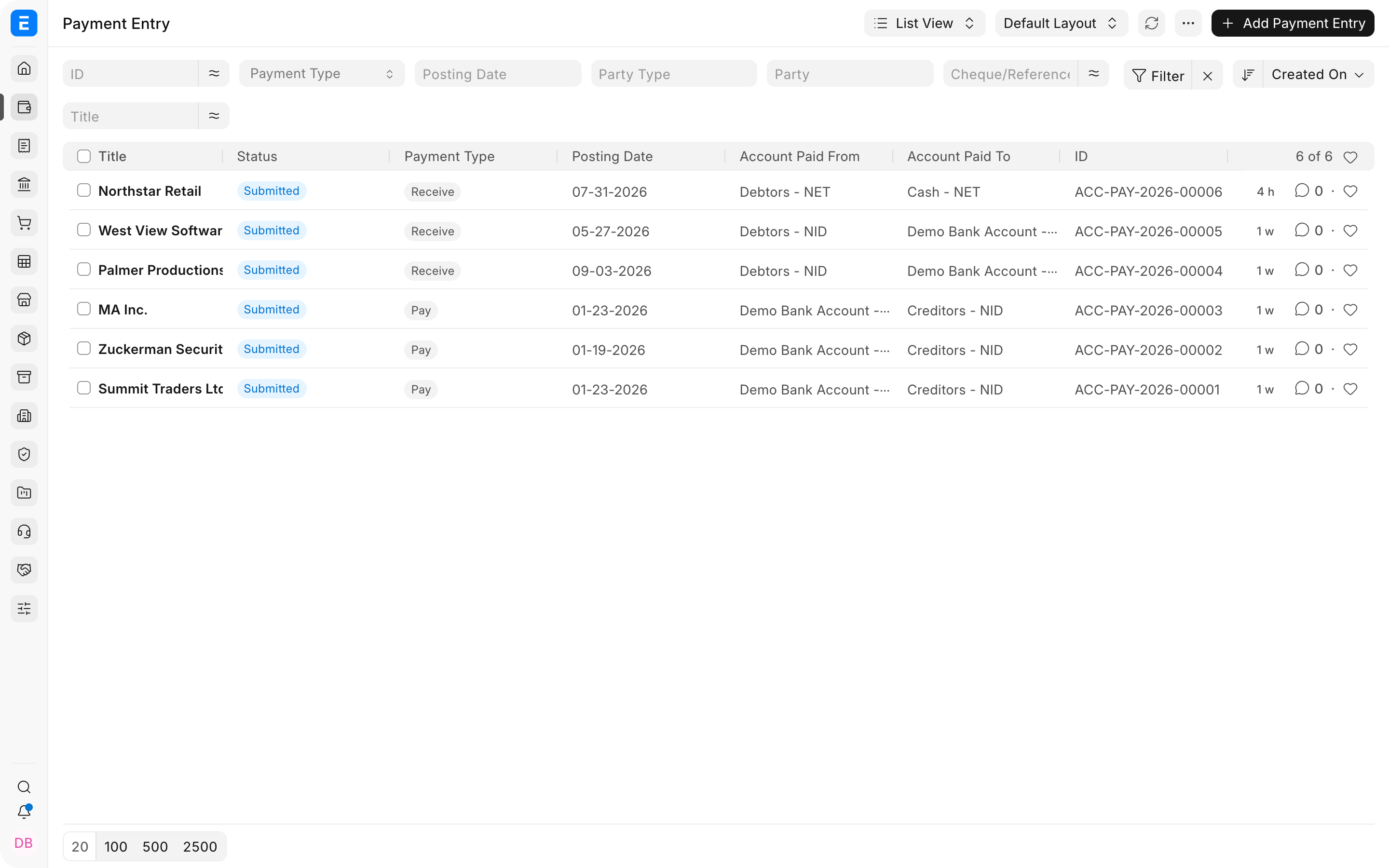
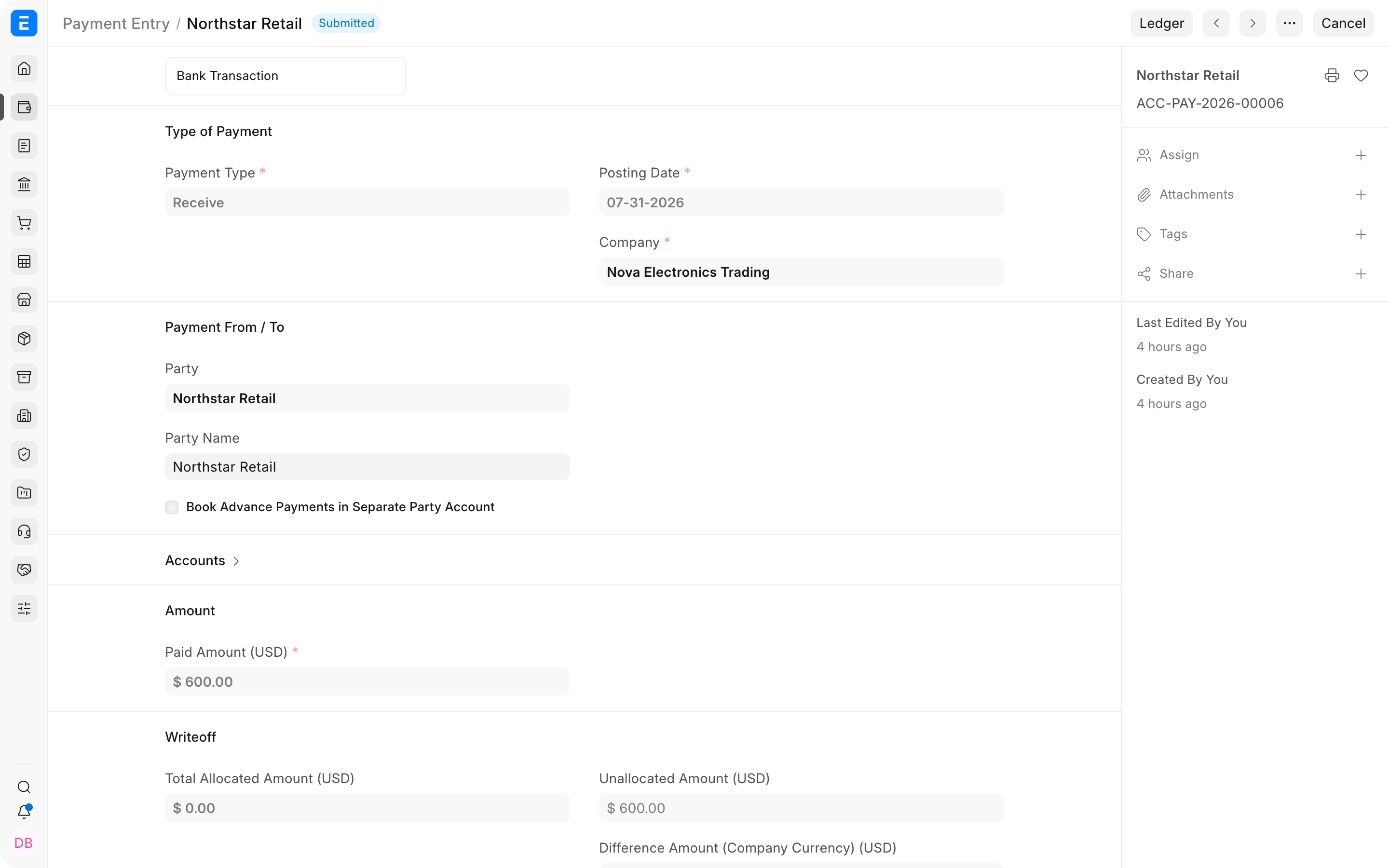
Section titled “Create a Payment Entry”- Select Receive, Pay, or Internal Transfer.
- Set the Company, posting date, Mode of Payment, and party.
- Check the paid-from and paid-to accounts and currencies.
- Enter the amount and reference details.
- Use Get Outstanding Invoices or add references manually.
- Review allocations and deductions, then submit.
Important fields and what they mean
Section titled “Important fields and what they mean”| Field | What it controls |
|---|---|
| Payment Type | Receive, Pay, or Internal Transfer. |
| Party Type and Party | Customer, Supplier, Employee, Shareholder, or another supported party. |
| Paid From and Paid To | Source and destination ledger accounts. |
| Paid Amount and Received Amount | Amounts in the respective account currencies. |
| Reference No and Date | Bank, check, or transfer evidence. |
| References | Invoices, Orders, or other documents against which the payment is allocated. |
| Deductions or Loss | Bank fees, write-offs, withholding, or exchange differences recorded with explicit accounts. |
Troubleshooting
Section titled “Troubleshooting”Get Outstanding Invoices does not show an invoice
Section titled “Get Outstanding Invoices does not show an invoice”Confirm that the invoice is submitted, belongs to the selected party and Company, uses the same receivable or payable account, and still has an outstanding amount. Also check the From Date, To Date, and other filters in the outstanding-invoice dialog. An invoice already fully allocated will not appear.
Difference Amount is not zero
Section titled “Difference Amount is not zero”First confirm the Paid Amount, Received Amount, exchange rates, and invoice allocations. Record bank fees, withholding, small write-offs, or exchange differences in Deductions or Losses with the appropriate account. Do not put a bank fee in Taxes and Charges because it is not money paid to the party.
The payment was submitted against the wrong invoice
Section titled “The payment was submitted against the wrong invoice”If the money and party are correct but the allocation is wrong, use Unreconcile Payments and then Payment Reconciliation to apply it correctly. Cancel and amend the Payment Entry only when the payment details or accounts themselves are wrong.
A foreign-currency payment leaves a small outstanding balance
Section titled “A foreign-currency payment leaves a small outstanding balance”Check both account currencies and the source and target exchange rates. Allocate the invoice in its account currency, then post the genuine exchange difference through Deductions or Losses to the configured exchange gain or loss account. Verify the party ledger after submission.
Frequently asked questions
Section titled “Frequently asked questions”Can one Payment Entry settle several invoices for the same party?
Section titled “Can one Payment Entry settle several invoices for the same party?”One Payment Entry can settle several invoices for the selected party. Fetch the outstanding invoices and enter an allocation against each reference. The total allocated amount can be less than or equal to the payment, but it cannot exceed the available amount.
What happens when a customer pays more than the selected invoice amount?
Section titled “What happens when a customer pays more than the selected invoice amount?”Allocate only the invoice balance. Bravo Hub ERP keeps the remainder as an unallocated advance for that customer, which can later be applied through Payment Reconciliation or a supported invoice workflow.
Can one Payment Entry allocate money across different customers or suppliers?
Section titled “Can one Payment Entry allocate money across different customers or suppliers?”A standard Payment Entry has one party. Use separate Payment Entries when money belongs to different parties, even if the bank deposited or paid a single combined amount. Reconcile the bank transaction to the individual entries afterward.
Can a Payment Entry require approval above a specified amount?
Section titled “Can a Payment Entry require approval above a specified amount?”Configure a Workflow for Payment Entry with amount-based conditions and roles. Test the states, transition permissions, and who can submit before using it for live payments.
Can I preview the ledger impact before submitting?
Section titled “Can I preview the ledger impact before submitting?”Use the document’s Accounting Ledger or ledger preview action when it is available in your version. At minimum, verify Paid From, Paid To, amounts, exchange rates, allocations, and deductions. A draft does not post to the General Ledger.