
Tax Category
هذا المحتوى غير متوفر بلغتك بعد.
A Tax Category identifies the tax treatment that applies to a party, address, item, or transaction. It does not store a tax rate or calculate tax by itself. Instead, Bravo Hub ERP uses the category as context when selecting a matching Tax Rule, Sales or Purchase Taxes and Charges Template, and Item Tax Template.
For example, a business could use Standard Tax, Export, and Tax Exempt categories. A customer or address assigned to Standard Tax can cause Bravo Hub ERP to select the standard sales tax template when a sales transaction is created.
Understand the relationship
Section titled “Understand the relationship”flowchart LR A["Customer, Supplier, or Address"] --> B["Tax Category"] B --> C["Matching Tax Rule"] C --> D["Sales or Purchase Tax Template"] B --> E["Matching Item Tax Template"] D --> F["Transaction tax rows"] E --> F| Record | Responsibility |
|---|---|
| Tax Category | Names the tax treatment and connects related configuration |
| Tax Rule | Selects a sales or purchase template when its conditions match |
| Sales or Purchase Taxes and Charges Template | Supplies tax accounts, rates, calculation types, and descriptions |
| Item Tax Template | Overrides the rate for particular items within the selected category |
One category can be used by multiple rules. For example, Standard Tax can have one sales rule and one purchase rule, or different rules for companies, parties, locations, and effective dates. Only the rule that matches the current transaction supplies its applicable template.
Before you begin
Section titled “Before you begin”Create the required tax accounts and reusable Sales Taxes and Charges Template or Purchase Taxes and Charges Template. Decide which treatments your organization needs and how Bravo Hub ERP should distinguish them.
Use a small, meaningful set of categories. Categories normally describe a jurisdiction or tax treatment, such as Standard, Export, Exempt, In-State, or Out-of-State. Avoid creating a category for every customer if several customers follow the same rules.
Create a Tax Category
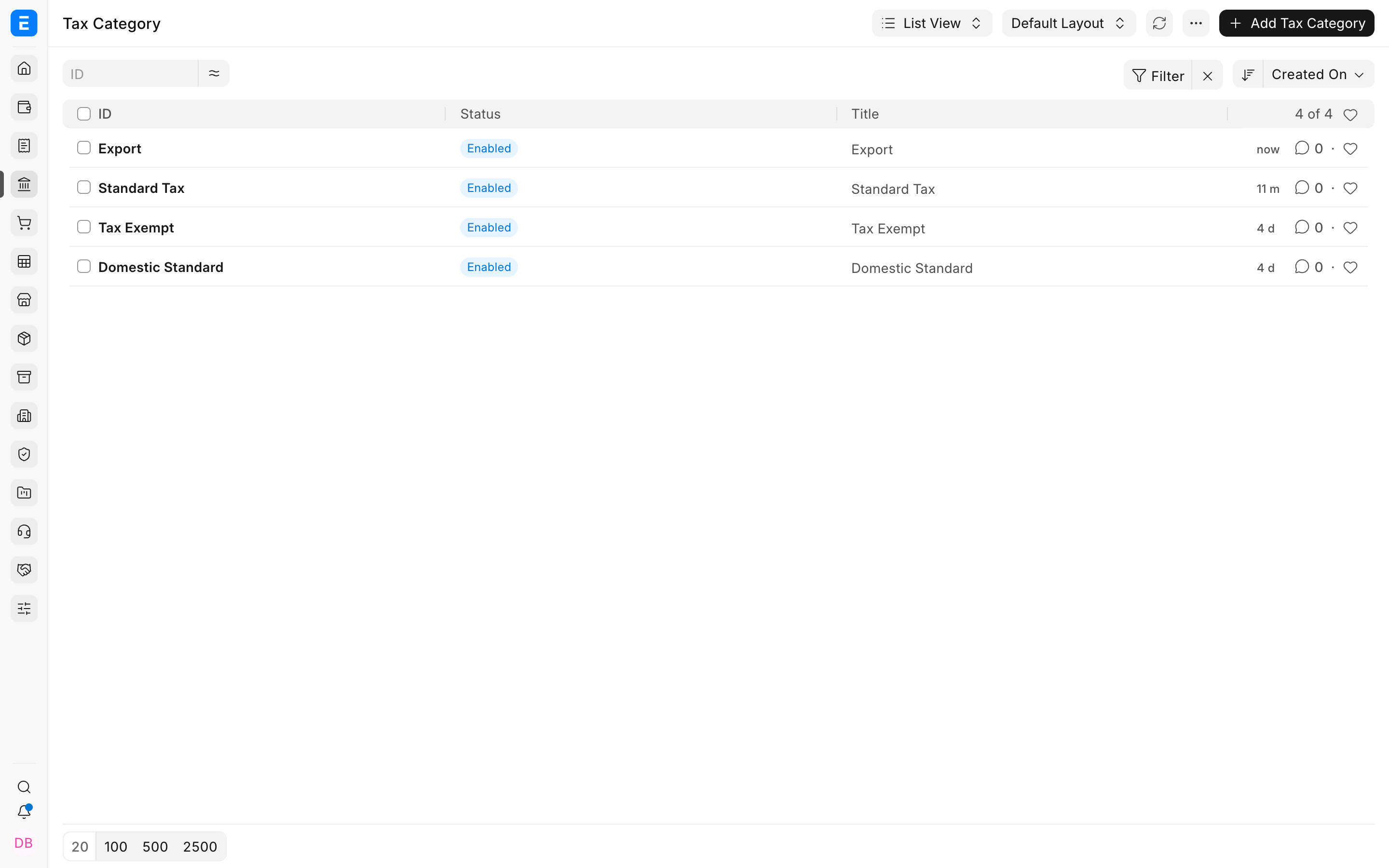
Section titled “Create a Tax Category”Go to Accounting > Taxes > Tax Category and select Add Tax Category.
The example list contains reusable categories for standard, export, and exempt transactions.
Enter a clear title and save. The title is the value users will see on Customers, Suppliers, Addresses, and transactions.
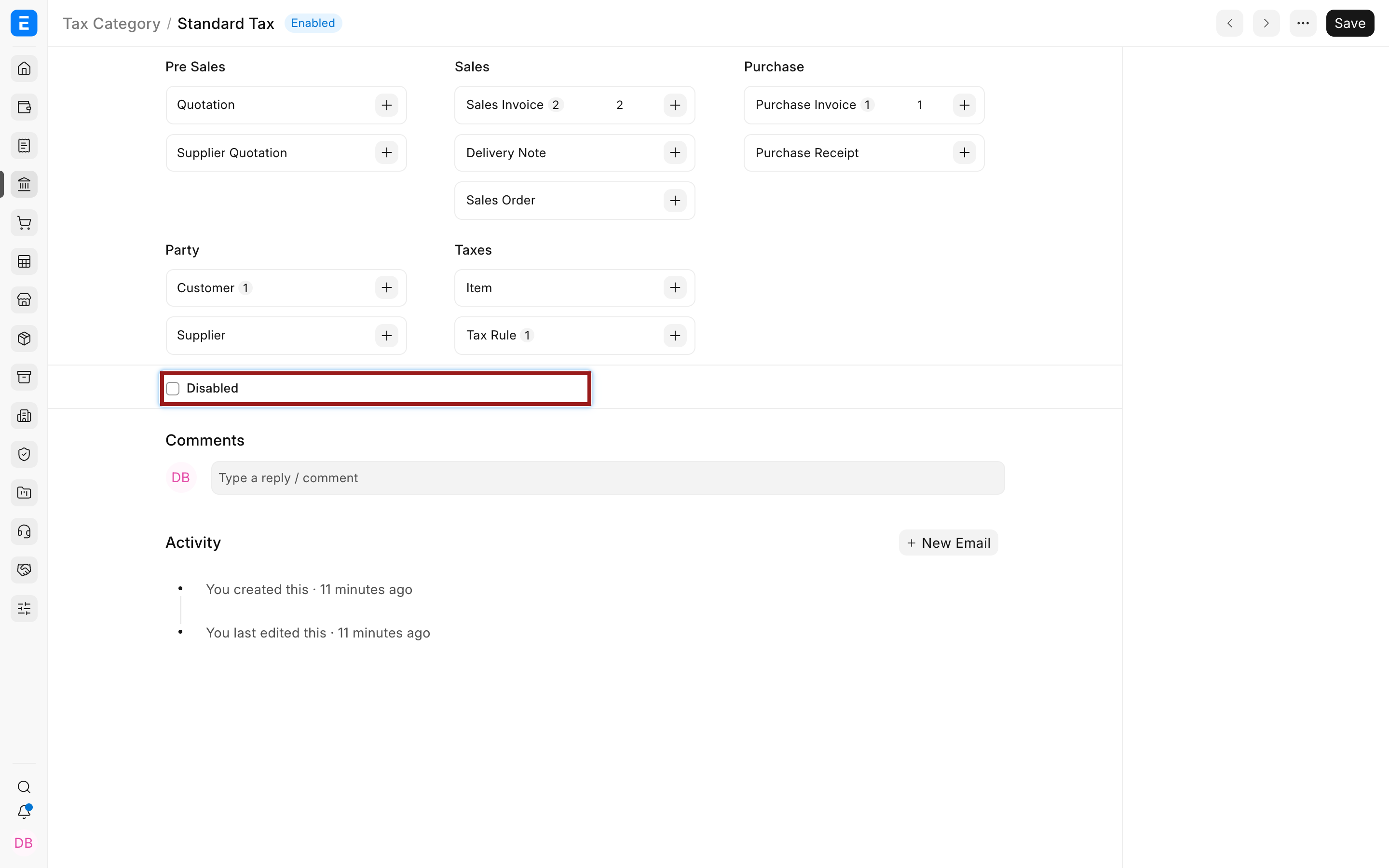
The Tax Category record has only two important fields:
| Field | What it means |
|---|---|
| Title | The reusable name of the tax treatment |
| Disabled | Prevents the category from being selected for new work without deleting historical references |
Disabling a category is safer than deleting one that has already been used. Before disabling it, update parties, addresses, templates, rules, and unsaved transactions that still depend on it.
Choose which Address controls the category
Section titled “Choose which Address controls the category”A customer or supplier can have separate billing and shipping addresses. Their tax treatment may depend on one of those addresses, so Bravo Hub ERP lets you choose which address is used first.
Open Accounts Settings. Under Invoice and Billing, set Determine Address Tax Category from to Billing Address or Shipping Address according to your tax policy.
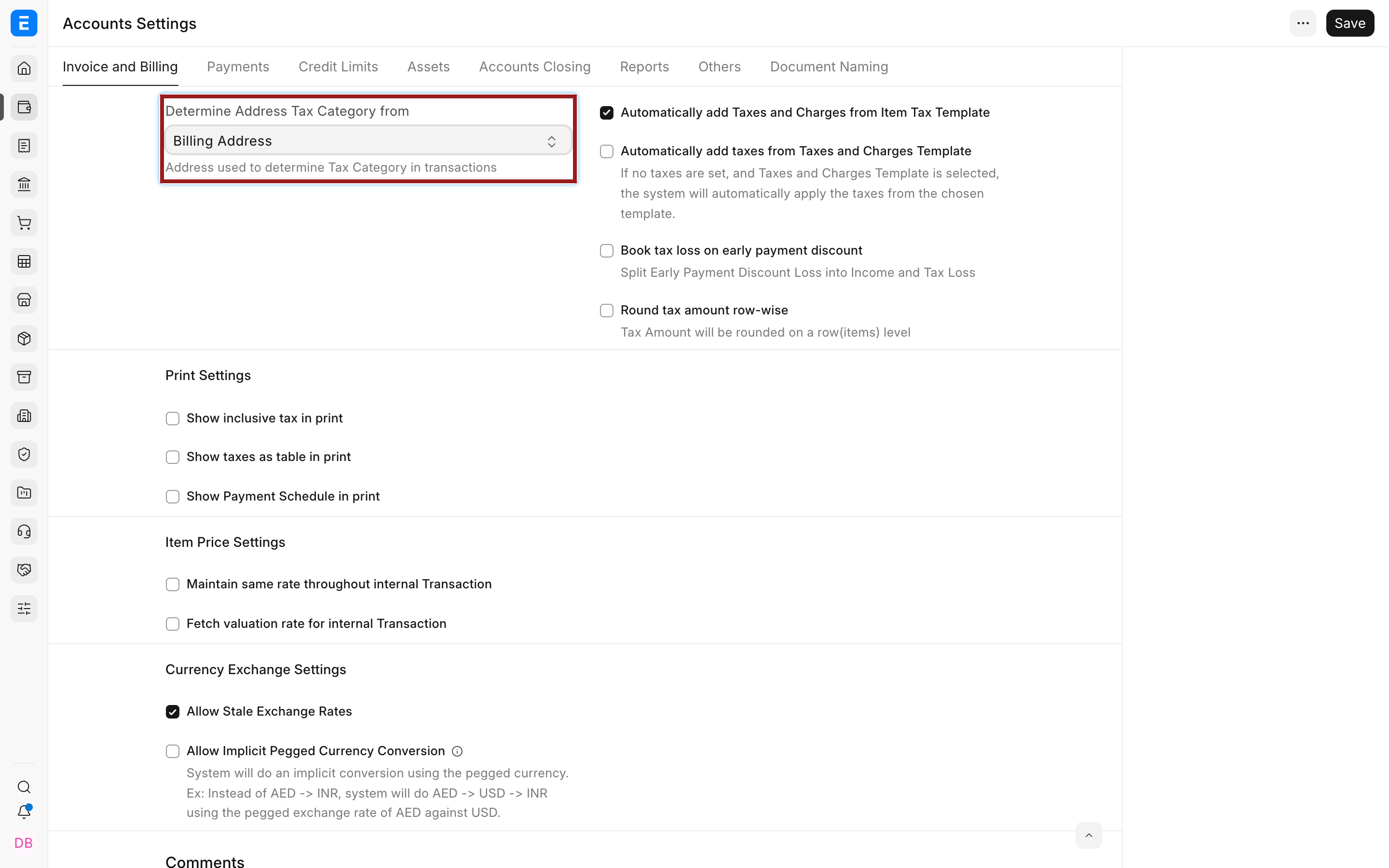
The selected address is checked before the party master. If that Address has no Tax Category, Bravo Hub ERP falls back to the category on the Customer or Supplier.
Use the billing address when liability depends on the invoiced party or bill-to location. Use the shipping address when the destination of goods determines the treatment. Confirm the correct choice for your jurisdiction.
Assign a category to a Customer or Supplier
Section titled “Assign a category to a Customer or Supplier”Open the Customer or Supplier. In the Tax section, select the category that normally applies to the party and save.
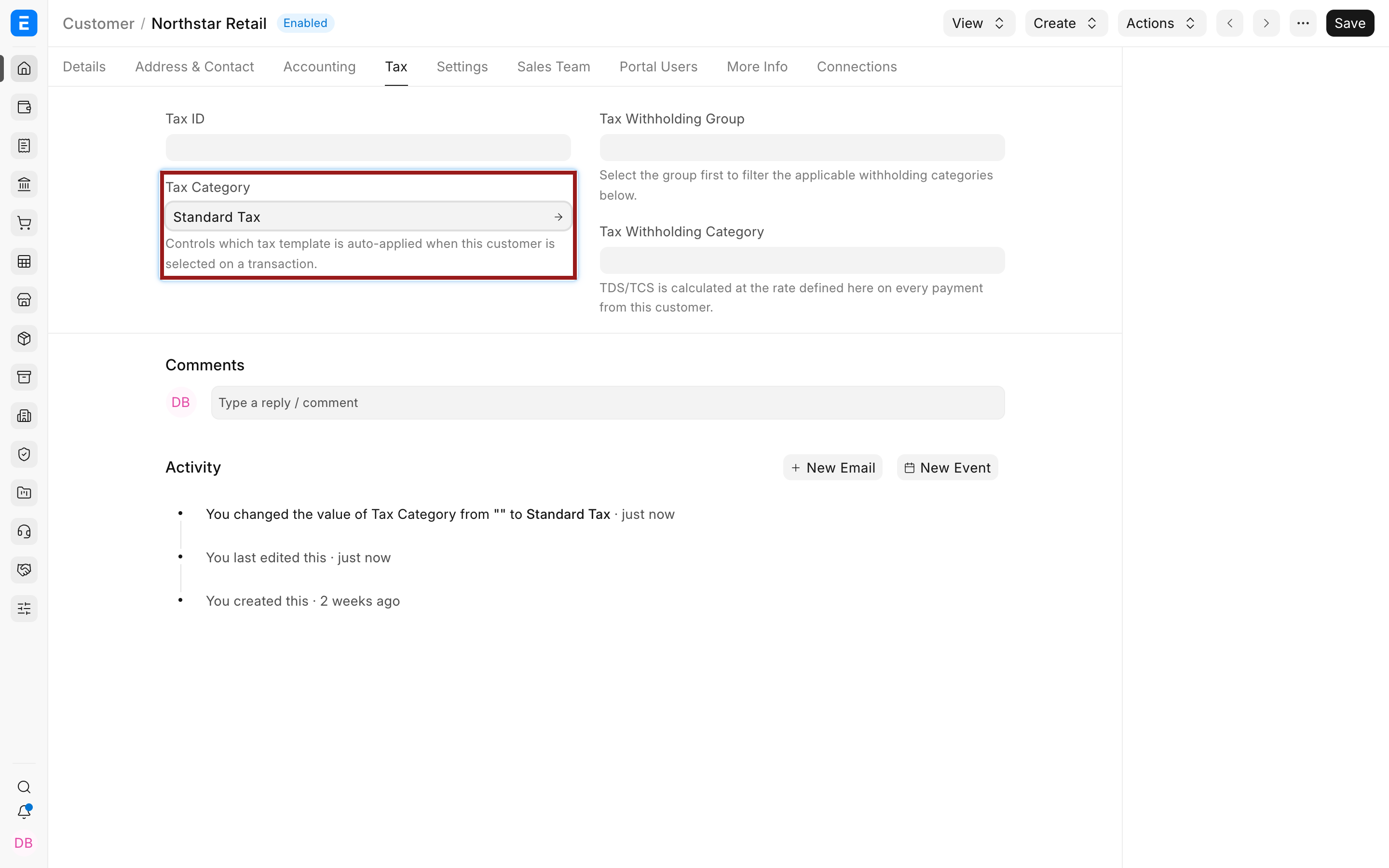
This provides a useful default when an Address does not supply a category. It also keeps parties with the same tax treatment grouped under consistent configuration.
Do not confuse Tax Category with Tax Withholding Category. A Tax Category helps select transaction taxes. A Tax Withholding Category controls deductions and thresholds associated with withholding.
Override the party through an Address
Section titled “Override the party through an Address”Use an Address when the same customer or supplier needs different treatments at different locations. Open the billing or shipping Address, select its Tax Category, and save.
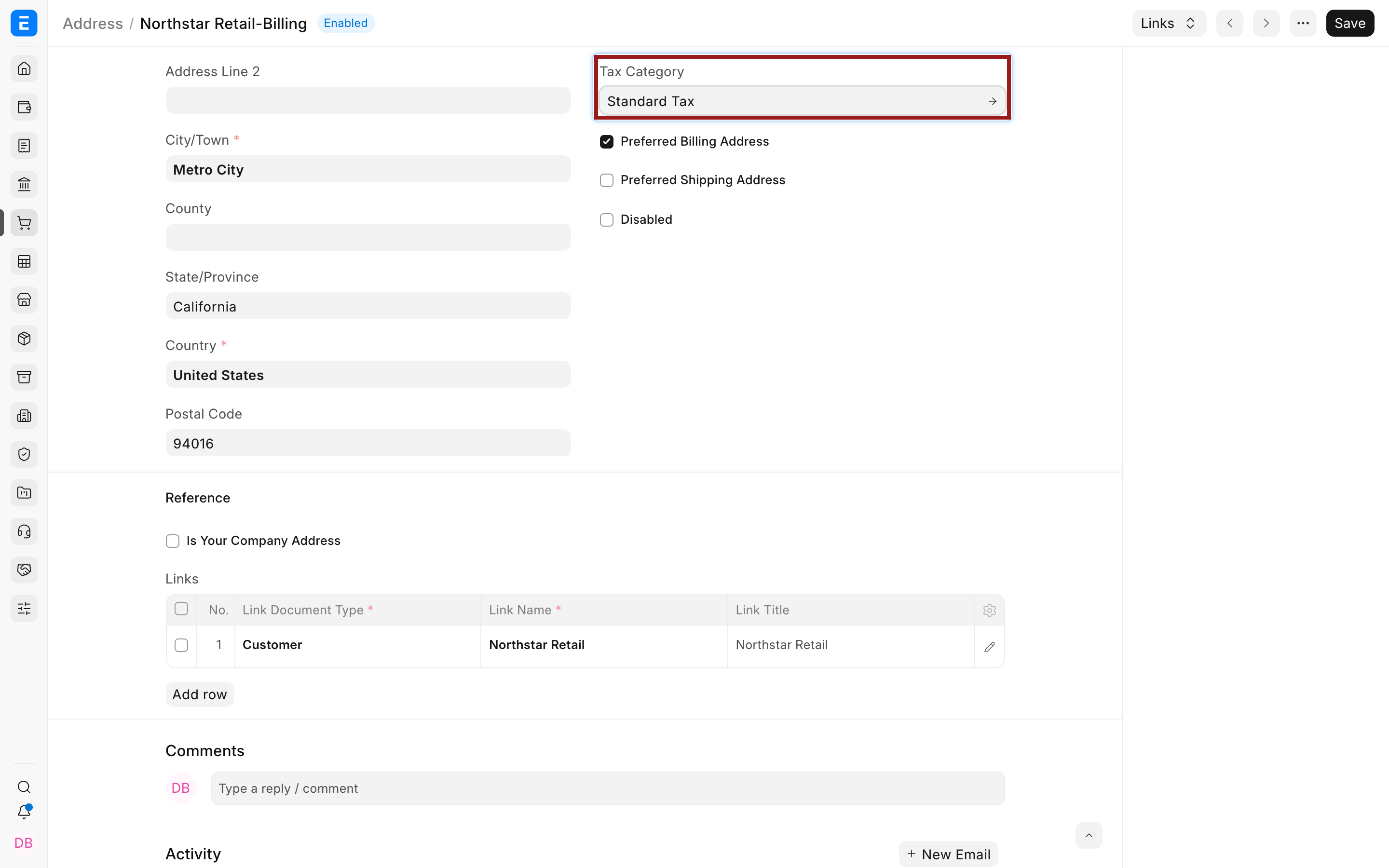
The Address must be linked to the correct Customer or Supplier. Bravo Hub ERP then evaluates the preferred billing or shipping address according to Accounts Settings.
This is useful when a company buys from or sells to branches in different jurisdictions. You can keep one party master and let each address supply the appropriate category.
Connect the category to tax templates
Section titled “Connect the category to tax templates”Create the required Tax Rules. Select whether each rule is for Sales or Purchase, choose the corresponding tax template, and set the Tax Category. Add other conditions only when they are needed, such as company, customer, supplier, item group, location, validity dates, or priority.
For item-specific rates, create an Item Tax Template with the same category and assign it to the Item or Item Group. A category filters which item template is eligible. If the category on the transaction and item template do not match, Bravo Hub ERP will not use that item template.
The transaction template must still include the relevant tax account. An Item Tax Template overrides the rate for a matching item; it does not replace the account row needed to calculate and post tax.
Check the result on a transaction
Section titled “Check the result on a transaction”Create a draft Sales Invoice, Purchase Invoice, Quotation, or Order and select the party and address. Review the Tax Category before adding or finalizing items.
In this example, Northstar Retail and its preferred billing address use Standard Tax. The matching Tax Rule selects Nova Standard Sales Tax 8%, and the transaction receives an 8% output tax row.
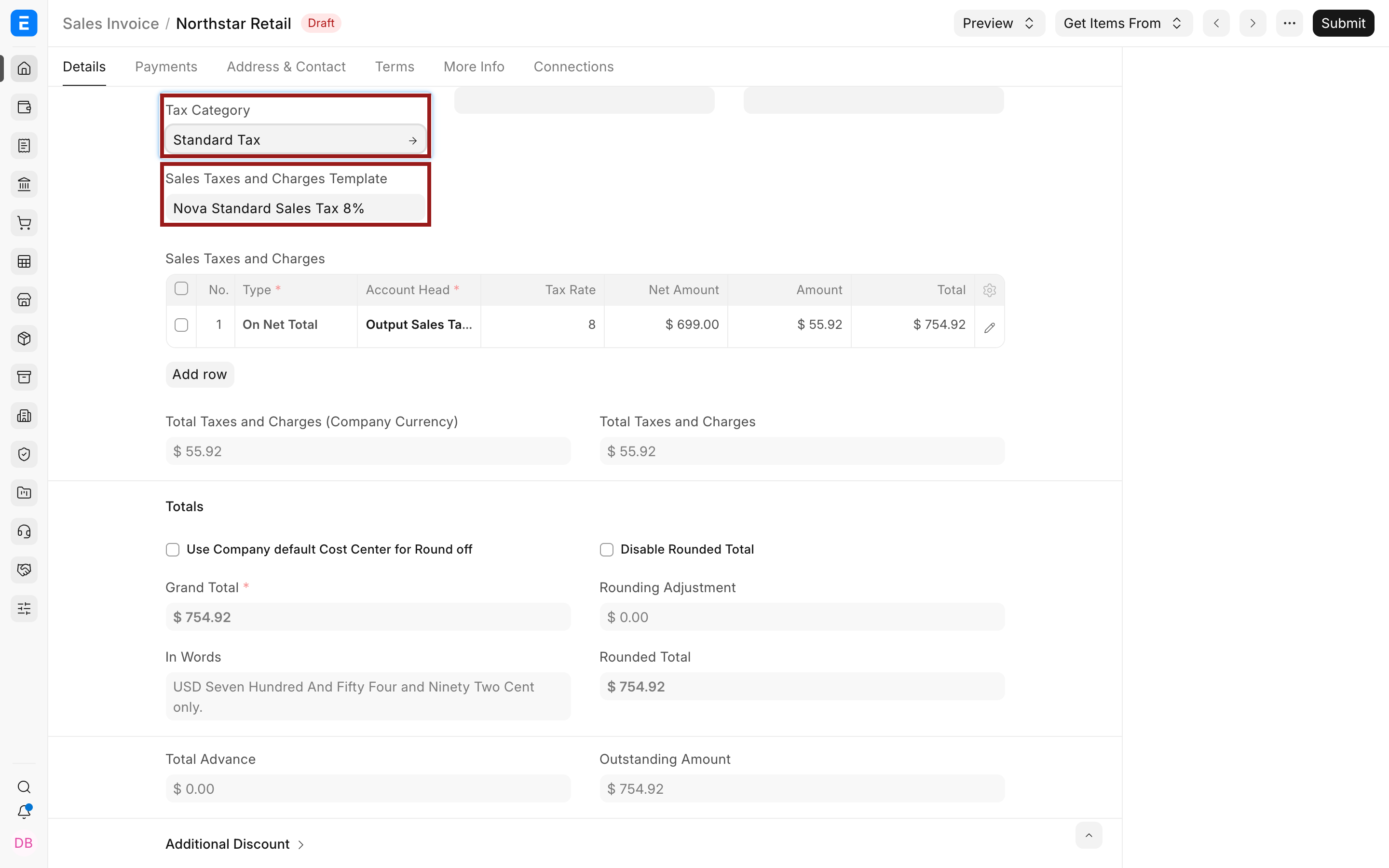
Always verify the selected template, account, rate, tax amount, and Grand Total. A category identifies the treatment, but the template and item tax configuration perform the calculation.
If you manually change the category after adding items, review the Item Tax Template on every affected row and the Taxes and Charges table. When the calculated result does not refresh as expected, remove and re-add the affected items or reselect their item templates before submitting.
How Bravo Hub ERP determines the Tax Category
Section titled “How Bravo Hub ERP determines the Tax Category”Bravo Hub ERP uses this practical order when a party and addresses are available:
- The preferred billing or shipping Address selected by Determine Address Tax Category from
- The other applicable transaction context and party Address
- The Tax Category on the Customer or Supplier when no Address category is available
- A category manually selected on the transaction
The final category then filters matching Tax Rules and Item Tax Templates. Because a user can change the category on a draft transaction, the transaction itself remains the final record of the treatment used.
Troubleshooting
Section titled “Troubleshooting”The Tax Category is blank on the transaction
Section titled “The Tax Category is blank on the transaction”Check whether the selected Customer or Supplier has a category. Then open the billing and shipping Addresses and verify their links, preferred status, and category. Confirm the address preference in Accounts Settings. Save the party or Address before creating a new test transaction.
The category appears but the tax template is not selected
Section titled “The category appears but the tax template is not selected”A category does not select a template without matching configuration. Review the Tax Rule’s transaction type, company, category, party and location filters, validity dates, and priority. Confirm that the linked template is enabled and belongs to the same company.
An Item Tax Template is filtered out or marked invalid
Section titled “An Item Tax Template is filtered out or marked invalid”The item template’s Tax Category must match the category resolved on the transaction. Check the Item or Item Group assignment and ensure the matching tax account exists in the transaction’s Taxes and Charges table.
The wrong address controls tax
Section titled “The wrong address controls tax”Open Accounts Settings and verify whether Bravo Hub ERP is configured to use the billing or shipping address. Then check which address is selected on the transaction. A category on the chosen Address takes precedence over the party-level default.
Frequently asked questions
Section titled “Frequently asked questions”Can one Tax Category have more than one Tax Rule?
Section titled “Can one Tax Category have more than one Tax Rule?”Y
es. The same category can be used in separate sales and purchase rules or in rules with different companies, parties, locations, dates, and priorities. Design the conditions so that Bravo Hub ERP can identify one appropriate template for the current transaction.
Does assigning a category to a Customer override its Address?
Section titled “Does assigning a category to a Customer override its Address?”- Bravo Hub ERP checks the relevant Address first. The Customer or Supplier category acts as a fallback when that Address does not have a category.
Should exempt customers and exempt items use the same setup?
Section titled “Should exempt customers and exempt items use the same setup?”Not necessarily. A party-wide exemption can use an exempt Tax Category and matching rule. If only particular items use a reduced or zero rate, use Item Tax Templates linked to the applicable category. Confirm how your jurisdiction distinguishes exempt, zero-rated, and non-taxable supplies.
Why did item tax not change after I selected another category?
Section titled “Why did item tax not change after I selected another category?”Changing a category late in a draft may leave existing item rows with earlier tax context. Recheck or reselect the Item Tax Template, and remove and re-add affected items when necessary. Verify the complete tax table and totals before submission.
Can I select a Tax Category manually on a transaction?
Section titled “Can I select a Tax Category manually on a transaction?”Y
es. Manual selection is useful for an exceptional transaction, but it also changes which rules and item templates are eligible. Review the calculation and record the reason for the exception according to your controls.