
Purchase Taxes and Charges Template
هذا المحتوى غير متوفر بلغتك بعد.
A Purchase Taxes and Charges Template is a reusable set of tax and charge rows for buying transactions. Use it for input tax, duties, freight, insurance, handling, or another cost that should affect the supplier total, item valuation, or both.
The template can be used on Requests for Quotation, Supplier Quotations, Purchase Orders, Purchase Receipts, and Purchase Invoices where the field is available. Selecting it copies the rows into the transaction and calculates them from the actual items and quantities.
Purchase templates require one decision that sales templates normally do not: whether a cost affects only the amount payable to the supplier, only stock valuation, or both.
Before you begin
Section titled “Before you begin”Create the required accounts in the Chart of Accounts. An input tax account should normally have Account Type set to Tax. A freight or duty row used in item valuation may use an account whose type and accounting treatment are appropriate for expenses included in valuation.
Confirm whether the supplier price is tax-exclusive or tax-inclusive. Identify known landed costs that should be included during the purchase transaction and costs that will be added later through a Landed Cost Voucher. Recording the same cost in both places will double-count it.
Create a Tax Category when the template represents a specific purchase treatment. A Tax Rule can select the template from the supplier, address, category, item, date, company, and priority.
Create a Purchase Taxes and Charges Template
Section titled “Create a Purchase Taxes and Charges Template”Go to Accounting > Taxes > Purchase Taxes and Charges Template and select Add Purchase Taxes and Charges Template.
- Enter a clear Title, such as
Nova Standard Purchase Tax 5%. - Select the Company.
- Select the applicable Tax Category, when used.
- Enable Default only when this is the normal template for new buying transactions for the company.
- Add a row under Purchase Taxes and Charges.
- Open the row with the pencil icon.
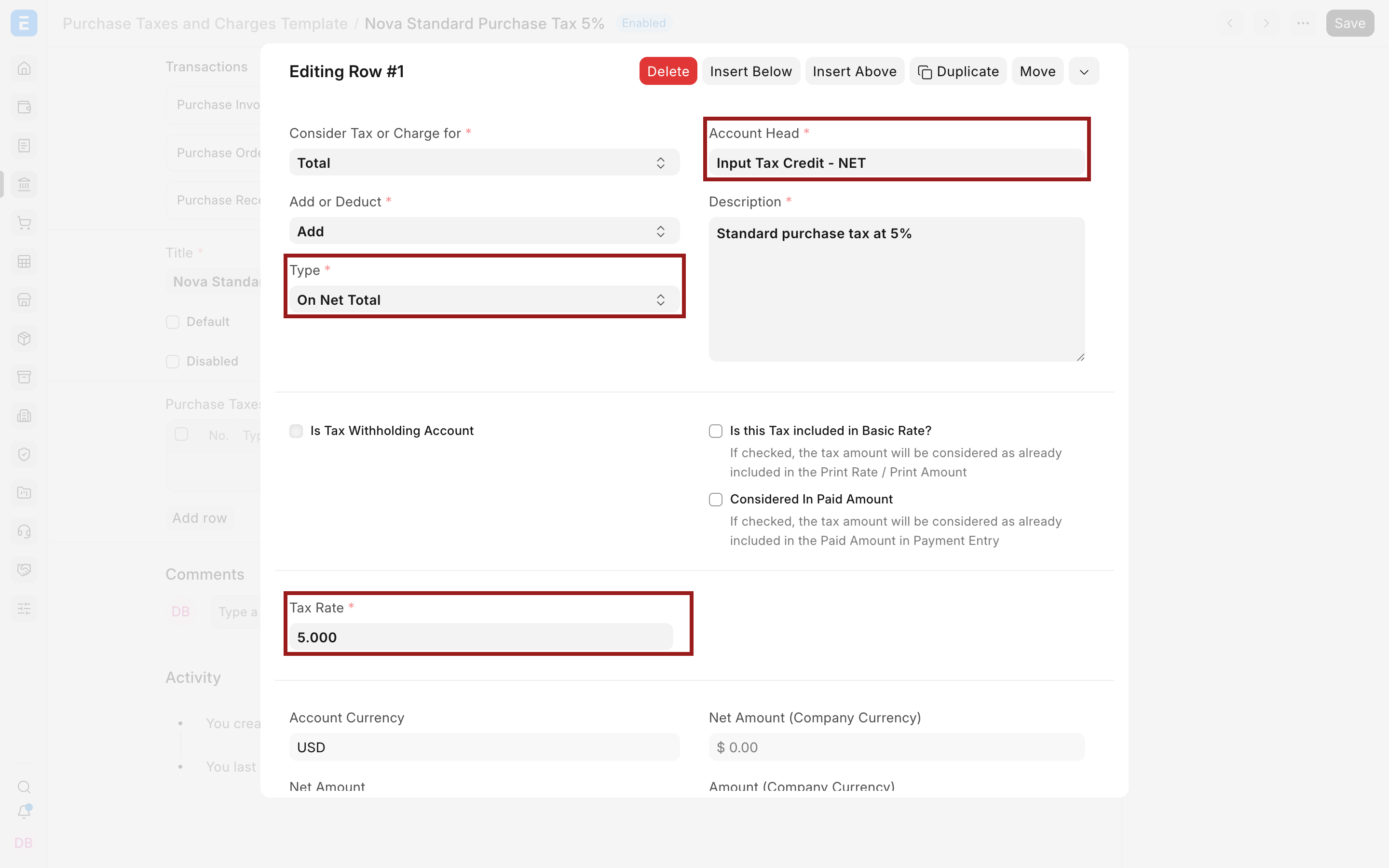
- Configure its valuation treatment, add or deduct direction, calculation type, account, rate, and description.
- Add dependent rows in their intended calculation order.
- Save.
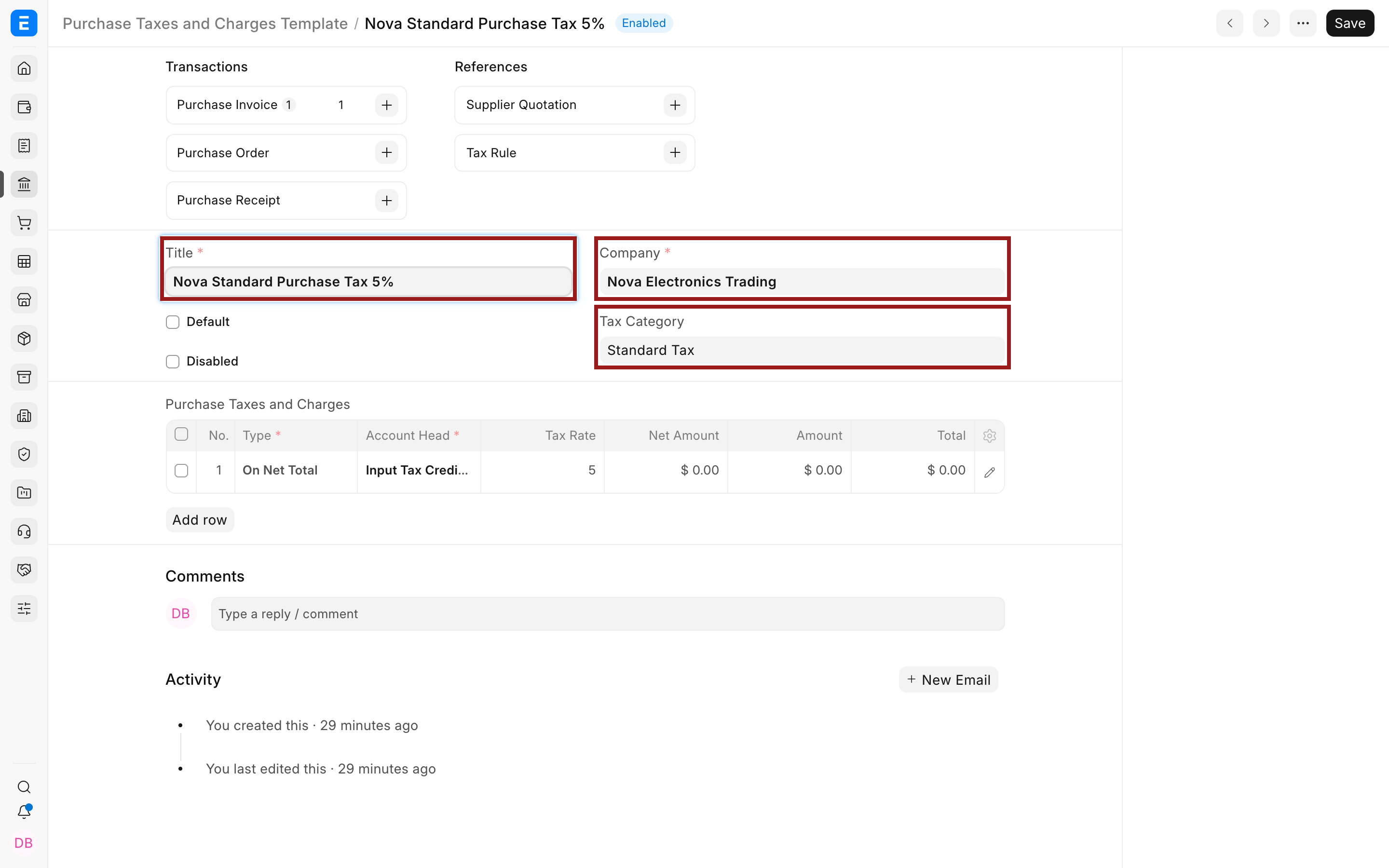
Use Disabled to stop new selection while preserving transactions that already reference the template.
Open and configure a row
Section titled “Open and configure a row”The table provides a compact view of the formulas. Use the pencil icon to open fields that do not fit in the grid.
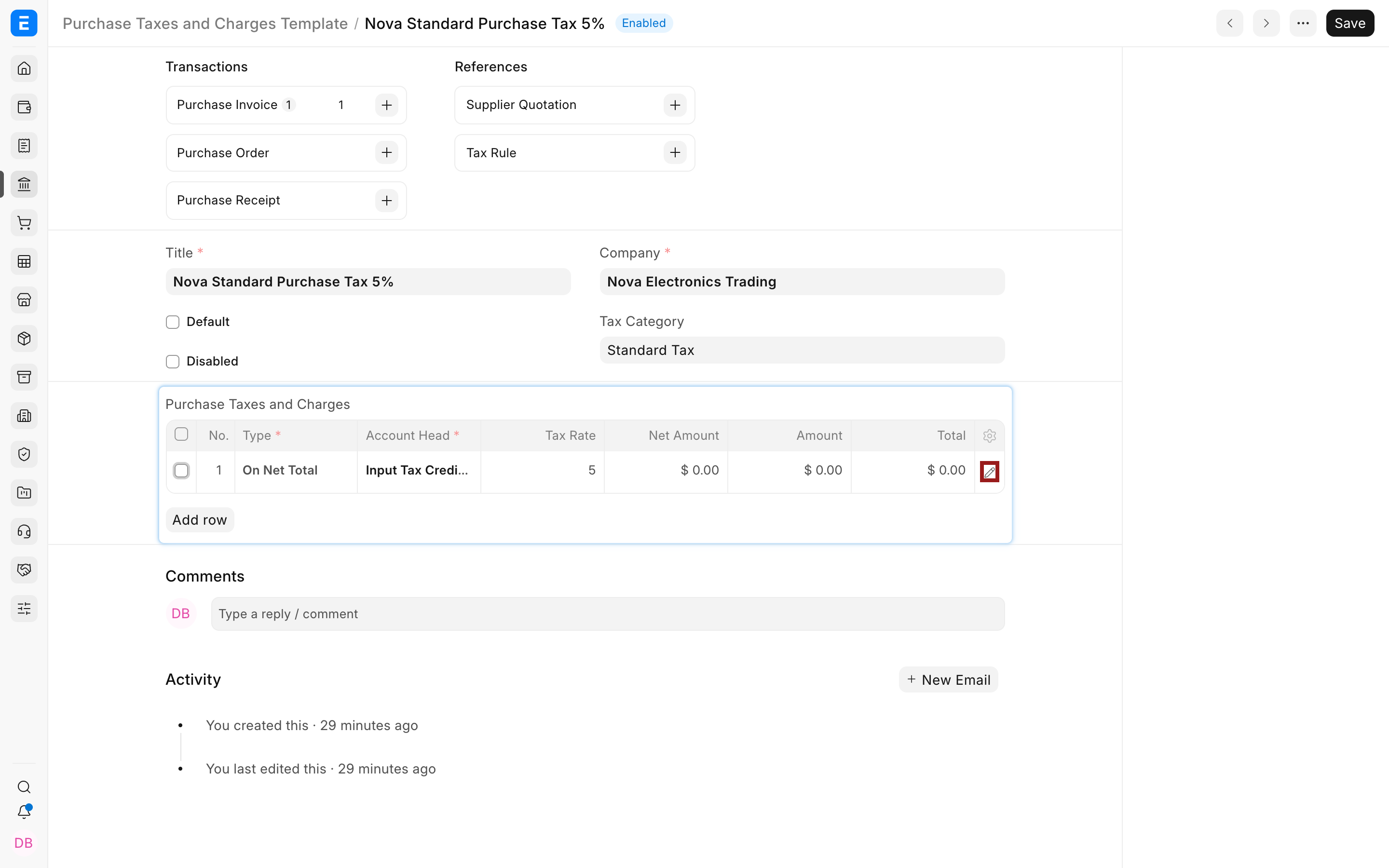
Set the calculation type, account, and rate. The row values remain zero on the master because Net Amount, Amount, and Total are calculated only in a transaction.
Decide whether the row affects Total, Valuation, or both
Section titled “Decide whether the row affects Total, Valuation, or both”The Consider Tax or Charge for field controls the accounting purpose of the row:
| Value | Supplier total | Item valuation | Typical use |
|---|---|---|---|
| Total | Affects the amount payable | Does not allocate the cost into stock value | Recoverable input tax or a charge billed without capitalization |
| Valuation | Does not affect the payable total | Allocates the cost into item valuation | A known cost capitalized separately from the supplier invoice total |
| Valuation and Total | Affects the amount payable | Also allocates the cost into item valuation | Freight or duty billed by the supplier and capitalized into stock |
The correct choice depends on whether the amount is recoverable, expensed, capitalized, and included in what you owe the supplier. Verify the expected debit and credit entries on a small submitted example.
Use Add or Deduct to determine whether the row increases or reduces the relevant base.
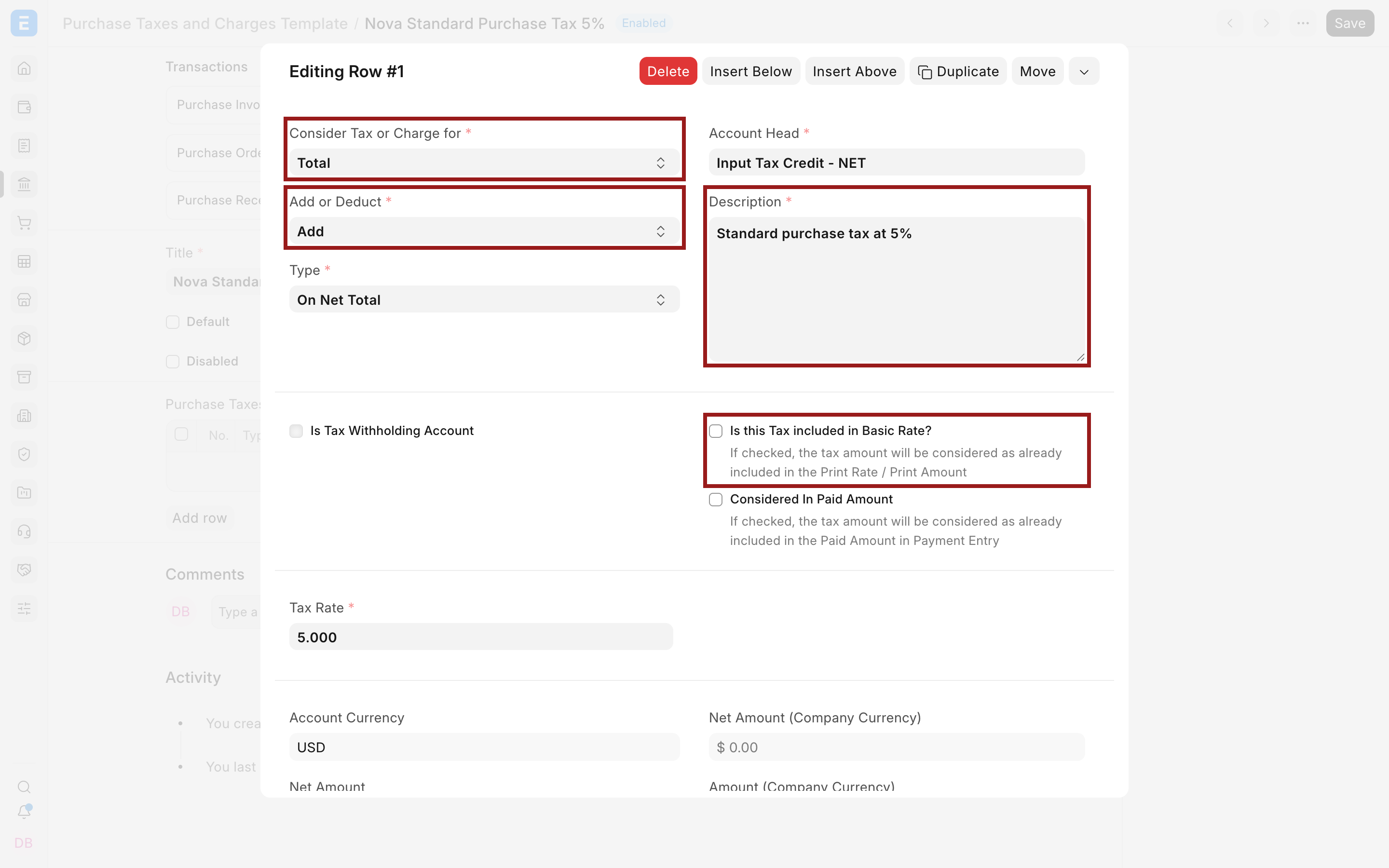
For example, a recoverable input tax normally affects Total because it is part of the supplier payable but is posted to an input tax asset rather than added to stock value. Known inbound freight can use Valuation and Total when it is charged by the supplier and should increase both payable and item value.
Important row fields and what they mean
Section titled “Important row fields and what they mean”| Field | What it controls |
|---|---|
| Consider Tax or Charge for | Whether the row affects the supplier Total, item Valuation, or both |
| Add or Deduct | Whether the row increases or reduces the selected base |
| Type | The calculation base, such as Net Total, fixed amount, previous row, or quantity |
| Account Head | The ledger account to which the row posts |
| Description | The explanation that can appear in the purchase document |
| Tax Rate | The percentage or per-unit amount used by the selected Type |
| Tax Amount | The fixed amount used when Type is Actual |
| Reference Row # | The earlier row used by a previous-row calculation |
| Is this Tax included in Basic Rate? | Back-calculates net value when the entered supplier price already includes the tax |
| Considered In Paid Amount | Treats the row as included in the paid amount for supported payment behavior |
| Is Tax Withholding Account | Identifies a withholding-account row when the withholding workflow uses it |
| Cost Center | Allocates an income or expense charge when required by the account and reporting design |
Choose the calculation type
Section titled “Choose the calculation type”Purchase and sales templates use the same five Types:
| Type | Calculation | Common purchase use |
|---|---|---|
| Actual | A fixed amount entered directly | Fixed freight, customs handling, or documentation fee |
| On Net Total | Net Total multiplied by Tax Rate | Standard input tax on purchased items |
| On Previous Row Amount | An earlier row’s Amount multiplied by Tax Rate | A levy calculated only on another duty or tax |
| On Previous Row Total | An earlier row’s running Total multiplied by Tax Rate | A levy calculated on the subtotal after an earlier row |
| On Item Quantity | Total quantity multiplied by the entered rate | A fixed charge per unit |
See Types in Tax Template for worked examples. For either previous-row type, set Reference Row # and keep the referenced row earlier in the table.
Include known freight or duty in valuation
Section titled “Include known freight or duty in valuation”When a freight or duty amount is known while creating the Purchase Order, Purchase Receipt, or Purchase Invoice, add it in the purchase tax table and select the appropriate valuation treatment.
Use Valuation and Total when the supplier bills the amount and it should increase both payable and stock value. Use Valuation when it should affect stock value without changing that document’s payable.
Use a Landed Cost Voucher when costs become known after receipt, are billed by another party, or must be allocated later. Never record the same freight in both places.
Valuation rows matter only for stock items and stock-impacting transactions. A service Purchase Invoice can still use Total rows for input tax or charges, but there is no stock value to increase.
Configure inclusive supplier prices
Section titled “Configure inclusive supplier prices”Enable Is this Tax included in Basic Rate? when the supplier’s item rate already includes the tax. Bravo Hub ERP back-calculates the net amount and tax instead of adding the tax again.
For an entered rate of $105 that includes 5% input tax, the net amount is $100 and tax is $5. Review the Item table’s Net Rate, the tax row, and the Grand Total to confirm the back-calculation.
The inclusive setting belongs to the transaction tax row. An Item Tax Template can override an item’s rate, but it follows the matching row’s inclusive or exclusive behavior.
Use the template on a purchase transaction
Section titled “Use the template on a purchase transaction”Create a draft Purchase Invoice, Purchase Order, or Purchase Receipt.
- Select the company, supplier, and supplier address.
- Confirm the Tax Category and Purchase Taxes and Charges Template.
- Add representative stock and service items.
- Review each row’s valuation purpose, Add or Deduct choice, Type, account, and rate.
- Check Net Total, Total Taxes and Charges, Grand Total, and valuation impact.
- Submit only after the payable and stock values agree with the supplier document and accounting policy.
In this example, a 5% input-tax row calculates $26 on a $520 net purchase, creating a Grand Total and supplier outstanding amount of $546.
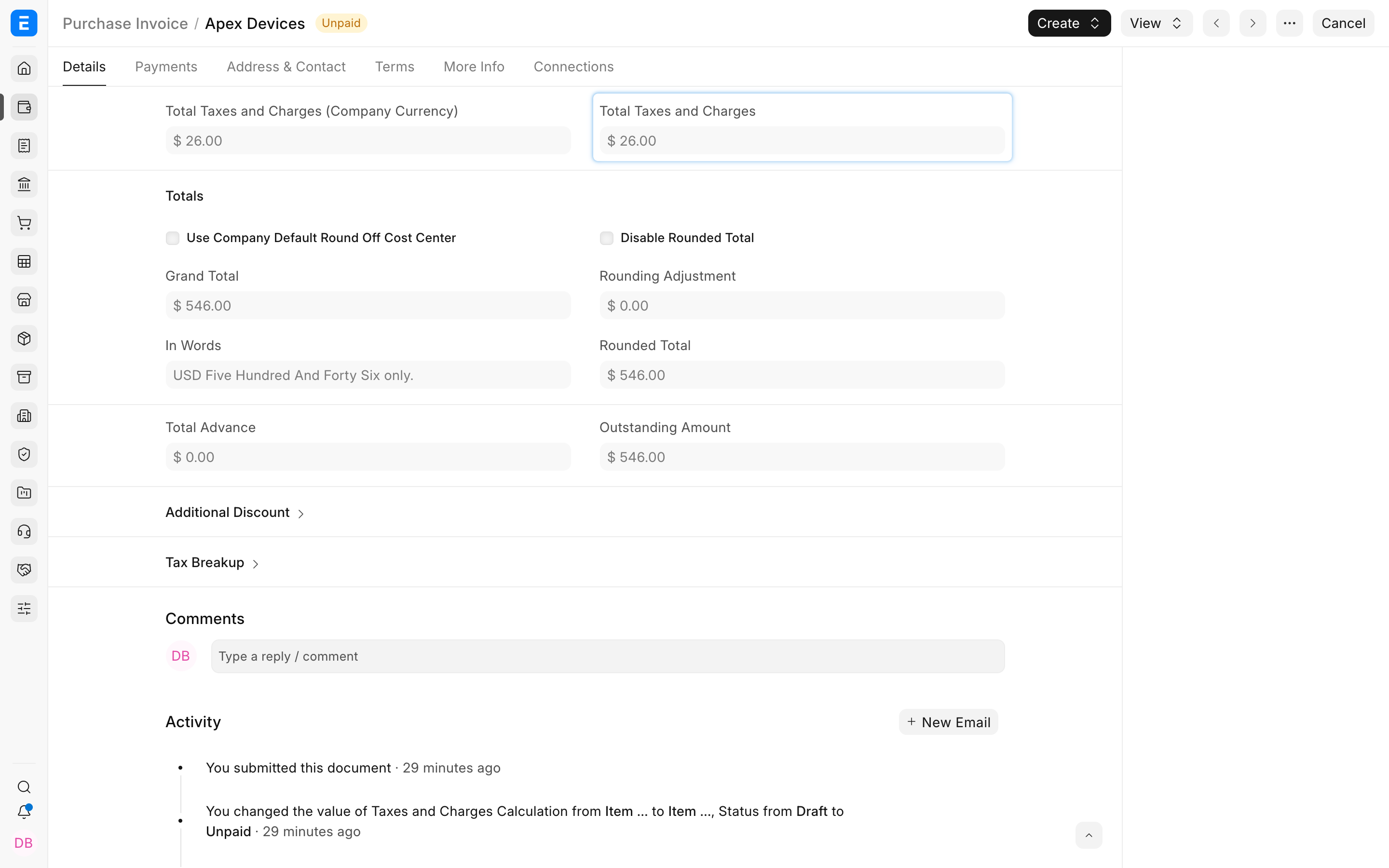
For a submitted Purchase Invoice, review the General Ledger. A recoverable input tax normally debits the input tax asset, the purchased stock or expense debits the relevant account, and the supplier payable is credited for the Grand Total.
Apply different item rates
Section titled “Apply different item rates”Use Item Tax Templates when individual items require rates different from the standard purchase template. The Item Tax Template and transaction tax row must use the same Account Head, and their Tax Categories and validity dates must match the transaction context.
On a Purchase Invoice, Supplier Invoice Date has priority over Posting Date when Bravo Hub ERP selects a valid item assignment. This supports supplier invoices dated before a rate change but entered later.
Regional selection
Section titled “Regional selection”Regional apps can add country-specific fields. India localization, for example, can use Is Inter State and address or place-of-supply information to distinguish tax templates. Such behavior is not universal.
Follow the installed localization’s documentation and validate tax identifiers, addresses, place of supply, and invoice type. Keep country-neutral templates free of inapplicable regional assumptions.
Troubleshooting
Section titled “Troubleshooting”Freight did not increase item valuation
Section titled “Freight did not increase item valuation”Check Consider Tax or Charge for. A row set to Total affects the payable but not stock value. Confirm that the transaction affects stock and that the selected account and valuation policy are appropriate.
The payable total is wrong
Section titled “The payable total is wrong”Review Add or Deduct, inclusive pricing, fixed Amount rows, and any previous-row references. Compare the supplier’s net, tax, freight, and total values line by line.
The input tax posts to the wrong account
Section titled “The input tax posts to the wrong account”Check Account Head in the copied transaction row, not only in the master. Confirm that the account belongs to the correct company and has the intended account type and reporting treatment.
An Item Tax Template is ignored
Section titled “An Item Tax Template is ignored”Confirm the matching tax account, Tax Category, assignment validity, and Supplier Invoice Date. Reselect the transaction template or re-add the affected item after changing tax context.
Frequently asked questions
Section titled “Frequently asked questions”Should recoverable input tax be included in stock valuation?
Section titled “Should recoverable input tax be included in stock valuation?”Normally recoverable input tax is recorded separately rather than capitalized into stock, but the correct treatment depends on local law and your accounting policy. Configure and validate it with your accountant.
When should I use a Landed Cost Voucher instead of the template?
Section titled “When should I use a Landed Cost Voucher instead of the template?”Use the purchase tax table for known costs included in or associated with the transaction. Use a Landed Cost Voucher for later or separately billed costs that must be allocated to received stock.
Can a Purchase Order and Purchase Invoice use different tax rows?
Section titled “Can a Purchase Order and Purchase Invoice use different tax rows?”Yes, but differences should reflect the supplier document or a real change. Review copied rows carefully when creating the invoice from an order or receipt.
Why are the template’s calculated Amount columns zero?
Section titled “Why are the template’s calculated Amount columns zero?”The master stores reusable formulas. Amounts are calculated after the rows are copied into a transaction containing item values and quantities.
Can one template handle both purchases and sales?
Section titled “Can one template handle both purchases and sales?”- Use Purchase Taxes and Charges Templates for buying transactions and Sales Taxes and Charges Templates for selling transactions because their document contexts and valuation behavior differ.