
Finance Book
هذا المحتوى غير متوفر بلغتك بعد.
A Finance Book lets the same Company maintain parallel accounting views when a transaction or depreciation schedule must belong to one reporting basis but not another. A business may keep one book for statutory reporting and another for management or shareholder reporting.
Finance Books are optional. Do not create several books merely to separate departments, branches, projects, or product lines. Use Cost Centers or Accounting Dimensions for those reporting segments. Use Finance Books only when the same company needs alternate accounting treatments or report views.
Typical uses include:
- statutory and management depreciation using different methods or useful lives;
- local accounting rules and a separate group-reporting basis;
- an alternate internal balance sheet without changing the company’s primary ledger view.
Before you begin
Section titled “Before you begin”Agree the purpose and ownership of every book with your accountant. Decide which book is the company default, which entries must be common to all books, and which reports reviewers will run.
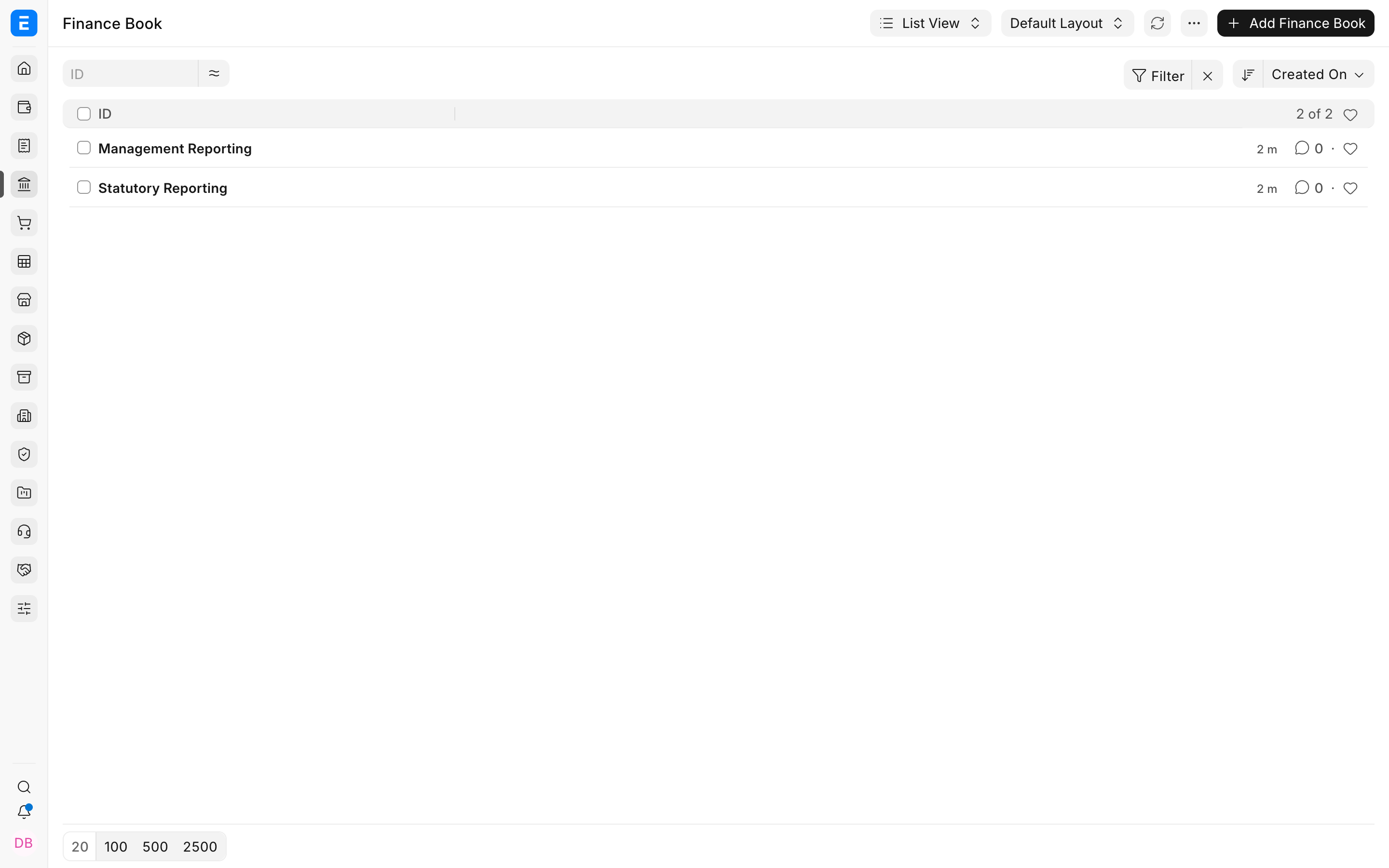
The example below uses Statutory Reporting as the default Finance Book for Nova Electronics Trading and Management Reporting as an alternate book.
Create Finance Books
Section titled “Create Finance Books”Open Finance Book and select Add Finance Book. Enter a clear name that describes the reporting basis, then save.
Create only the books your reporting policy requires. The Finance Book record itself contains a name; its effect comes from selecting it on accounting transactions, depreciation schedules, and reports.
Set the company default
Section titled “Set the company default”Open the Company record and select the Accounts tab. Set Default Finance Book to the book that represents normal accounting for that company, then save.
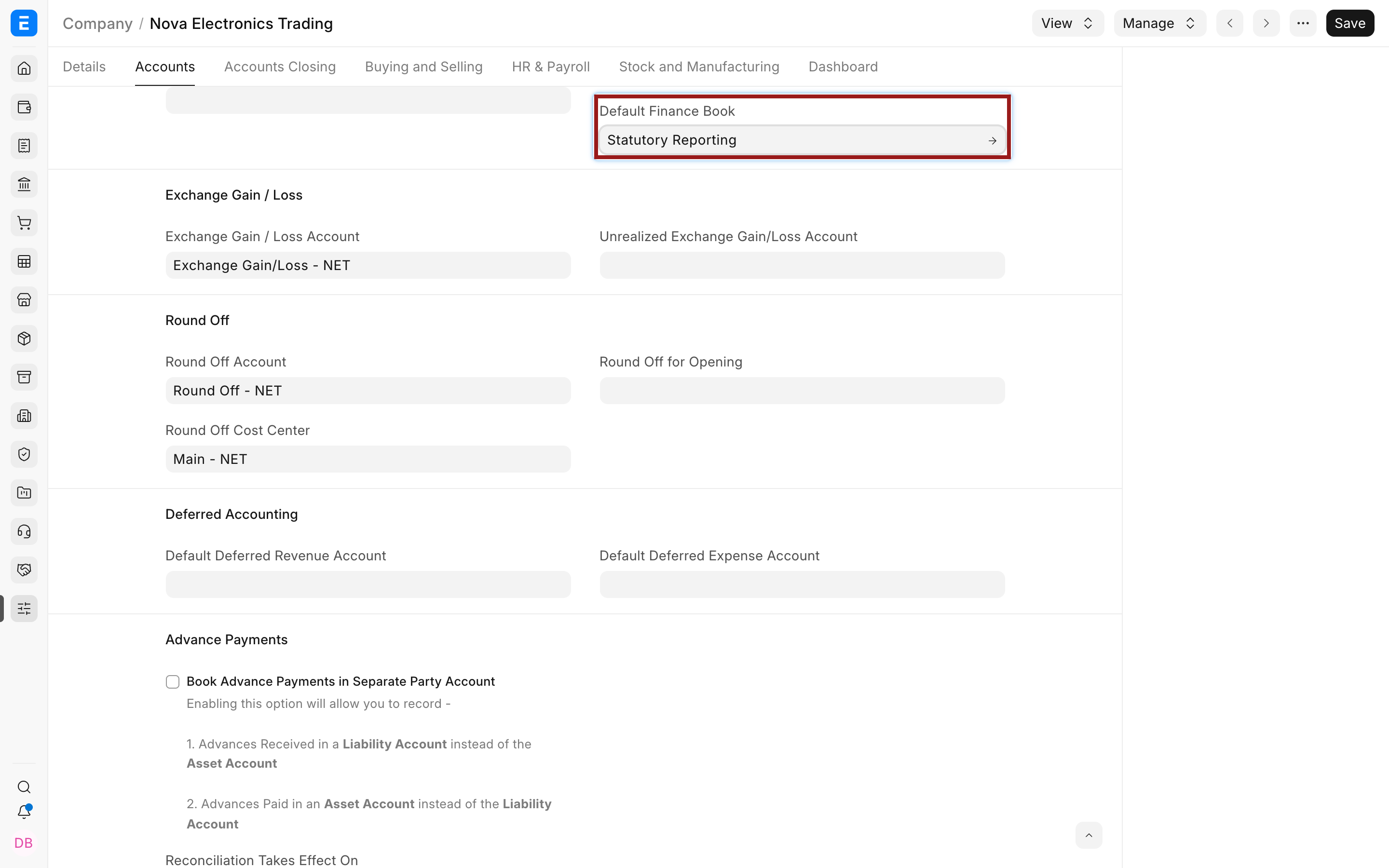
The default is important because the current Journal Entry Finance Book field is read-only. Bravo Hub ERP carries the company’s default book into new Journal Entries instead of asking users to choose it manually each time.
Do not change the default casually after transactions exist. Review the effect on reports and future entries with your accountant first.
Record an entry in a Finance Book
Section titled “Record an entry in a Finance Book”Create the transaction using the normal workflow. In a Journal Entry, open More Info and review the Finance Book value before submission.
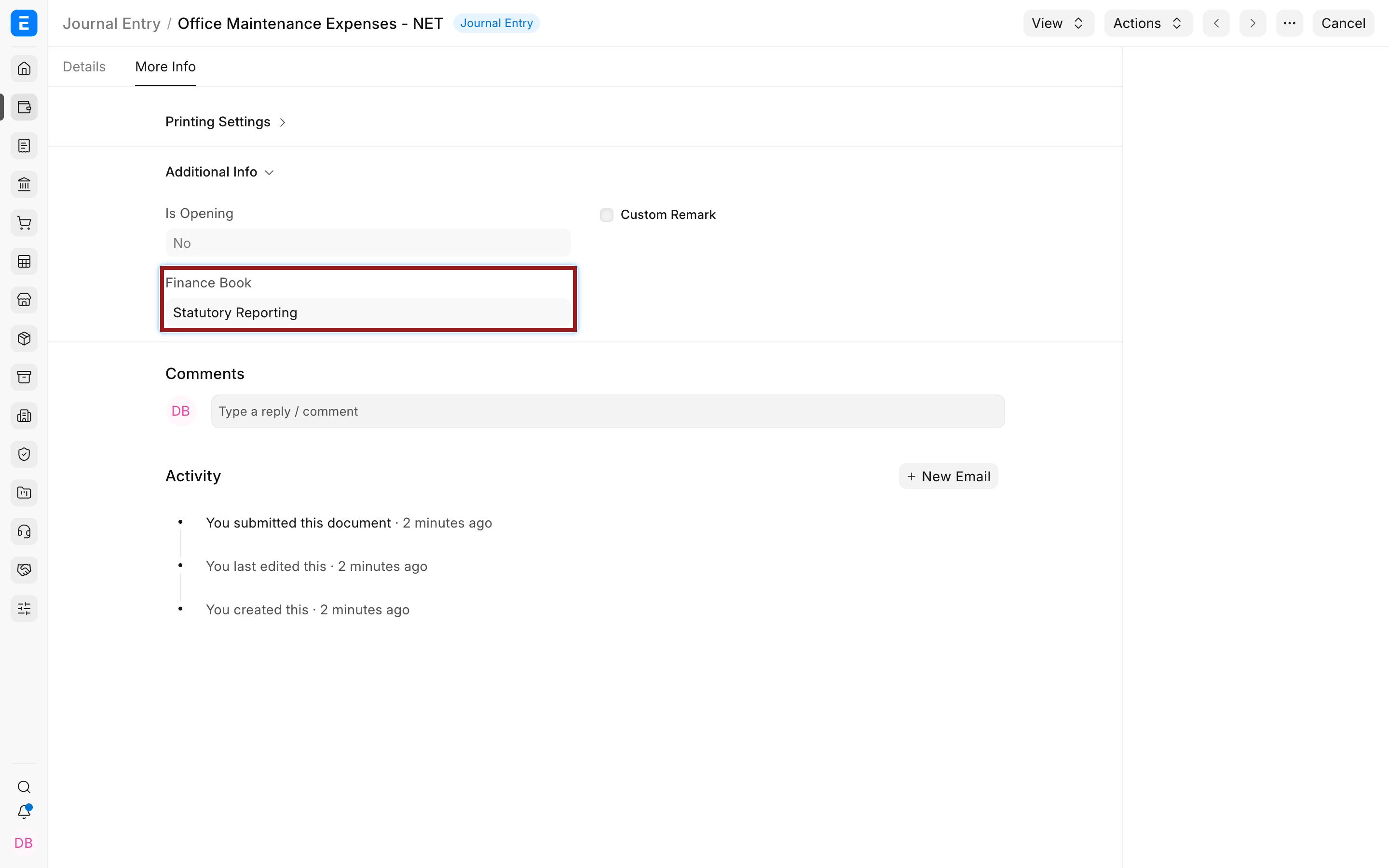
The example posts a $450 maintenance adjustment to Statutory Reporting:
| Account | Debit | Credit | Finance Book effect |
|---|---|---|---|
| Office Maintenance Expenses | $450 | Appears in the statutory book. | |
| Nova Operating Bank | $450 | Appears in the statutory book. |
An entry with a specific Finance Book belongs to that book. An entry whose Finance Book is blank is treated as common and is included in Finance Book report views. This preserves the original Bravo Hub ERP behavior for transactions that apply to every reporting basis.
Review reports by Finance Book
Section titled “Review reports by Finance Book”Open the General Ledger, Trial Balance, Balance Sheet, or Profit and Loss Statement. Select the company, dates, and Finance Book, then refresh the report.
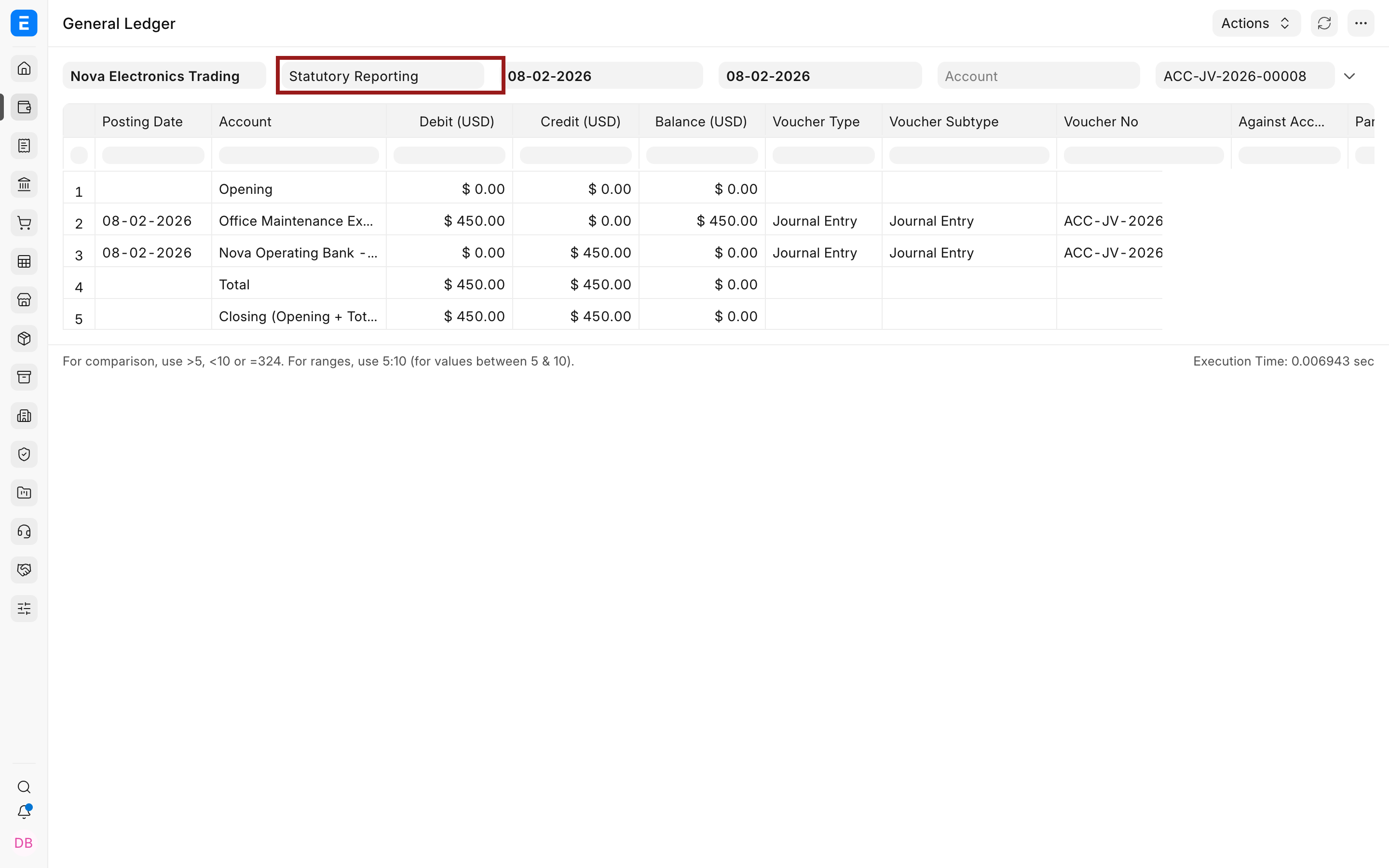
In General Ledger, Include Default FB Entries is enabled by default. When it is enabled, Bravo Hub ERP uses the company’s default Finance Book and includes common entries whose Finance Book is blank. If you select a book different from the company default, clear Include Default FB Entries first. Bravo Hub ERP otherwise stops the report and asks you to clear it.
Use the same filters when comparing reports. A report filtered to one Finance Book cannot be compared reliably with an unfiltered report or a report using a different setting for default-book entries.
Use Finance Books for depreciation
Section titled “Use Finance Books for depreciation”A company may depreciate the same Asset differently for statutory and management reporting. For example, the statutory book may use Written Down Value while the management book uses Straight Line.
On the asset’s Finance Books table, each row can hold its own:
| Field | What it controls |
|---|---|
| Finance Book | Reporting book that receives the depreciation entries. |
| Depreciation Method | Straight Line, Double Declining Balance, Written Down Value, or Manual. |
| Frequency of Depreciation | Number of months between scheduled postings. |
| Total Number of Depreciations | Number of scheduled depreciation entries. |
| Depreciation Posting Date | Date from which the schedule begins. |
| Salvage Value | Expected value after the useful life. |
| Rate of Depreciation | Percentage used where the selected method requires it. |
Bravo Hub ERP can generate a separate depreciation schedule for each Finance Book and post the resulting automatic depreciation entries to the corresponding book. This keeps alternate asset values separate without duplicating the asset master.
Important fields and what they mean
Section titled “Important fields and what they mean”| Field or control | Where it appears | Meaning |
|---|---|---|
| Name | Finance Book | Identifies the reporting basis. Use a stable, policy-oriented name. |
| Default Finance Book | Company | Default book carried into supported accounting transactions. |
| Finance Book | Journal Entry and supported accounting records | Book to which the resulting GL entries belong. |
| Finance Book | Financial reports | Limits the report to the selected book plus common entries. |
| Include Default FB Entries | General Ledger | Includes the company’s default book and common entries. Clear it before reporting on a different book. |
Troubleshooting
Section titled “Troubleshooting”A depreciation entry does not appear in the Trial Balance
Section titled “A depreciation entry does not appear in the Trial Balance”Open the report and select the Finance Book used by the asset’s depreciation schedule. A Finance Book-specific entry may not appear in a report using another book or no matching book filter.
Bravo Hub ERP asks me to clear Include Default FB Entries
Section titled “Bravo Hub ERP asks me to clear Include Default FB Entries”The report has a Finance Book different from the company’s default while Include Default FB Entries is enabled. Clear the checkbox, keep the alternate book selected, and refresh.
The Journal Entry Finance Book cannot be edited
Section titled “The Journal Entry Finance Book cannot be edited”This is expected in current Bravo Hub ERP. The field is read-only and comes from the company’s Default Finance Book. Review the Company setup before creating entries that require a different accounting basis.
Two Finance Book reports do not reconcile
Section titled “Two Finance Book reports do not reconcile”Confirm that both reports use the same company, date range, accounts, opening-entry settings, and Include Default FB Entries choice. Then identify entries assigned exclusively to one book and compare the related asset schedules or Journal Entries.
An entry appears in more than one Finance Book
Section titled “An entry appears in more than one Finance Book”Check whether the transaction’s Finance Book is blank. Blank entries are common entries and appear with Finance Book report views. Assign a book only when the transaction belongs exclusively to that reporting basis.
Is a Finance Book mandatory?
Section titled “Is a Finance Book mandatory?”No, A company with one accounting basis can operate without creating additional Finance Books.
Should I create one Finance Book for each department?
Section titled “Should I create one Finance Book for each department?”No, Use Cost Centers or Accounting Dimensions for departments, branches, projects, and other operational segments. Finance Books are for alternate accounting treatments or reporting bases.
Can the same asset use different depreciation methods?
Section titled “Can the same asset use different depreciation methods?”Yes, Add separate Finance Book rows to the asset and configure a different depreciation method or schedule for each reporting basis.
Why does a blank Finance Book entry appear in a filtered report?
Section titled “Why does a blank Finance Book entry appear in a filtered report?”A blank Finance Book means the entry is common. Bravo Hub ERP includes common entries when it builds a Finance Book view so shared transactions are not lost.
Can I change the default Finance Book after posting transactions?
Section titled “Can I change the default Finance Book after posting transactions?”Technically the Company setting can be changed, but treat it as an accounting-policy change. Review existing entries, future posting behavior, report filters, and audit requirements before changing it.