
Amending Sales Order after Submit
هذا المحتوى غير متوفر بلغتك بعد.
After a Sales Order is submitted, its core values are locked to protect the audit trail. Bravo Hub ERP provides two ways to make a correction: use Update Items for permitted item-level changes, or cancel and amend the document when the change is broader.
Before you begin
Section titled “Before you begin”Check whether the Sales Order already has a submitted Delivery Note, Sales Invoice, Pick List, or other linked transaction. Downstream documents determine which quantities and rates Bravo Hub ERP can safely change.
Also confirm that you have permission to update or cancel submitted Sales Orders.
Update item quantity, rate, or delivery date
Section titled “Update item quantity, rate, or delivery date”Use this method when the submitted order is correct overall and only an allowed item value needs adjustment.
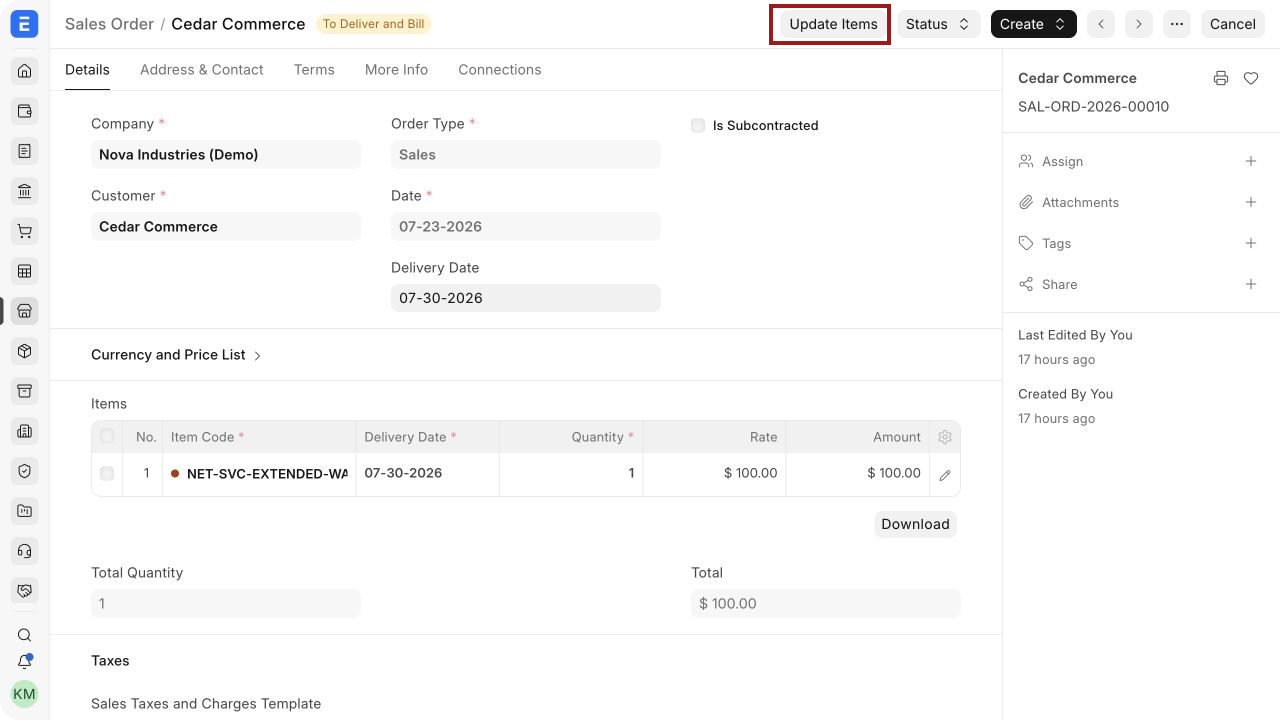
- Open the submitted Sales Order.
- Select Update Items, as highlighted.
- In the Update Items dialog, review the item row.
- Use the highlighted pencil icon when you need to open the row editor.
- Change the permitted Delivery Date, Qty, or Rate.
- Select Update.
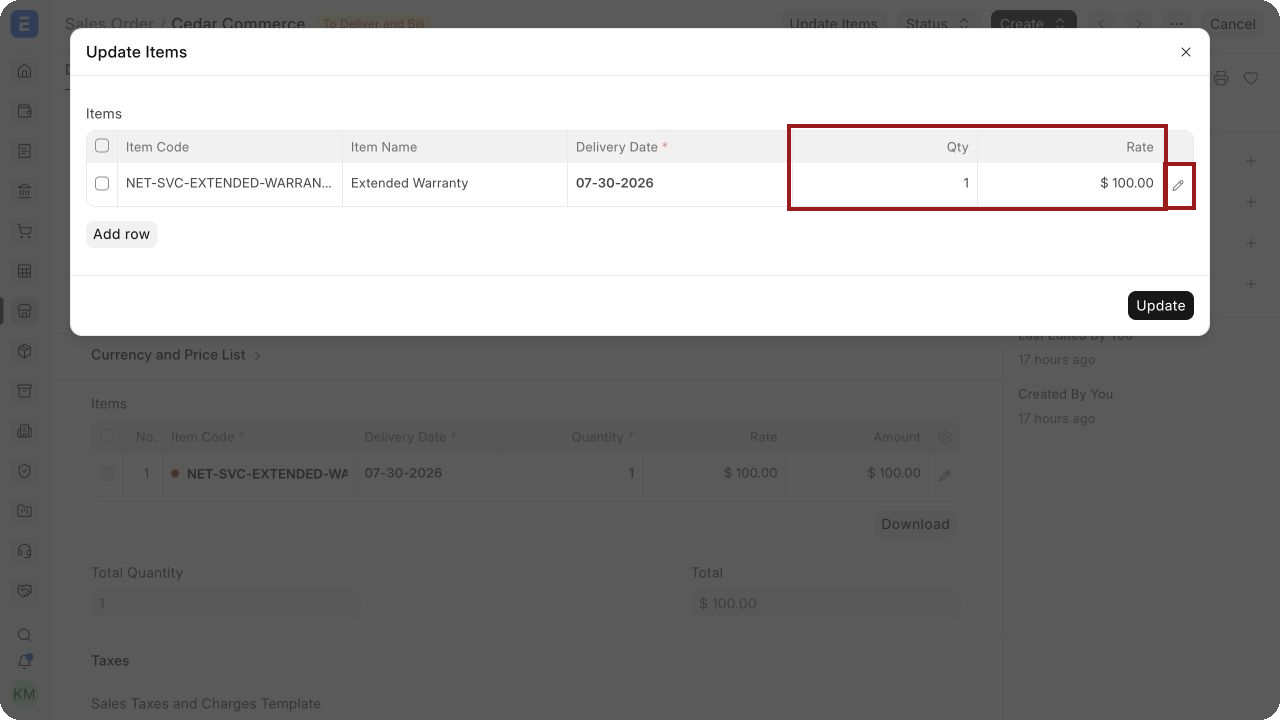
Bravo Hub ERP validates the change against linked transactions before saving it.
Update rules and validations
Section titled “Update rules and validations”| Change | When it is normally allowed | Important limit |
|---|---|---|
| Quantity | The order is undelivered or partly delivered | The new quantity cannot conflict with quantity already delivered or otherwise fulfilled |
| Rate | The order is not invoiced or is only partly invoiced | A submitted invoice can prevent changes that would conflict with its billed value |
| Delivery Date | The order remains open and the revised date is valid | Linked fulfilment documents and permissions can restrict the update |
For a partly delivered order, keep the revised quantity at or above the quantity already delivered. For a partly invoiced order, keep the revised values consistent with the amount already billed. If Bravo Hub ERP rejects the update, review the order’s Connections tab and the validation message before deciding whether to amend the document.
Cancel and amend the Sales Order
Section titled “Cancel and amend the Sales Order”Use cancel and amend when Update Items does not cover the correction, such as changing the customer, company, currency, taxes, or another locked field.
- Open the submitted Sales Order.
- Review and handle linked documents first. You may need to cancel a dependent Delivery Note or Sales Invoice before Bravo Hub ERP allows the order to be cancelled.
- Select Cancel and confirm the action.
- On the cancelled Sales Order, select Amend.
- Bravo Hub ERP creates a new draft linked to the cancelled order through Amended From.
- Correct the required values, save, review, and submit the amended order.
The cancelled Sales Order remains in the audit trail. The amended draft receives a new document name based on the original series.
Do not cancel a submitted order only to reduce an outstanding balance that the customer no longer wants. Close the Sales Order instead.
Choose the right action
Section titled “Choose the right action”| Situation | Action |
|---|---|
| Change an allowed item quantity, rate, or delivery date | Update Items |
| Correct a locked header, customer, tax, currency, or company value | Cancel and Amend |
| Stop the remaining undelivered or unbilled balance | Close |
| Fulfil or bill only part of the order now | Partial Fulfilment |
| Temporarily prevent further fulfilment | Hold |
| Reverse goods already delivered | Sales Return |
Troubleshooting
Section titled “Troubleshooting”Update Items is not visible
Section titled “Update Items is not visible”Confirm that the Sales Order is submitted, not cancelled or closed, and that your role has the required permissions. An administrator can review Role-Based Permissions.
Bravo Hub ERP will not accept the new quantity
Section titled “Bravo Hub ERP will not accept the new quantity”The proposed quantity may be lower than a quantity already delivered, picked, manufactured, or otherwise reserved. Review linked documents in Connections.
Bravo Hub ERP will not accept the new rate
Section titled “Bravo Hub ERP will not accept the new rate”A submitted Sales Invoice may already use the original rate. Reverse or correct the invoice only when the accounting treatment requires it. Do not change submitted accounting records merely to force the order update.
I cannot cancel the Sales Order
Section titled “I cannot cancel the Sales Order”Cancel or unlink dependent transactions in reverse order where appropriate. For example, handle the Sales Invoice and Delivery Note before the Sales Order. Follow your organization’s cancellation and accounting controls.
Frequently asked questions
Section titled “Frequently asked questions”Does Update Items create a new Sales Order?
Section titled “Does Update Items create a new Sales Order?”No. It updates allowed values on the same submitted document and records the change in its version history.
Does Amend overwrite the cancelled order?
Section titled “Does Amend overwrite the cancelled order?”No. Bravo Hub ERP keeps the cancelled document and creates a linked draft.
Can I reduce quantity after partial delivery?
Section titled “Can I reduce quantity after partial delivery?”Yes, provided the revised quantity does not fall below what has already been fulfilled and no linked transaction conflicts with the change.
Should I amend an order when the customer cancels the remaining quantity?
Section titled “Should I amend an order when the customer cancels the remaining quantity?”Usually no. Complete the accepted delivery and billing, then close the remaining balance.