LinkedIn Settings
هذا المحتوى غير متوفر بلغتك بعد.
Note: This integration is deprecated and will be removed in v15.
LinkedIn related settings like OAuth can be configured here. Bravo Hub ERP needs access to the API through which the post is shared and achieved using OAuth 2.0 Authentication Protocol.
- How to set up LinkedIn Developer App
You must have LinkedIn Developer App for your company. Bravo Hub ERP interacts with this App for sharing the post.
Create LinkedIn Developer App
Section titled “Create LinkedIn Developer App”Create App by link `5 fill all the details and verify it. And that App has the following products.
- Share on LinkedIn
- Sign In with LinkedIn
- Marketing Developer Platform 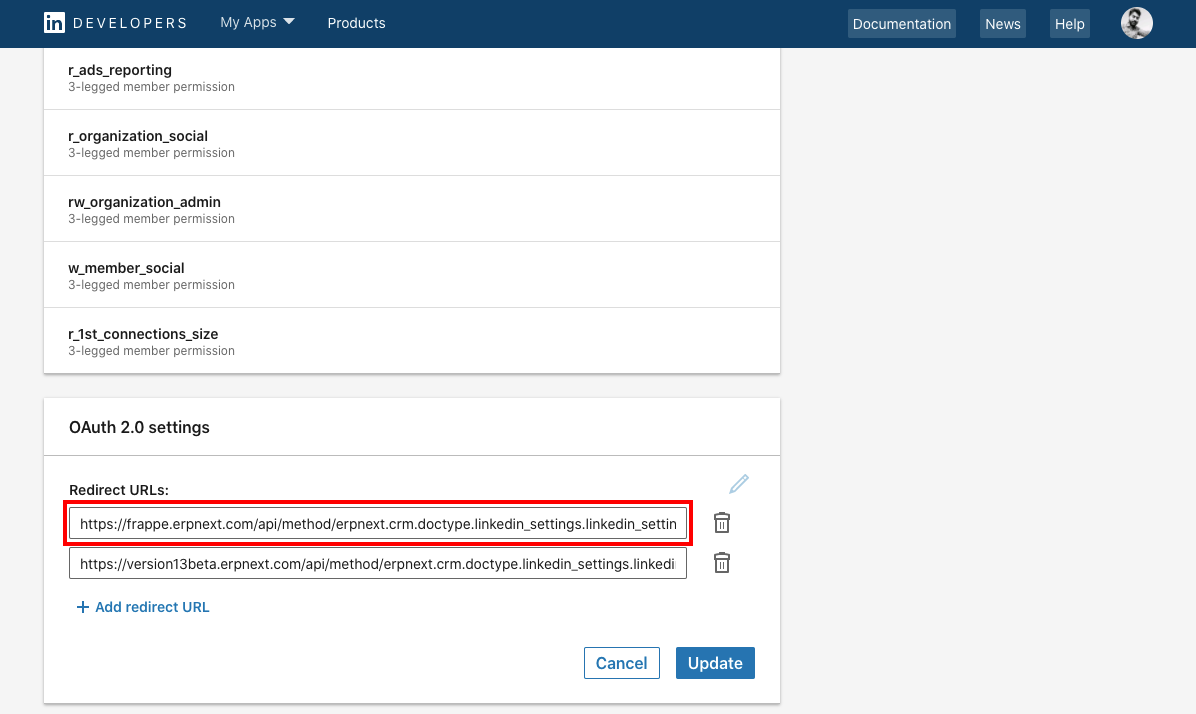
- How to set up LinkedIn Settings
To access LinkedIn Settings, go to:
Home > CRM > Settings > LinkedIn Settings
Current availability
This integration is deprecated. Confirm support in your Bravo Hub ERP version and the current LinkedIn API requirements before configuring new credentials.
Company ID
Section titled “Company ID”You get the Company ID from your LinkedIn Company URL.

Consumer Key and Consumer Secret
Section titled “Consumer Key and Consumer Secret”You get Consumer Key and Consumer Secret from your LinkedIn Developer account go to:
7 > My Apps >{Your App}` > Auth
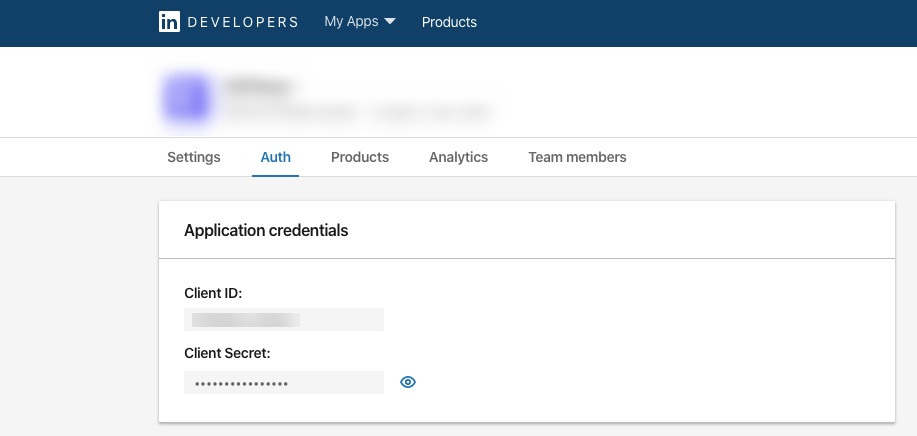
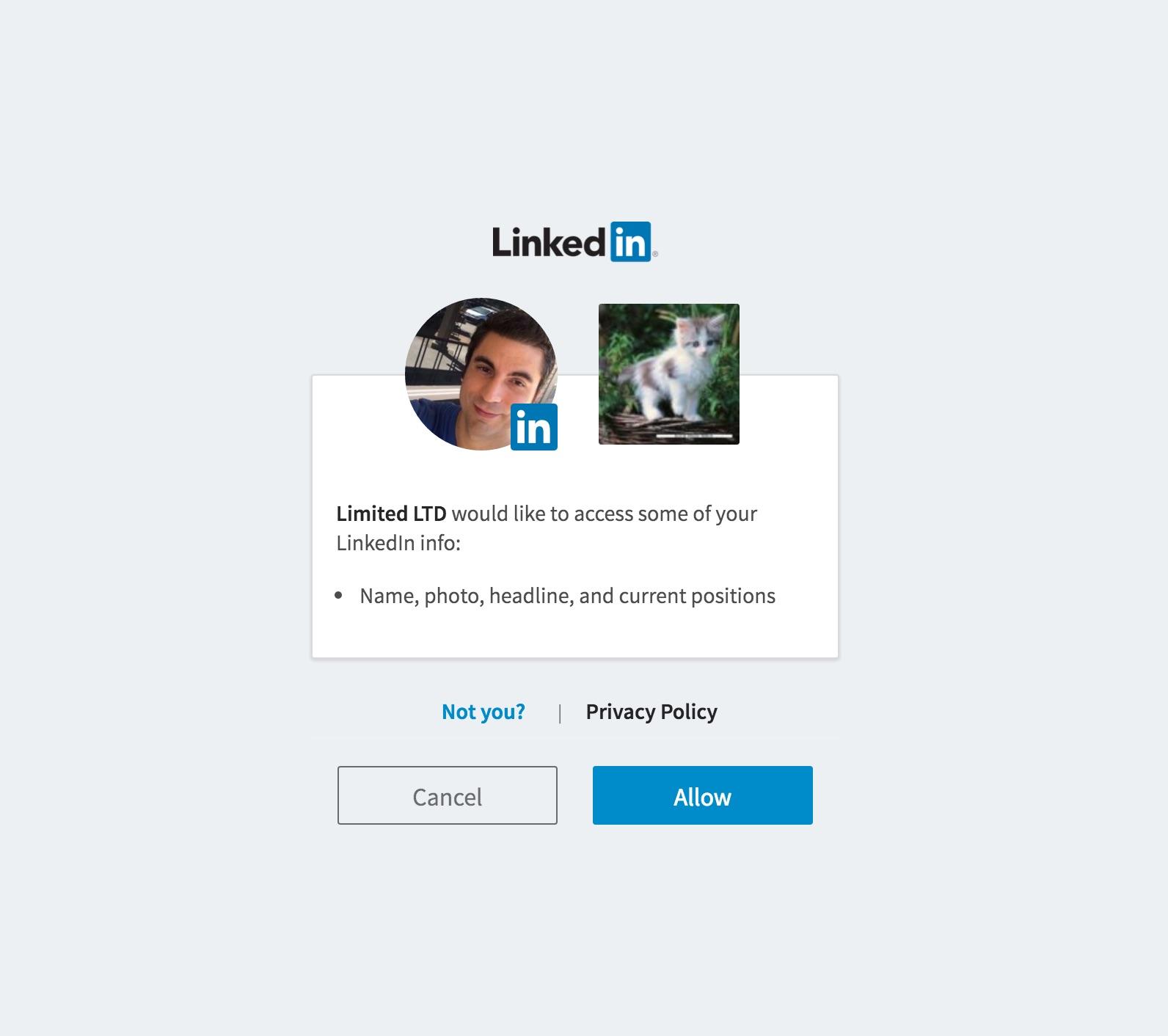
Once you save the doc by filling Company ID, Consumer Key, and Consumer Secret it will redirect to LinkedIn’s sign-in page by providing valid LinkedIn credentials and clicking Allow, the member approves your application’s request to access their member data and interact with LinkedIn on their behalf.