
Bank Transaction
A Bank Transaction is one line from a bank statement or banking integration. It records the date, amount, description, and Bank reference. You reconcile it with a Payment Entry, Journal Entry, or another supported voucher so Bravo Hub ERP can compare statement activity with the General Ledger.
Before you begin
Section titled “Before you begin”Create the Bank, Bank Account, and linked Bank ledger. Confirm that the statement belongs to the correct Company account and currency.
Set a consistent import process. Keep the original statement file, define who imports it, and prevent the same period from being loaded twice.
Bring Bank Transactions into Bravo Hub ERP
Section titled “Bring Bank Transactions into Bravo Hub ERP”Transactions can be synchronized through a supported integration, imported from a statement, loaded with Data Import or API, or entered manually for controlled correction.
The list should show real statement activity rather than an empty example.
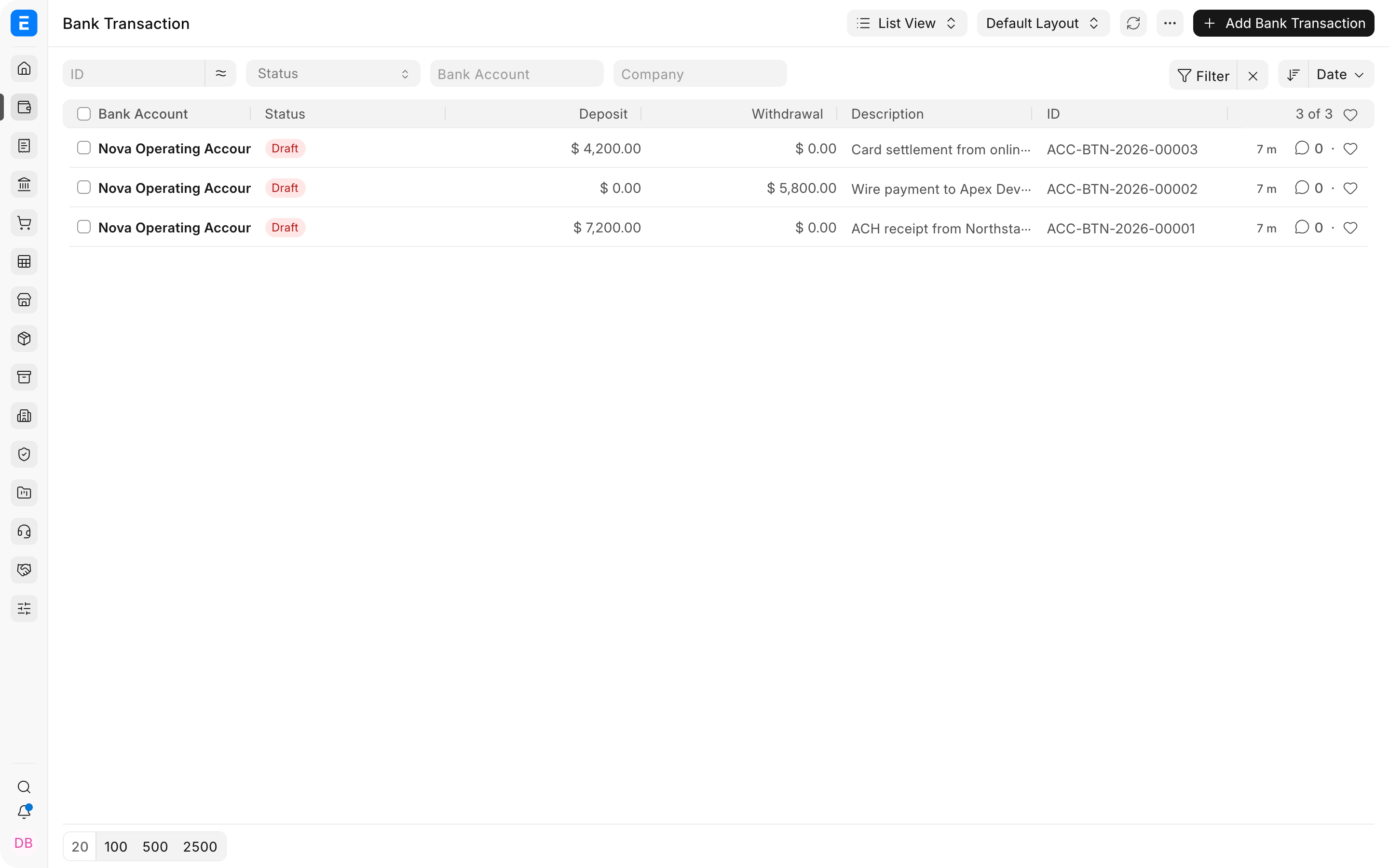
Before importing a full statement:
- check the date and amount formats;
- confirm whether credits are deposits and debits are withdrawals;
- map description, reference, and transaction identifier fields;
- test a few rows;
- compare the imported total with the source statement.
Use the Bank master’s transaction mapping when the source headings differ from the expected fields.
Review a Bank Transaction
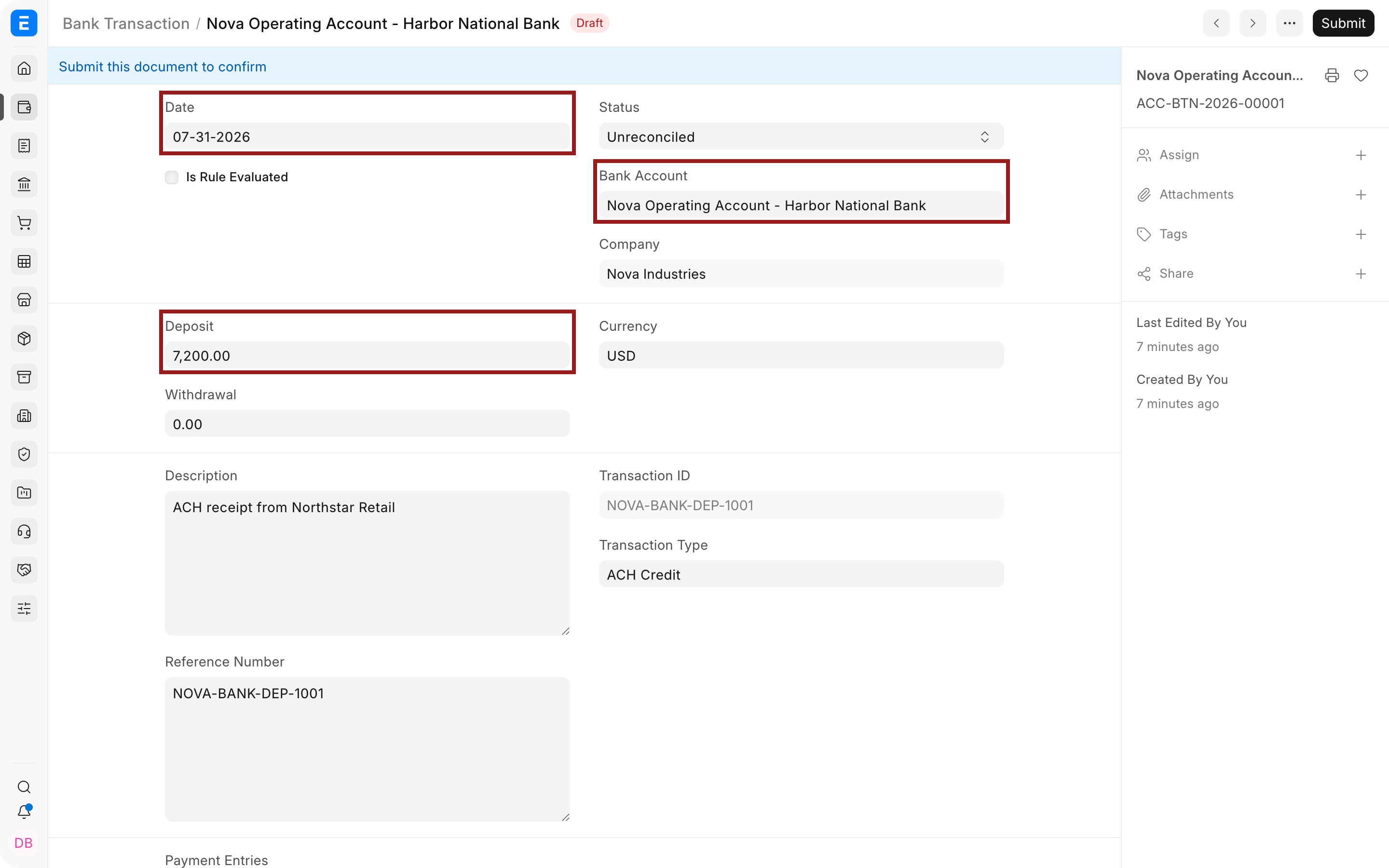
Section titled “Review a Bank Transaction”Open a transaction and verify the Date, Bank Account, currency, and amount direction. A receipt is stored as Deposit. A payment or charge is stored as Withdrawal.
Review the description, bank reference number, transaction identifier, and transaction type. These fields help find the correct accounting voucher and detect duplicates.
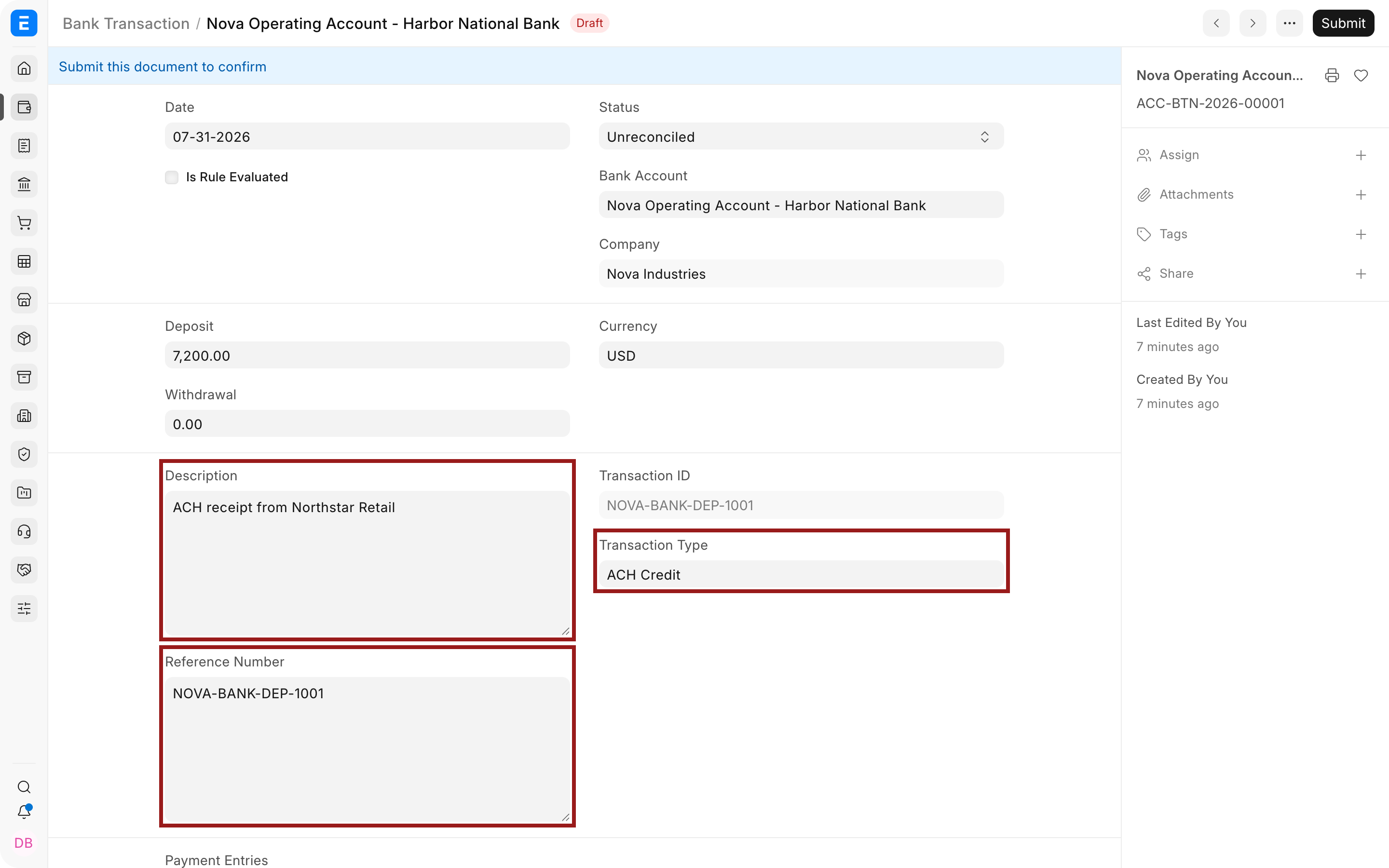
Do not overwrite the bank’s description merely to make matching easier. Preserve original evidence and use party, allocation, or comments for internal classification.
Important fields and what they mean
Section titled “Important fields and what they mean”| Field | What it controls |
|---|---|
| Date | Statement value or transaction date supplied by the Bank. |
| Bank Account | Company Bank Account to which the statement line belongs. |
| Company | Derived or selected Company for the transaction. |
| Deposit | Incoming amount on the statement. |
| Withdrawal | Outgoing amount on the statement. A line should not normally have both values. |
| Currency | Statement currency. It should agree with the Bank Account and import. |
| Description | Narrative supplied by the Bank. |
| Reference Number | Check, transfer, batch, or other Bank reference. |
| Transaction ID | Stable identifier used for traceability and duplicate control. |
| Transaction Type | Bank-supplied classification such as ACH, wire, fee, or card settlement. |
| Payment Entries | Accounting vouchers matched or created against the statement line. |
| Allocated Amount | Portion connected to accounting vouchers. |
| Unallocated Amount | Balance that still needs matching or classification. |
| Party Type and Party | Customer, Supplier, Employee, or other identified counterparty. |
| Included Fee | Fee already included in the statement amount. |
| Excluded Fee | Fee reported separately from the main amount. |
Reconcile a Bank Transaction
Section titled “Reconcile a Bank Transaction”Use Bank Reconciliation to find candidate vouchers. Compare amount, date, reference, party, and description.
Match an existing voucher
Section titled “Match an existing voucher”Choose the existing Payment Entry or Journal Entry when the books already contain the transaction. One statement line may be matched with several vouchers when the Bank combines activity, and one voucher may require careful treatment when the Bank splits it.
Create a missing voucher
Section titled “Create a missing voucher”Create a Payment Entry for a genuine receipt, payment, or transfer that has not been recorded. Create a Journal Entry for an appropriate fee, interest, or adjustment. Verify accounts, party, tax, Cost Center, and references before submission.
Do not create a new voucher until you have searched for an existing one. Duplicate payments are one of the most costly reconciliation mistakes.
Status
Section titled “Status”| Status | Meaning |
|---|---|
| Pending | Transaction is awaiting processing. |
| Unreconciled | It has not been fully matched to accounting vouchers. |
| Reconciled | The amount has been matched and accepted in reconciliation. |
| Settled | The transaction’s configured processing is complete. |
| Cancelled | The Bank Transaction was canceled under Bravo Hub ERP rules. |
Fees, differences, and combined settlements
Section titled “Fees, differences, and combined settlements”When a Customer pays an invoice less a Bank fee, record the gross receipt and fee according to your accounting policy. Do not silently reduce the invoice allocation without recording the difference.
For card or marketplace settlements, one deposit may cover several Sales Invoices after fees and refunds. Use the reconciliation and allocation tools to connect the combined amount to the correct vouchers and record the settlement difference in the correct account.
For foreign currency, verify both statement currency and Company-currency accounting. Record exchange differences through the supported payment workflow rather than editing imported amounts.
Troubleshooting
Section titled “Troubleshooting”The amount is in the wrong direction
Section titled “The amount is in the wrong direction”Review import mapping. Incoming money belongs in Deposit and outgoing money in Withdrawal. Correct the mapping before importing more rows.
The same statement line appears twice
Section titled “The same statement line appears twice”Compare Transaction ID, reference, date, amount, and source file. Keep one valid transaction and remove or cancel the duplicate through your approved process.
No matching Payment Entry appears
Section titled “No matching Payment Entry appears”Check Bank Account and ledger, amount, date range, currency, party, document status, and whether the payment is already reconciled.
A transaction remains partly unallocated
Section titled “A transaction remains partly unallocated”Review fees, deductions, combined payments, split vouchers, and rounding. Allocate only supported amounts and record the remaining difference explicitly.
The imported list is empty
Section titled “The imported list is empty”Confirm the file encoding, heading row, Bank mapping, date format, mandatory columns, and whether the import reported rejected rows.
Frequently asked questions
Section titled “Frequently asked questions”Does a Bank Transaction replace a Payment Entry?
Section titled “Does a Bank Transaction replace a Payment Entry?”It does not. The Bank Transaction is statement evidence. The Payment Entry normally posts the accounting movement and invoice allocation.
Can I edit an imported amount?
Section titled “Can I edit an imported amount?”Correct the source or import error before reconciliation. Preserve the original Bank evidence and avoid changing a valid statement value to force a match.
Can one deposit pay several invoices?
Section titled “Can one deposit pay several invoices?”It can. Match or create the Customer payment and allocate it across the relevant invoices using the supported reconciliation workflow.