
Contact
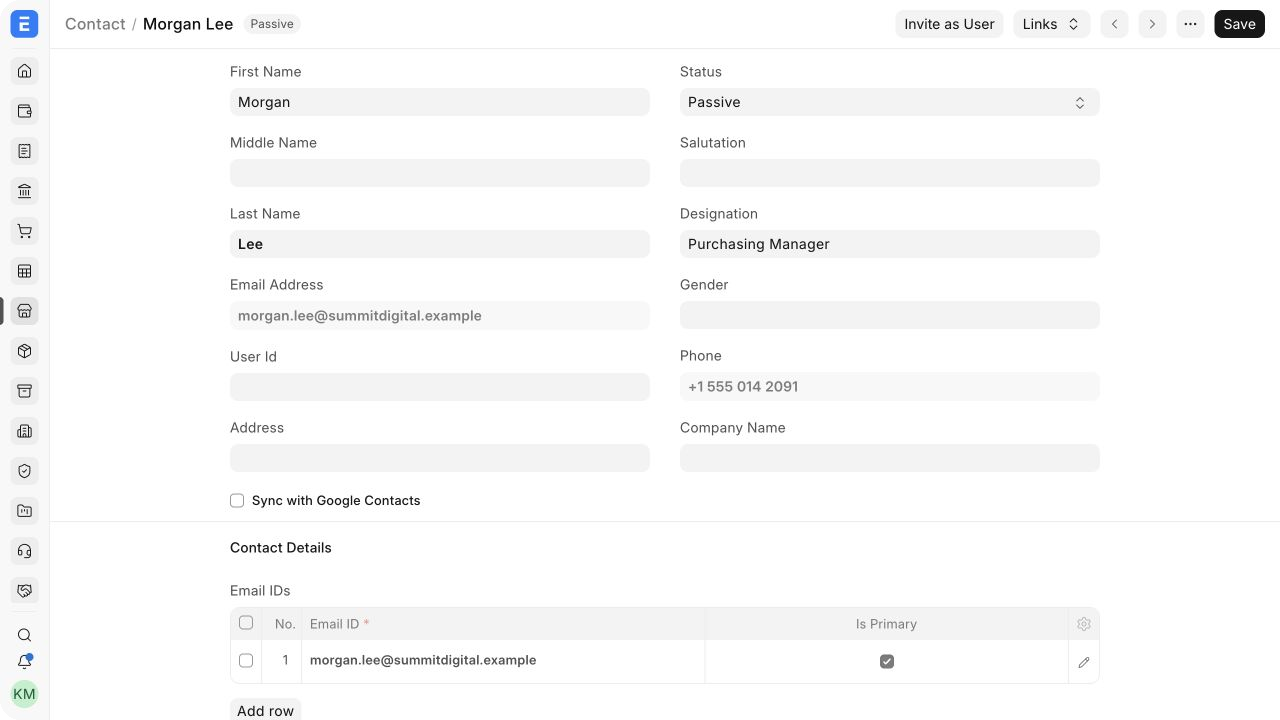
A Contact represents a person you communicate with. A Contact can be linked to a Customer, Supplier, Lead, shareholder, Sales Partner, or user—and the same person can be linked to more than one party.
Keep the person as one Contact and use links for their business relationships. This avoids duplicate phone numbers and email addresses when one person represents several organizations.
Before you begin
Section titled “Before you begin”Confirm:
- whether the person already exists;
- which party records the Contact should be linked to;
- the primary email and phone number;
- whether this is the preferred Contact for a Customer or Supplier; and
- whether the person needs portal access.
Search by name, email address, phone number, and linked party before creating another Contact.
Create a Contact
Section titled “Create a Contact”- Open CRM > Contact and select Add Contact.
- Enter the first name and, when available, the last name.
- Select the Contact status and enter the designation.
- Add email addresses and phone numbers.
- Mark the preferred email and phone rows as primary.
- Add one or more party links.
- Save the Contact.
The primary email and phone appear in the main Contact fields and can be fetched into transactions and communications.
Create a Contact from a party
Section titled “Create a Contact from a party”The simplest method for a party-specific Contact is to create it beside the party’s linked Addresses:
- Open the Customer or Supplier.
- Select Address & Contact.
- Select New Contact.
- Enter the person’s details and save.
Bravo Hub ERP automatically creates the Dynamic Link to the originating party. You can add more links later when the same person represents another entity.
Alternative ways to create Contacts
Section titled “Alternative ways to create Contacts”- Convert or reuse a person from a Lead workflow.
- Use Data Import for a controlled batch, including child rows for email IDs, phone numbers, and links.
- Use an approved integration when a CRM or identity system owns contact details.
- Create a standalone Contact when the person has no party relationship yet.
Important fields and what they mean
Section titled “Important fields and what they mean”| Field | What it controls |
|---|---|
| First Name / Last Name | The person’s display name and search identity |
| Status | Indicates whether the Contact is passive, open, replied, or in another configured state |
| Designation | The person’s role at the linked organization |
| Email IDs | Stores one or more email addresses and identifies the primary email |
| Phone Numbers | Stores mobile and telephone numbers and their primary flags |
| Is Primary Contact | Makes this the preferred person for the linked party |
| Links | Connects the Contact to Customers, Suppliers, sales partners, or other supported DocTypes |
| User ID | Connects the Contact to a system or portal User |
| Invite as User | Starts the supported invitation flow for portal access |
Use a business email where possible. Avoid storing shared credentials or sensitive personal notes in the Contact.
Link a Contact to multiple parties
Section titled “Link a Contact to multiple parties”Open Links to review the parties connected to the Contact. Add another link when the same person legitimately represents more than one Customer or Supplier.
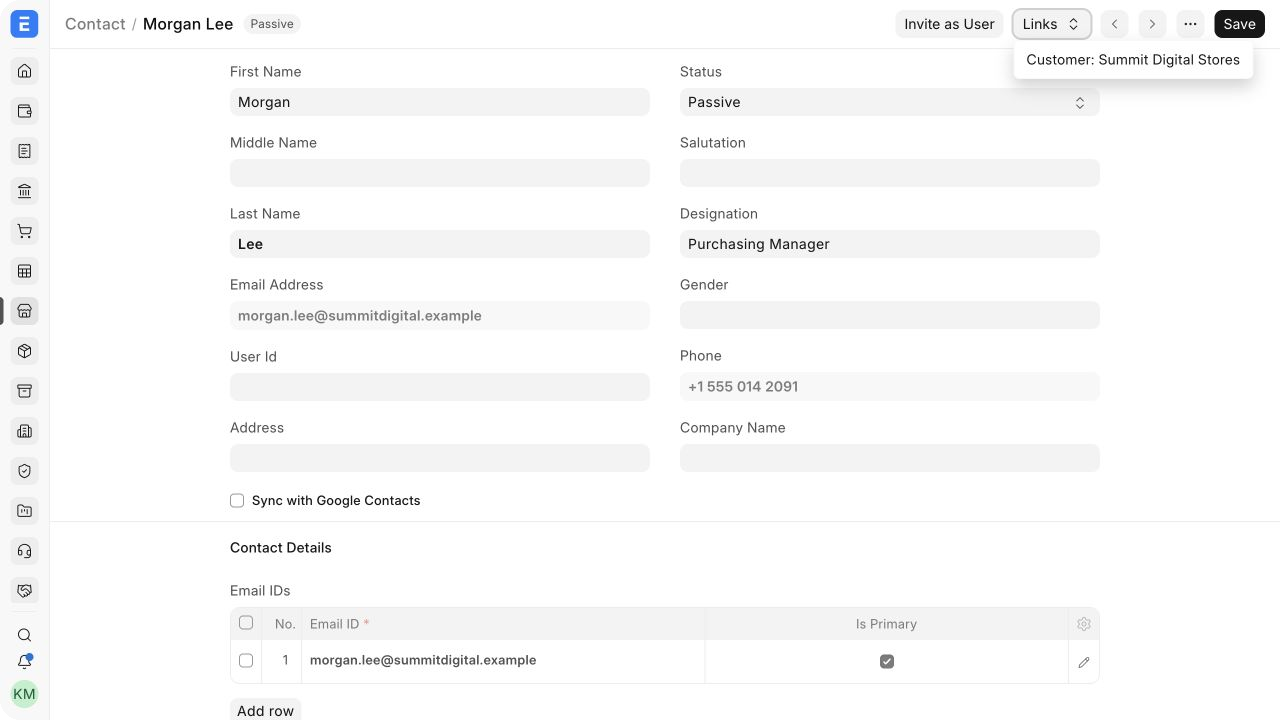
Multiple links do not make every party primary. Review the preferred Contact on each Customer or Supplier independently.
Primary contacts and transactions
Section titled “Primary contacts and transactions”When several Contacts are linked to a party, mark the normal recipient as primary. Bravo Hub ERP can select that Contact automatically in a Quotation, Sales Order, Sales Invoice, or other supported document.
Users can choose another linked Contact for a specific transaction. Changing the primary Contact affects future selections; it does not rewrite submitted documents.
Invite a Contact as a User
Section titled “Invite a Contact as a User”Use Invite as User only when the Contact should access the Customer Portal or another permitted portal experience.
Before inviting:
- verify the primary email;
- confirm which party and documents the person may access;
- review portal roles and permissions; and
- avoid creating a second User for the same email.
The invitation is a security-sensitive action. Do not send it merely to record an email address.
Save and next steps
Section titled “Save and next steps”Contact is saved rather than submitted. After saving:
- verify the Links menu;
- set the correct primary flags;
- select the Contact on a test transaction;
- use the communication timeline for emails and events; and
- update the existing record when the person’s role or phone changes.
Contact states
Section titled “Contact states”| State | Meaning |
|---|---|
| Passive | Recorded but not currently active in an engagement |
| Open | Available for or participating in communication |
| Replied | Has responded in the tracked communication context |
| Primary | Preferred Contact for a linked party |
| Portal User | Connected to a User account with permitted portal access |
Troubleshooting
Section titled “Troubleshooting”| Problem | What to check |
|---|---|
| The Contact is duplicated | Search email, phone, and linked parties, then merge or remove the incorrect record through an approved process |
| The wrong Contact appears on a transaction | Check the party’s primary Contact and reselect the Contact on the document |
| Email is not available | Mark one email row as primary and save |
| The Links menu is empty | Add a Dynamic Link or create the Contact from the party |
| Portal invitation is unavailable | Check the primary email, permissions, existing User, and portal configuration |
Frequently asked questions
Section titled “Frequently asked questions”Can one Contact belong to multiple Customers?
Section titled “Can one Contact belong to multiple Customers?”Yes. Add multiple links when the relationship is genuine.
Can a Contact exist without a Customer or Supplier?
Section titled “Can a Contact exist without a Customer or Supplier?”Yes. A standalone Contact can be linked later.
Should a shared mailbox be a Contact?
Section titled “Should a shared mailbox be a Contact?”It can be recorded as an email, but a named person is normally more useful for ownership and communication history.
Does changing the primary Contact update old documents?
Section titled “Does changing the primary Contact update old documents?”No. New documents fetch the current primary Contact; submitted documents preserve their values.
Is a Contact automatically a User?
Section titled “Is a Contact automatically a User?”No. A User link or invitation is required for login access.