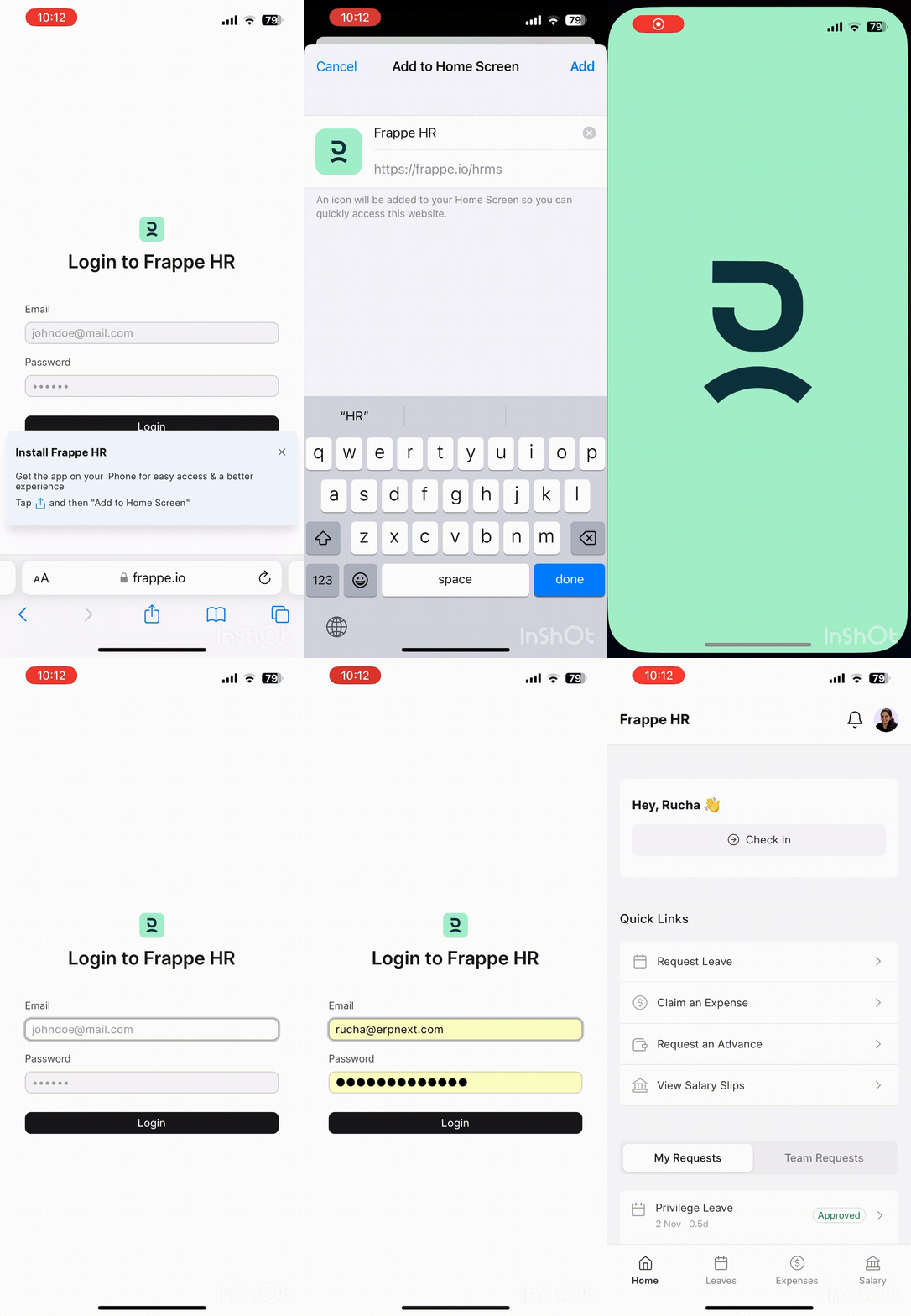
Mobile App Installation
Bravo Hub HR ships with a mobile frontend (progressive web app) v15 onwards. To install the app on your phones, go to https:///hrms eg: if my site name is https://frappeio.frappe.cloud, the mobile app can be installed from https://frappeio.frappe.cloud/hrms Go to this URL on your mobile browser (Chrome/Safari) and install the app.
Note: Firefox does not support PWA installation unless you have a plugin.
Android
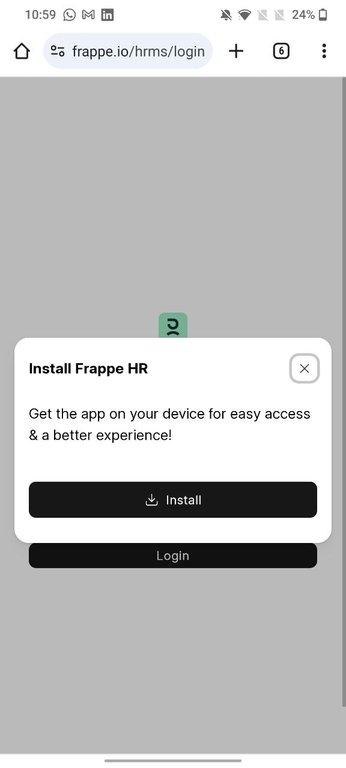
Section titled “Android”- On Android, you will get a prompt to install the app on this URL.
- If you do not see the prompt, tap on the hamburger menu (three dots), and tap on Install app from the list of options.
- Tap on Install, and wait for a few seconds.
- You will then be able to find the Bravo Hub HR app in your applications. You can login to this app with your site credentials.
Installation GIF
Section titled “Installation GIF”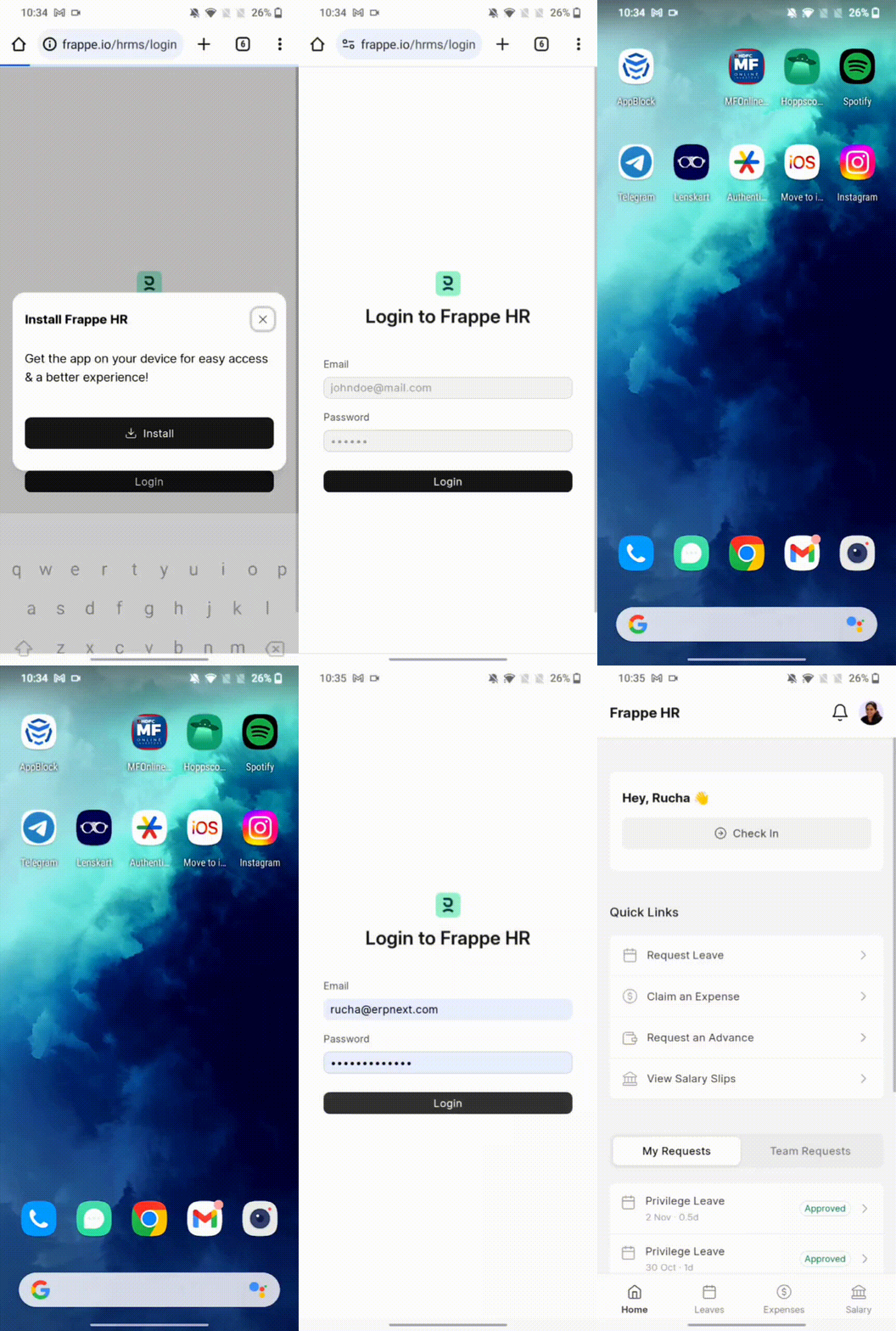
- On iOS, if you’re using Safari, tap on the share button shown in the image below.
- Scroll down the list of options, then tap Add to Home Screen.
- If you do not see “Add to Home Screen”, click on “Edit Actions” and you should find the option.
- The icon will then appear on your home screen. You can login to this app with your site credentials.
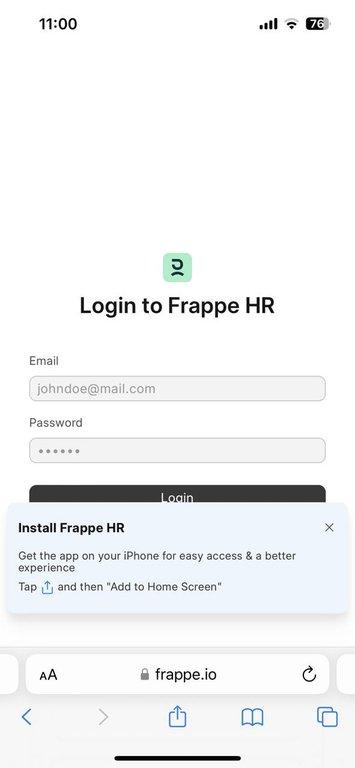
Installation GIF
Section titled “Installation GIF”