Google Calendar Integration
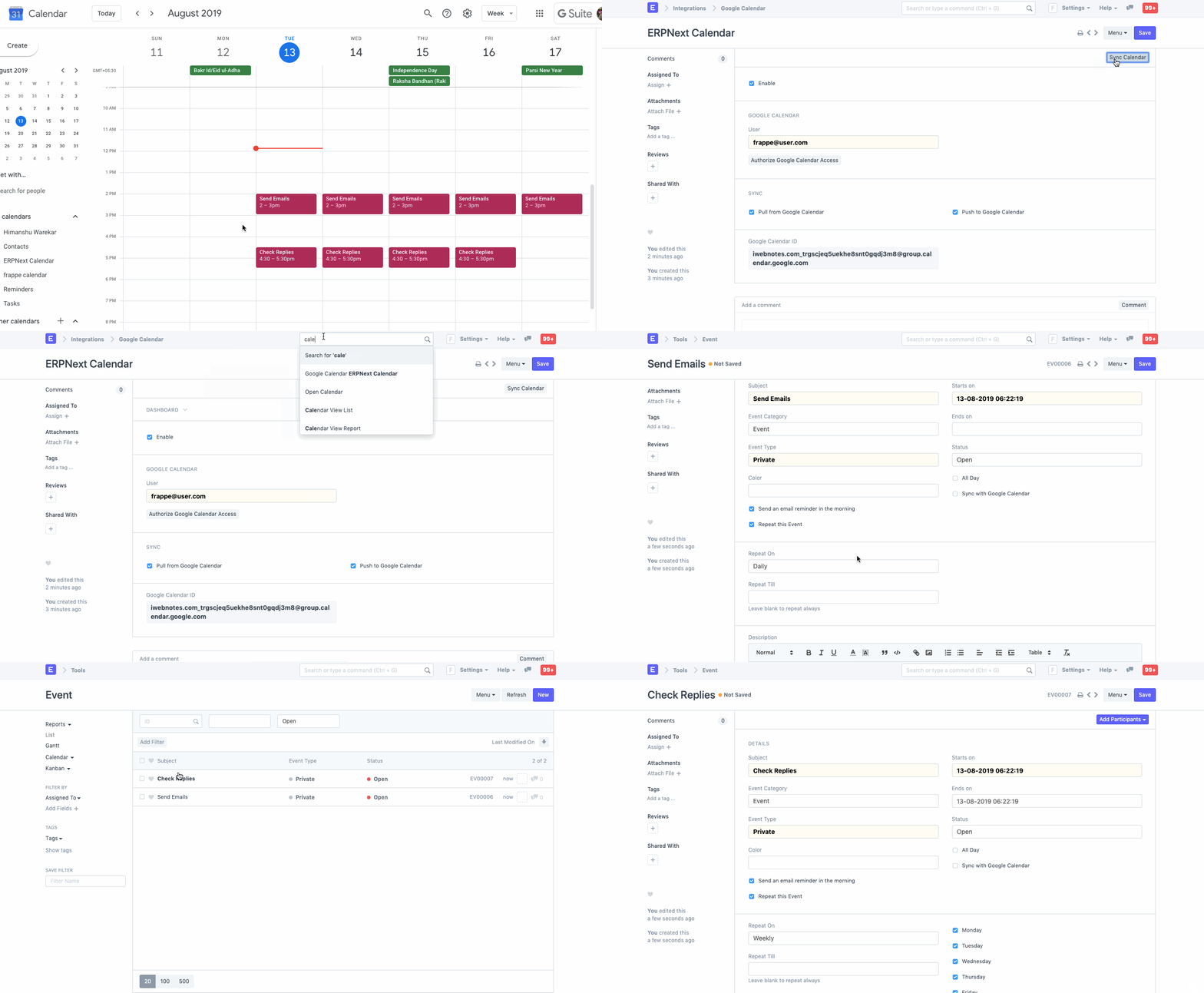
Bravo Hub ERP provides an integration with Google Calendar in order for all users to synchronize their Google Calendar Events with Bravo Hub ERP.
How to set up Google Calendar Integration
Section titled “How to set up Google Calendar Integration”In order to allow a synchronization with Google Calendar, you need to authorize Bravo Hub ERP to get Calendar Events data from Google. Google Calendar Integration is set up with the following steps:
- Create OAuth 2.0 Credentials via Google Settings.
- In the Google Calendar list, click on New. Enter Calendar Name and the User for whom you want to sync and then save it.
- Depending what data you want to sync, you can select following
- Pull from Google Calendar - Syncs all event from Google Calendar to Bravo Hub ERP.
- Push to Google Calendar - Syncs all event from Bravo Hub ERP to Google Calendar.
- Now click on Authorize Calendar Access to authorize Bravo Hub ERP to get Calendar Events data from Google.
- Once Authorized, you can manually sync Google Calendar Event or let Bravo Hub ERP sync Google Contacts daily.
How to use Google Calendar Integration
Section titled “How to use Google Calendar Integration”Creating an Event in Bravo Hub ERP
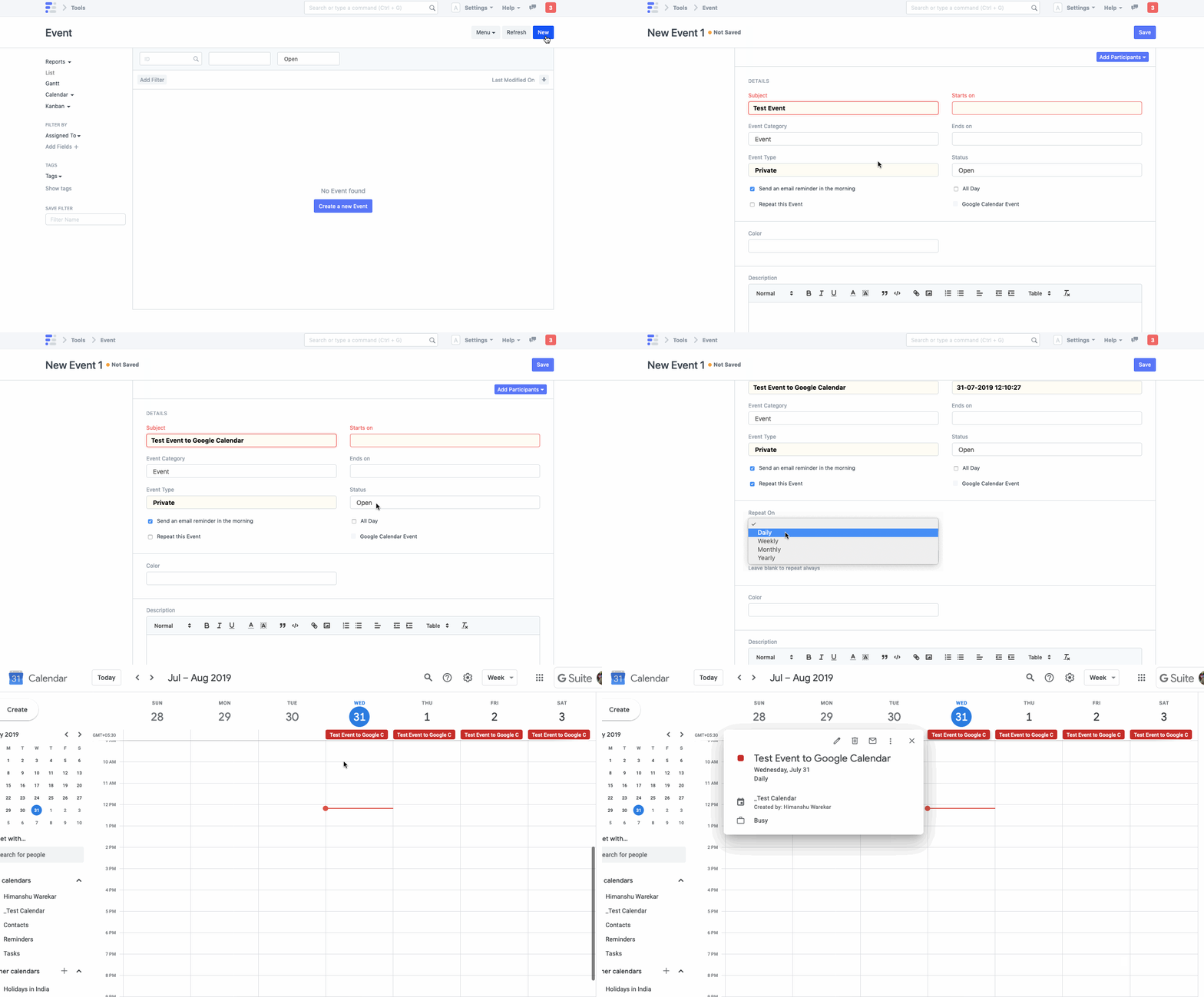
Section titled “Creating an Event in Bravo Hub ERP”- Once Google Calendar Integration is succesful, all the events created in Bravo Hub ERP will be synced if
Push to Google Calendaris checked. - Creating an Event in Bravo Hub ERP
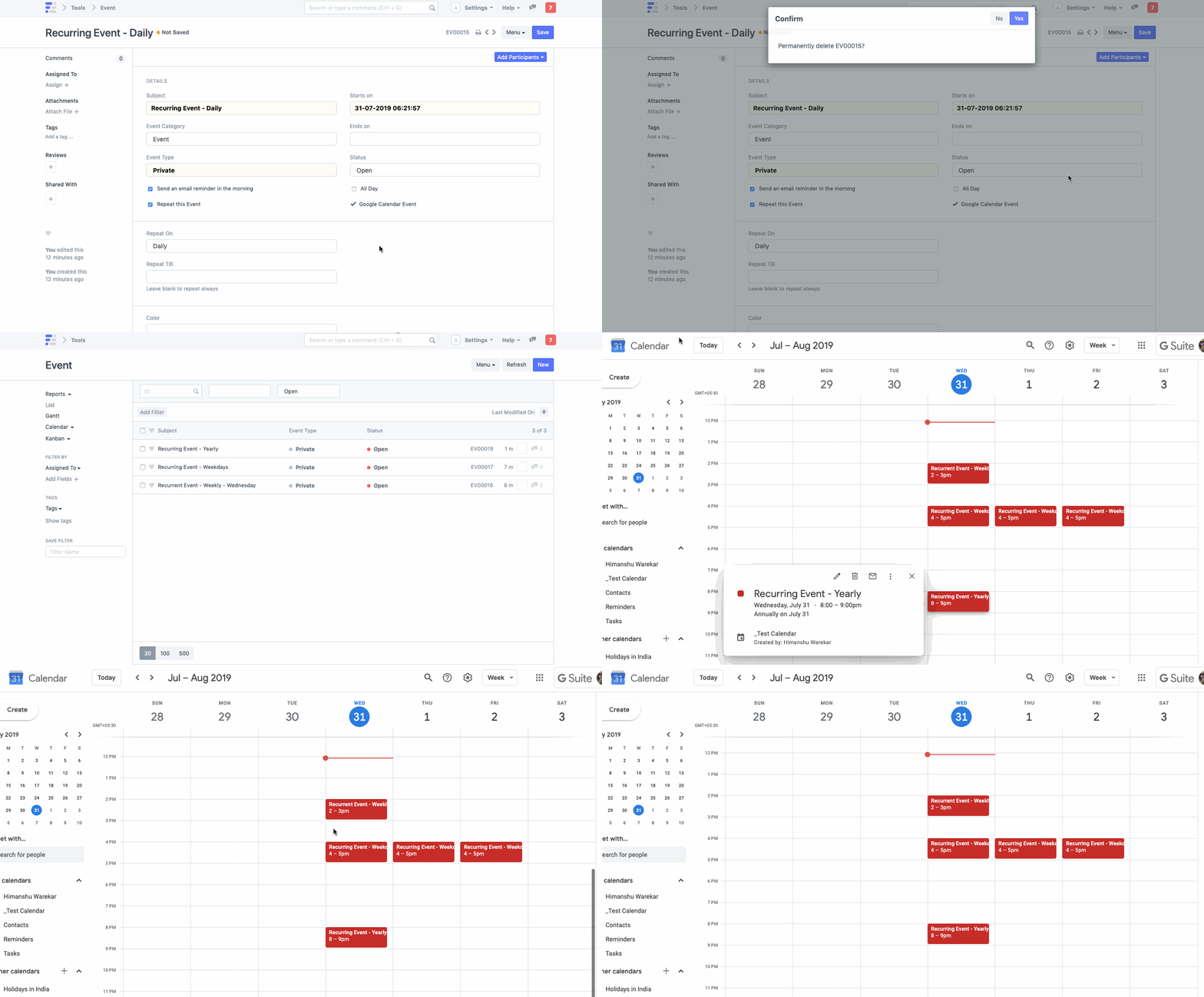
- Deleting an Event in Bravo Hub ERP
Syncing Events from Google Calendar
Section titled “Syncing Events from Google Calendar”- Once Google Calendar Integration is succesful, all the events in Google Calendar will be synced if
Pull from Google Calendaris checked. - Syncing Events from Google Calendar to Bravo Hub ERP