
Territory
A Territory in Bravo Hub ERP represents a geographic or commercial region in which your company sells. Territories help classify Customers and Addresses, organize reporting, assign responsibility, and compare regional sales with targets.
Territories use a tree structure. A group territory contains lower-level territories, while a leaf territory can be selected on transactions. For example, United States can contain Northeast, which can contain New York Metro.
Why use Territories?
Section titled “Why use Territories?”- Segment customers and sales by region.
- Assign a Territory Manager for reference and accountability.
- Set item-group targets for a fiscal year.
- Compare regional targets with actual sales.
- Use consistent regional values across Customers, Addresses, and sales transactions.
Before you begin
Section titled “Before you begin”- Decide whether your hierarchy should follow countries, states, cities, sales zones, or another commercial structure.
- Keep the hierarchy stable enough for meaningful reporting.
- Create the relevant Item Groups, Fiscal Years, and Monthly Distributions before adding targets.
- Set a Default Territory in Selling Settings if most new Customers should receive the same value.
Create a Territory
Section titled “Create a Territory”- Go to Selling > Settings > Territory.
- Select New.
- Enter a Territory Name.
- Enable Is Group when this Territory will contain lower-level territories.
- Select Create New.
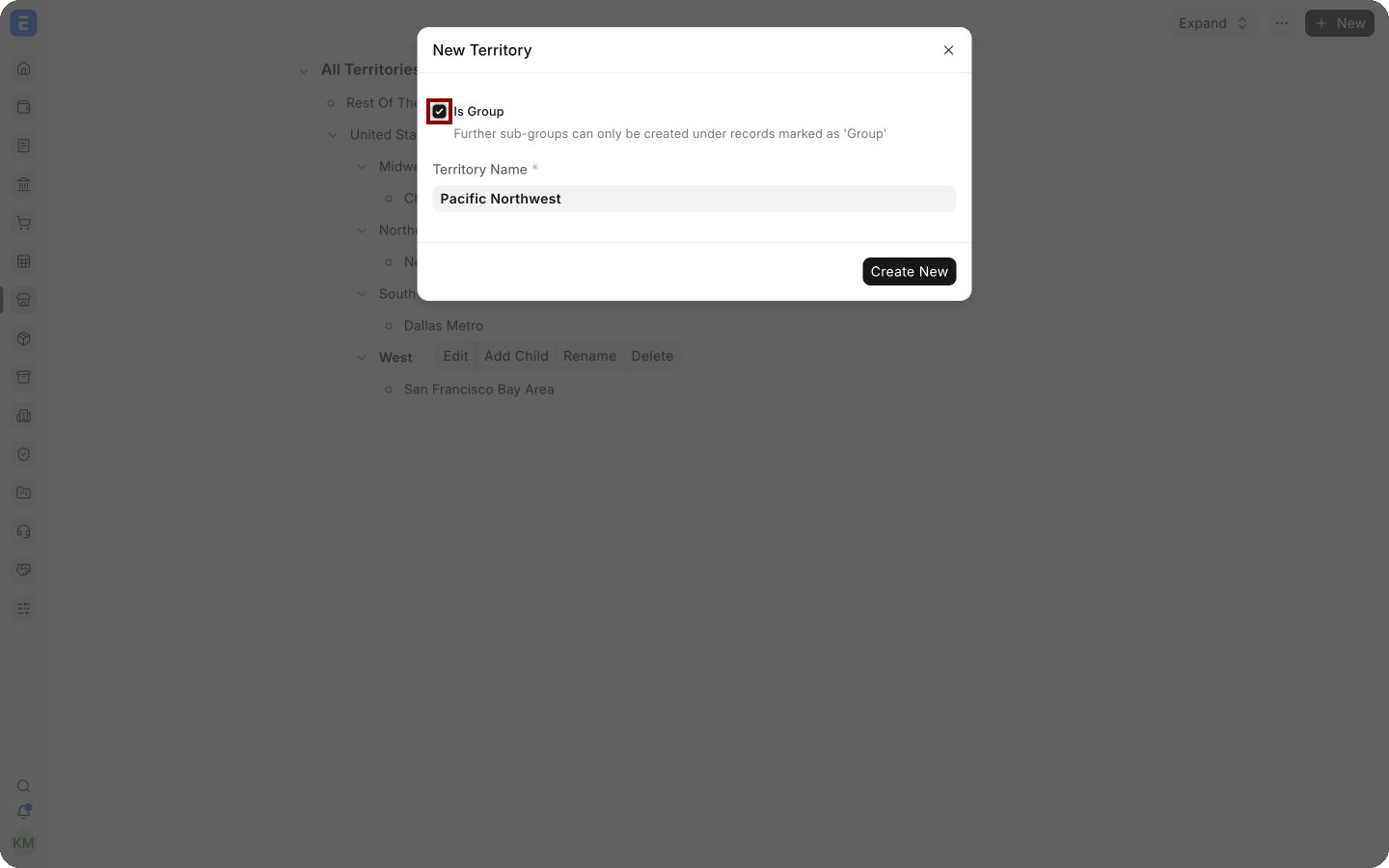
The deep-red square highlights Is Group. A group organizes child territories and is not selected on a transaction. Leave it disabled when creating a leaf territory such as a city, metro area, or final sales zone.
Alternative way to create a Territory
Section titled “Alternative way to create a Territory”To create a Territory directly under an existing group:
- Select the parent Territory in the tree.
- Select Add Child.
- Enter the child Territory name.
- Enable Is Group only when the child will contain another level.
- Create the record.
Using Add Child reduces the chance of placing the record under the wrong parent.
Important fields and what they mean
Section titled “Important fields and what they mean”| Field | What it means |
|---|---|
| Territory Name | The name displayed in the tree, Customer master, sales transactions, and reports. Use names that users can identify consistently. |
| Parent Territory | The group directly above the current Territory. It determines the Territory’s position in the hierarchy. |
| Is Group | Allows child Territories below this record. Only leaf nodes are intended for transactions. |
| Territory Manager | A reference to the person responsible for the region. It does not replace user permissions or the Sales Person assignment on transactions. |
| Item Group | The product category to which a target applies. |
| Fiscal Year | The period for the target. |
| Target Qty | The quantity target for the selected Item Group and Fiscal Year. |
| Target Amount | The monetary sales target for the selected Item Group and Fiscal Year. |
| Target Distribution | Distributes the annual target across months. Use an even distribution or a seasonal pattern that matches the business. |
Organize the Territory hierarchy
Section titled “Organize the Territory hierarchy”A well-designed hierarchy moves from broad groups to the lowest reporting level you need. The Nova Electronics Trading demo uses United States as a group, four regional groups below it, and metro areas as leaf Territories.
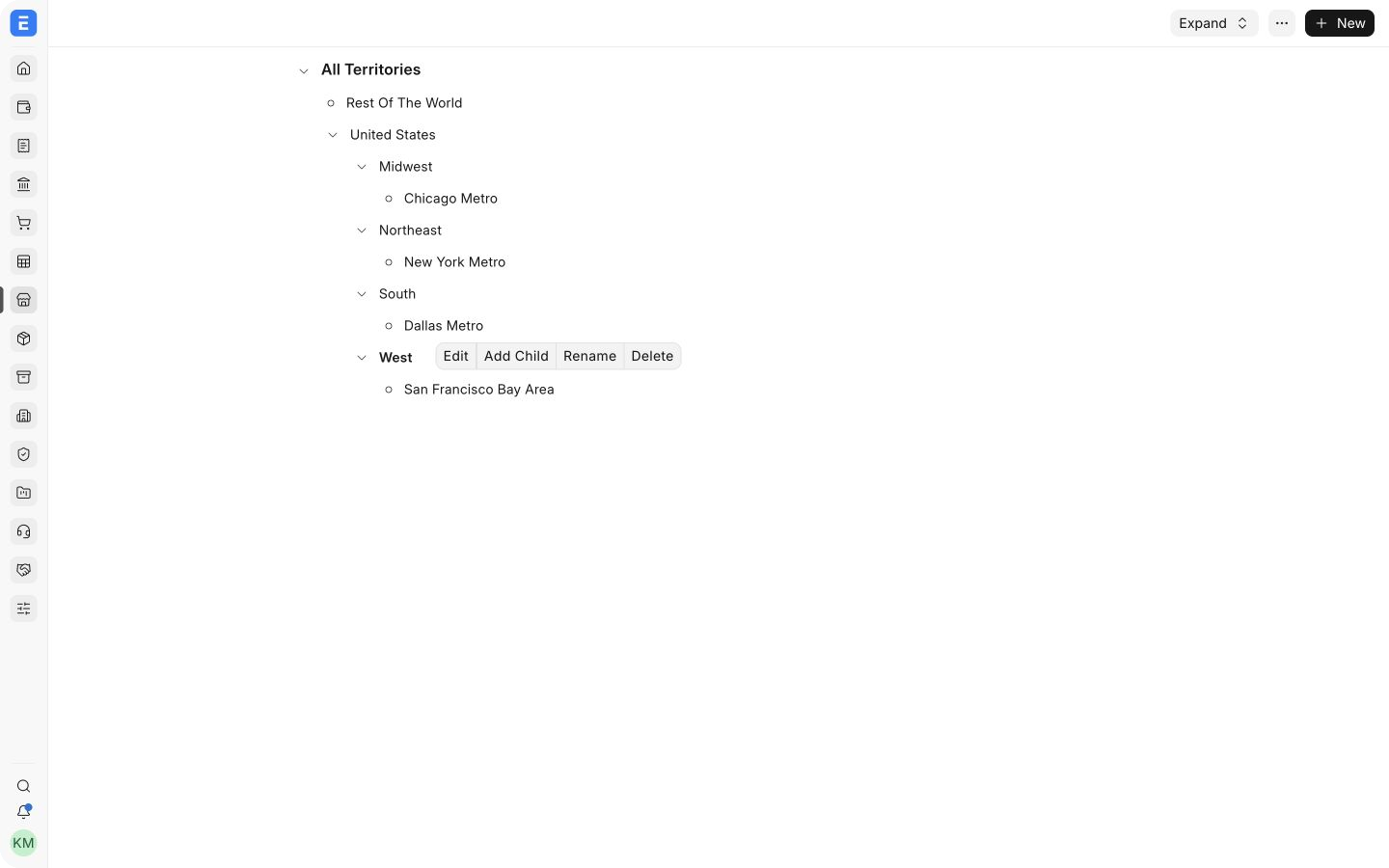
You can add multiple levels, but avoid unnecessary depth. A structure such as country → region → metro area is easier to maintain than a different hierarchy for every sales team.
Select a node to access actions such as Edit, Add Child, Rename, or Delete. Bravo Hub ERP may prevent deletion when a Territory is linked to another record. Rename an existing Territory when the region continues to represent the same business segment.
Choose an effective Territory structure
Section titled “Choose an effective Territory structure”| Business model | Example hierarchy |
|---|---|
| National distributor | Country → region → state or metro area |
| International seller | Global region → country → sales zone |
| Local service company | Service region → city → neighborhood or route |
| Account-based sales team | Market segment → named account region |
Choose one primary purpose for the tree. Mixing geography, customer size, industry, and salesperson names in the same hierarchy makes reports difficult to interpret. Use Customer Group for customer segmentation and Sales Person for individual ownership instead.
Before creating many Territories, test the proposed hierarchy with a few representative Customers and reports. Confirm that users know which leaf to select and that managers can view totals at the group level they need.
Assign a Territory to a Customer
Section titled “Assign a Territory to a Customer”Select the appropriate Territory on the Customer record. The value can then flow into supported sales transactions. A default from Selling Settings helps during Customer creation, including when Bravo Hub ERP converts a Lead-based Quotation into a Customer.
Use the final selectable Territory rather than a group. For example, select New York Metro instead of Northeast when metro-level reporting is required.
Set Territory sales targets
Section titled “Set Territory sales targets”- Open a leaf Territory.
- In Territory Targets, select Add row.
- Select an Item Group and Fiscal Year.
- Enter the Target Qty, Target Amount, or both.
- Select a Target Distribution.
- Save the Territory.
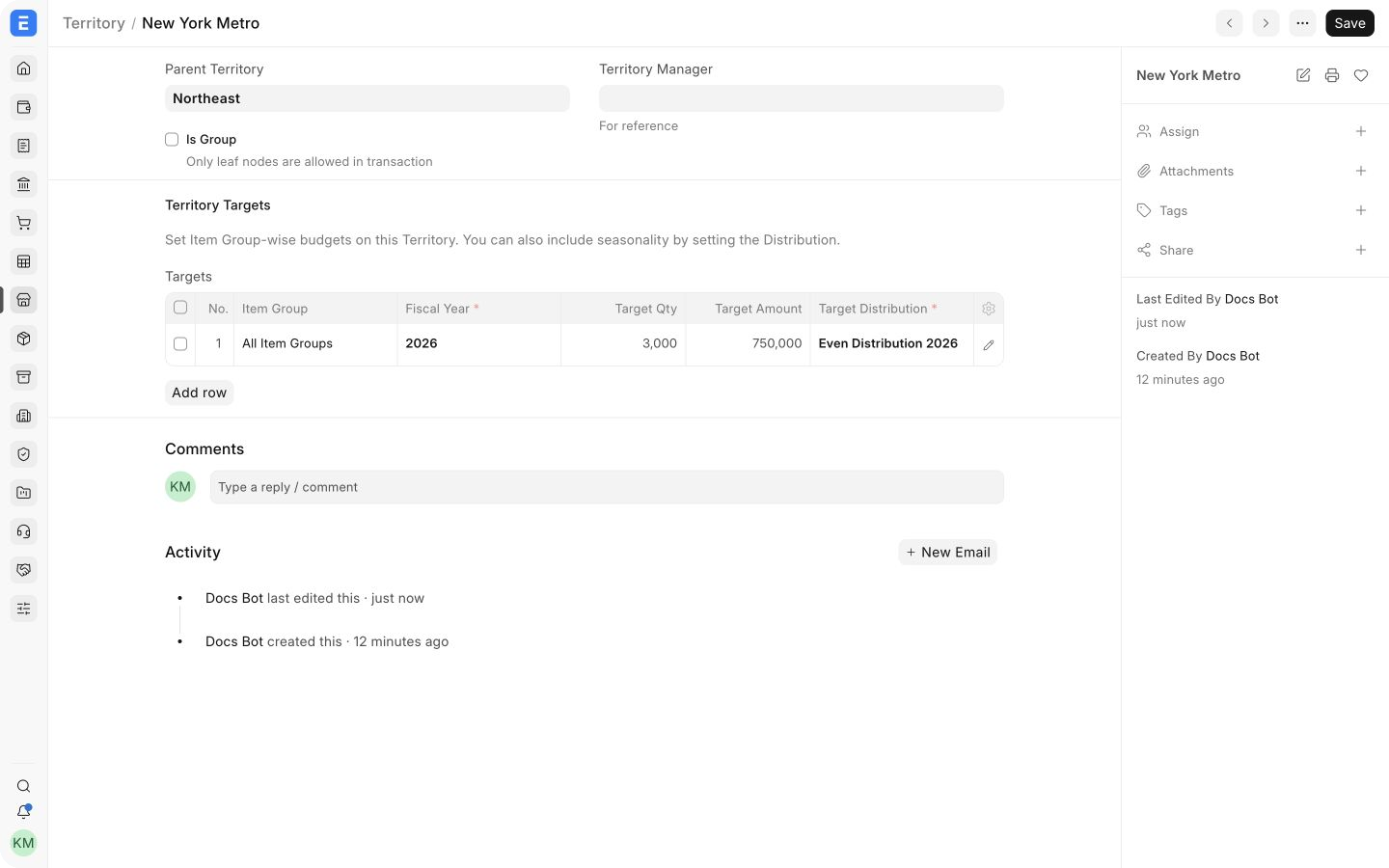
The example assigns New York Metro a 2026 target of 3,000 units and 750,000 in sales for All Item Groups, distributed evenly across the year.
For more detail about targets and distributions, see Sales Person Target Allocation. Territory targets can be reviewed using target variance reports in Sales Reports.
Good practices
Section titled “Good practices”- Use short, recognizable names and avoid two Territories with nearly identical meanings.
- Create a group only when it will contain children or provide a useful reporting subtotal.
- Assign Customers to the lowest meaningful leaf Territory.
- Review unassigned and incorrectly assigned Customers before relying on territory-wise reports.
- Update targets at the start of each Fiscal Year and confirm their Monthly Distributions.
- Document major hierarchy changes so report users understand comparisons with earlier periods.
Where Territory is used
Section titled “Where Territory is used”| Area | How Territory helps |
|---|---|
| Customer and Address | Classifies the customer or location for regional reporting. See Address. |
| Sales transactions | Carries the regional classification into documents such as Sales Orders and Sales Invoices. |
| Targets | Stores quantity and amount targets by Item Group and Fiscal Year. |
| Reports | Supports territory-wise analysis and target variance comparisons. |
Troubleshooting
Section titled “Troubleshooting”I cannot select a Territory on a transaction
Section titled “I cannot select a Territory on a transaction”Confirm that it is a leaf Territory. Group Territories organize the tree but are not intended for transaction selection.
A new Customer has the wrong Territory
Section titled “A new Customer has the wrong Territory”Check the Customer record and the Default Territory in Selling Settings. Users can replace the default when another Territory is appropriate.
I cannot delete a Territory
Section titled “I cannot delete a Territory”The Territory may have child nodes or links from Customers, Addresses, or transactions. Move or update those dependencies before deleting it.
The target does not reflect seasonality
Section titled “The target does not reflect seasonality”Review the selected Monthly Distribution. Its monthly percentages must total 100 percent and should match the expected sales pattern.
Frequently asked questions
Section titled “Frequently asked questions”Must a Territory represent a geographic area?
Section titled “Must a Territory represent a geographic area?”No. It can represent any stable regional or commercial structure, but geographic naming is usually easiest for users and reports.
Can a Customer’s Territory be changed?
Section titled “Can a Customer’s Territory be changed?”Yes. Change it when the Customer’s ownership or reporting region changes. Review how the change affects future reporting and internal responsibility.
Is Territory the same as Sales Person?
Section titled “Is Territory the same as Sales Person?”No. Territory represents the region. Sales Person represents an individual or sales-team hierarchy and can receive contribution percentages and targets.
How many hierarchy levels should I use?
Section titled “How many hierarchy levels should I use?”Use only the levels required for assignment and reporting. Two or three meaningful levels are often easier to maintain than a very deep tree.