Email Dropbox
When you receive emails from Leads, Customers, Suppliers, or other business partners, you might wish to attach those to their relevant records in Bravo Hub ERP. One way to do so is to save the email and upload it as an attachment. However, this could turn into a cumbersome process. Bravo Hub ERP offers a better way to handle this through its “Email Dropbox” feature.
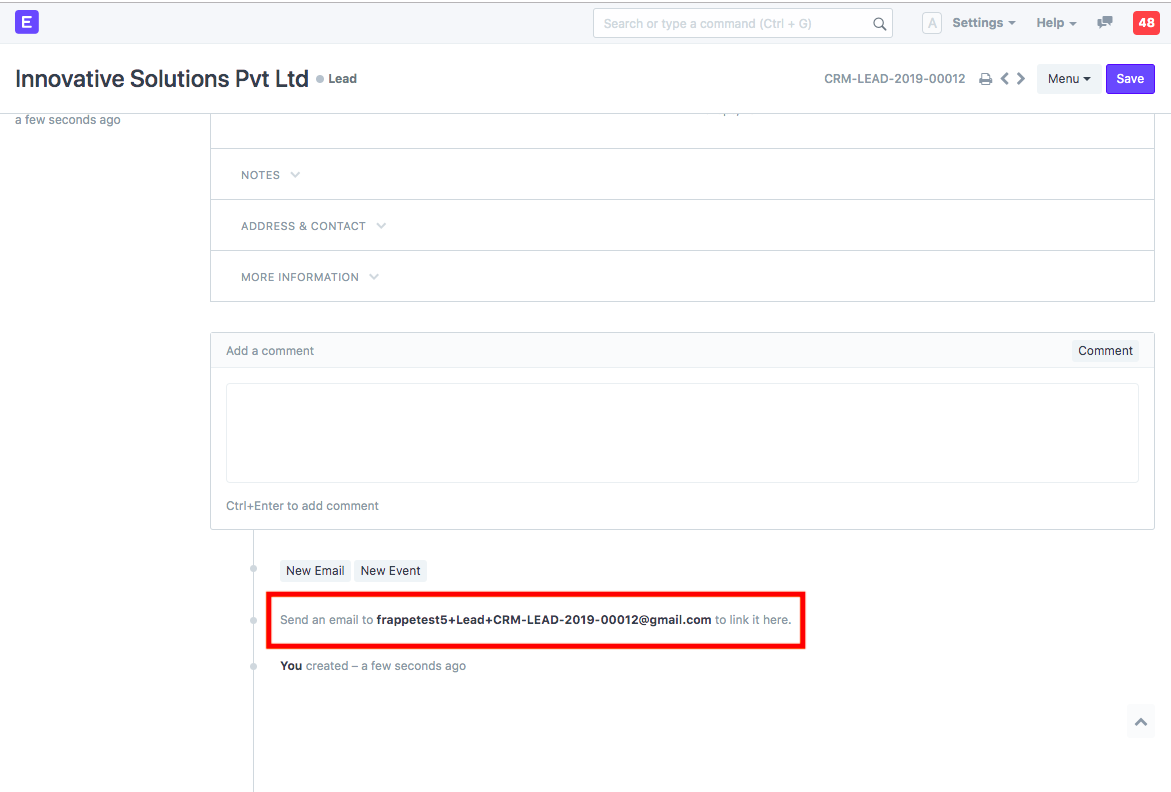
When enabled, each record in Bravo Hub ERP will have it’s own unique email address to which you can forward emails. You can click on the email address to copy it to your clipboard, which can then be added to the “To”, “Cc”, or “Bcc” field of the email that you wish to send.
1. Enable Email Dropbox Feature
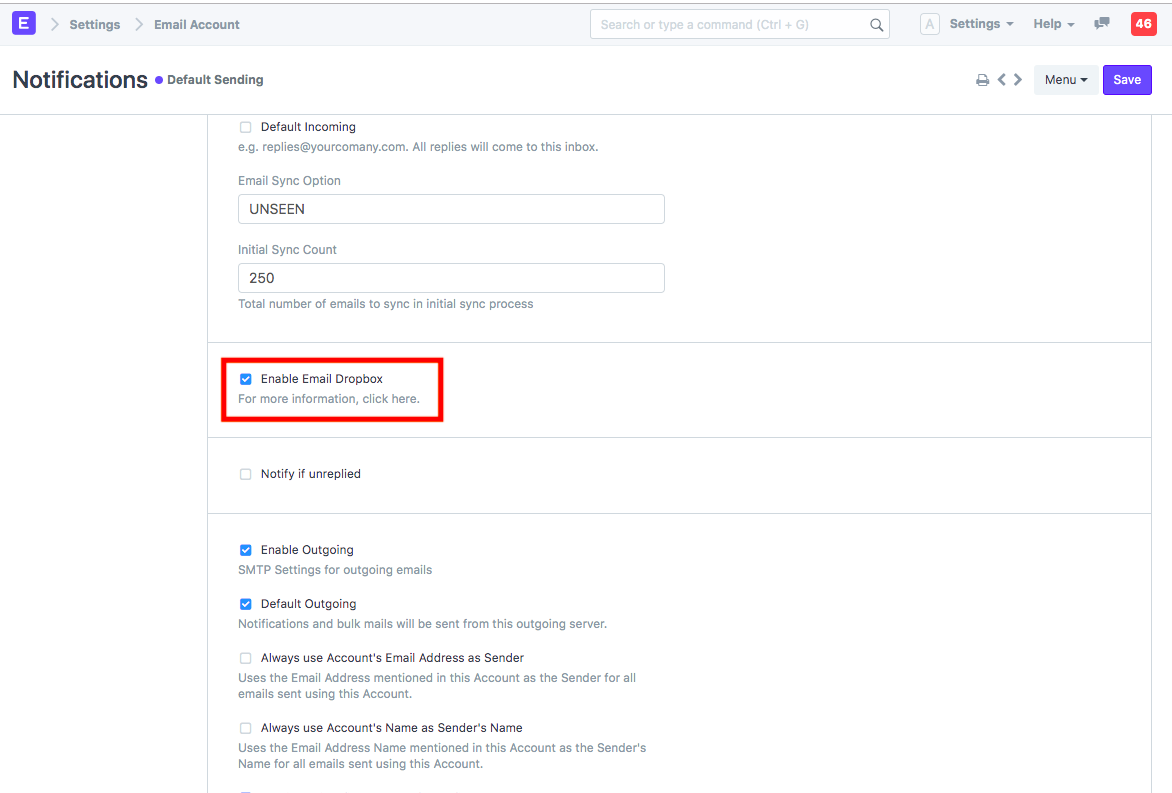
Section titled “1. Enable Email Dropbox Feature”In Email Account, check ‘Enable Email Dropbox’.
2. Copy Unique Email Address in Any Record
Section titled “2. Copy Unique Email Address in Any Record”Once the Email Dropbox feature is enabled, the unique email address becomes visible in all the records. You can click on the same and the address is copied to your clipboard. You can directly paste it in ‘To’, ‘Cc’ or ‘Bcc’ and send the email.
3. Email in Timeline
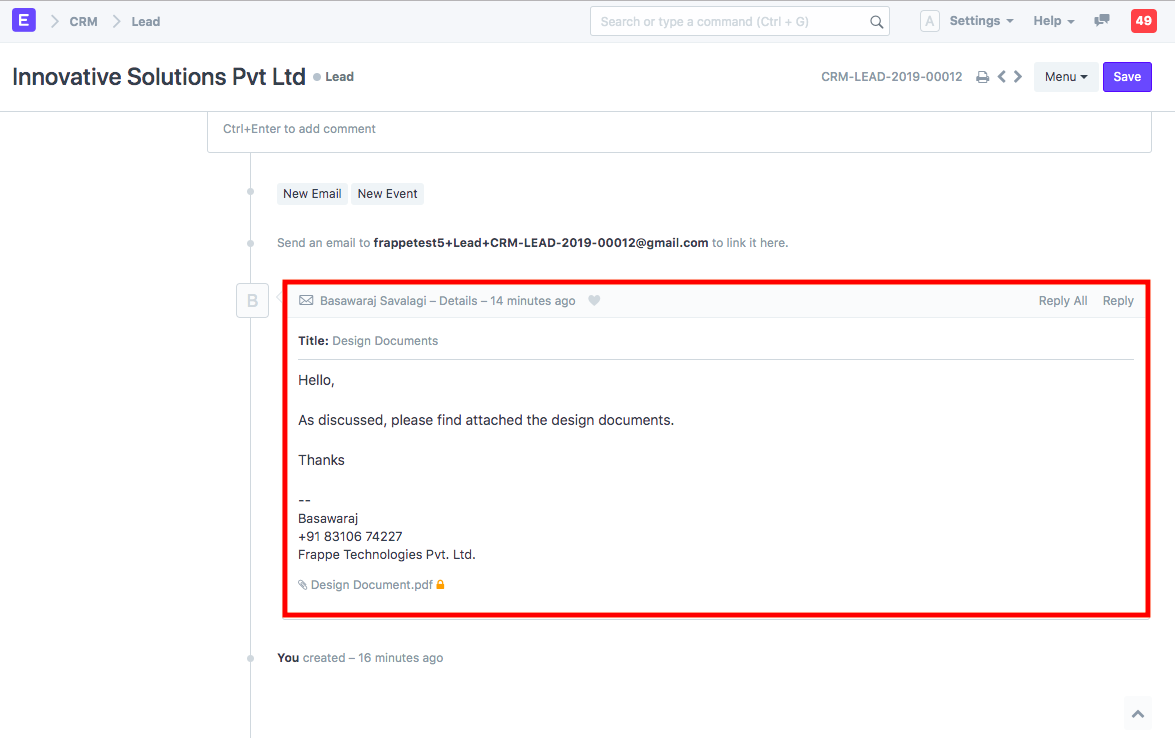
Section titled “3. Email in Timeline”Once the email is received, Bravo Hub ERP attaches it to the appropriate record and it will be visible in that record’s timeline.