
Incoterm and Named Place
Use Incoterm and Named Place to record the agreed trade term and location on sales and purchase transactions. Together they provide commercial context about delivery responsibilities, costs, and risk transfer.
Bravo Hub ERP records the agreement. It does not interpret the legal obligations, calculate every freight or insurance charge, or replace the complete contract.
Before you begin
Section titled “Before you begin”Confirm:
- The Incoterm edition and term agreed with the counterparty.
- The exact named port, terminal, warehouse, city, or other place.
- Currency, freight, insurance, taxes, and delivery terms.
- Whether the term is appropriate for the transport mode.
Seek qualified trade or legal advice when choosing the term. A short code without a named place is incomplete for many practical uses.
Add an Incoterm to a transaction
Section titled “Add an Incoterm to a transaction”The fields are available on supported documents such as a Quotation, Sales Order, Delivery Note, Sales Invoice, Purchase Order, and Purchase Invoice.
- Open or create the transaction.
- Find the shipping or terms section.
- Select the agreed Incoterm.
- Enter the complete Named Place.
- Confirm that freight, taxes, shipping address, and Terms and Conditions are consistent.
- Save.
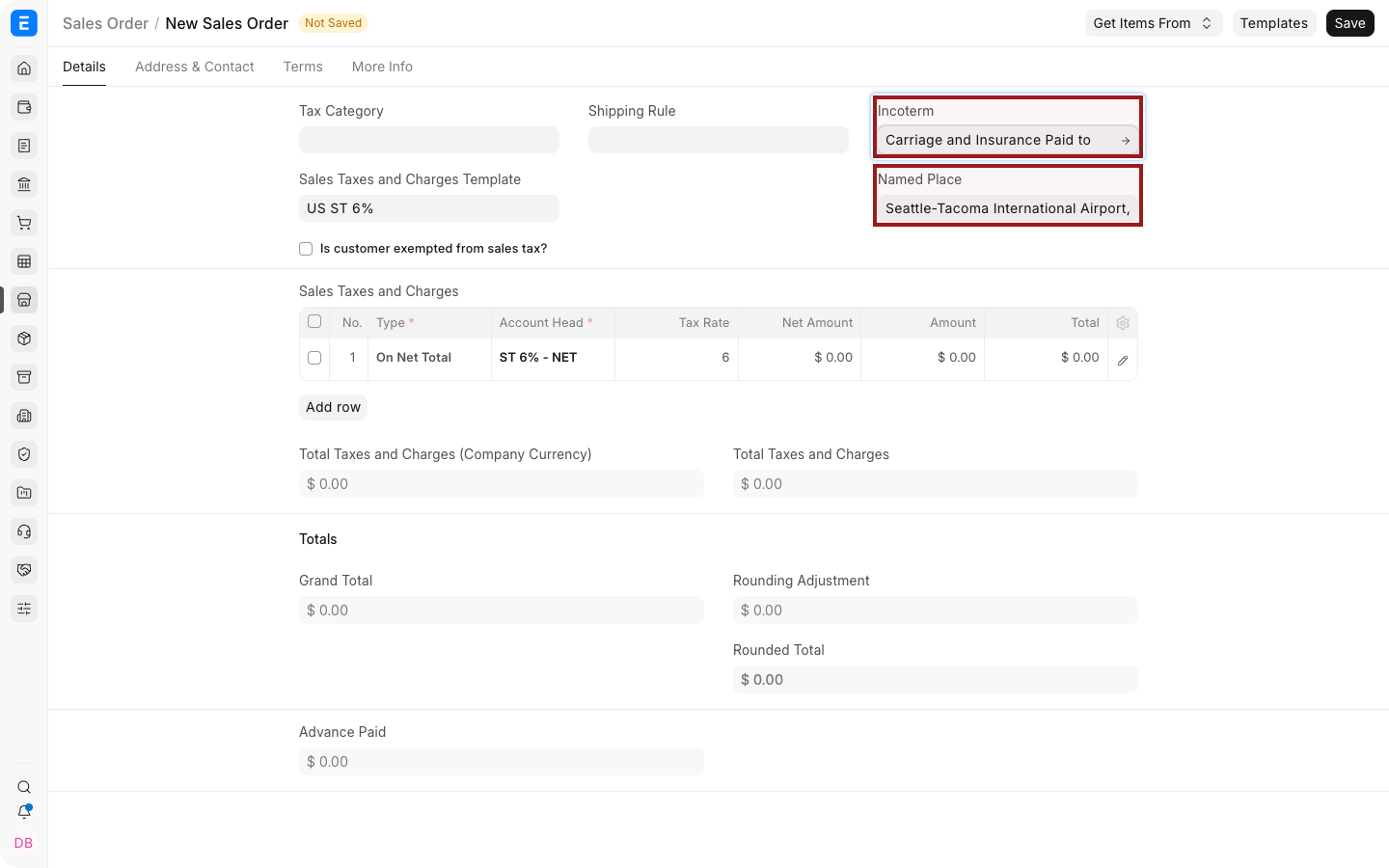
Example: CIP, Seattle-Tacoma International Airport, Seattle, WA, USA, Incoterms 2020.
Use the location detail your contract requires. Avoid a vague value such as only “USA” or “Port”.
Understand the two fields
Section titled “Understand the two fields”| Field | What to record |
|---|---|
| Incoterm | Standard trade-term code agreed by the parties |
| Named Place | Exact agreed location associated with the term |
The meaning of the named place depends on the selected term. For one term it may identify the place of delivery; for another it may identify a destination to which specified costs are paid. Do not infer all obligations from the location alone.
Keep the sales cycle consistent
Section titled “Keep the sales cycle consistent”When creating downstream documents, verify that the Incoterm and Named Place remain aligned with the latest agreement.
If the agreement changes after a Sales Order is submitted:
- Use the supported amendment or after-submit update workflow.
- Retain approval evidence.
- Update downstream documents that have not yet been submitted.
- Use a revised commercial document when required.
Do not overwrite a completed historical agreement merely to show the latest terms.
Freight, insurance, and accounting
Section titled “Freight, insurance, and accounting”Incoterm fields do not automatically create every related charge or accounting entry. Configure freight through shipping charges, taxes, landed costs, or supplier invoices according to the transaction and accounting policy.
For stock purchases, Landed Cost Voucher may be relevant when additional costs need to be included in inventory valuation.
Terms and printed documents
Section titled “Terms and printed documents”Use Terms and Conditions to state the complete commercial wording, Incoterm edition, responsibilities, exclusions, and documentary requirements.
Check the Print Format to ensure Incoterm and Named Place appear on the document sent to the Customer or Supplier.
Troubleshooting
Section titled “Troubleshooting”| Problem | What to check |
|---|---|
| Named Place is hidden | Select the Incoterm first |
| Downstream document has old terms | Review mapped values and whether the source was amended |
| Freight is not calculated | Configure charges separately; Incoterm is descriptive |
| The printed document omits the fields | Update the Print Format |
| Users select inconsistent terms | Add approval, training, or a Workflow for commercial review |
Frequently asked questions
Section titled “Frequently asked questions”Does Bravo Hub ERP choose the correct Incoterm?
Section titled “Does Bravo Hub ERP choose the correct Incoterm?”No. Users must select the term agreed by the parties.
Is the Named Place always the delivery destination?
Section titled “Is the Named Place always the delivery destination?”No. Its role depends on the selected Incoterm.
Do Incoterm fields calculate freight or insurance?
Section titled “Do Incoterm fields calculate freight or insurance?”Not by themselves. Configure the relevant charges and accounting separately.
Should the Incoterm edition be recorded?
Section titled “Should the Incoterm edition be recorded?”Yes. Include the agreed edition in Terms and Conditions or another controlled field or print format.