
Freeze an Account
Freeze an individual ledger Account when users should be able to see its history but should no longer post new transactions to it. This is useful after replacing a bank, expense, income, receivable, or payable account without deleting the older ledger.
Freezing does not remove the Account or its existing General Ledger entries. It prevents ordinary users from using that Account in new accounting transactions. An explicitly authorized role can still set frozen Accounts and create or modify entries against them.
Freeze only an Account that should no longer receive postings. If you need to prevent entries for a past date range instead, use Freeze Accounting Entries or an Accounting Period.
Before you begin
Section titled “Before you begin”Confirm that:
- The Account is a ledger Account, not a group used to organize the Chart of Accounts.
- Users should retain access to its historical transactions and balances.
- A replacement Account is available if future invoices, payments, or journals still need a ledger for the same purpose.
- Defaults in the Company, Customer, Supplier, Item, tax templates, and Mode of Payment no longer point to the Account you plan to freeze.
- The role permitted to manage frozen Accounts has been reviewed.
Authorize a role to manage frozen Accounts
Section titled “Authorize a role to manage frozen Accounts”The permission is company-specific in the current Bravo Hub ERP interface.
- Open the required Company.
- Select the Accounts Closing tab.
- In Roles Allowed to Set and Edit Frozen Account Entries, select the role that may freeze Accounts and post or modify entries against them.
- Save the Company.
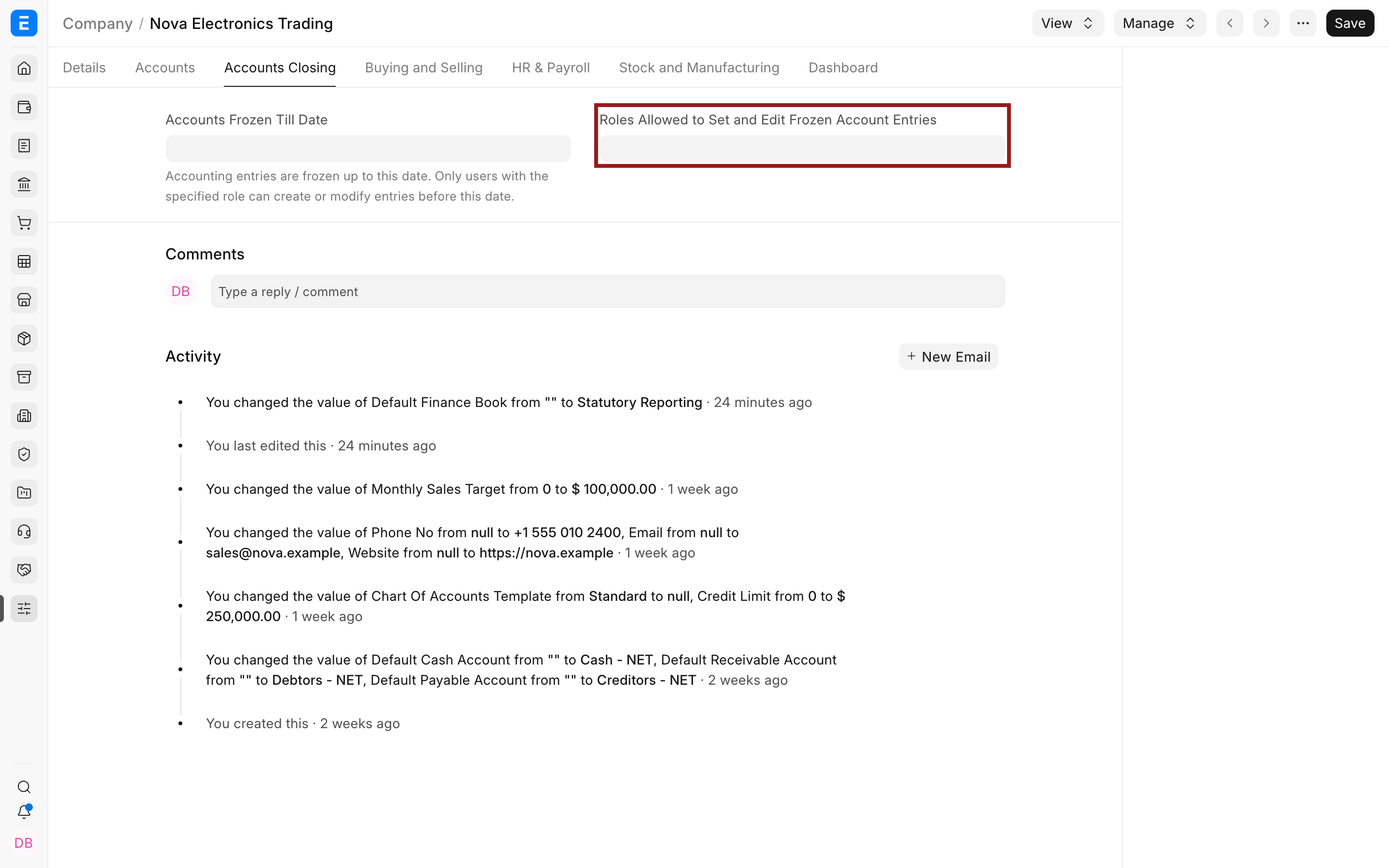
Grant this role sparingly. A user with it can bypass the restriction when posting to a frozen Account. In older Bravo Hub ERP documentation, this control may be described as an Accounts Settings field. On the current develop interface it appears in the Company’s Accounts Closing tab.
Freeze an Account
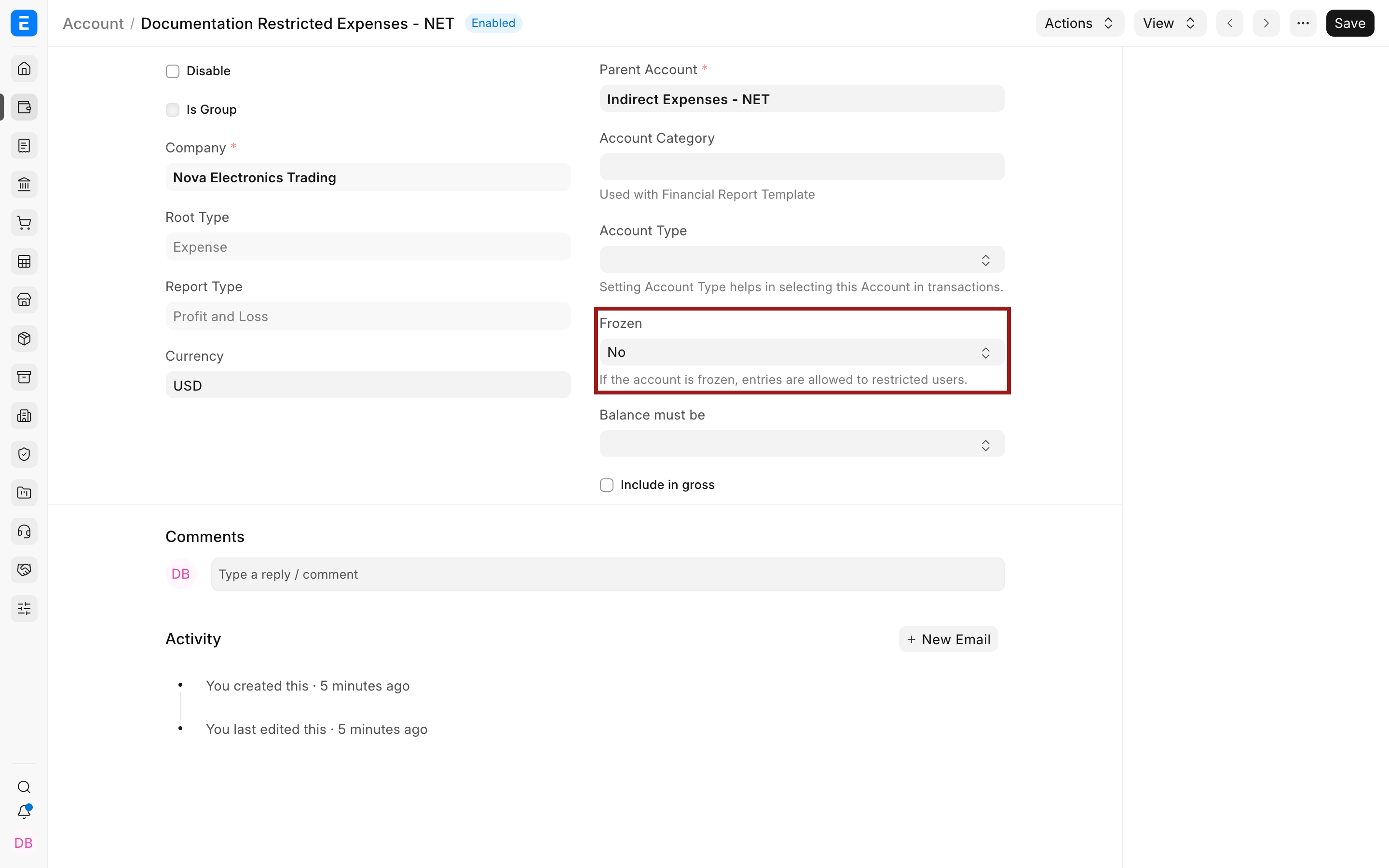
Section titled “Freeze an Account”- Open Accounting > Chart of Accounts.
- Select the Company.
- Open the ledger Account that should stop receiving transactions.
- Set Frozen to Yes.
- Save the Account.
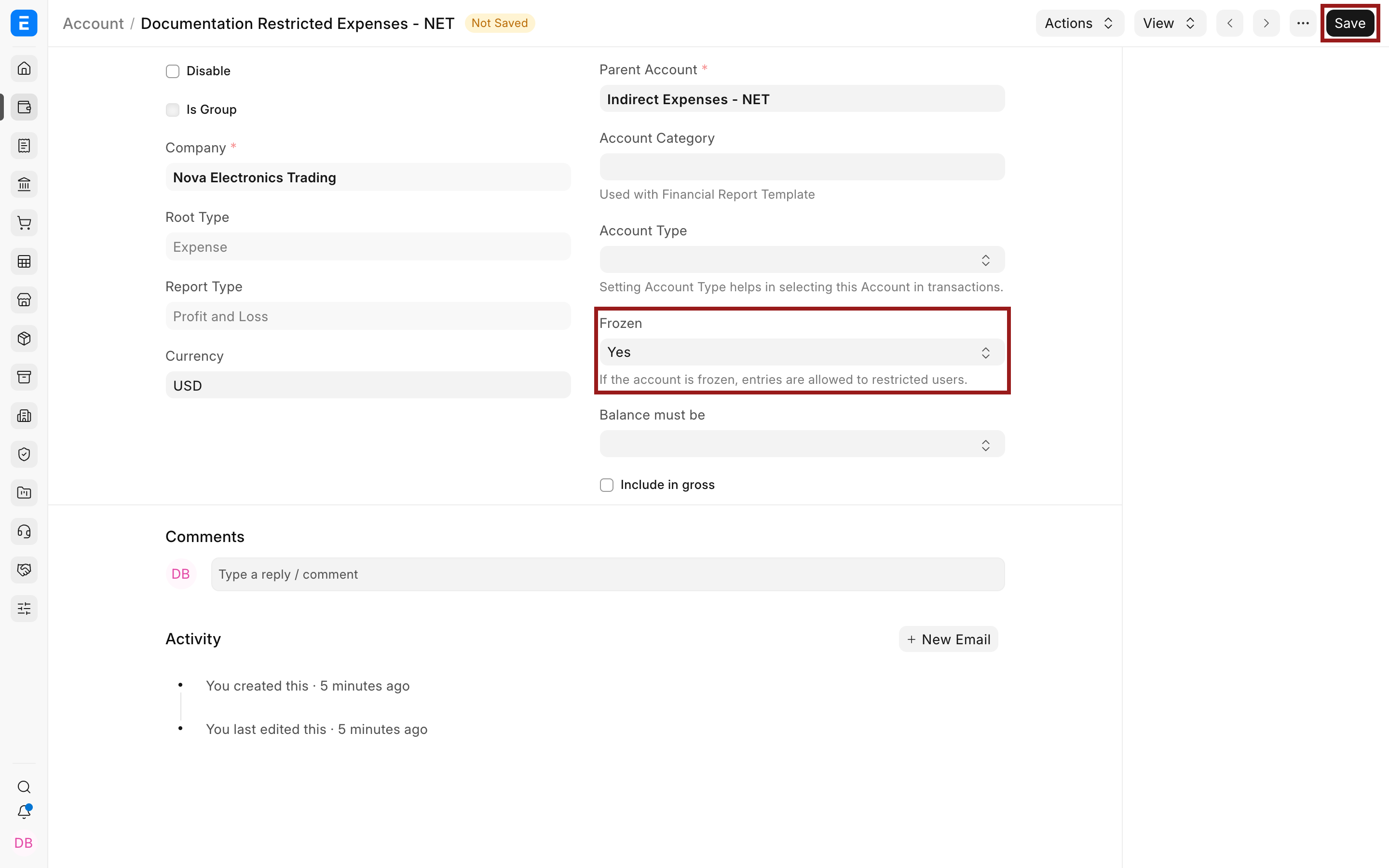
After saving, ordinary users cannot use the Account in accounting transactions. Existing Journal Entries, invoices, payments, and reports remain connected to it.
What freezing changes
Section titled “What freezing changes”| Area | Result |
|---|---|
| New accounting transactions | Ordinary users cannot post entries against the frozen Account. |
| Authorized role | Users with the Company role configured for frozen Account entries can set the Account as frozen and post or modify entries against it. |
| Existing ledger history | Remains available in the General Ledger and financial reports. |
| Account master | Remains in the Chart of Accounts and can be unfrozen later. |
| Defaults that reference the Account | Are not automatically replaced. Update them before users create new transactions. |
| Date-based locks | Are unchanged. Freezing one Account is separate from freezing entries through a date or closing an Accounting Period. |
Verify the change
Section titled “Verify the change”After saving:
- Reopen the Account and confirm Frozen is Yes.
- Check that active defaults now use the intended replacement ledger.
- Open the General Ledger report and confirm the historical Account balance remains visible.
- If your controls require a test, use a draft transaction with a test user who does not have the exception role. Do not submit an incorrect entry merely to test the restriction.
Unfreeze an Account
Section titled “Unfreeze an Account”An authorized user can reopen the Account, set Frozen to No, and save. Before unfreezing, confirm why postings need to resume and whether a newer Account has already replaced it. Allowing both Accounts to remain active can split transactions and make financial statements harder to reconcile.
Troubleshooting
Section titled “Troubleshooting”| Issue | What to check |
|---|---|
| Frozen cannot be changed | Confirm that your user has the role selected in the Company’s Accounts Closing settings. |
| A transaction still posts to the frozen Account | Check whether the user has the authorized role. Also confirm that the transaction used the Account you froze, not a similarly named ledger. |
| New transactions default to the frozen Account | Replace the Account in Company and master defaults, tax templates, payment modes, and transaction templates. |
| A past period must be locked | Use Accounts Frozen Till Date or an Accounting Period. Freezing an Account controls a ledger, not a date range. |
| Reports still show the Account | This is expected. Freezing stops new postings and does not remove historical balances. |
Frequently asked questions
Section titled “Frequently asked questions”Does freezing an Account delete it?
Section titled “Does freezing an Account delete it?”No, The Account and its historical ledger entries remain available. The restriction applies to new or modified accounting entries.
Is a frozen Account the same as a disabled Account?
Section titled “Is a frozen Account the same as a disabled Account?”No, Frozen is an accounting control that blocks ordinary postings while permitting a configured role to handle exceptions. Disable is a broader master-state control. Use the option that matches your control objective.
Can an authorized user post to a frozen Account?
Section titled “Can an authorized user post to a frozen Account?”Yes, A user with the role configured in Roles Allowed to Set and Edit Frozen Account Entries can create or modify entries against it. Keep that role limited and review its assignments.
Does freezing an Account affect its balance?
Section titled “Does freezing an Account affect its balance?”No, Existing debits, credits, and balances remain unchanged. The Account continues to appear in reports based on its historical postings.
When should I use a date freeze instead?
Section titled “When should I use a date freeze instead?”Use Accounts Frozen Till Date when the restriction should apply to accounting entries before a cutoff date. Use an Accounting Period when selected transaction types must be closed for a completed period. Use Frozen on the Account when one specific ledger should stop receiving entries regardless of date.