
Introduction to CRM
Customer relationship management (CRM) in Bravo Hub ERP helps sales teams organize prospects, qualify potential business, record follow-ups, and move an enquiry toward a sale. The records are connected, so a salesperson can begin with a Lead, create an Opportunity, prepare a Quotation, and continue into the selling cycle without entering the same information again.
Bravo Hub ERP CRM is useful when your organization wants customer context and sales transactions in one system. It connects pre-sales activity with the Customer, Sales Order, delivery, billing, and reporting records maintained by other Bravo Hub ERP teams.
Important: Bravo Hub ERP CRM is scheduled for removal
Section titled “Important: Bravo Hub ERP CRM is scheduled for removal”On the develop version, the CRM workspace states that this module is scheduled for deprecation and will be completely removed in version 17. Bravo Hub recommends using Bravo Hub CRM instead.
If you are starting a new CRM implementation, evaluate Bravo Hub CRM before configuring a long-term workflow in the Bravo Hub ERP CRM module. If you already use the module, inventory your leads, opportunities, activities, reports, integrations, and custom fields, then plan the transition with your implementation team. The transactional selling records in Bravo Hub ERP remain relevant, but do not assume that custom CRM behavior will move automatically.
The CRM workspace brings together pipeline records, customer masters, campaigns, settings, and reports. The notice at the top identifies the planned version 17 change.
How the CRM and selling cycle fits together
Section titled “How the CRM and selling cycle fits together”| Stage | Record | What happens |
|---|---|---|
| Capture interest | Lead | Store an unqualified person or organization that may become a customer. |
| Qualify demand | Opportunity | Record the potential requirement, expected value, probability, sales stage, and next action. |
| Make an offer | Quotation | Share proposed items, quantities, prices, taxes, validity, and commercial terms. |
| Establish the account | Customer | Create the party used for transactions and accounting. Add Contacts and Addresses to keep people and locations reusable. |
| Confirm the sale | Sales Order | Record the accepted order and drive delivery, billing, procurement, or production. |
This sequence is a common path, not a mandatory one. You can create an Opportunity for an existing Customer, prepare a Quotation from a Lead, or create a Customer before a Quotation when your process requires it. The correct path depends on when your team qualifies a prospect and when it needs a formal customer account.
What Bravo Hub ERP CRM covers
Section titled “What Bravo Hub ERP CRM covers”Lead management
Section titled “Lead management”A Lead represents a person or organization that has shown interest but has not yet been qualified as a customer. Capture the lead name, organization, contact details, source, territory, industry, and notes. Assign an owner and record each call, email, or meeting so another team member can understand the history.
Use clear qualification criteria. For example, confirm the requirement, approximate budget, decision process, and expected timing before converting a Lead into an Opportunity. Keeping low-quality enquiries at the Lead stage makes the active pipeline more meaningful.
Opportunity tracking
Section titled “Opportunity tracking”An Opportunity represents potential revenue being actively pursued. It can be linked to a Lead, Customer, or Prospect. Add the requested items or services, expected closing date, probability, opportunity amount, source, and sales stage. The Sales Stage helps teams distinguish early discovery from evaluation, negotiation, and other defined stages.
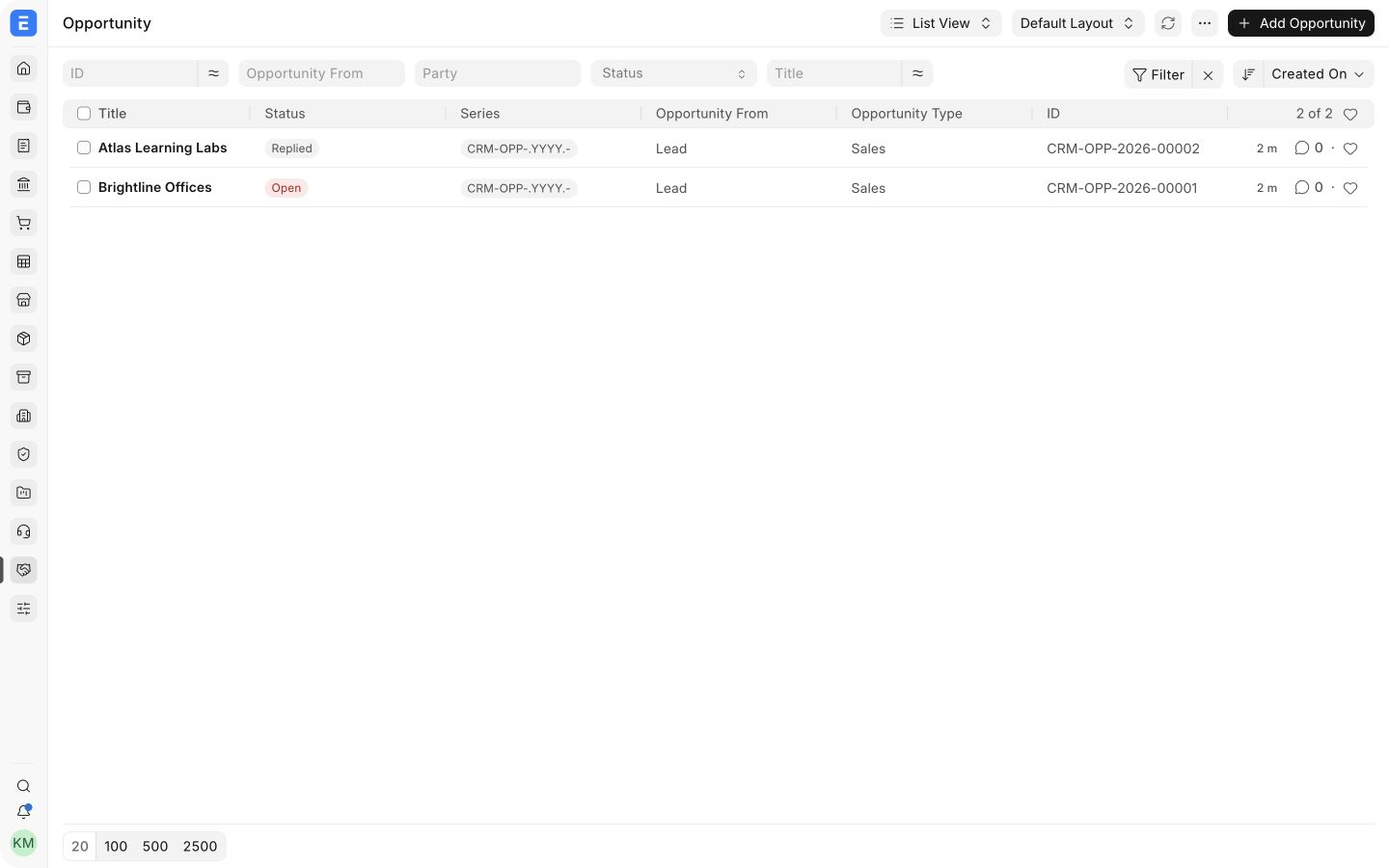
The Opportunity list provides a shared view of active deals and their status. Filters, assignments, and saved views can help each salesperson focus on the records that need attention.
Customer, contact, and address management
Section titled “Customer, contact, and address management”A Customer is the organization or individual you sell to. A Contact stores a person and their communication details, while an Address stores a billing, shipping, office, or other location. Linking Contacts and Addresses to the Customer lets Bravo Hub ERP reuse them in Quotations, Sales Orders, deliveries, and invoices.
Avoid creating a new Customer for every contact or branch unless the branch must be treated as a separate commercial or accounting party. Use Contacts and Addresses to model people and locations beneath the correct customer account.
Activities and communication history
Section titled “Activities and communication history”Calls, emails, meetings, comments, assignments, and other interactions provide the context behind a deal. Use the timeline on the relevant record and link communication to the correct Lead, Opportunity, or Customer. An Appointment can support scheduled interactions, while assignments and due dates make ownership visible.
Record the outcome and next action, not only that contact occurred. A useful note tells the next user what was discussed, what the prospect agreed to, and when the team should follow up.
Campaigns and outreach
Section titled “Campaigns and outreach”A Campaign groups marketing activity so leads and opportunities can be traced to an initiative. An Email Campaign can send a scheduled sequence using Email Templates. Use Lead Source, Campaign, and consistent naming to compare which channels generate qualified opportunities rather than only raw enquiries.
Reports and analytics
Section titled “Reports and analytics”The CRM workspace includes pipeline and efficiency reports. Sales Pipeline helps teams review opportunities by stage or status, and CRM Analytics can summarize activity and conversion information. Report quality depends on disciplined data entry, especially owners, stages, probabilities, expected closing dates, sources, and loss reasons.
Before you begin
Section titled “Before you begin”- Decide whether the Bravo Hub ERP CRM module or Bravo Hub CRM is the right long-term system for your version and roadmap.
- Define what qualifies a Lead and when users should create an Opportunity or Customer.
- Create a small, controlled list of Lead Sources, Opportunity Types, Sales Stages, Territories, and Campaign naming rules.
- Assign record ownership and agree on how quickly new leads must receive a first response.
- Configure CRM Settings only after the team agrees on conversion and naming behavior.
- Review roles and permissions so users can access the customers and opportunities they are responsible for.
A typical CRM workflow
Section titled “A typical CRM workflow”- Create a Lead from an enquiry, website form, email, event, referral, or manual entry.
- Assign the Lead to a salesperson and record the next follow-up.
- Qualify the requirement. Update the status and capture the source, territory, organization, and communication details.
- Create an Opportunity when the enquiry becomes a genuine potential deal.
- Add the expected value, probability, sales stage, closing date, requested items, and next action.
- Create and send a Quotation when the solution and commercial proposal are ready.
- Create or select the Customer before the transaction requires a customer account.
- Convert the accepted proposal into a Sales Order and continue with fulfilment and billing.
Review the pipeline regularly. Close or mark lost opportunities that are no longer active and record a meaningful loss reason. An accurate smaller pipeline is more useful than a large pipeline filled with stale records.
Important records and what they mean
Section titled “Important records and what they mean”| Record or field | What it means |
|---|---|
| Lead | An unqualified prospect. Use it before your organization is ready to treat the party as an active customer or deal. |
| Opportunity | A qualified potential sale being pursued, with value, probability, timing, items, and ownership. |
| Opportunity From | Identifies whether the Opportunity is linked to a Lead, Customer, or Prospect. |
| Source | The channel or origin that generated the Lead or Opportunity, such as referral, website, or event. |
| Sales Stage | The current step in your qualification and sales process. |
| Probability | Your estimated likelihood that the Opportunity will convert. Use a consistent team rule rather than personal guesswork. |
| Expected Closing Date | The date the team currently expects the decision or conversion to occur. |
| Next Contact Date | The planned date for the next follow-up with the prospect or customer. |
| Campaign | The marketing initiative associated with the enquiry or opportunity. |
| Lost Reason | The reason an Opportunity did not proceed. Consistent reasons support useful analysis. |
Good practices
Section titled “Good practices”- Keep one clear owner for every active Lead and Opportunity.
- Record the next action and due date after every meaningful interaction.
- Use stages, sources, and loss reasons consistently across the team.
- Update expected values and closing dates when circumstances change.
- Do not convert every enquiry immediately. Keep the pipeline reserved for qualified work.
- Review duplicate Customers, Contacts, and Leads before creating new records.
- Close stale opportunities so forecasts reflect current reality.
Frequently asked questions
Section titled “Frequently asked questions”What is the difference between a Lead, Contact, and Customer?
Section titled “What is the difference between a Lead, Contact, and Customer?”A Lead is an unqualified prospect. A Contact is a person linked to one or more parties. A Customer is the commercial party used in sales and accounting transactions. See Difference between Lead, Contact, and Customer for a focused comparison.
Do I need to create a Lead before every Opportunity?
Section titled “Do I need to create a Lead before every Opportunity?”No. An Opportunity can be created for a Lead, Customer, or Prospect. Use a Lead when qualification is still needed and create an Opportunity directly for an existing Customer when the potential deal is already known.
When should I create a Customer?
Section titled “When should I create a Customer?”Create the Customer when the party is qualified and your process needs a reusable customer account for a Quotation, Sales Order, invoice, address, contact, pricing, or accounting control. Avoid creating Customers for spam or early unqualified enquiries.
Can Bravo Hub ERP create Leads automatically?
Section titled “Can Bravo Hub ERP create Leads automatically?”Yes. Leads can be created through supported email and web workflows or integrations. See Automate Lead Creation and test the source, assignment, duplicate-handling, and consent behavior before enabling automation.
Should a new implementation use Bravo Hub ERP CRM?
Section titled “Should a new implementation use Bravo Hub ERP CRM?”Because the develop version announces removal of the module in version 17, evaluate Bravo Hub CRM first. Confirm the supported integration and migration approach for the exact versions you plan to deploy.
Video tutorials
Section titled “Video tutorials”For guided learning, see the existing course: Lead, Opportunity and Quotation.
You can also use Newsletter for email outreach to subscribed recipients.