
Employment Type
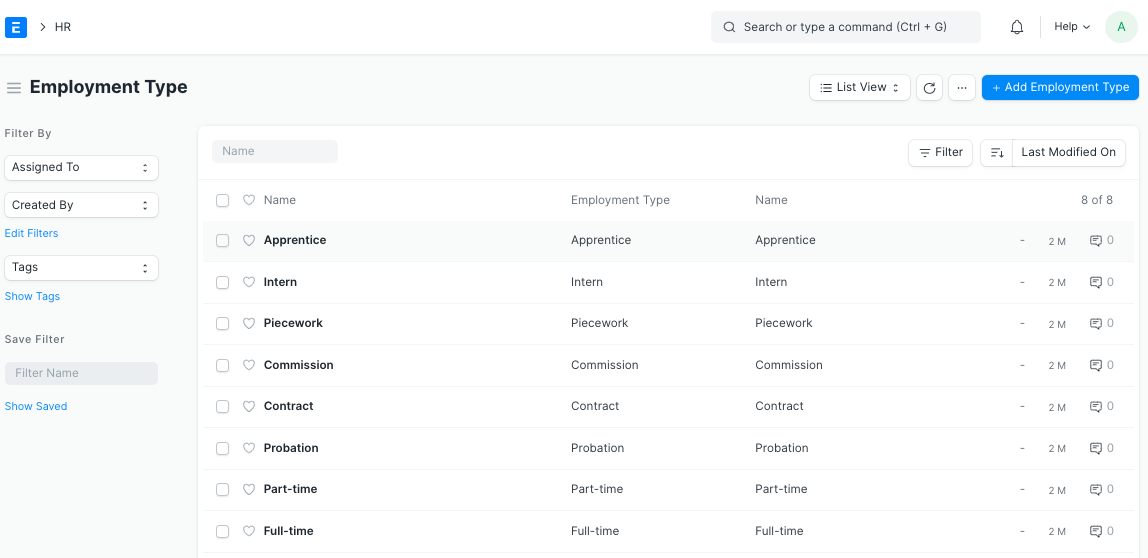
You can employ people under a number of categories each having their own wage and leave entitlements. This is called an Employment Type.
Bravo Hub HR allows you to select an Employment Type from a pre-defined list or even create a new Employment Type based on your requirements.
To access the Employment Type, go to:
Home > Human Resources > Employee > Employment Type
1. How to create an Employment Type
Section titled “1. How to create an Employment Type”- Go to the Employment Type list, click on New.
- Enter the Name of the Employment Type.
- Save.
2. Where the Employment Type is used
Section titled “2. Where the Employment Type is used”The Employment Type can be linked to the Employee master, and is then used in the following places:
- Salary Structure: Employment Type can be used as a variable in the Condition and Formula fields of a Salary Component using the field name
employment_type. This allows a Salary Component to be applied only to a specific category of Employees. For example, the conditionemployment_type=="Intern"applies the component only to Employees with the Employment Type set to Intern. - Recruitment: Employment Type can be set in a Job Opening and Job Opening Template. It is displayed to candidates on the Jobs portal, where it can also be used as a filter. When an applicant is hired, the Employment Type is fetched from the Job Applicant to the Employee.
- Tools: Employment Type is available as a filter in the Employee Attendance Tool, allowing attendance to be marked for a specific category of Employees.