
Fiscal Year
A financial report is meaningful only when Bravo Hub ERP knows where one reporting year ends and the next begins. A Fiscal Year defines that period for transactions, budgets, opening balances, and year-end closing.
For Nova Industries, the finance team may report from January to December while another company on the same site follows April to March. Separate Fiscal Year records let both companies post and compare transactions using the periods required by their owners, auditors, and local regulations.
This page shows how to create the period, assign it to the right companies, control posting dates, and avoid gaps or overlaps that can make transactions fail validation.
Create a Fiscal Year
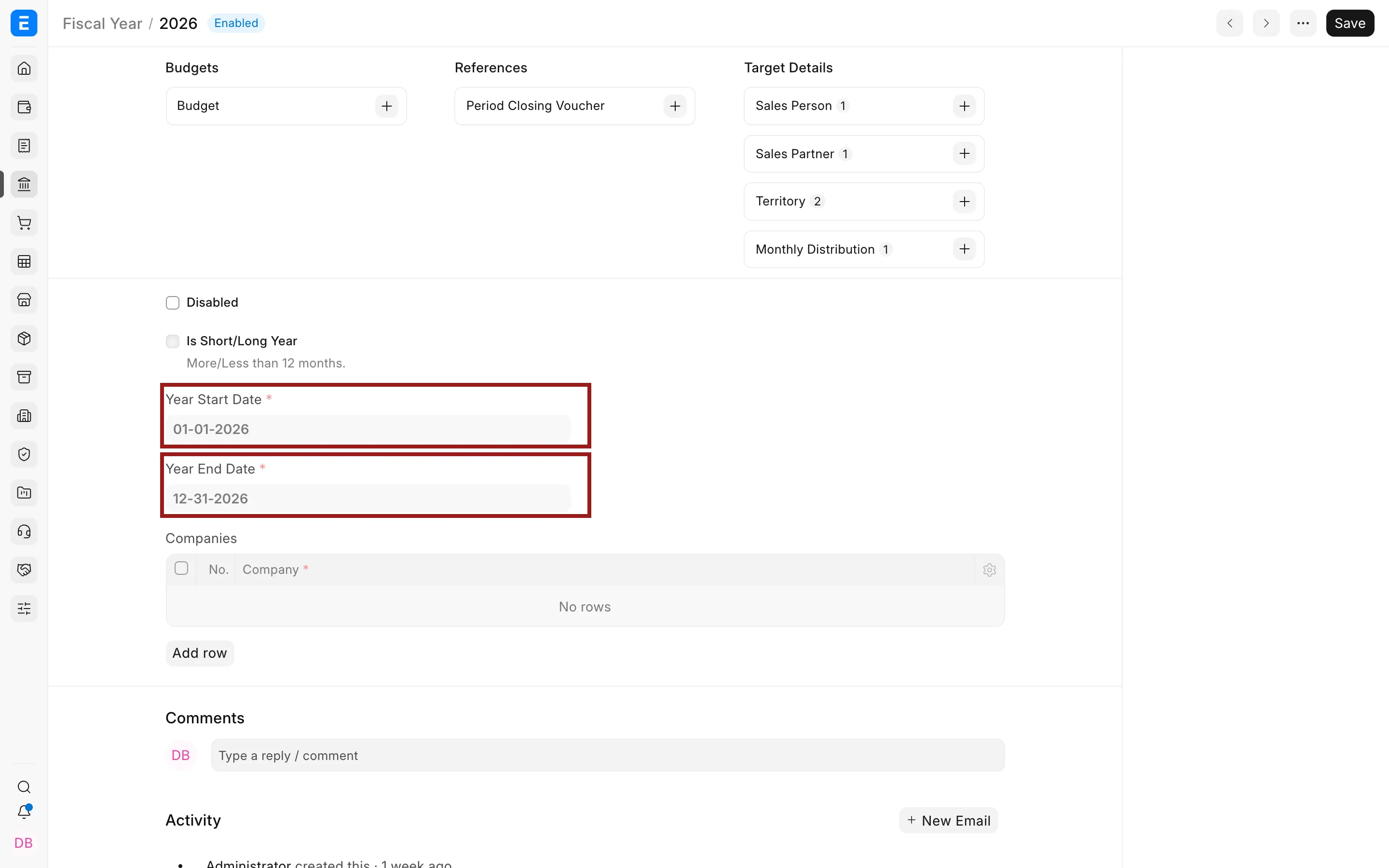
Section titled “Create a Fiscal Year”- Go to Home > Accounting > Accounting Masters > Fiscal Year.
- Click Add Fiscal Year.
- Enter a name, start date, and end date.
- Add the companies that use it.
- Enable Is Short Year only for a genuine transition period shorter than twelve months.
- Save.
Set the default Fiscal Year
Section titled “Set the default Fiscal Year”Open the Fiscal Year and use the action to set it as default. Bravo Hub ERP uses the default year when it initializes posting dates and report filters.
The posting date still determines the actual fiscal year. A transaction cannot be posted outside a valid Fiscal Year for its company.
Create the next year
Section titled “Create the next year”Bravo Hub ERP can create the next Fiscal Year shortly before the current year ends. Confirm the dates and company assignment before users begin posting in it.
Fiscal Year, Accounting Period, and closing
Section titled “Fiscal Year, Accounting Period, and closing”These records serve different purposes:
| Record | Purpose |
|---|---|
| Fiscal Year | Defines the accounting year and reporting period |
| Accounting Period | Restricts selected transaction types for a date range |
| Period Closing Voucher | Transfers profit or loss to a closing account |
Creating a new Fiscal Year does not close the previous one. Complete reconciliation, adjustments, reporting, and the closing voucher as separate activities.
Troubleshooting
Section titled “Troubleshooting”The posting date is outside the Fiscal Year
Create or assign the correct Fiscal Year to the company. Do not alter historical dates to bypass the validation.
A report opens in the wrong year
Change the report filter or set the intended Fiscal Year as default.