
HR Settings
HR Settings allow global settings for HR-related documents.
To access HR Settings, go to: > Home > Human Resources > Settings > HR Settings
There are various settings available in the HR Settings.
1. Employee Settings
Section titled “1. Employee Settings”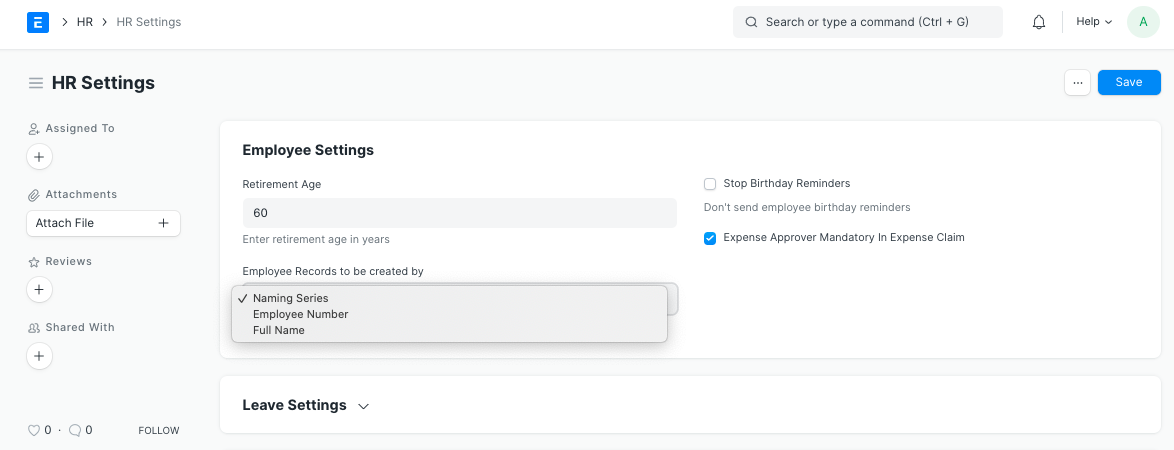
1.1. Retirement Age:
Section titled “1.1. Retirement Age:”You can enter the retirement age (in years) for your employees.
1.2 Employee Records to be created by
Section titled “1.2 Employee Records to be created by”The naming for employee documents is based on the value selected in this field.
- Naming Series: The employee documents created will be named using the naming series selected in the ‘Series’ field.
- Employee Number: The Employee Number field becomes visible in selecting this field, and the naming of the employee document happens based on this field.
- Full Name: The employee document is named using the full name of the employee.
1.3 Stop Birthday Reminders
Section titled “1.3 Stop Birthday Reminders”An email is sent to all the employees of the company when an employee has a birthday. To stop this email from being sent you can check this option.
1.4 Expense Approver Mandatory In Expense Claim
Section titled “1.4 Expense Approver Mandatory In Expense Claim”In Expense Claim Document the ‘Expense Approver’ field is set to mandatory on checking this option.
Payroll Settings will be part of HR Settings till version 12. In version 13, Payroll Settings will be part of the new module, Payroll.
2. Payroll Settings
Section titled “2. Payroll Settings”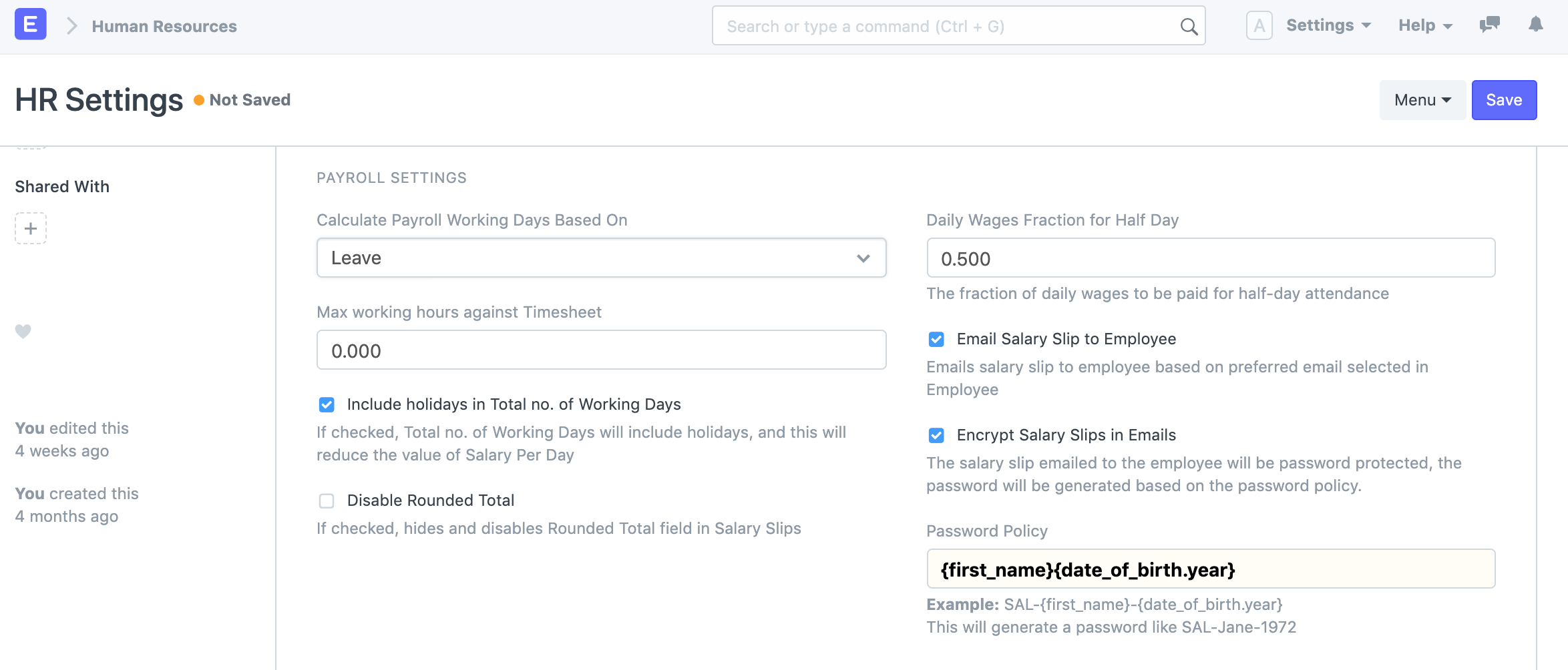
2.1 Calculate Payroll Working Days Based On
Section titled “2.1 Calculate Payroll Working Days Based On”Working Days in Salary Slip can be calculated based on Leave Application or Attendance records. You can select the option based on what you want to calculate working days.
2.2 Max working hours against Timesheet
Section titled “2.2 Max working hours against Timesheet”For salary slips based on the timesheet, you can set the maximum allowed hours against a single timesheet. Set this value to zero to disable this validation.
2.3 Include holidays in Total no. of Working Days
Section titled “2.3 Include holidays in Total no. of Working Days”If checked, the total number of working days will include holidays, and this will reduce the value of salary per day.
2.4 Disable Rounded Total
Section titled “2.4 Disable Rounded Total”You can enable this to disable rounding off the total amount in salary slips.
2.5 Daily Wages Fraction for Half Day
Section titled “2.5 Daily Wages Fraction for Half Day”Based on this fraction, the salary for Half Day will be calculated. For example, if the value is set as 0.75, the three-fourth salary will be given for half-day attendance.
2.6 Email Salary Slip to Employee
Section titled “2.6 Email Salary Slip to Employee”An email with the salary slip is sent to the respective employee’s preferred email address on submission of the salary slip.
2.7 Encrypt Salary Slips in Emails
Section titled “2.7 Encrypt Salary Slips in Emails”The salary slip PDF sent to the employee is encrypted using the mentioned Password Policy.
2.8 Password Policy
Section titled “2.8 Password Policy”This field becomes visible and mandatory on checking the above option for encrypting the salary slip in email.
Here is an example of how to set a Password Policy for the salary slip PDF.
Example:
SAL-{first_name}-{date_of_birth.year}This will generate a password like SAL-Jane-1972
3. Shift Settings
Section titled “3. Shift Settings”
3.1 Allow Multiple Shift Assignments for Same Date
Section titled “3.1 Allow Multiple Shift Assignments for Same Date”Enabling this allows the user to create Shift Assignments for an employee with pre-existing Assignments on any of the dates within the selected range, and vice versa.
4. Leave Settings
Section titled “4. Leave Settings”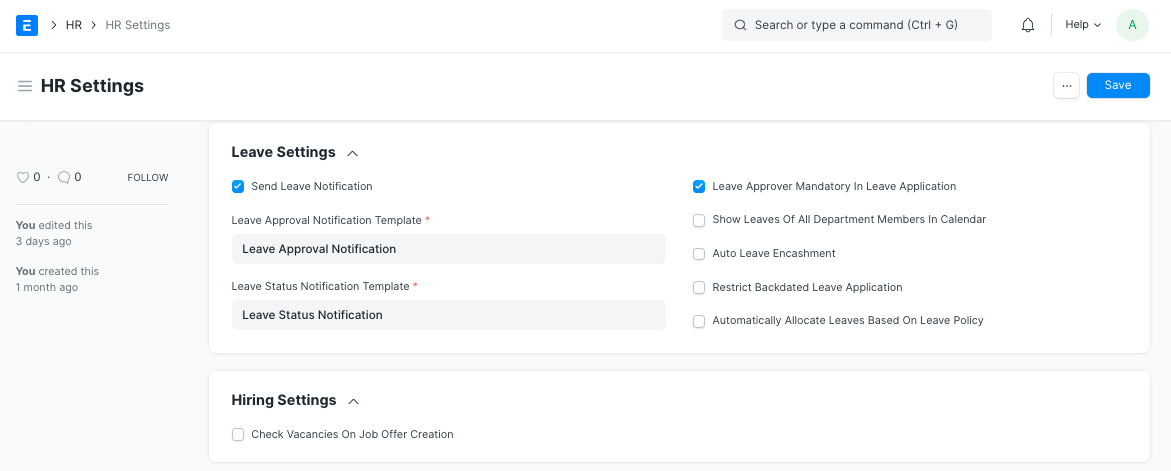
4.1 Leave Approval Notification Template
Section titled “4.1 Leave Approval Notification Template”On creating or updating a leave application with a leave approver, an email is sent to this leave approver notifying about the new leave application. The email template used for this purpose can be selected here.
4.2 Leave Status Notification Template
Section titled “4.2 Leave Status Notification Template”On Submission/Cancellation of a leave application, the employee receives an email with the updated status of their leave application. The email template used for this purpose can be selected here.
4.3 Leave Approver Mandatory In Leave Application
Section titled “4.3 Leave Approver Mandatory In Leave Application”In Leave Application document the ‘Leave Approver’ field is set to mandatory on checking this option.
4.4 Show Leaves Of All Department Members In Calendar
Section titled “4.4 Show Leaves Of All Department Members In Calendar”The approved leaves of all employees in the same department are shown in the calendar view on checking this option.
4.5 Auto Leave Encashment
Section titled “4.5 Auto Leave Encashment”If checked, the system generates a draft Leave Encashment record on the expiry of the leave allocation for all encashable Leave Types.
4.6 Restrict Backdated Leave Application
Section titled “4.6 Restrict Backdated Leave Application”If checked, the system will not allow making a backdated leave application.
Introduced in version 13
4.7 Automatic Allocate Leaves Based On Leave Policy
Section titled “4.7 Automatic Allocate Leaves Based On Leave Policy”If checked, leaves will be granted to the employees automatically based on the Effective From date as per the present Leave Policy Assignment.
5. Hiring Settings
Section titled “5. Hiring Settings”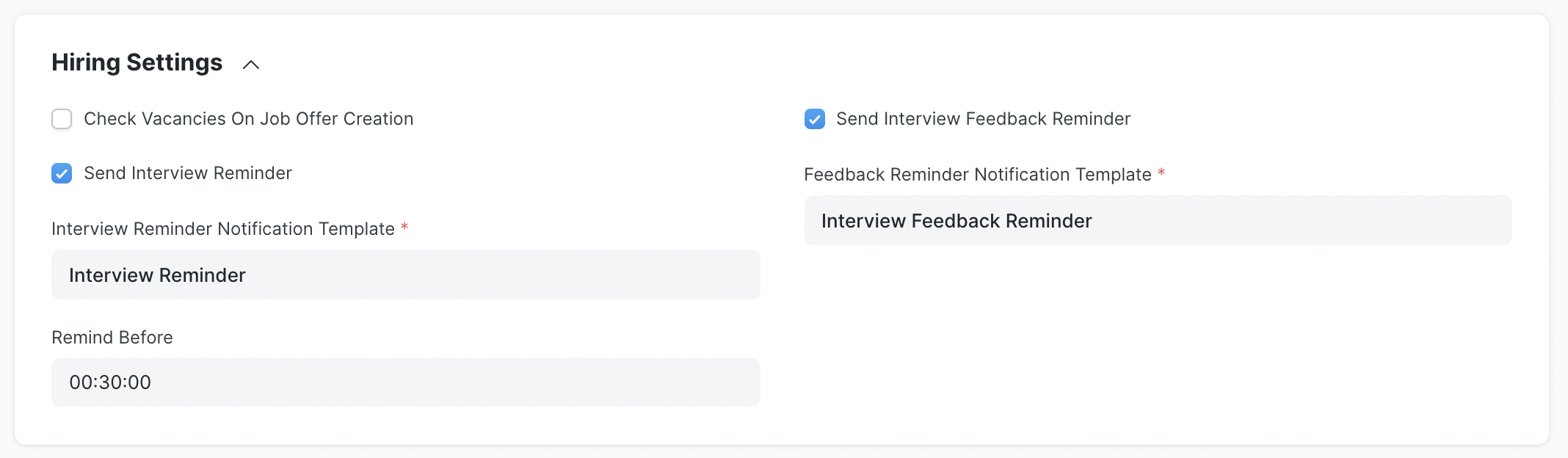
5.1 Check Vacancies On Job Offer Creation
Section titled “5.1 Check Vacancies On Job Offer Creation”On the creation of a job offer for a particular position, vacancies present in the staffing plan for that position are checked to warn the user from over hiring for a particular position.
5.2 Send Interview Reminder
Section titled “5.2 Send Interview Reminder”Enabling this will send a reminder email to all the Interviewers associated with the Interview Round of an upcoming Interview. This mail will be scheduled according to the Remind Before field set by the user.
5.2 Send Interview Feedback Reminder
Section titled “5.2 Send Interview Feedback Reminder”Enabling this option will trigger reminder emails to be sent to Interviewers who are associated with a conducted Interview Round but haven’t yet submitted their Feedback for it.
6. Mobile Settings
Section titled “6. Mobile Settings”
6.1 Allow Employee Checkin from Mobile App
Section titled “6.1 Allow Employee Checkin from Mobile App”Enabling this will allow Employees to check-in from the mobile app. It is enabled by default.