
Inviting Your Team
Bravo Hub CRM works best when your whole team is in. Once everyone’s set up, you can assign leads, track deals together, and collaborate without things falling through the cracks.
To invite someone, go to Settings > Invite User.
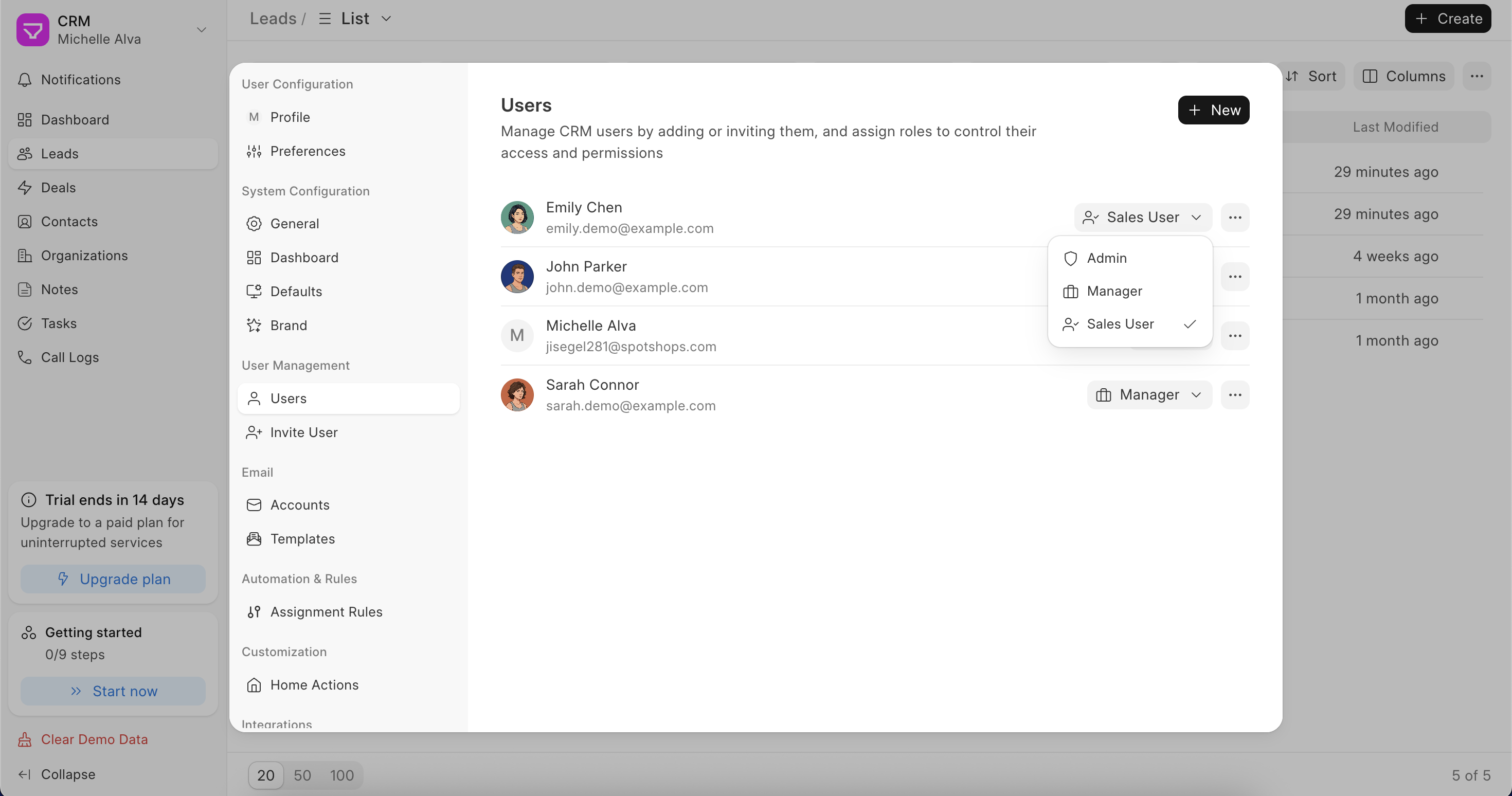
There are two situations here:
New users – People who don’t have a Bravo Hub account yet. Add their email, pick a role, and hit Send Invites. They’ll get an email asking them to set up their account and log in. If you’re inviting multiple people at once, just separate their emails with commas.
Existing site users – If someone already has an account on your Bravo Hub site (maybe they use another Bravo Hub app like Bravo Hub HR or Helpdesk), they’re not automatically part of the CRM. You can add them directly from Settings > Users without sending a new invite. Just add them and assign a role.
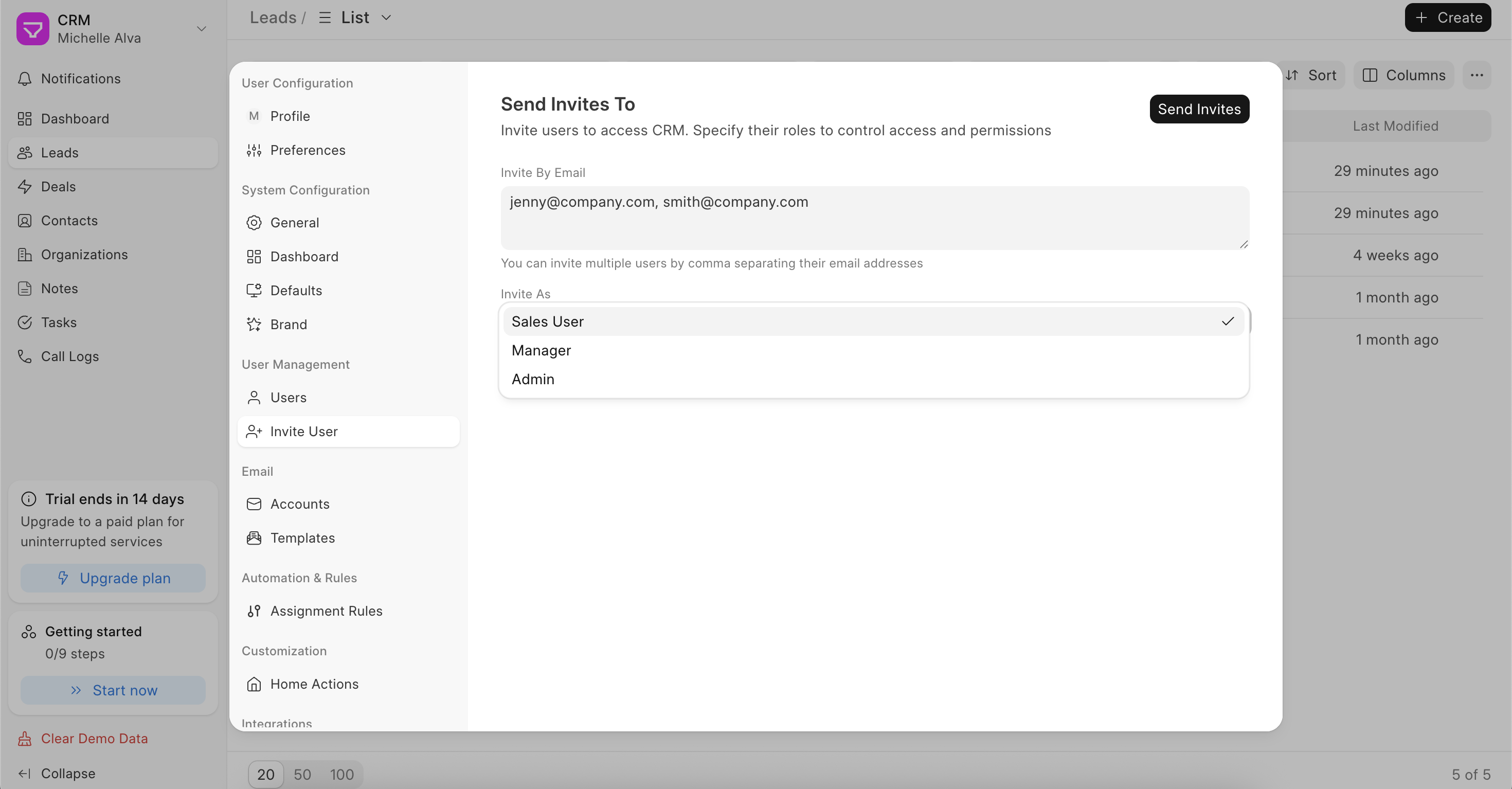
There are three roles to choose from:
- Sales User – Your day-to-day sales reps. They can work on leads and deals assigned to them
- Manager – Can see and manage the whole team’s leads and deals, not just their own
- Admin – Full access. Can configure the CRM, manage users, and change settings
Once someone is in, they’ll show up under Settings > Users. You can change anyone’s role anytime from there.