
Advance Payment Entry
An advance is money received from a Customer or paid to a Supplier before the final invoice. Record it against the party, and optionally against an Order, so it remains traceable and can be allocated when the invoice is created.
Before you begin
Section titled “Before you begin”Confirm the correct Company, currency, receivable or payable account, and bank or cash ledger. Use submitted source documents and keep the bank reference or remittance advice available.
Use Advance Payment Entry
Section titled “Use Advance Payment Entry”- Create a Payment Entry with the correct party and payment type.
- Enter the actual amount, accounts, and bank reference.
- Link a Sales Order or Purchase Order when the advance belongs to a specific commitment.
- Submit the Payment Entry.
- When the invoice is available, use Payment Reconciliation or the invoice payment workflow to allocate the advance.
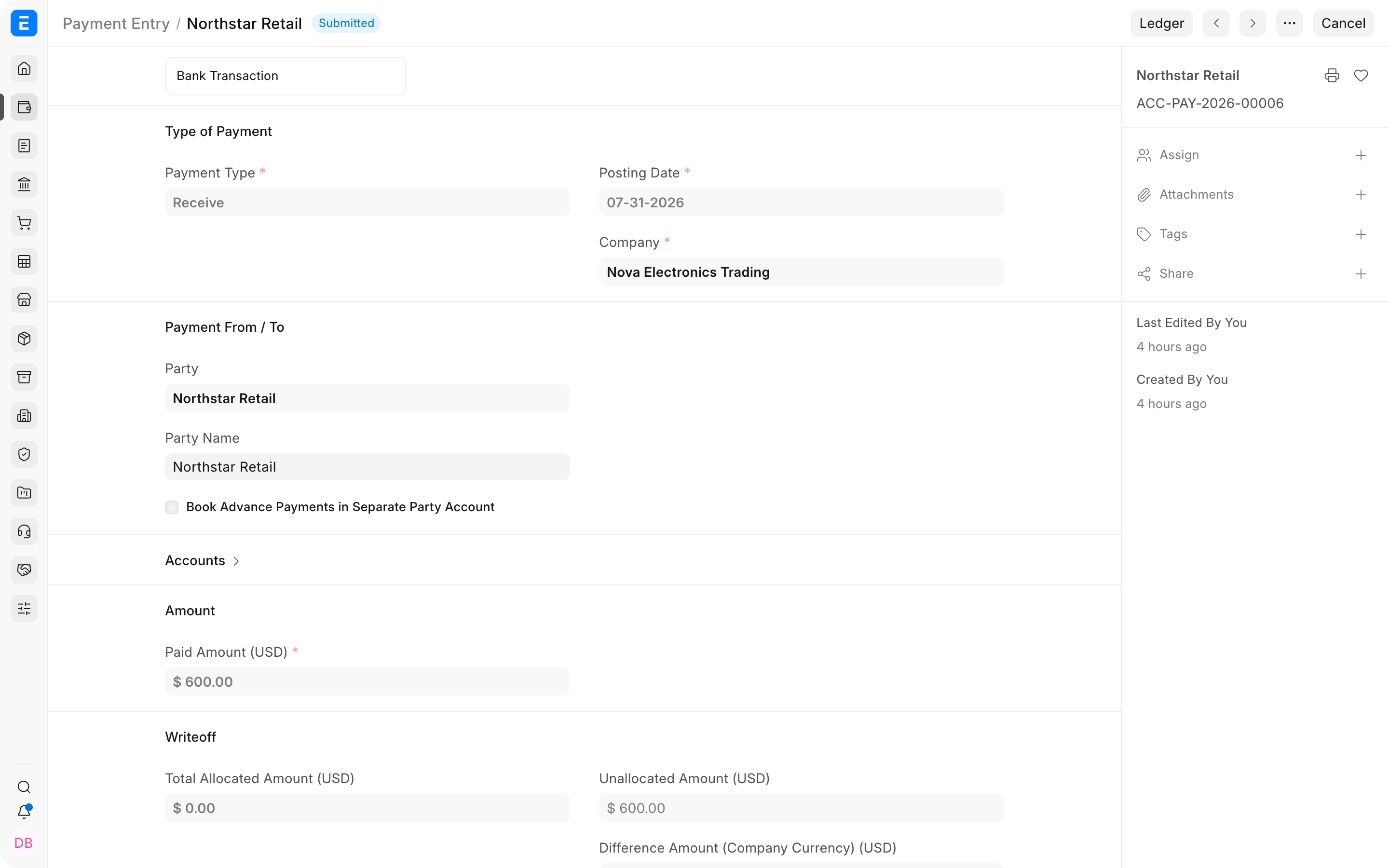
Important fields and what they mean
Section titled “Important fields and what they mean”| Field | What it controls |
|---|---|
| Party | Customer or Supplier associated with the advance. |
| Reference Document | Optional Order that explains the advance. |
| Unallocated Amount | Advance still available for later invoices. |
| Advance Taxes and Charges | Tax treatment required by the applicable configuration. |
| Reference No and Date | External payment evidence. |
What happens after you submit or process
Section titled “What happens after you submit or process”Bravo Hub ERP updates the relevant accounting records and, where applicable, the outstanding or unallocated amounts. Review the General Ledger, party ledger, and source document status before treating the workflow as complete. A saved draft does not affect the ledger.
Troubleshooting
Section titled “Troubleshooting”The advance does not appear on the invoice
Section titled “The advance does not appear on the invoice”Confirm that the submitted Payment Entry uses the same party, Company, receivable or payable account, and currency as the invoice. If it was linked to an Order, verify that the invoice was created from that Order. Otherwise use Payment Reconciliation to allocate the available advance.
The advance was posted to a separate liability or asset account and cannot be allocated
Section titled “The advance was posted to a separate liability or asset account and cannot be allocated”Standard allocation expects a compatible party receivable or payable account. If your accounting policy uses separate advance accounts, configure the supported separate-party-account feature correctly and test the clearing entries. A manual posting to an unrelated account will not automatically become an allocatable customer or supplier advance.
The advance is linked to the wrong Order
Section titled “The advance is linked to the wrong Order”If the Payment Entry is still a draft, correct the reference. If it is submitted, use the supported cancellation, amendment, or unreconciliation workflow. Do not allocate it to an unrelated invoice merely to clear the balance.
The advance is not fully used by the final invoice
Section titled “The advance is not fully used by the final invoice”Allocate only the amount due. The remainder stays available for a future invoice or refund. Verify the party ledger and agree the treatment with the Customer or Supplier before returning or reallocating it.
Frequently asked questions
Section titled “Frequently asked questions”Must an advance be linked to a Sales Order or Purchase Order?
Section titled “Must an advance be linked to a Sales Order or Purchase Order?”An advance can remain unallocated against the party when no Order exists. Linking it to an Order improves traceability and can make later allocation easier when the invoice is created from that Order.
Can one advance be used against more than one invoice?
Section titled “Can one advance be used against more than one invoice?”One advance can be used across eligible invoices. Allocate part of the available advance to each invoice. Bravo Hub ERP keeps the unused balance available until it is allocated or refunded.
Is a customer advance income when it is received?
Section titled “Is a customer advance income when it is received?”Not merely because cash was received. Its accounting treatment depends on your chart of accounts, configuration, and applicable accounting policy. The final invoice recognizes the sale according to the configured accounts.
Can an advance be refunded?
Section titled “Can an advance be refunded?”An advance can be refunded through a traceable payment or adjustment workflow that reverses the money movement and clears the party balance. Do not delete or overwrite the original advance.
Can I receive an advance before creating the Customer or Supplier?
Section titled “Can I receive an advance before creating the Customer or Supplier?”Create the party first. Payment Entry needs the correct party and account so the advance can later be found and allocated without manual cleanup.