
Apply Tax on Another Tax or Charge
Use On Previous Row Total when a tax or charge must be calculated on the running total after an earlier row. The base includes the item Net Total and every amount included up to the referenced row.
Consider Nova Industries, an electronics manufacturer and distributor. a transaction has a Net Total of $1,000. Row 1 adds an 8% tax of $80, bringing the running total to $1,080. Row 2 applies 2% to that $1,080:
$1,080 × 2% = $21.60
The Grand Total becomes $1,101.60.
This calculation is often described as tax on tax or a compound tax. Use it only when the applicable rule requires the later tax to include the earlier tax or charge in its base.
Before you begin
Section titled “Before you begin”Confirm the required calculation order with your accountant or tax adviser. A different row order can change the result even when the same rates are used.
You need:
- An Account Head for each tax or charge that must be posted separately.
- A Sales Taxes and Charges Template or Purchase Taxes and Charges Template, or a transaction where tax rows can be entered directly.
- The earlier tax or charge above the compound row.
- A small manual example with an expected result.
Review Types in Tax Template if the calculation bases are unfamiliar.
Understand the calculation
Section titled “Understand the calculation”The example produces:
| Row | Type | Calculation base | Rate | Amount | Running Total |
|---|---|---|---|---|---|
| 1 | On Net Total | $1,000.00 | 8% | $80.00 | $1,080.00 |
| 2 | On Previous Row Total | $1,080.00 | 2% | $21.60 | $1,101.60 |
The formula for row 2 is:
Referenced row Total × Tax Rate ÷ 100
The referenced row’s Total is the cumulative transaction total after that row. It is not the $80 Amount produced by row 1.
Configure the earlier tax or charge
Section titled “Configure the earlier tax or charge”Create or open the reusable tax template.
- Add the tax or charge that must be included first.
- Choose its calculation Type, such as On Net Total.
- Select the correct Account Head.
- Enter the Tax Rate and a clear Description.
- Save the row.
In the worked example, row 1 applies 8% to the $1,000 Net Total and produces $80. The resulting row Total is $1,080.
Add the compound-tax row
Section titled “Add the compound-tax row”Add the later tax below the row it depends on.
- Set Type to On Previous Row Total.
- Set Reference Row # to the earlier row. Enter 1 for this example.
- Select the Account Head for the compound tax.
- Enter the Tax Rate, such as 2.
- Confirm whether Bravo Hub ERP should add or deduct the row.
- Save the template.
Reference Row # refers to the numbered row in the tax table. It must point to an earlier row. Recheck it whenever rows are inserted, deleted, moved, or duplicated.
Apply the template to a transaction
Section titled “Apply the template to a transaction”Select the template on a draft Sales Invoice, Quotation, Sales Order, Purchase Invoice, or another supported transaction.
Use one item with a Net Total of $1,000 for the first test. Bravo Hub ERP should show:
- Row 1 Amount: $80.00.
- Row 1 Total: $1,080.00.
- Row 2 Net Amount: $1,080.00.
- Row 2 Amount: $21.60.
- Total Taxes and Charges: $101.60.
- Grand Total: $1,101.60.
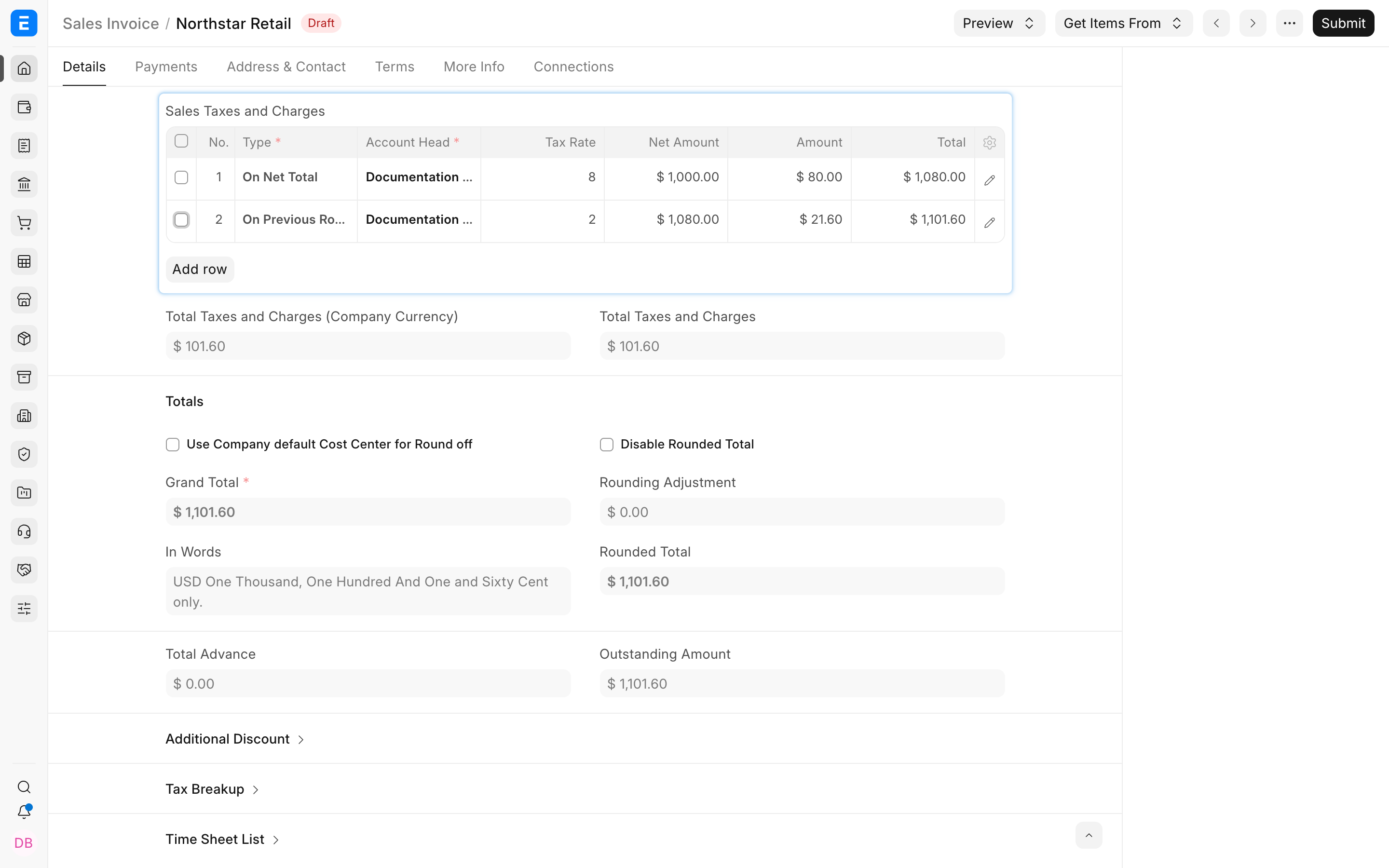
The row 2 Net Amount is a useful verification point because it exposes the base used by the formula.
Compare it with tax on another tax amount
Section titled “Compare it with tax on another tax amount”On Previous Row Total and On Previous Row Amount are not interchangeable.
| Type for row 2 | Base from row 1 | 2% result | Grand Total |
|---|---|---|---|
| On Previous Row Amount | Amount: $80.00 | $1.60 | $1,081.60 |
| On Previous Row Total | Total: $1,080.00 | $21.60 | $1,101.60 |
Use Tax on Another Tax Amount when the later levy applies only to the earlier $80 tax. Use Previous Row Total when it applies to the full $1,080 subtotal after that tax.
Build a longer calculation sequence
Section titled “Build a longer calculation sequence”A later row can reference the Total after any earlier row. For example:
| Row | Purpose |
|---|---|
| 1 | Base tax on Net Total |
| 2 | Fixed charge added after the tax |
| 3 | Percentage on the Total after row 2 |
If row 3 references row 2, its base includes the item value, row 1, and row 2. If it references row 1, it excludes row 2. This lets Bravo Hub ERP model ordered calculations, but it also makes templates sensitive to row sequence.
Keep descriptions explicit. A description such as “2% on total after base tax” is easier to audit than a generic “Tax 2%”.
Account for item-specific tax rates
Section titled “Account for item-specific tax rates”When items have different rates, use an Item Tax Template for the base row. Bravo Hub ERP first determines the referenced row’s actual Amount and Total, then calculates the later row from the configured reference.
Test taxable, exempt, and reduced-rate items together before reusing the template. Confirm that the compound row’s legal base should include the mix of earlier item-wise amounts.
Verify the submitted result
Section titled “Verify the submitted result”Before applying the template widely:
- Calculate a small draft manually.
- Compare each row’s Net Amount, Amount, and Total.
- Confirm Reference Row # and row order.
- Review Grand Total.
- Submit a controlled transaction.
- Open the General Ledger and confirm each tax account and the party balance.
If a Tax Rule selects the template automatically, test every relevant party, item, and transaction combination. A correct template can still be unexpected when the wrong rule applies it.
Troubleshooting
Section titled “Troubleshooting”The compound tax is too small
Section titled “The compound tax is too small”The row may be set to On Previous Row Amount, which uses only the earlier row’s charge. Change it to On Previous Row Total only when the required base is the cumulative total.
The compound tax includes an unwanted charge
Section titled “The compound tax includes an unwanted charge”Check Reference Row #. It may point to a later running total than intended. Reference the row whose Total contains exactly the components required by the rule.
The result changed after editing the template
Section titled “The result changed after editing the template”Row numbers can change after inserting, deleting, or moving rows. Reopen every previous-row calculation and verify its Type and Reference Row #.
Bravo Hub ERP rejects the reference row
Section titled “Bravo Hub ERP rejects the reference row”The referenced row must come earlier. Reference Row # is supported only for On Previous Row Amount and On Previous Row Total.
Frequently asked questions
Section titled “Frequently asked questions”Does On Previous Row Total always mean tax on tax?
Section titled “Does On Previous Row Total always mean tax on tax?”It means tax or charge on a running total. That running total can include item value, taxes, and other charges through the referenced row.
Can I reference row 2 from row 4?
Section titled “Can I reference row 2 from row 4?”Yes, provided row 2 comes earlier. Row 4 then uses row 2’s Amount or Total according to the selected Type.
Should the compound tax use a separate ledger account?
Section titled “Should the compound tax use a separate ledger account?”Use the accounts required by your chart of accounts and reporting rules. Separate accounts generally make distinct liabilities easier to inspect.
Does a discount change the compound-tax base?
Section titled “Does a discount change the compound-tax base?”It can, depending on where and how the discount is applied. Test the actual discount workflow and inspect the tax rows rather than assuming the pre-discount base remains unchanged.
Can I use this calculation on purchase documents?
Section titled “Can I use this calculation on purchase documents?”Y
es. On purchase rows, also decide whether each calculated amount affects the supplier Total, stock Valuation, or both. See Include Tax or Charge in Valuation or Total?.