
Handling Excess Customer Payments
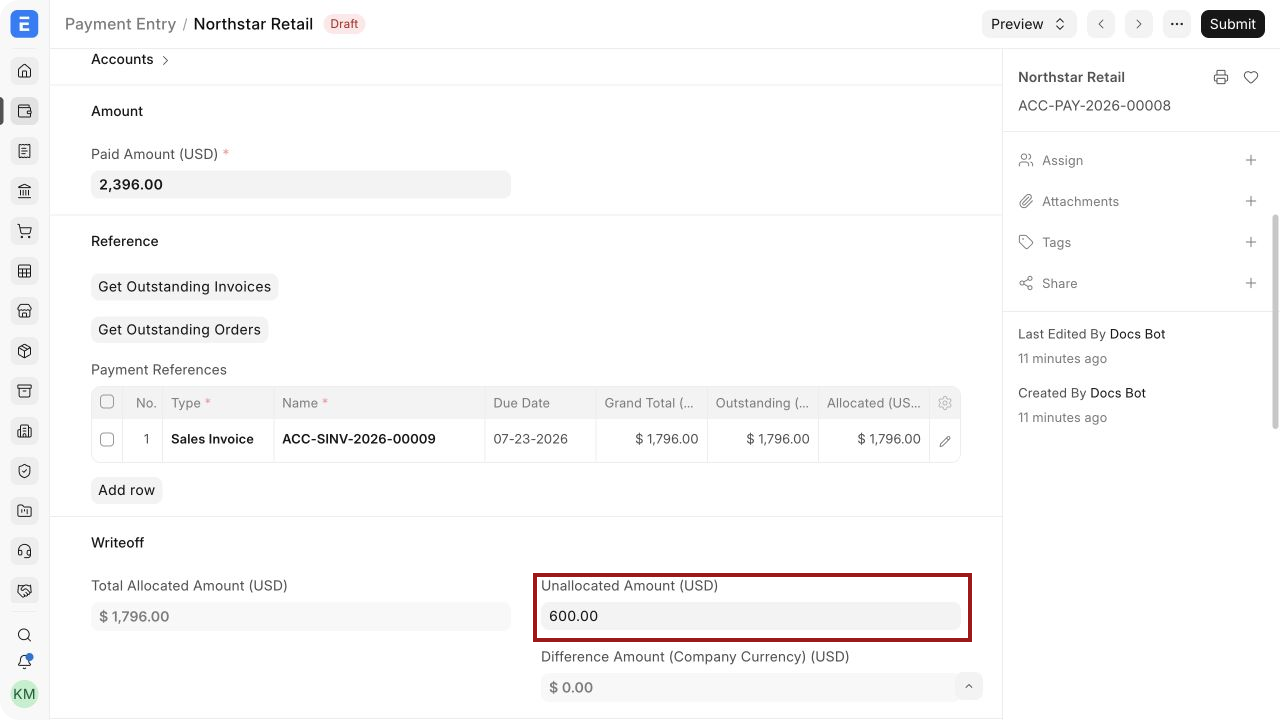
If a Customer pays more than the invoice balance, allocate only the amount that clears the invoice. Leave the excess unallocated as a Customer advance, then apply it to a future invoice or refund it through an approved payment.
Before you begin
Section titled “Before you begin”Confirm the correct Company, currency, receivable or payable account, and bank or cash ledger. Use submitted source documents and keep the bank reference or remittance advice available.
Use Handling Excess Customer Payments
Section titled “Use Handling Excess Customer Payments”- Record the full amount received in one Payment Entry.
- Allocate the invoice balance in References.
- Leave the remaining amount unallocated.
- Use Payment Reconciliation to apply the balance to a later invoice, or create a controlled refund.
- Review the Customer ledger after the allocation or refund.
Important fields and what they mean
Section titled “Important fields and what they mean”| Field | What it controls |
|---|---|
| Paid Amount | Full cash received. |
| Allocated Amount | Amount used to clear current invoices. |
| Unallocated Amount | Customer credit available for later use. |
| Party | Customer who owns the credit. |
| Reference No | Bank evidence for the overpayment. |
What happens after you submit or process
Section titled “What happens after you submit or process”Bravo Hub ERP updates the relevant accounting records and, where applicable, the outstanding or unallocated amounts. Review the General Ledger, party ledger, and source document status before treating the workflow as complete. A saved draft does not affect the ledger.
Troubleshooting
Section titled “Troubleshooting”The excess amount does not appear on a later invoice
Section titled “The excess amount does not appear on a later invoice”Confirm that it remains unallocated for the same Customer, Company, currency, and receivable account. Fetch advances on a draft invoice or use Payment Reconciliation for a submitted invoice.
An extra gateway surcharge appears as a customer advance
Section titled “An extra gateway surcharge appears as a customer advance”Bravo Hub ERP treats money received above invoice allocations as an unallocated balance. If the extra amount is revenue or fee recovery rather than customer credit, invoice or account for it through the appropriate supported workflow.
The excess was allocated to the wrong invoice
Section titled “The excess was allocated to the wrong invoice”Use Unreconcile Payments and then Payment Reconciliation when only the allocation is wrong. Cancel and amend the Payment Entry when the money, party, or ledger account is incorrect.
Frequently asked questions
Section titled “Frequently asked questions”What happens when a customer pays more than the invoice total?
Section titled “What happens when a customer pays more than the invoice total?”Allocate the invoice amount and leave the remainder unallocated. Bravo Hub ERP can treat that balance as an advance available to the same Customer.
Can the excess be refunded?
Section titled “Can the excess be refunded?”Use a traceable outgoing payment or approved adjustment that clears the customer balance. Preserve the original receipt and reference the reason for the refund.
Can an excess payment be transferred to another customer?
Section titled “Can an excess payment be transferred to another customer?”Do not change the party on the original receipt. Use an approved accounting transfer with a clear audit trail and authorization when the credit genuinely belongs to another party.
Does an unallocated payment reduce a specific invoice’s outstanding amount?
Section titled “Does an unallocated payment reduce a specific invoice’s outstanding amount?”It does not reduce an invoice until it is allocated. The party may have an overall credit while individual invoices remain outstanding.