
Budget Revision
Nova Electronics Trading approved $120,000 for marketing at the beginning of the year. Six months later, management approves another $30,000 for a new phone launch. The finance team needs to increase the plan without losing the record of what was originally approved.
Use a Budget Revision when management changes an existing approved Budget. Bravo Hub ERP creates a connected replacement instead of asking you to overwrite the submitted plan. After you submit the revision, the earlier Budget is cancelled and retained as part of the approval history.
A revision changes the plan and its transaction controls. It does not rewrite invoices, orders, or General Ledger entries that have already been posted.
Before you begin
Section titled “Before you begin”Start with a submitted Budget. Confirm the revised amount, the reason for the change, the affected Account or Cost Center, and the person who approved it.
Review current spending in the Budget Variance Report before changing the plan. This tells you how much has already been spent and how the proposed amount will change the remaining headroom.
Revise a Budget
Section titled “Revise a Budget”Open the submitted Budget that needs to change. From the actions menu, select Revise Budget.
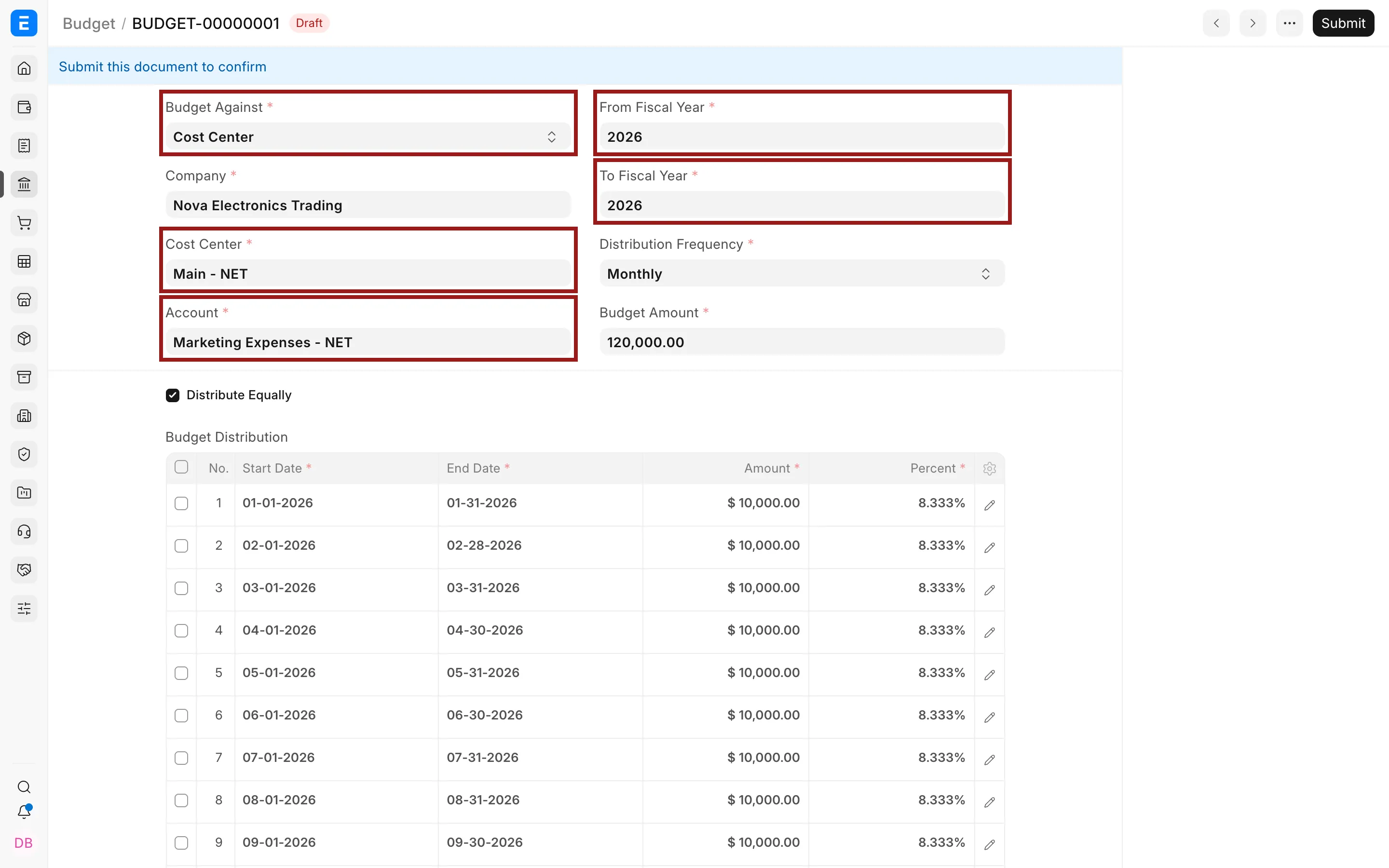
Confirm that you want to continue. Bravo Hub ERP creates a new draft based on the existing Budget, so you do not need to enter the complete plan again.
Update the Budget Amount and, when required, the monthly distribution. Keep the same account, fiscal year, and reporting scope unless the approved change specifically requires them to differ.
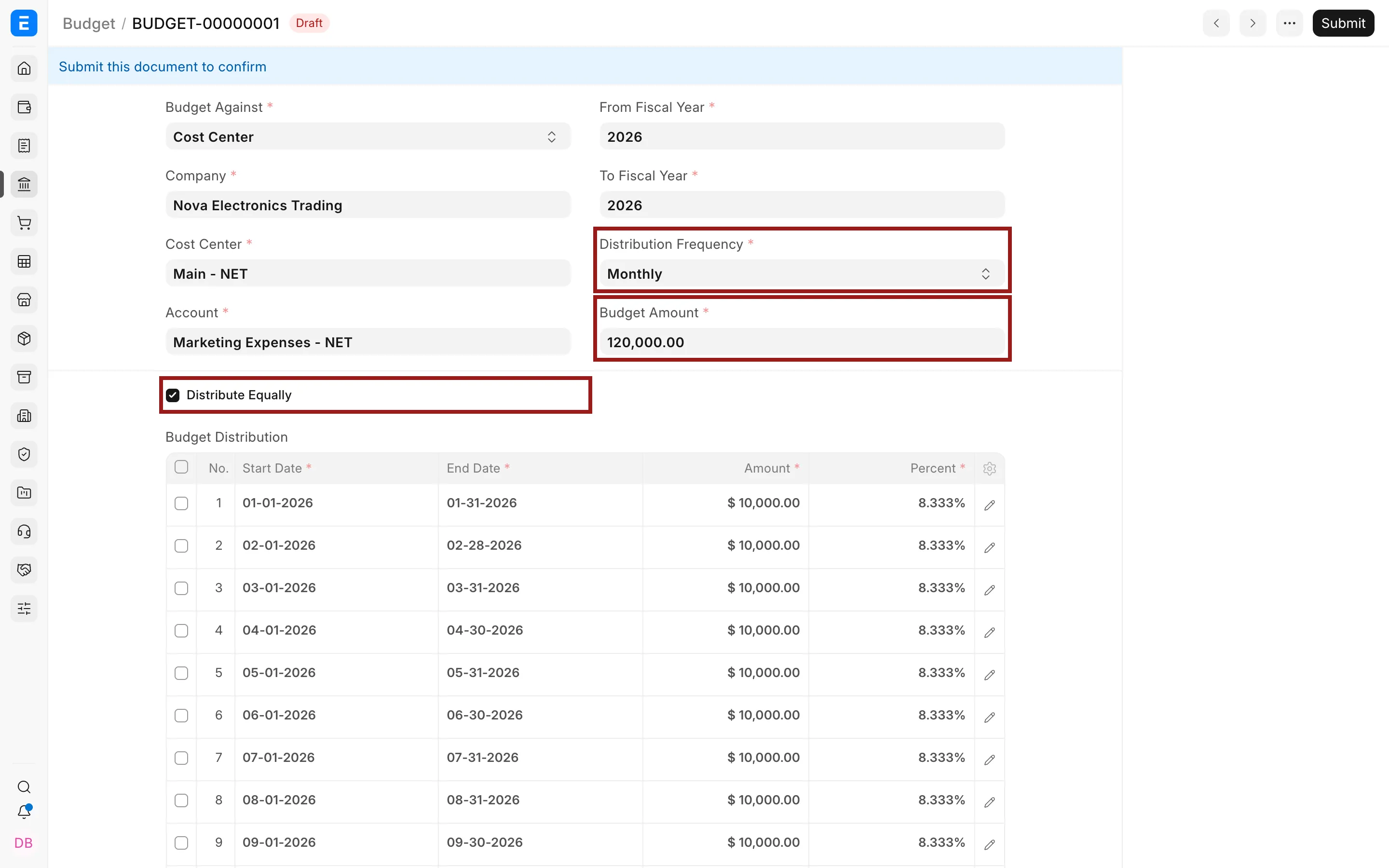
Save and submit the revised Budget.
What changes after submission
Section titled “What changes after submission”| Record | Result |
|---|---|
| Earlier Budget | Cancelled and retained as the previous version |
| Revised Budget | Submitted and used as the active budget |
| Existing transactions | Remain unchanged |
| Budget checks and reports | Use the revised approved amount |
Open the revised Budget and follow its amended-from link to trace the earlier approval. Then refresh the Budget Variance Report using the same Company, Fiscal Year, Account, and budgeting segment. The report should show the revised approved amount while retaining the same actual spending.
When to revise instead of creating another Budget
Section titled “When to revise instead of creating another Budget”Use a revision when management changes the amount or distribution of the same approved plan. Create a separate Budget when you are controlling a different Company, Fiscal Year, Account, Cost Center, Project, or Accounting Dimension. This keeps unrelated plans from being joined into one revision history.
Troubleshooting
Section titled “Troubleshooting”Revise Budget is not available
Section titled “Revise Budget is not available”Confirm that the Budget is submitted and that your role can cancel and create Budget records. A draft budget can be edited directly and does not need a revision.
The revised amount does not appear in reports
Section titled “The revised amount does not appear in reports”Confirm that the revised Budget was submitted, then check the company, fiscal year, Cost Center, account, and other filters used in the report.
The earlier Budget still appears
Section titled “The earlier Budget still appears”The earlier record is retained for history. Check its status. It should be cancelled after the revised Budget is submitted.
Frequently asked questions
Section titled “Frequently asked questions”Does revising a Budget change posted invoices or journals?
Section titled “Does revising a Budget change posted invoices or journals?”A revision does not change posted invoices or journals. It changes the approved plan and the controls applied to future transactions.
Can I reduce a Budget below the amount already spent?
Section titled “Can I reduce a Budget below the amount already spent?”You can reduce the approved amount, but first compare it with actual and committed spending. A lower Budget does not reverse existing Purchase Invoices or Purchase Orders. It may cause later transactions to warn or stop sooner.
Why not cancel the Budget and create a new one manually?
Section titled “Why not cancel the Budget and create a new one manually?”The revision action preserves the relationship between the earlier and replacement Budgets. It also copies the existing scope and distribution, which reduces the risk of creating a new plan against the wrong Account or Cost Center.