
Sales Reports
Bravo Hub ERP sales reports help teams review pipeline, orders, fulfilment, billing, customer activity, item performance, salesperson attribution, targets, and profitability. Choose a report based on the business question and confirm which transaction type, date field, and document status it uses.
Before you begin
Section titled “Before you begin”For reliable reports:
- Use consistent Customers, Territories, Sales Persons, Item Groups, and Warehouses.
- Submit operational transactions when the report measures confirmed activity.
- Assign the correct Company and posting or transaction dates.
- Keep Sales Team contribution and target allocations current.
- Use accurate buying or valuation rates for profitability reports.
Open a sales report
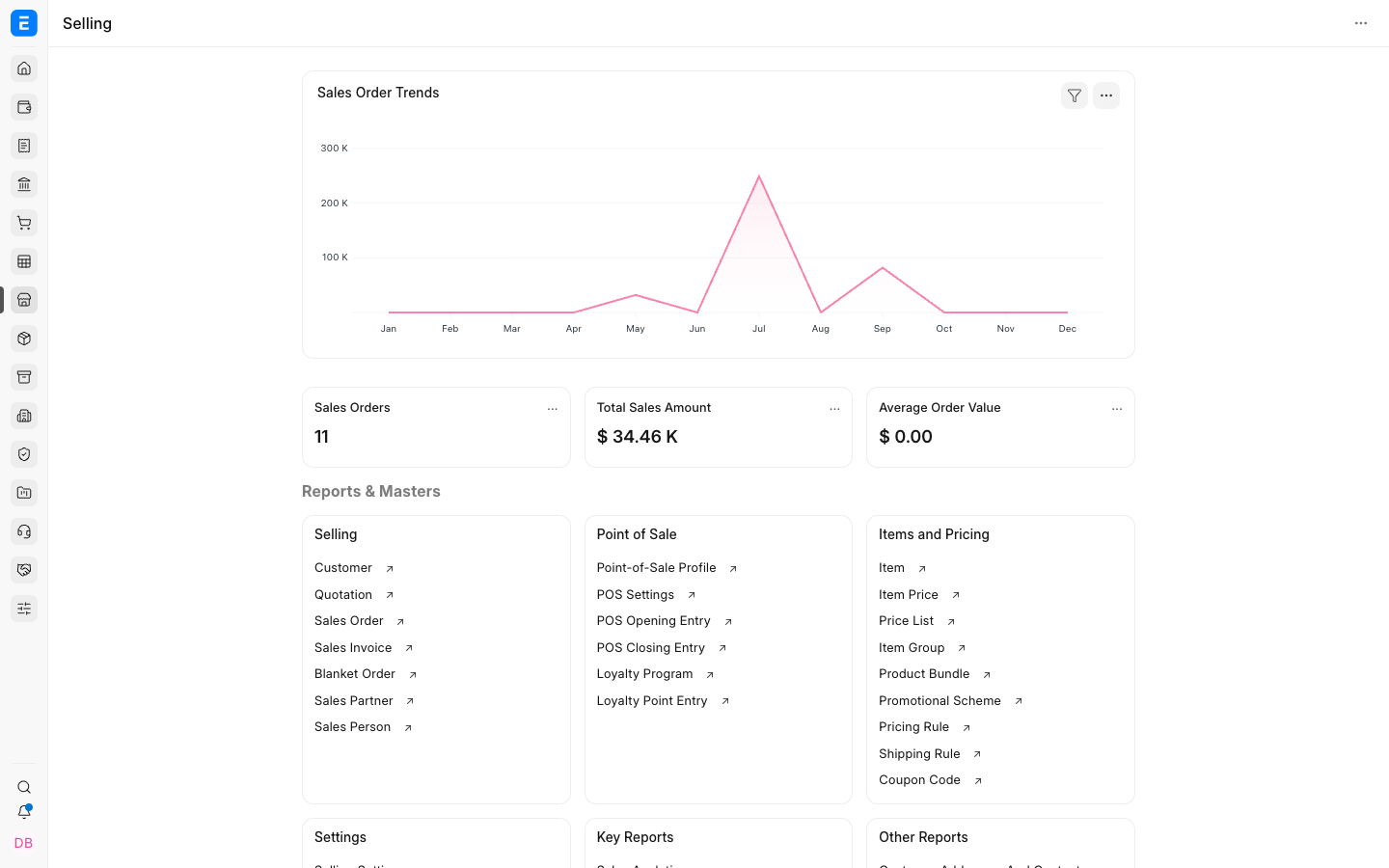
Section titled “Open a sales report”- Open the Selling workspace.
- Select a report, or search for it by name.
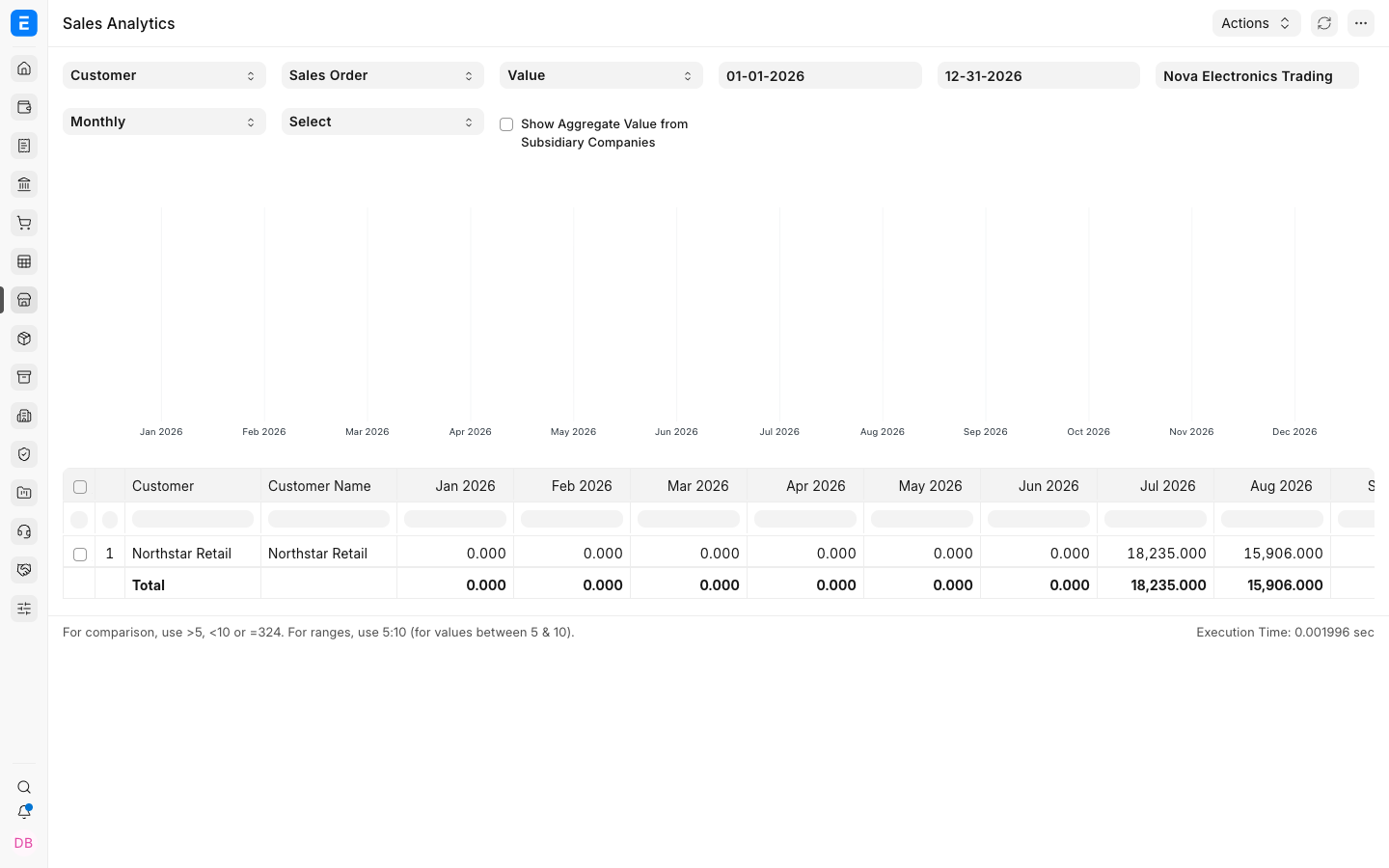
- Set Company, date range, and other filters.
- Select Refresh.
- Review, export, print, or chart the results as required.
Choose the right report
Section titled “Choose the right report”| Question | Useful report |
|---|---|
| Which orders are confirmed and still open? | Sales Order Analysis |
| What has been sold by Customer? | Sales Analytics or Customer-wise Sales |
| What has been sold by Item or Item Group? | Sales Analytics or Item-wise Sales |
| Which orders remain to be delivered or billed? | Sales Order Analysis and order status views |
| How much has each Sales Person contributed? | Sales Person-wise Transaction Summary |
| Are Sales Persons meeting targets? | Sales Person Target Variance |
| Are Territories meeting targets? | Territory Target Variance |
| Which invoices remain unpaid? | Accounts Receivable |
| Which sales are profitable? | Gross Profit |
| What is the CRM pipeline? | Sales Pipeline or CRM Analytics |
Report names and available filters can vary by Bravo Hub ERP version and installed apps.
Sales Analytics
Section titled “Sales Analytics”Use Sales Analytics to compare sales across dimensions such as Customer, Customer Group, Territory, Item, Item Group, and Sales Person. Select the value or quantity basis and the period grouping needed for the comparison.
Use it for trends and concentration, not as a substitute for invoice-level audit.
Sales Order reporting
Section titled “Sales Order reporting”Sales Orders track confirmed demand, delivery progress, and billing progress. Review statuses and percentage fields to separate:
- To Deliver and Bill.
- To Deliver.
- To Bill.
- Completed.
- Closed.
Returns, cancellations, partial fulfilment, and short-closing can change outstanding values.
Salesperson and target reporting
Section titled “Salesperson and target reporting”Salesperson reports depend on the Sales Team table. Confirm each transaction contains the correct Sales Person contribution.
Target variance also depends on Sales Person Target Allocation, Fiscal Year, Item Group, and Monthly Distribution.
Gross Profit
Section titled “Gross Profit”Gross Profit compares sales value with buying or valuation information. Investigate:
- Missing or unusual buying rates.
- Returns and credit notes.
- Stock and non-stock Items.
- Currency conversion.
- Costing and valuation method.
Use the General Ledger and stock reports when accounting or inventory values need reconciliation.
Export and saved views
Section titled “Export and saved views”Use report export for further analysis, but keep Bravo Hub ERP as the source of the transactional record. Save commonly used filters or views where supported so teams compare the same scope.
Troubleshooting
Section titled “Troubleshooting”| Problem | What to check |
|---|---|
| Report shows no data | Company, dates, transaction type, status, permissions, and dimension filters |
| Totals differ from another report | Confirm both reports use the same document type, date field, status, and return treatment |
| Sales Person totals are missing | Review Sales Team rows and contribution percentages |
| Target variance is empty | Review target rows, Fiscal Year, Item Group, Monthly Distribution, and submitted transactions |
| Gross profit is unexpected | Review valuation, buying rates, returns, and currency |
Frequently asked questions
Section titled “Frequently asked questions”Do draft transactions appear in sales reports?
Section titled “Do draft transactions appear in sales reports?”It depends on the report. Reports of confirmed activity usually use submitted transactions, while pipeline-style reports may include drafts or opportunities.
Why do two reports show different totals?
Section titled “Why do two reports show different totals?”They may use different source DocTypes, statuses, dates, or grouping logic. Compare filters and report definitions.
Can I add custom columns?
Section titled “Can I add custom columns?”Use report customization or a custom Query or Script Report when standard output does not meet the requirement.
Which report should I use for unpaid invoices?
Section titled “Which report should I use for unpaid invoices?”Use Accounts Receivable rather than an order or sales analytics report.