
Adding Margin
Margin increases an item’s transaction Rate above its Price List Rate. Bravo Hub ERP can apply a percentage or fixed amount directly on a Quotation or Sales Order item, or apply it automatically through a Pricing Rule.
Before you begin
Section titled “Before you begin”Create:
- The required Item.
- A selling Price List.
- An Item Price that supplies the Price List Rate.
Margin needs a reference Price List Rate. If no rate is fetched, verify the Item Price before troubleshooting the margin calculation.
Add margin directly to an item
Section titled “Add margin directly to an item”- Create a Quotation or Sales Order.
- Select the Customer, Price List, and Item.
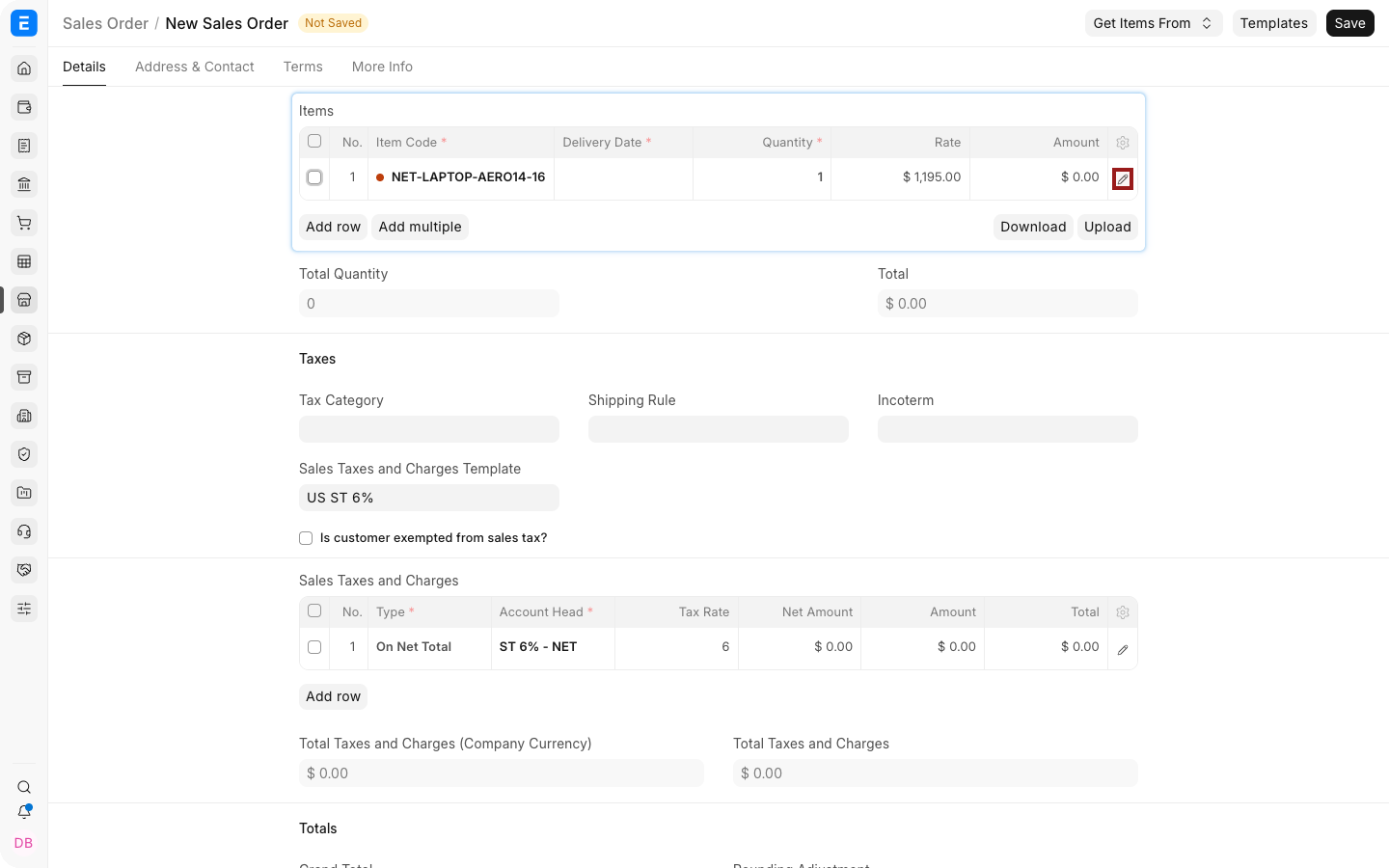
- Select the highlighted pencil icon to open the complete item-row editor.
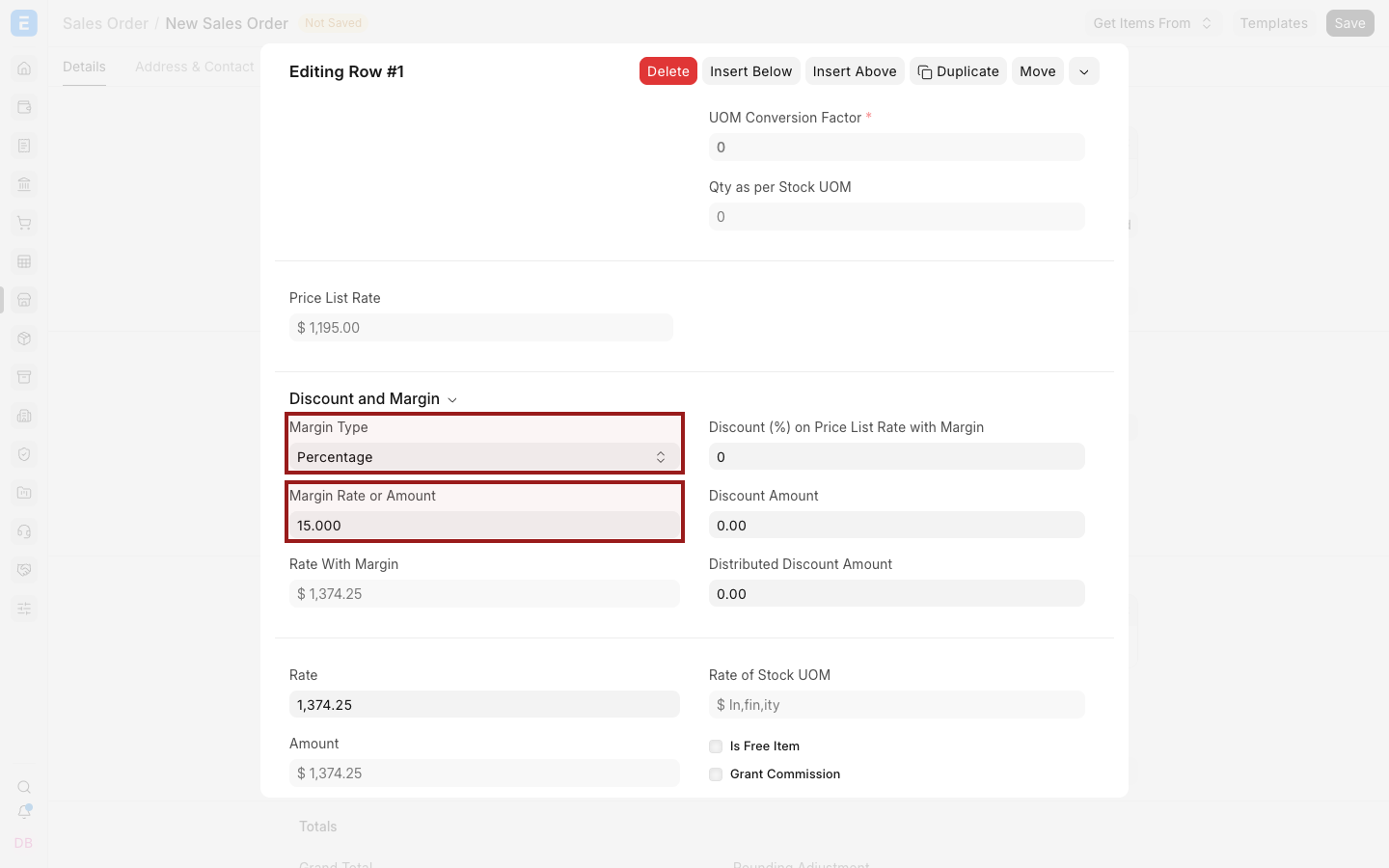
- Set Margin Type to Percentage or Amount.
- Enter Margin Rate or Amount.
- Review the calculated Rate and Amount.
- Save.
Margin calculation
Section titled “Margin calculation”For a fixed margin:
Rate = Price List Rate + Margin Amount
For a percentage margin:
Rate = Price List Rate + (Price List Rate × Margin Percentage ÷ 100)
Example:
| Value | Amount |
|---|---|
| Price List Rate | $1,000 |
| Margin | 15% |
| Margin amount | $150 |
| Resulting Rate | $1,150 |
Any item discount is evaluated separately. Review Price List Rate, Margin, Discount, Rate, and Net Rate together when both are used.
Apply margin automatically with a Pricing Rule
Section titled “Apply margin automatically with a Pricing Rule”Use a Pricing Rule when the same margin should apply under repeatable conditions.
- Create or open a Pricing Rule.
- Configure its applicability, such as Item, Item Group, Customer, Customer Group, quantity, amount, and validity.
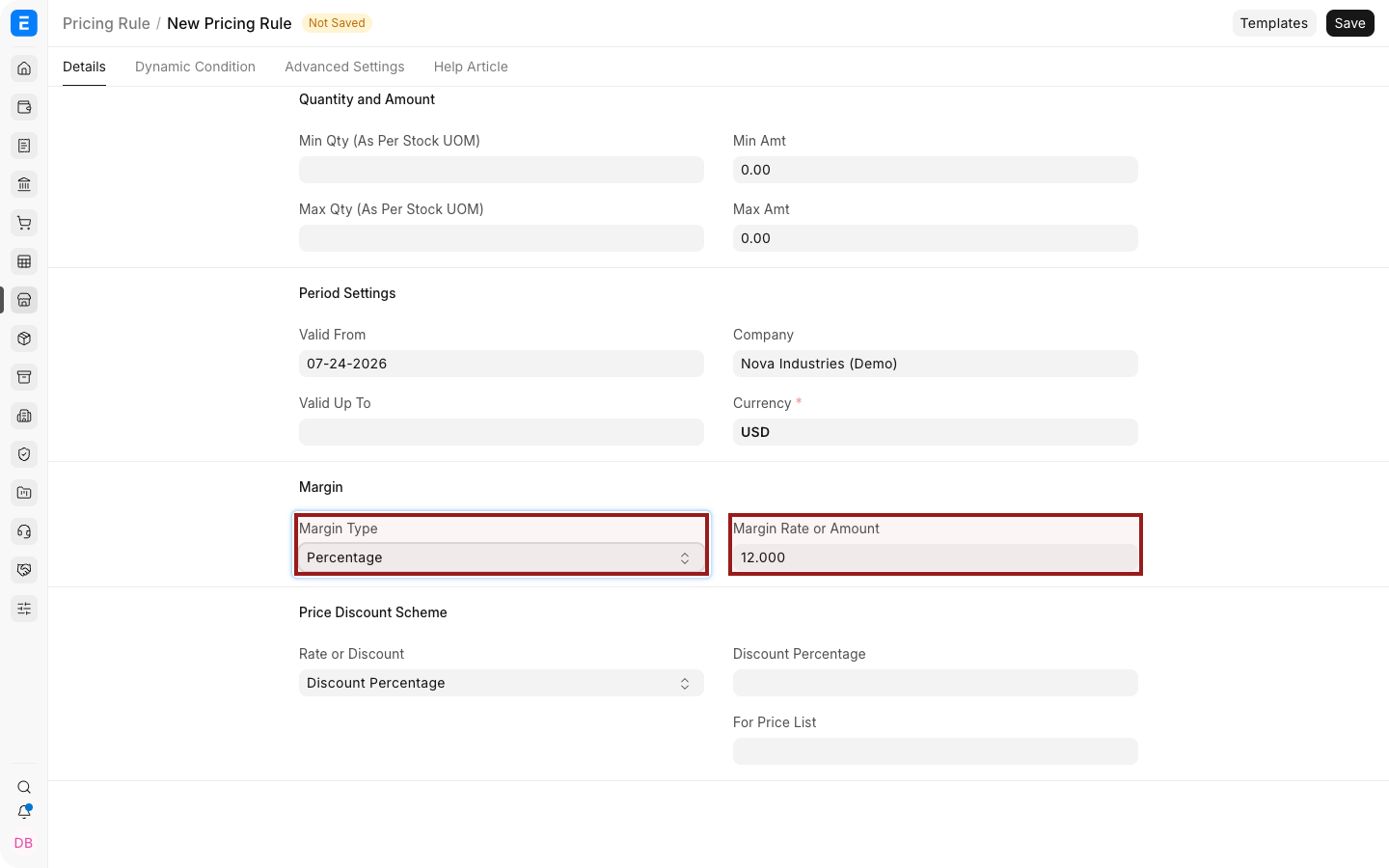
- In the Margin section, select Percentage or Amount.
- Enter the Margin Rate or Amount.
- Save and enable the rule.
- Test it on a new Quotation or Sales Order.
When several rules can match, review their priorities and conditions. A more specific rule may need a higher priority than a general Item Group rule.
Margin and discounts
Section titled “Margin and discounts”Margin and discount solve different pricing needs:
- Margin adds a markup to the Price List Rate.
- Applying a Discount reduces a price or total.
- A fixed Pricing Rule Rate can replace the fetched rate.
Avoid combining them without a documented pricing policy. Users should be able to explain how the final Rate was reached.
Downstream transactions
Section titled “Downstream transactions”When a Sales Order is created from a Quotation, or a Sales Invoice is created later in the cycle, verify the mapped Rate. Selling Settings can warn or stop users when the rate changes through the sales cycle.
Troubleshooting
Section titled “Troubleshooting”| Problem | What to check |
|---|---|
| Margin fields do not affect Rate | Confirm that a Price List Rate was fetched |
| Margin is not applied automatically | Verify the Pricing Rule is enabled, valid, and matches the transaction |
| A different rule wins | Review rule priority, Item or party specificity, and overlapping conditions |
| The downstream rate changes | Review mapped values and the Maintain Same Rate setting |
| Final profitability is unclear | Margin is based on Price List Rate, not necessarily valuation or purchase cost |
Frequently asked questions
Section titled “Frequently asked questions”Is margin calculated from valuation rate?
Section titled “Is margin calculated from valuation rate?”No. The item margin fields use Price List Rate as their pricing reference.
Can I add a fixed dollar margin?
Section titled “Can I add a fixed dollar margin?”Yes. Select Amount as the Margin Type.
Can margin apply to Sales Invoices?
Section titled “Can margin apply to Sales Invoices?”Margin fields are primarily entered on Quotation and Sales Order items. Downstream documents can carry the resulting rate.
How do I enforce a minimum selling price?
Section titled “How do I enforce a minimum selling price?”Review the selling-price validation in Selling Settings and test it against your purchase or valuation rates.