
Bravo Hub ERP
Bravo Hub CRM, while a standalone application, offers seamless integration with Bravo Hub ERP to streamline your business processes. This integration allows you to create quotations and customers directly from deals within Bravo Hub CRM, enhancing efficiency and reducing manual data entry.
Bravo Hub ERP Setup
Section titled “Bravo Hub ERP Setup”Both Bravo Hub CRM and Bravo Hub ERP are installed on the same site
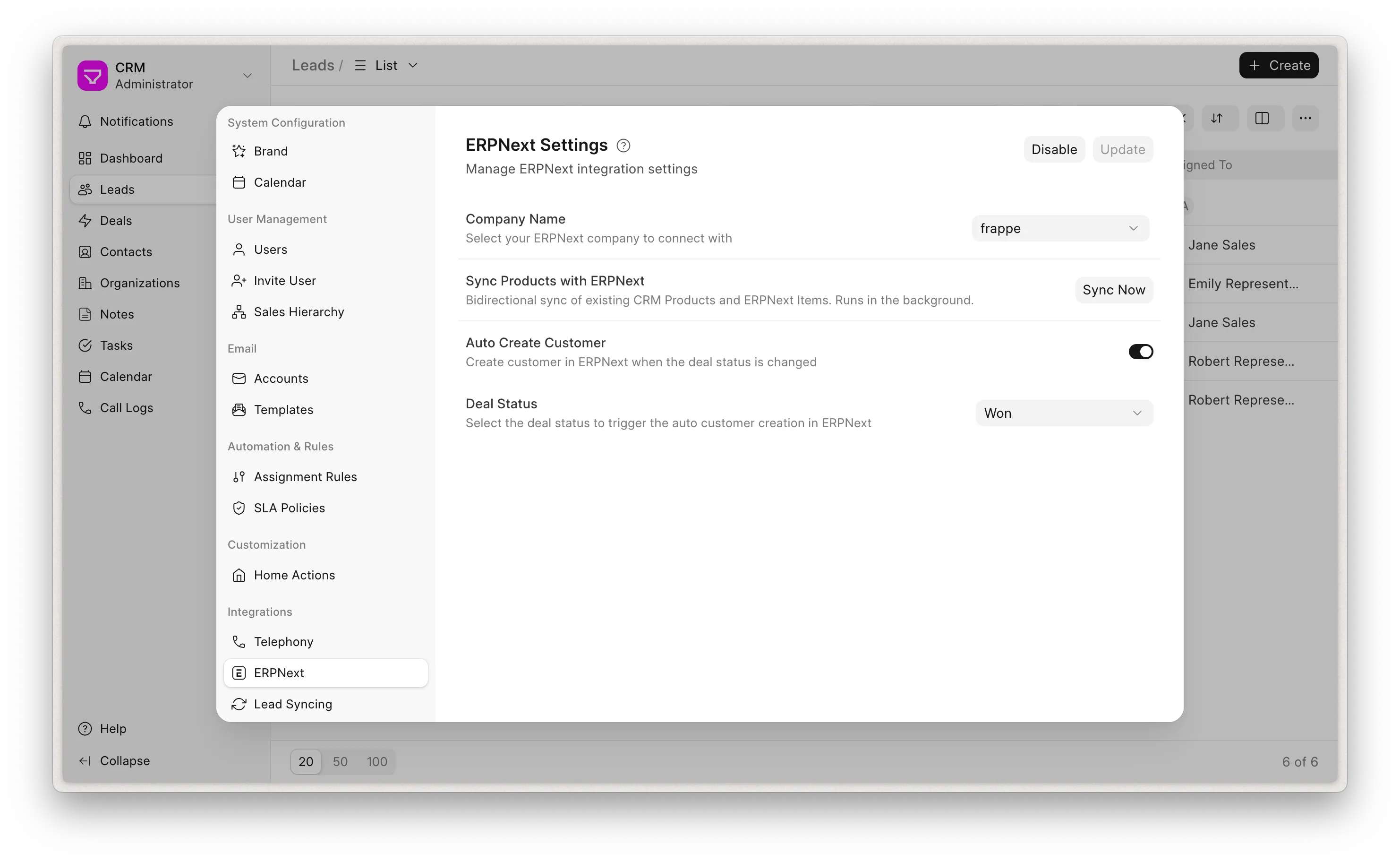
- Navigate to Settings -> Bravo Hub ERP -> Enable -> Set Company.
- Create Customer when status change -> Set Deal Status (Optional)
What gets synced
Section titled “What gets synced”Once the integration is enabled, data flows between Bravo Hub CRM and Bravo Hub ERP as described below. Most syncing runs only when both apps are on the same site; differences for separate-site setups are called out where they apply.
Customers
Section titled “Customers”- The Customer is named after the Deal’s organization (Customer Type Company) or after the primary contact / lead name when there is no organization (Customer Type Individual).
- The Deal’s contacts and organization address are carried over to the new Customer.
- Territory, currency, industry and website are copied from the Deal. Territory and industry are dropped automatically if they don’t exist in Bravo Hub ERP.
Two Ways:
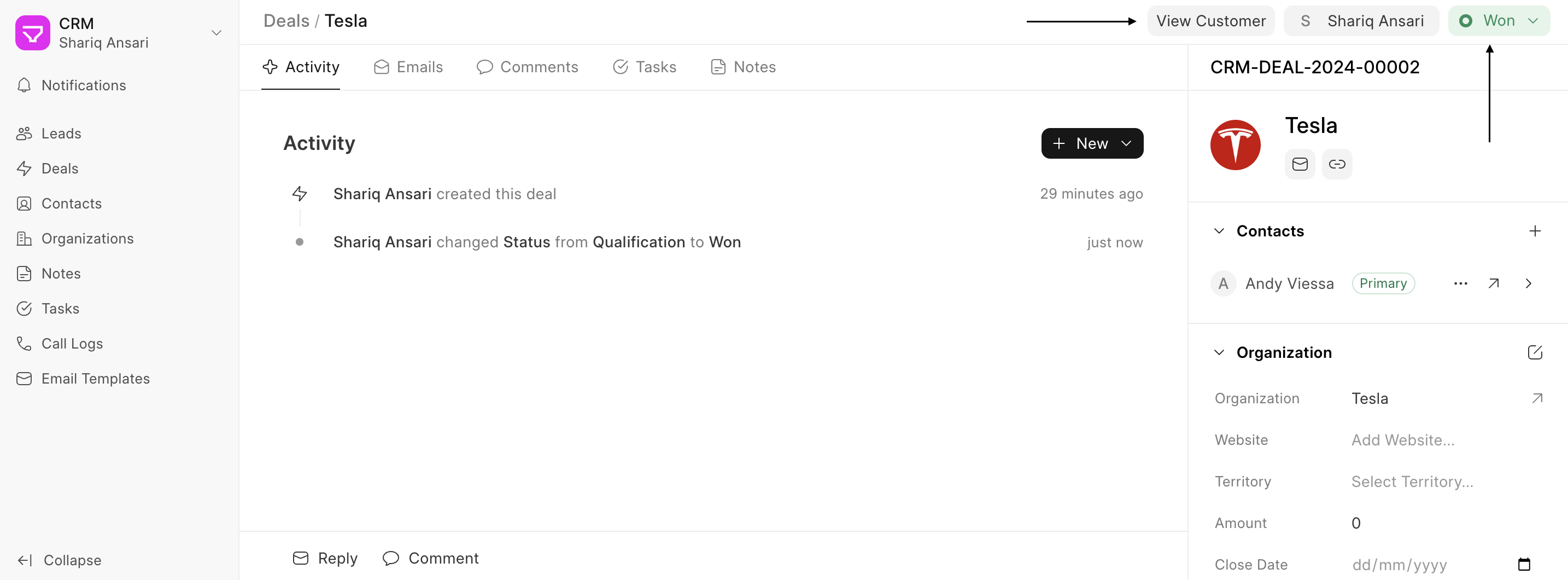
- Upon marking a Deal as “Won” (or a specified status, configurable in Bravo Hub ERP settings), a new customer will be created in your Bravo Hub ERP instance. The Deal’s contacts and organization address will be automatically linked to this newly created customer.
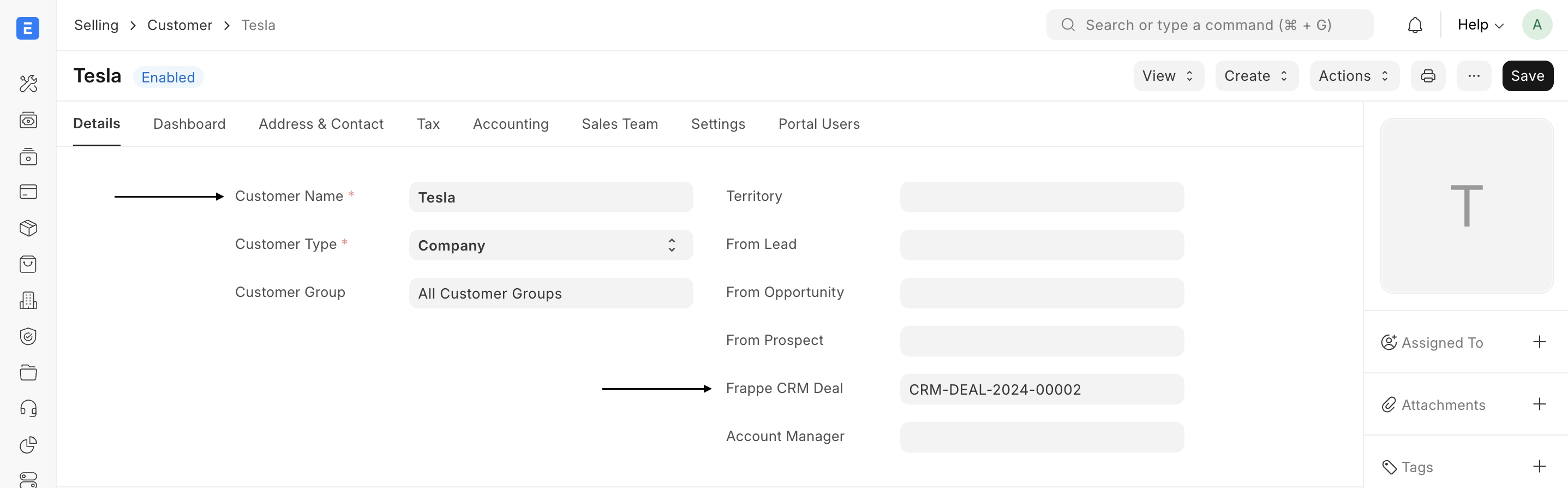
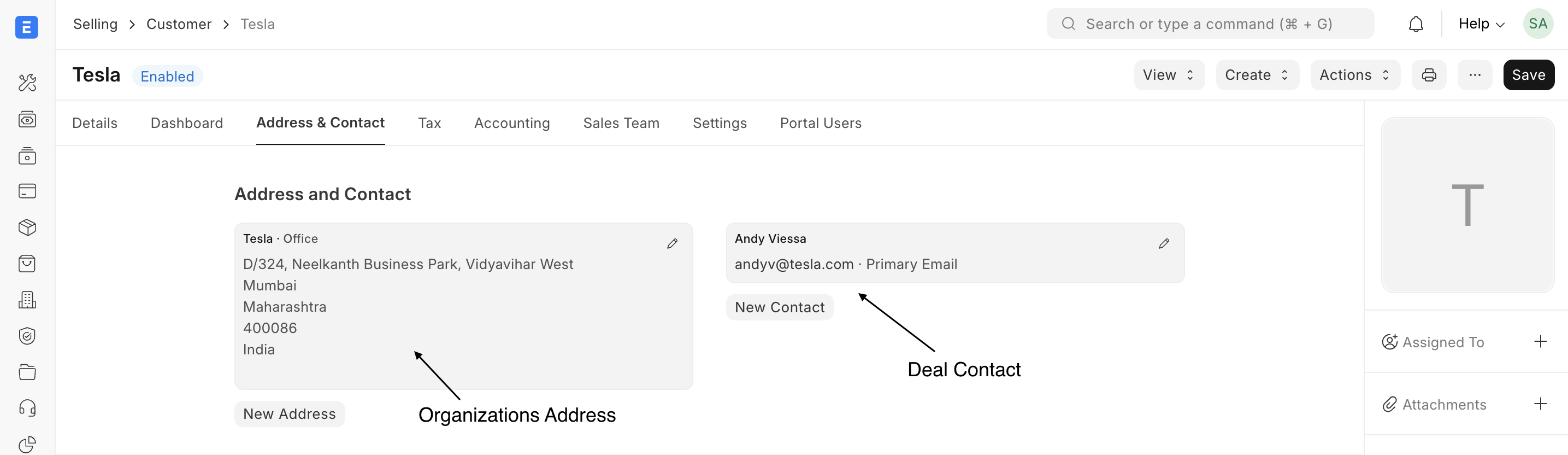
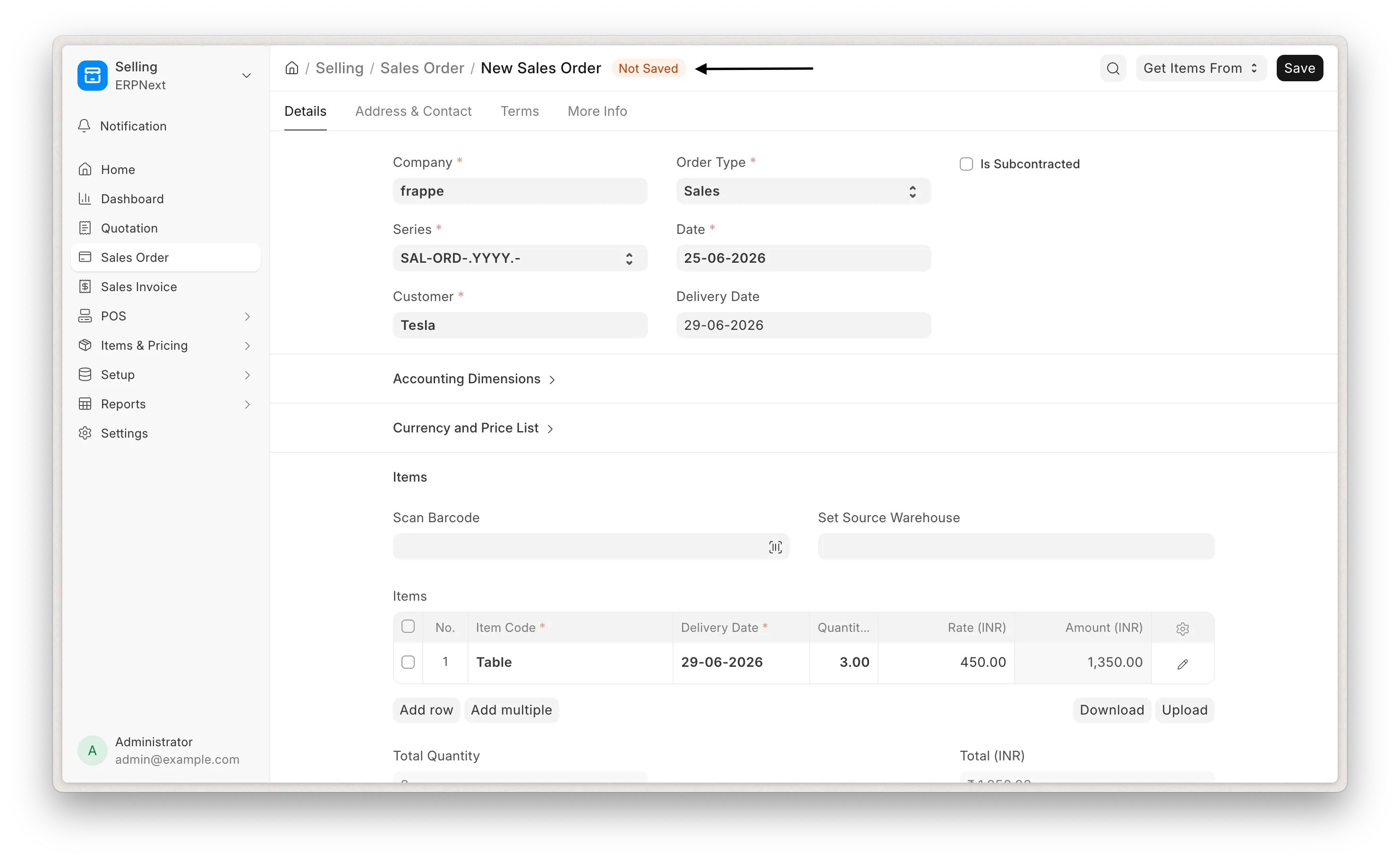
- When a Sales Order is create in Bravo Hub ERP from a Deal’s Quotation. he Create Quotation button on a Deal opens a new Quotation in Bravo Hub ERP with the Deal’s data pre-filled:
- The quotation is raised against the Customer if one already exists otherwise against the CRM Deal itself. (Bravo Hub ERP’s Quotation To field is extended to allow Customer, Lead, Prospect and CRM Deal.)
- The Deal’s primary contact and organization address are attached.
- Quotation line items are pre-filled from the Deal’s products ie item code, quantity, rate and discount for every Deal product that is linked to an Bravo Hub ERP Item.
The typical Deal to Sales Order flow looks like:
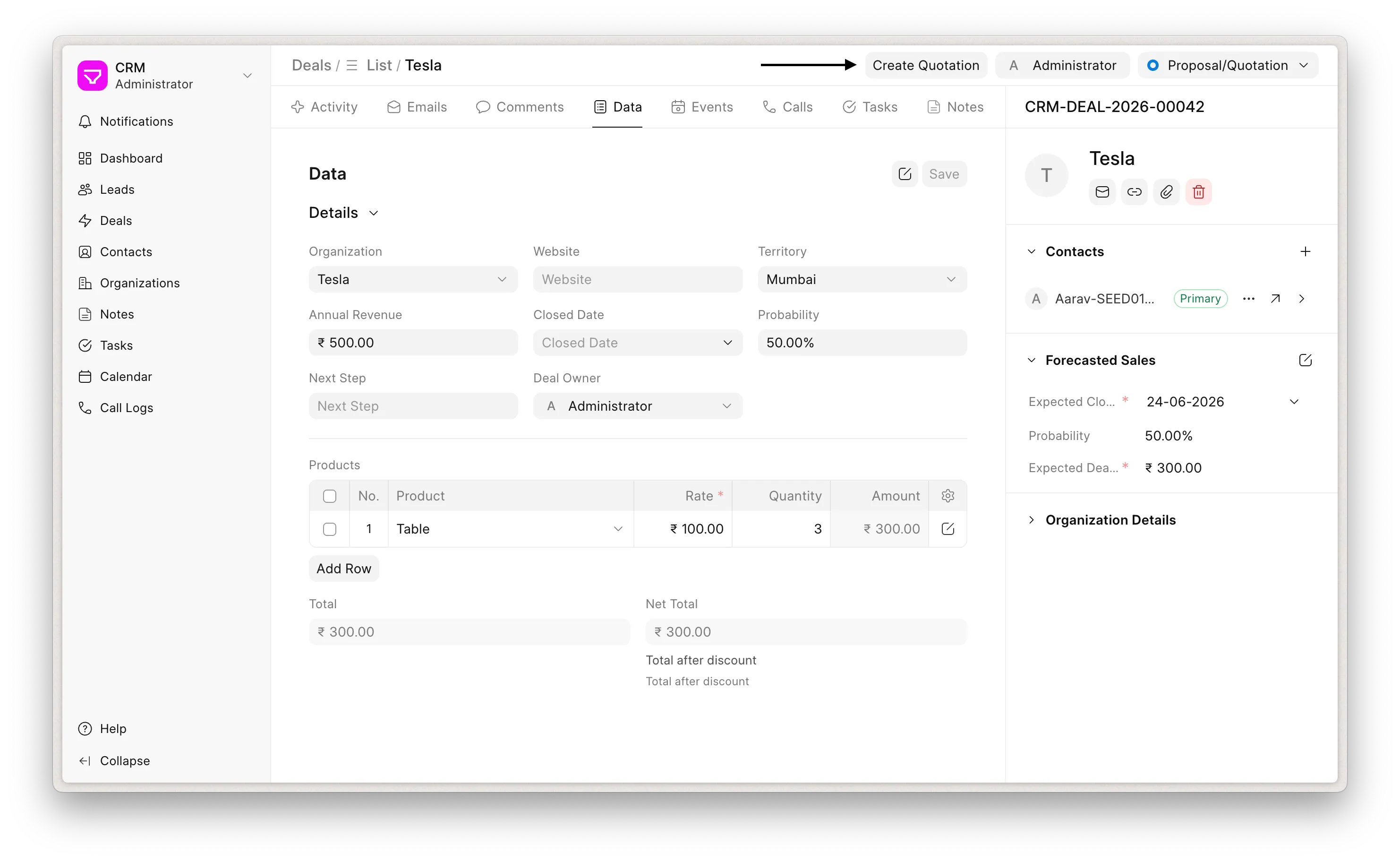 Create Quotation
Quotation line items are pre-filled from the deal’s products
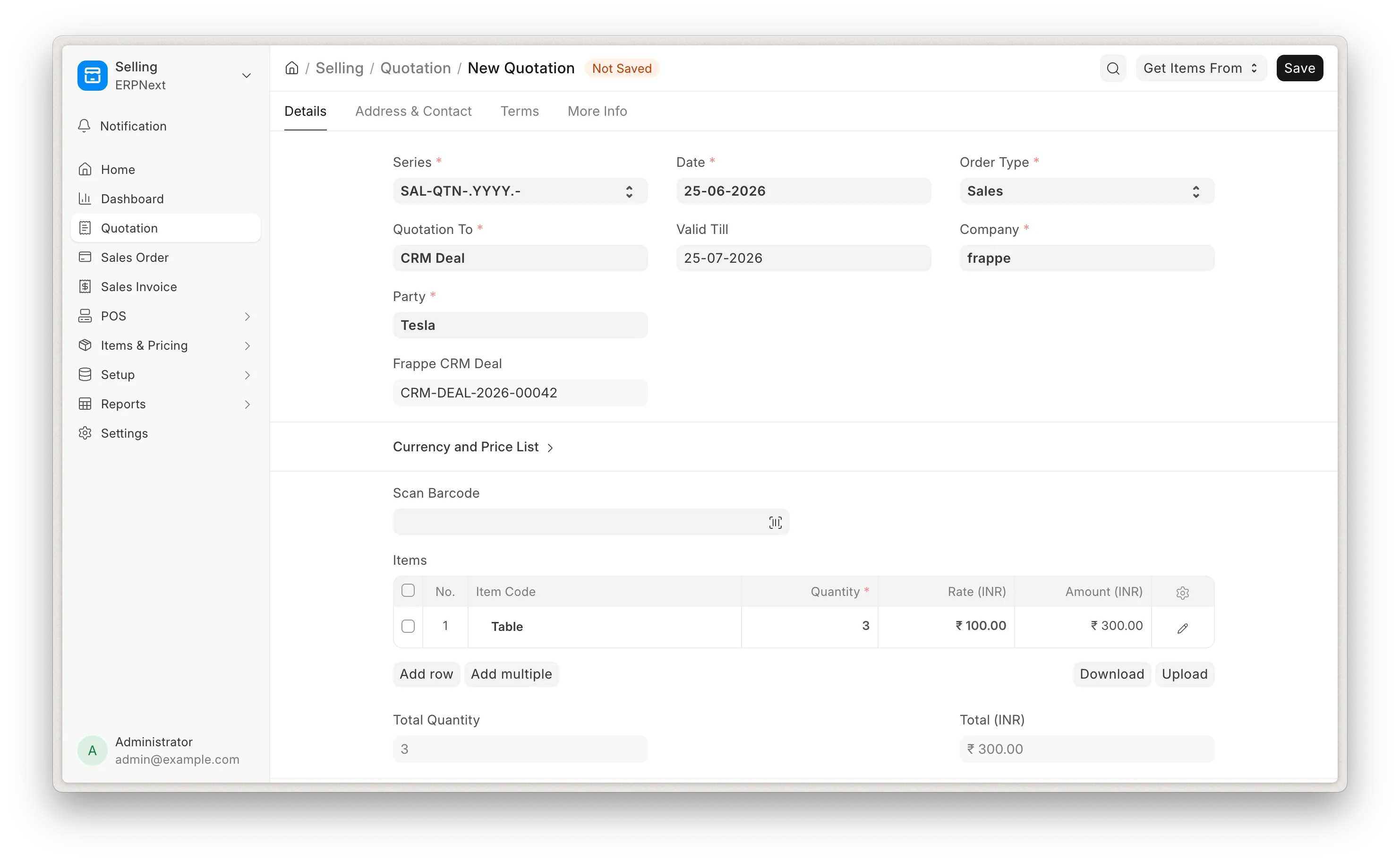 New Quotation
Once the customer is created, you’ll find a “View Customer” button on the deal header, allowing you to easily access the customer from deal page.
CRM Product and Bravo Hub ERP Item
Section titled “CRM Product and Bravo Hub ERP Item”Bravo Hub ERP Items and CRM Products are kept in sync with Bravo Hub ERP as the source of truth. This sync runs on the same site only.
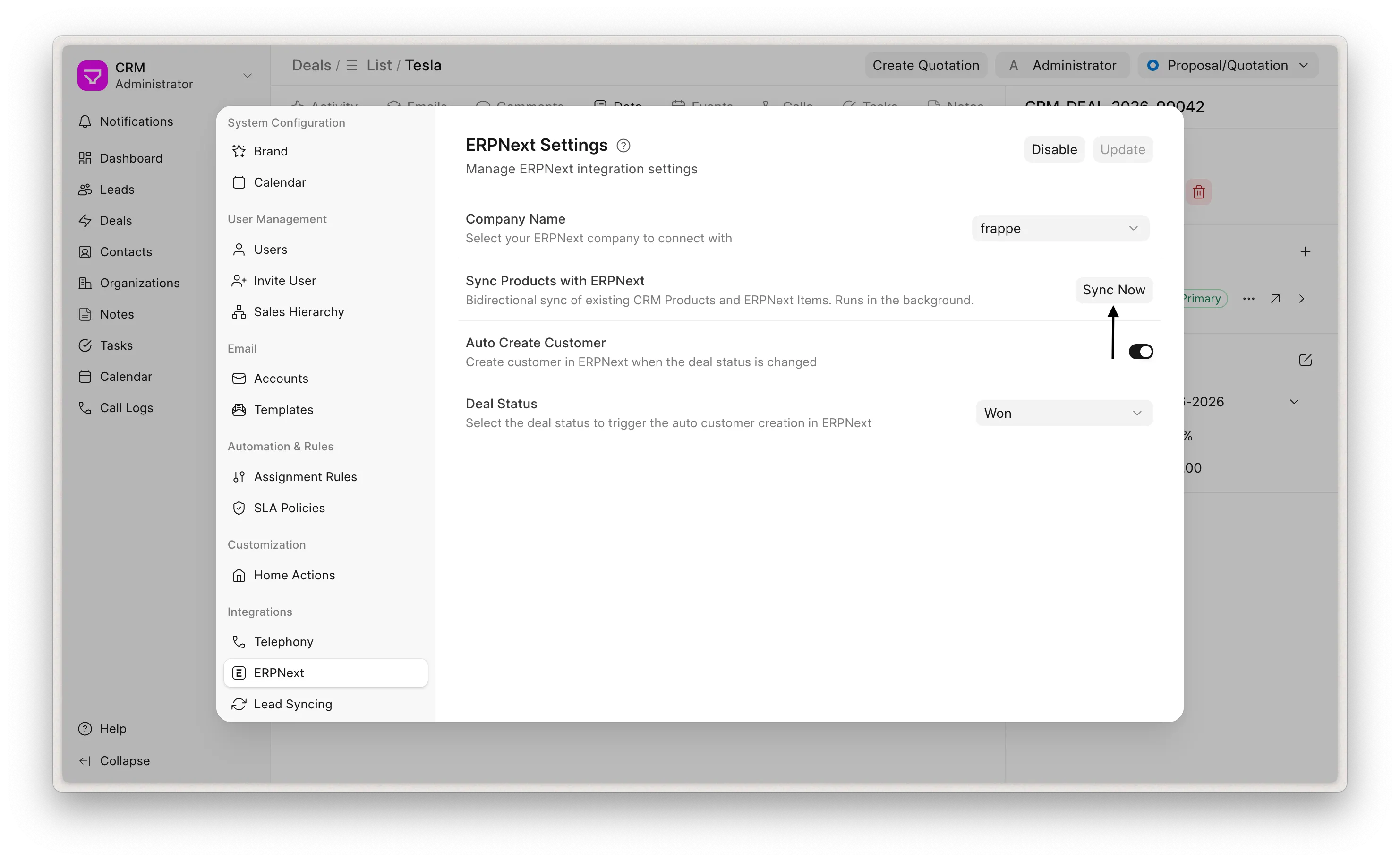
- Creating an Item in Bravo Hub ERP automatically creates a matching CRM Product and links the two records.
- Updating an Item auto updates its CRM Product. The synced fields are: item name, rate, image, disabled status and description.
- Renaming an Item renames its CRM Product (and vice-versa) keeping both sides aligned.
- Deleting an Item deletes its linked CRM Product and deleting a CRM Product deletes its linked Item.
Pricing
Section titled “Pricing”Product rates shown in the CRM follow Bravo Hub ERP’s pricing rather than a static value:
- A CRM Product’s rate is taken from its Bravo Hub ERP Item Price in the selling price list falling back to the Item’s standard rate when no Item Price exists.
- On a Deal, each product line is priced the way Bravo Hub ERP prices a quotation line: the price list is derived from the Deal’s customer (or the default selling price list when there is none), and the rate is looked up for the item’s UOM. If no Item Price is found, the CRM Product’s standard rate is used as a fallback. This means a customer specific price list configured in Bravo Hub ERP surfaces its negotiated rates directly on the Deal.
Customizations
Section titled “Customizations”The Create Quotation and View Customer buttons on the Deal page are rendered by a standard CRM Form Script named Create Quotation from CRM Deal. It is created automatically when you enable the integration and is bound to the CRM Deal form view.
How the script works
Section titled “How the script works”On load, the script checks whether the integration is enabled and if so, it adds the actions to the Deal header:
- Create Quotation calls the backend to build the pre-filled quotation URL and opens it n a new tab.
- View Customer shown only when the Deal already has a linked Bravo Hub ERP Customer. opens the Customer record in a new tab.
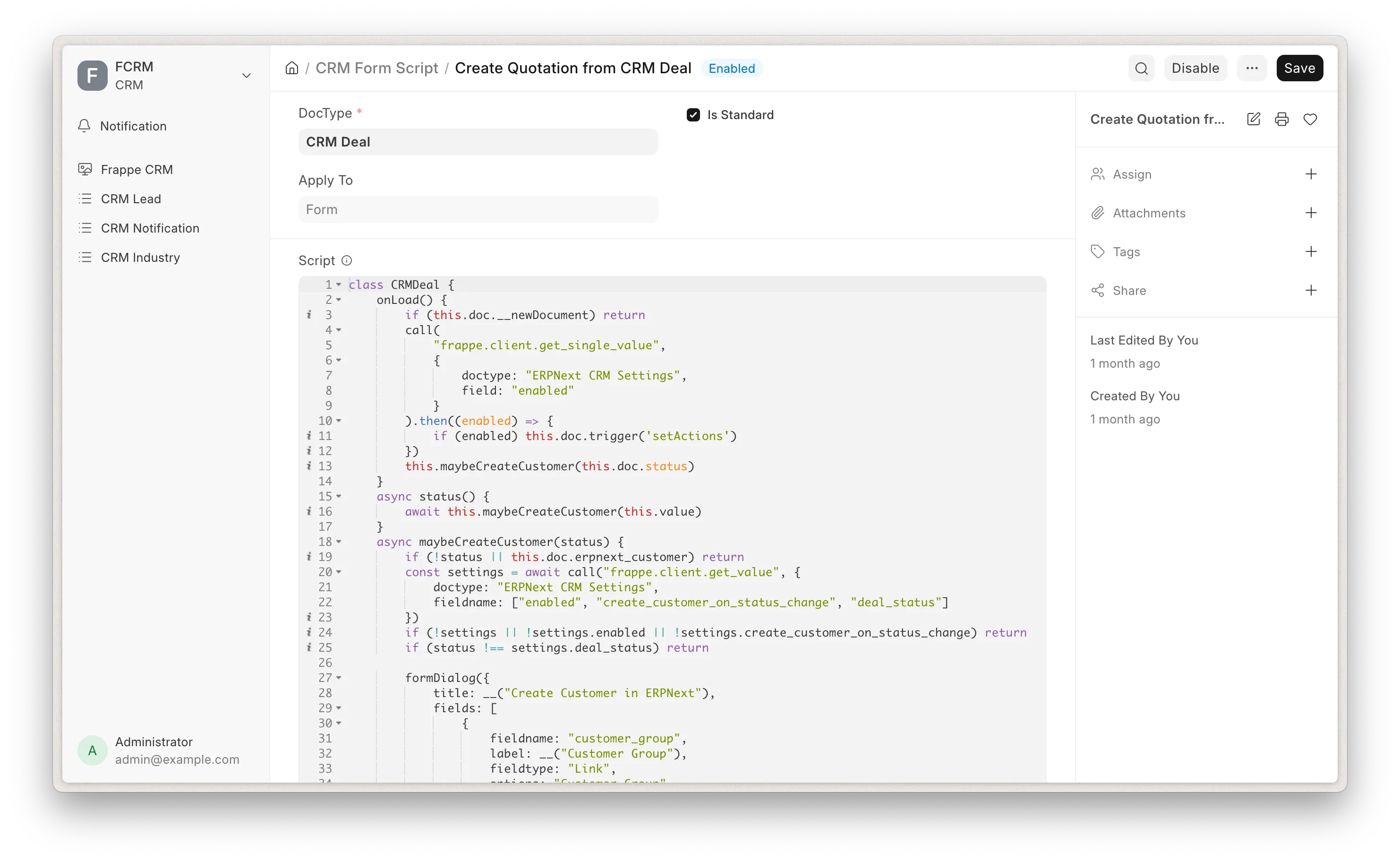 Form Script
Editing the script
Section titled “Editing the script”Because it is a standard script, Create Quotation from CRM Deal is read-only and cannot be edited in place. This protects it from being overwritten.
To customize the behavior:
- Go to Desk → CRM Form Script.
- Disable the Create Quotation from CRM Deal script.
- Duplicate it (or create a new script on the CRM Deal form view) and make your changes there. for example: changing the conditions under which the buttons appear. Add new actions or adjust labels.
- Enable your copy.
Your custom script then renders the buttons in place of the standard one.
Example Script:
class CRMDeal { onLoad() { if (this.doc.__newDocument) return call( "frappe.client.get_single_value", { doctype: "ERPNext CRM Settings", field: "enabled" } ).then((enabled) => { if (enabled) this.doc.trigger('setActions') }) } setActions() { // Only offer quotation creation for qualified-or-later deals const allowed = ["Qualification", "Proposal/Quotation", "Negotiation"] if (allowed.includes(this.doc.status)) { this.actions.push({ label: __("Create Quotation"), onClick: () => { call( "crm.fcrm.doctype.erpnext_crm_settings.erpnext" { crm_deal: this.doc.name, organization: this.doc.organization } ).then((quotation_url) => { if (quotation_url) { window.open(quotation_url, '_blank') } else { toast.error("Error while creating quotation") } }).catch((e) => { toast.error(e.messages[0] || "Error while creating") }); } }) } // A custom action unrelated to the integration this.actions.push({ label: __("Copy Deal Link"), onClick: () => { navigator.clipboard.writeText(window.location.href); toast.success(__("Deal link copied")); } }) }}