Job Requisition
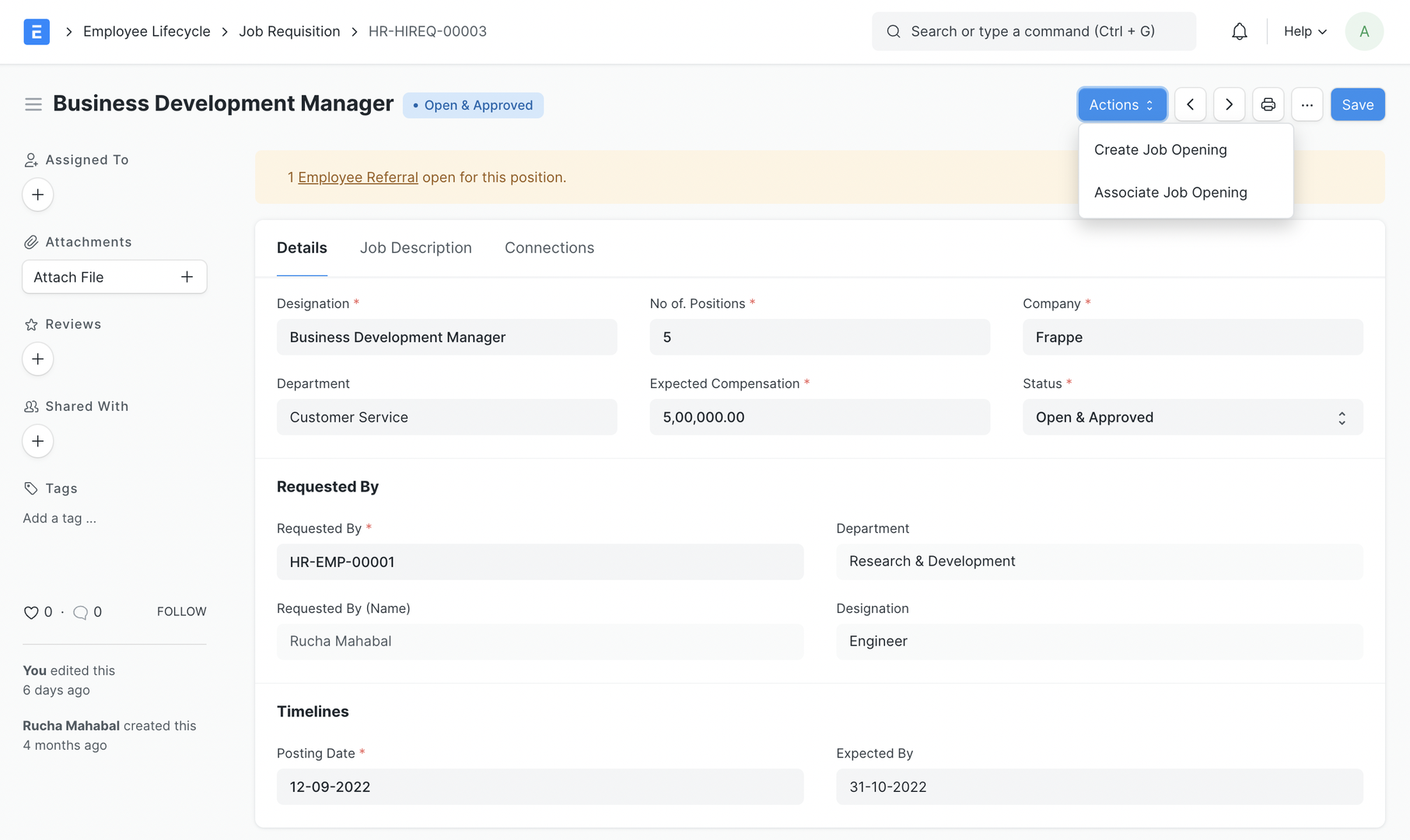
Job Requisition is an internal document raised to request a new hire. These requisitions are then converted to Job Openings or considered for budgeting while making the Staffing Plan.
To access Job Requisition, go to:
Home > Human Resources > Recruitment > Job Requisition
1. Prerequisites
Section titled “1. Prerequisites”Before creating a Job Requisition, you should create the following:
- Designation
- Department (Optional)
2. How to create a Job Requisition
Section titled “2. How to create a Job Requisition”- Go to the Job Requisition list, and click on New.
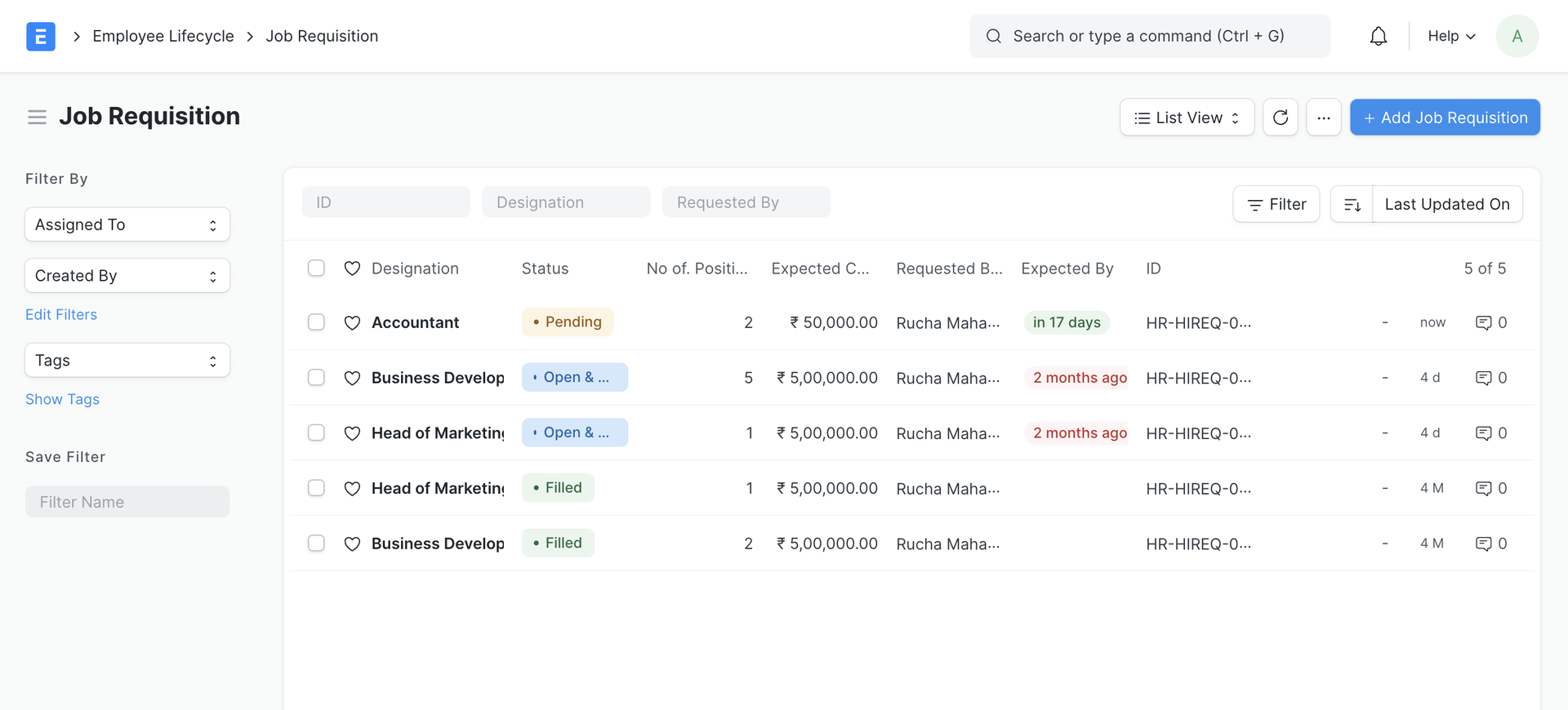
- Enter the Designation you want to place the request for.
- Enter the No of Positions, Expected Compensation, Company, and Department (optional).
- Select the employee who is applying for the requisition in the Requested By field.
- Optionally, you can set the Expected By date.
- The Job Description will be fetched from the Designation. If you want to add additional information for the opening, you can do so here.
- Save.
- By default, the status will be Pending. You can set up workflows to change the status to Open & Approved.
3. Actions
Section titled “3. Actions”3.1 Create Job Opening
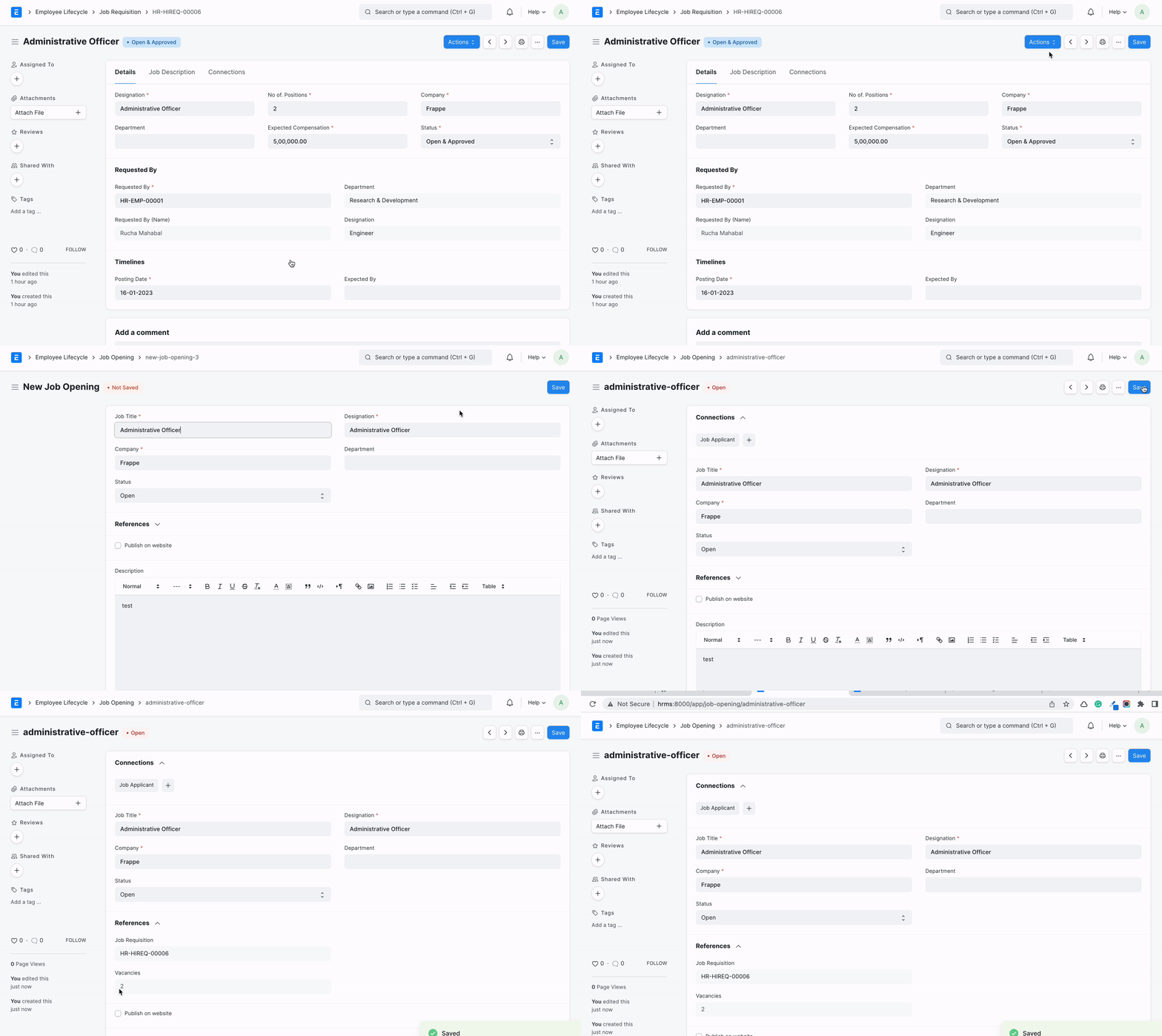
Section titled “3.1 Create Job Opening”Once the Job Requisition is Open & Approved, you can create a new Job Opening against the Job Requisition or associate an existing one.
3.2 Associate Job Opening
Section titled “3.2 Associate Job Opening”If you already have an existing Open Job Opening for that designation, you can associate it with the requisition.
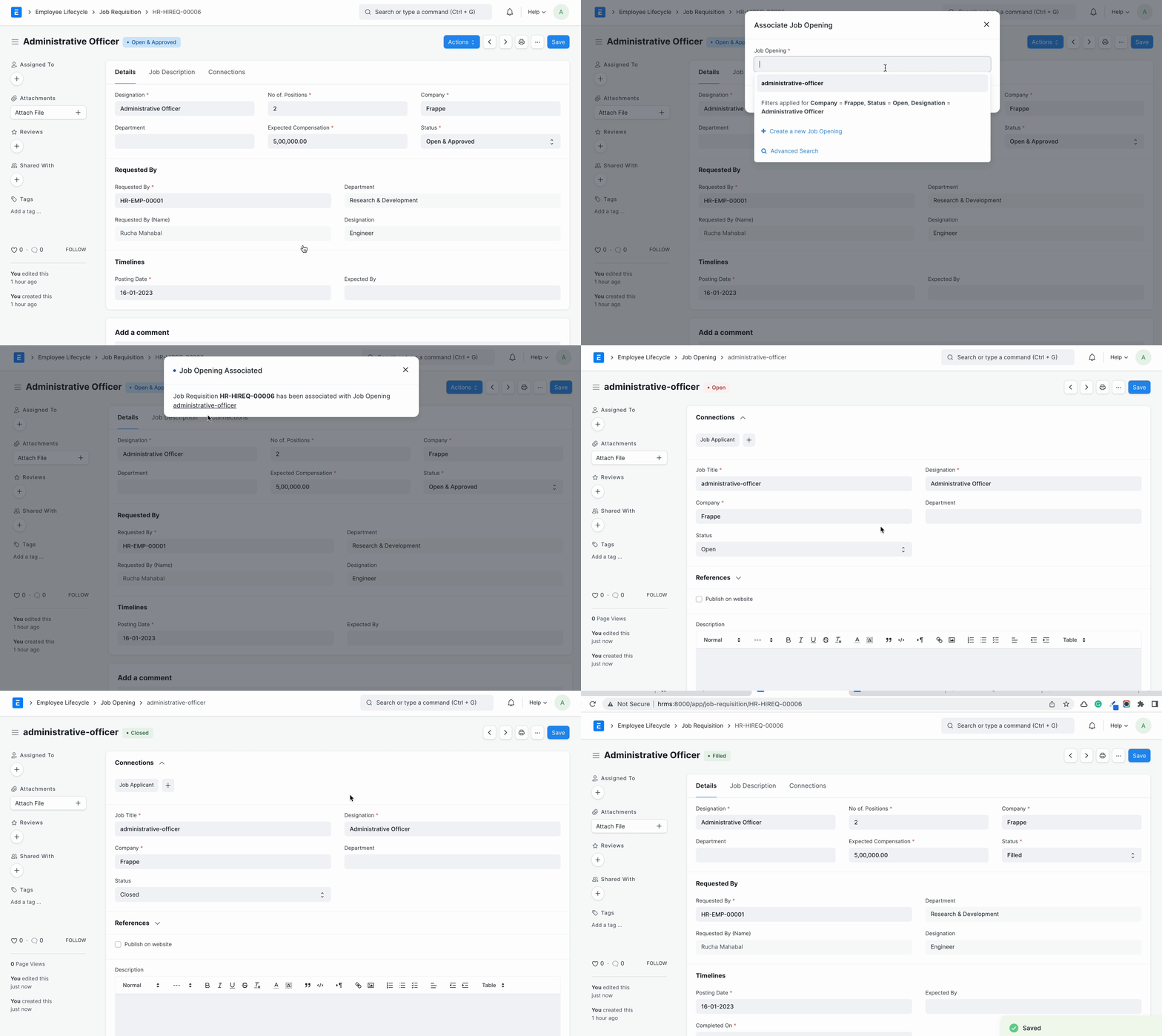
Once the Job Opening is closed, the Job Requisition’s status is updated to Filled
4. Features
Section titled “4. Features”4.1 Check existing Employee Referrals
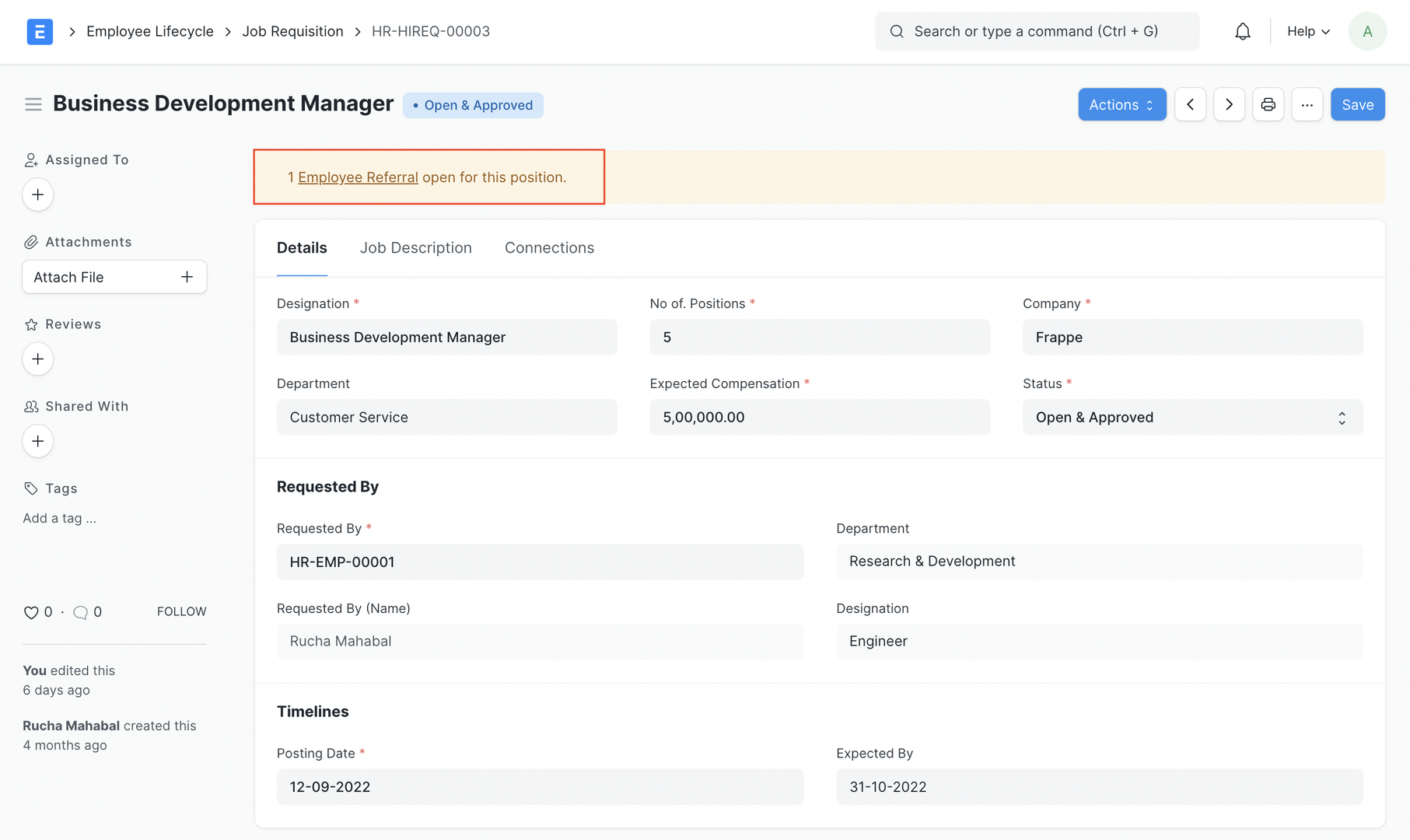
Section titled “4.1 Check existing Employee Referrals”If there is an existing Employee Referral for that designation, you might want to consider referrals instead of creating new openings. A banner is visible on the Job Requisition form with the links to these employee referrals in these cases.
4.2 Get Job Requisitions in Staffing Plan
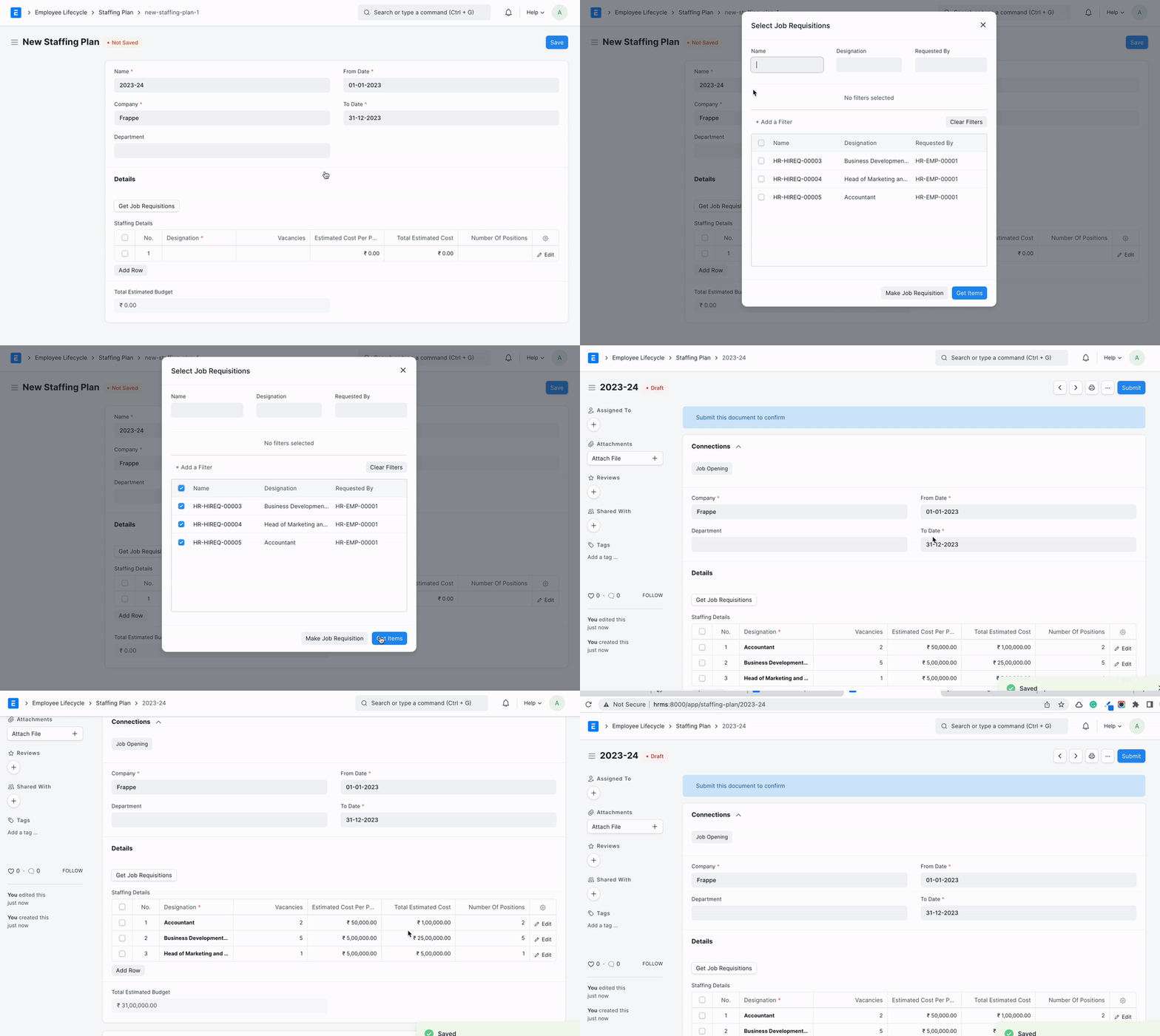
Section titled “4.2 Get Job Requisitions in Staffing Plan”While creating a budget with the Staffing Plan, you can fetch the existing Pending or Open & Approved Job Requisitions.
4.3 Time to Fill Metric
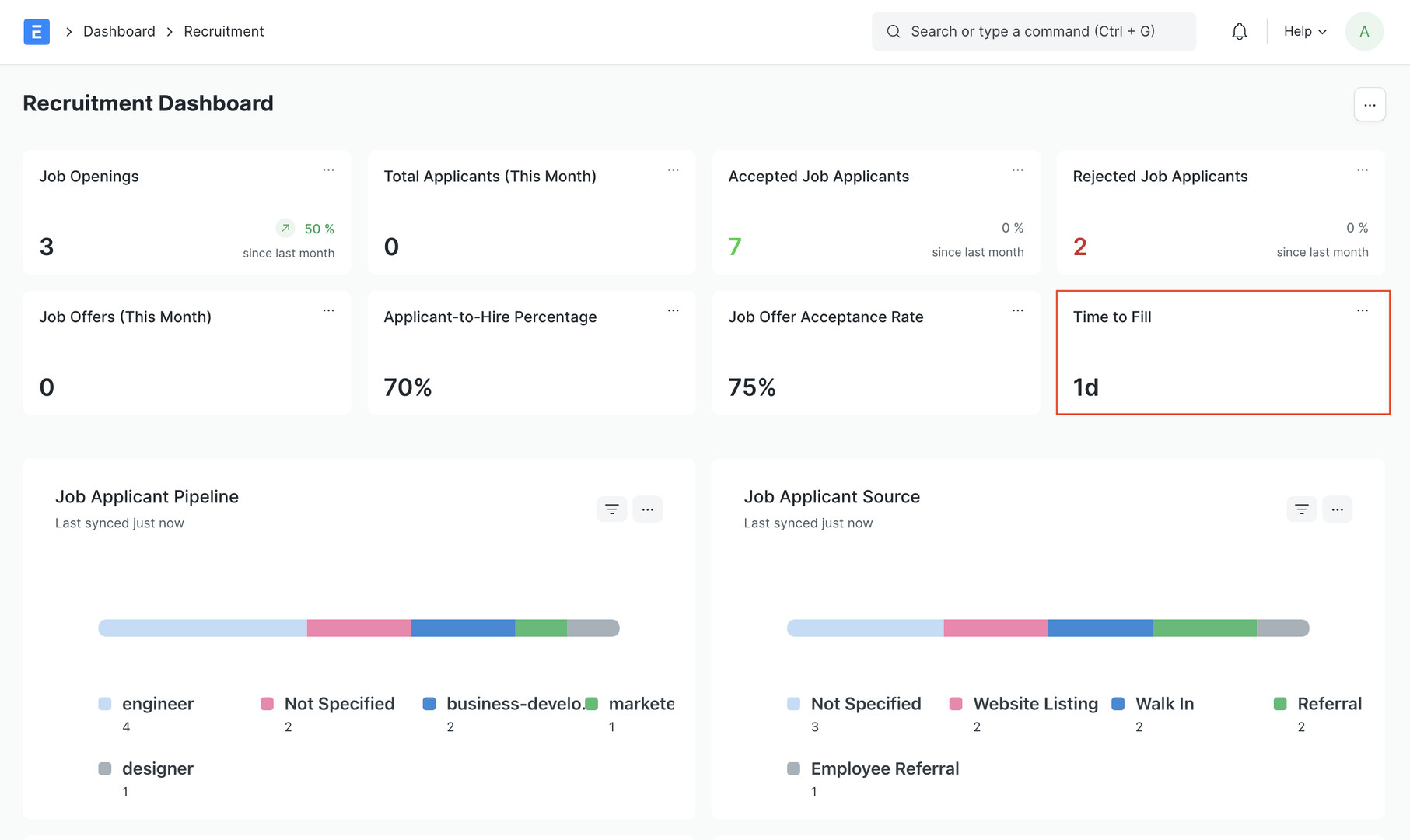
Section titled “4.3 Time to Fill Metric”Time to Fill measures the number of days it takes to fill an open position, from the date a job requisition is posted to the date when it is marked as Filled. This metric is auto-calculated and set in Job Requisition.
The Average Time to Fill is also displayed on the Hiring Dashboard: