
Deferred Revenue
Northstar Retail, a customer of Nova Industries, pays $1,200 upfront for a one-year warranty program. The invoice is raised today, but Nova Industries earns the revenue month by month as it provides the service.
Deferred Revenue keeps the unearned portion out of current income. Bravo Hub ERP first posts the invoice amount to a liability account, then recognizes the appropriate share as income over the service period.
Use deferred revenue when a customer pays or is invoiced before your company has completed the related service, such as annual support, maintenance contracts, subscriptions, or prepaid service plans.
Understand the accounting effect
Section titled “Understand the accounting effect”Assume the invoice has no tax for simplicity.
| Event | Debit | Credit |
|---|---|---|
| Submit the $1,200 Sales Invoice | Debtors $1,200 | Deferred Revenue liability $1,200 |
| Recognize one eligible period | Deferred Revenue liability | Service Income |
| Receive the Customer payment | Bank $1,200 | Debtors $1,200 |
A Payment Entry clears the receivable. It does not determine when the income is earned. Recognition is controlled by the deferred settings and service dates.
Before you begin
Section titled “Before you begin”Prepare:
- A deferred revenue liability account in the Chart of Accounts.
- The final Income Account, such as Service Income.
- A service Item.
- The contract or coverage start and end dates.
- A Customer and a valid Sales Invoice setup.
- The applicable Accounts Settings for automatic processing and day- or month-based allocation.
Do not use an ordinary Income Account as the deferred account. The unearned balance belongs on the Balance Sheet until the service is delivered.
Configure deferred settings
Section titled “Configure deferred settings”In Accounts Settings, choose whether Bravo Hub ERP books deferred entries by Days or Months, whether processing runs automatically, and whether recognition is posted directly or through Journal Entries.
If $12,000 covers a 12-month service period, Months normally recognizes $1,000 for each complete month. With Days, a 30-day month may recognize about $986.30 and a 31-day month about $1,019.17, depending on the exact dates. This original example is retained because it shows why monthly recognition amounts can differ without being wrong.
See Deferred Accounting for the full setting behavior.
Enable deferred revenue on the Item
Section titled “Enable deferred revenue on the Item”Open the Item used for the service or plan, select the Accounting tab, and enable Deferred Revenue. Enter a standard number of revenue months when it is useful for the Item.
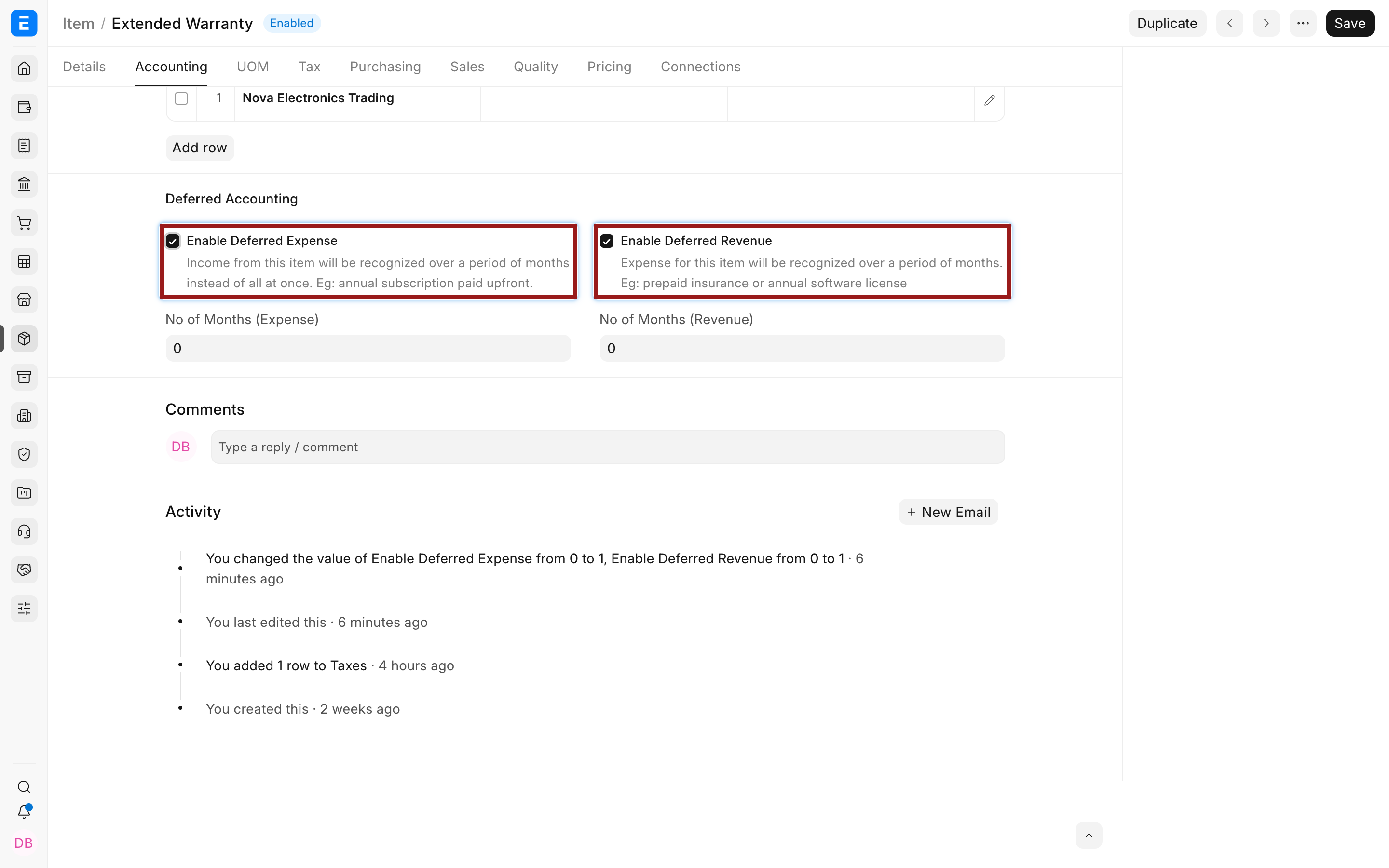
Current Bravo Hub ERP keeps the deferred account and actual service dates on the Sales Invoice Item row. The Item option identifies that the line is eligible for deferred treatment.
Create the Sales Invoice
Section titled “Create the Sales Invoice”Create a Sales Invoice for the Customer and add the deferred-revenue Item. Confirm the Company, posting date, currency, rate, taxes, and Cost Center as you would for any invoice.
In the Items table, select the pencil icon to open the complete row editor.
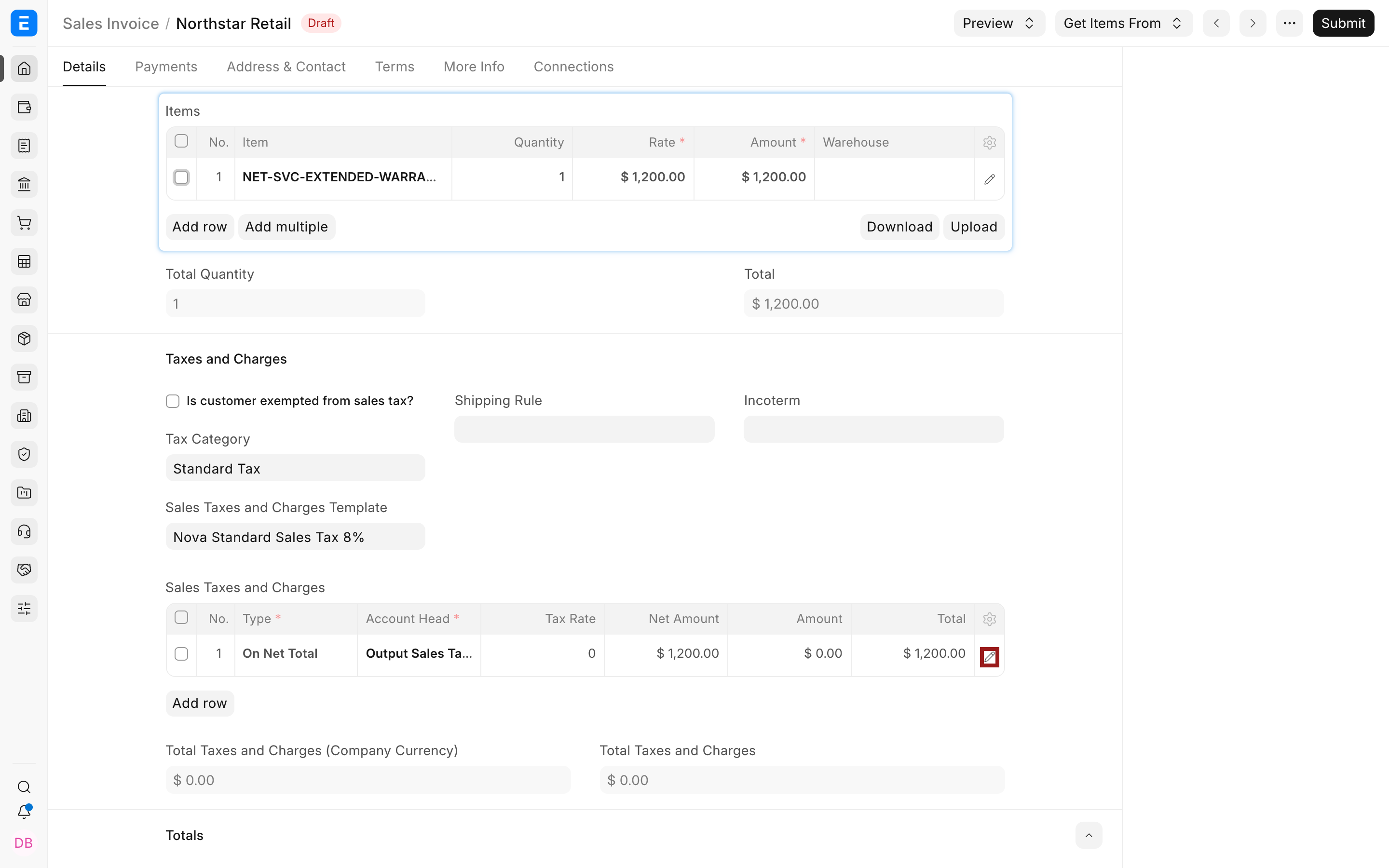
Expand Deferred Revenue and complete:
| Field | What it means |
|---|---|
| Enable Deferred Revenue | Applies deferred treatment to this invoice row |
| Deferred Revenue Account | Liability account holding the unearned balance |
| Service Start Date | First date on which the service is provided |
| Service End Date | Final date of the service period |
| Service Stop Date | Optional earlier stop date when service ends before the original end date |
| Income Account | Final account that receives recognized revenue |
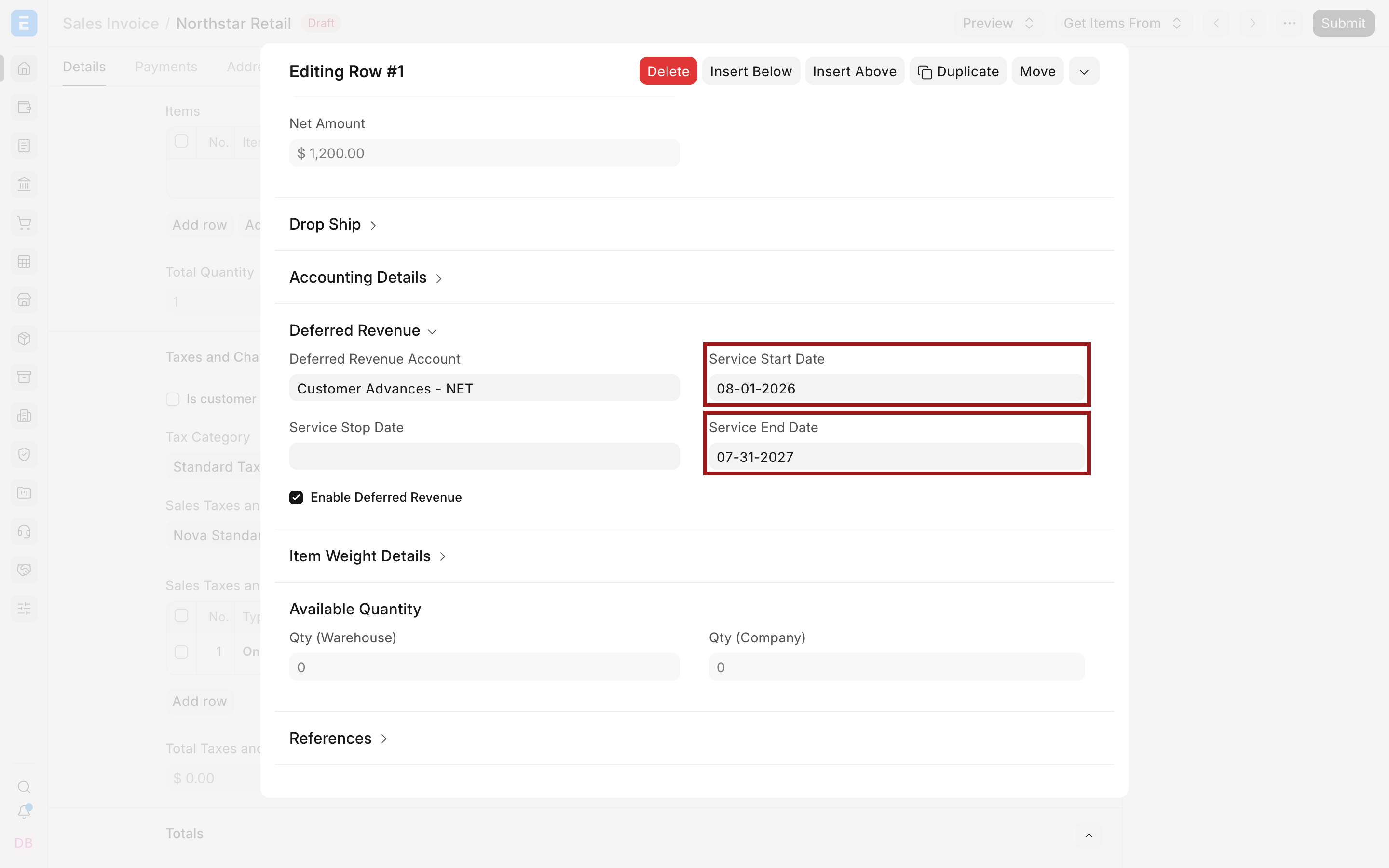
The screenshot uses Customer Advances - NET as the deferred liability and Service - NET as the final income account. Use dedicated accounts if that gives your company clearer reporting.
Submit the invoice only after verifying every deferred row. One invoice can contain several rows with different service periods.
What happens on submission
Section titled “What happens on submission”Bravo Hub ERP creates the normal Customer receivable, but credits the deferred liability instead of immediately crediting the Income Account for the eligible row. This keeps unearned revenue out of the Profit and Loss Statement.
If tax is present, tax accounting follows the configured tax rules. Deferred revenue controls the eligible Item’s net income recognition; it does not automatically defer every tax or charge on the invoice.
Recognize the revenue
Section titled “Recognize the revenue”When automatic processing is enabled, Bravo Hub ERP processes eligible schedules through a background job. Otherwise, create a Process Deferred Accounting document with Type = Income.
For each eligible period, the recognition entry debits the deferred revenue account and credits the Sales Invoice row’s Income Account. When posting through Journal Entry is enabled, Bravo Hub ERP creates Journal Entry documents. They either remain Draft for review or are submitted automatically, depending on Accounts Settings.
The original page described monthly Journal Entries. That remains valid when Journal Entry posting is enabled. With direct posting, the same accounting effect appears in the General Ledger without a separate Journal Entry document.
Verify recognized and pending revenue
Section titled “Verify recognized and pending revenue”Run the Deferred Revenue/Expense Report. Check the invoice, service period, invoiced amount, recognized amount, and pending balance.
Then review the General Ledger:
- The deferred liability should begin with the invoice amount.
- Each recognition period should reduce that liability.
- The same amount should increase the Income Account.
- After the complete service term, the eligible deferred balance should be fully recognized, subject to rounding or approved changes.
Also verify the Customer receivable separately. The invoice can be unpaid, partially paid, or fully paid while revenue recognition continues according to the service period.
Stop, cancel, or amend the service
Section titled “Stop, cancel, or amend the service”If a service ends early, record the supported Service Stop Date and follow your version’s processing behavior. Check the deferred report after the next run.
If the invoice itself is wrong, use the normal cancellation and amendment process. Do not manually delete recognition ledger entries. A credit note, cancellation, or amended invoice may need corresponding deferred processing and verification.
Troubleshooting
Section titled “Troubleshooting”| Problem | What to check |
|---|---|
| Full amount appears in income immediately | Confirm the row has Enable Deferred Revenue, a deferred liability account, and valid service dates |
| No recognition entry appears | Check automatic processing, the date range, background jobs, and Draft generated Journal Entries |
| Monthly amounts are unequal | Check whether Accounts Settings uses Days rather than Months |
| Deferred report has a pending balance after the term | Check the processing end date, stop date, invoice status, and unsubmitted Journal Entries |
| Income posts to the wrong account | Review the Income Account on the Sales Invoice Item row |
Is deferred revenue the same as a Customer advance?
Section titled “Is deferred revenue the same as a Customer advance?”No, a Customer advance is money received before allocation to an invoice. Deferred revenue is an invoiced amount that has not yet been earned. The example account name may include “Customer Advances,” but the underlying concepts and workflows remain different.
Can revenue be recognized before the Customer pays?
Section titled “Can revenue be recognized before the Customer pays?”Yes, payment status and revenue recognition are separate. Bravo Hub ERP follows the service period for recognition and the invoice allocation for receivables.
Can different invoice lines use different service periods?
Section titled “Can different invoice lines use different service periods?”Yes, configure deferred revenue and dates on each Item row.
Why are recognition Journal Entries Draft?
Section titled “Why are recognition Journal Entries Draft?”Journal Entry posting is enabled while automatic submission is disabled. Review and submit the generated entries before expecting them in the General Ledger.
Does deferred revenue defer tax too?
Section titled “Does deferred revenue defer tax too?”Not automatically. Taxes follow their configured tax and accounting rules. Confirm the required jurisdictional treatment with your accountant.