
Maintenance Sales Orders
Maintenance Sales Orders
Section titled “Maintenance Sales Orders”A Maintenance Sales Order records an agreed maintenance service for a Customer. It uses the Sales Order workflow while enabling maintenance-related actions and allowing service invoicing without a stock delivery.
Before you begin
Section titled “Before you begin”Create the Customer, service Item, and required serial-number or installation details. Confirm access to the maintenance documents used by your process.
Create a Maintenance Sales Order
Section titled “Create a Maintenance Sales Order”- Open Sales Order and select Add Sales Order.
- Select the Company and Customer.
- Set Order Type to Maintenance.
- Add the maintenance Item, quantity, rate, and service date.
- Enable Skip Delivery Note when no stock delivery is needed.
- Review taxes, payment terms, addresses, and terms.
- Save and submit the order.
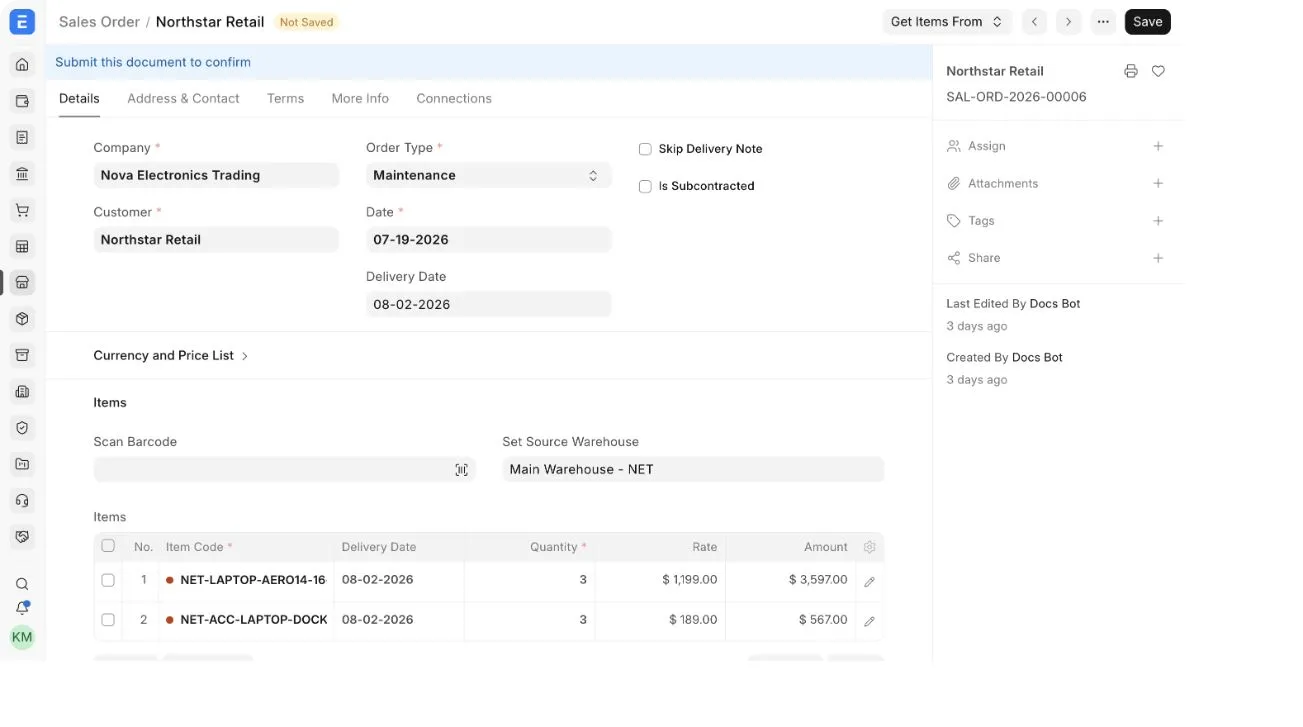
Leave Skip Delivery Note disabled when the order includes goods that must be delivered through a Delivery Note.
Create maintenance documents
Section titled “Create maintenance documents”After submission, use the available Create actions. Depending on installed features and document state, these can include:
- a Maintenance Schedule to plan recurring service;
- a Maintenance Visit to record work performed;
- a Sales Invoice to bill the Customer.
Review generated documents and confirm the Customer, Items, dates, assigned personnel, serial numbers, and service details.
Troubleshooting
Section titled “Troubleshooting”Skip Delivery Note is not visible
Section titled “Skip Delivery Note is not visible”Confirm that Order Type is Maintenance. The checkbox is conditional.
Maintenance actions are missing
Section titled “Maintenance actions are missing”Confirm that the order is submitted, required features are configured, and your role can create the target document.
Frequently asked questions
Section titled “Frequently asked questions”Can a Maintenance Sales Order include parts?
Section titled “Can a Maintenance Sales Order include parts?”Yes, but use the delivery workflow for stock Items that physically leave your Warehouse.
Is a Maintenance Schedule mandatory?
Section titled “Is a Maintenance Schedule mandatory?”No. Use it when service must occur on planned dates. A one-time service may use only the documents required by your process.