
Precent Item rate change in the Sales Cycle
Bravo Hub ERP can validate whether an Item’s rate changes as it moves from a Sales Order to a Delivery Note or Sales Invoice. Use this control when confirmed order rates should remain consistent through fulfilment and billing.
Before you begin
Section titled “Before you begin”Confirm:
- Item Prices and the intended Price List.
- The roles permitted to approve price exceptions.
- Whether your process requires a warning or a hard stop.
- How legitimate amendments and returns should be handled.
This setting does not replace pricing governance. Document when a rate may change and who may approve it.
Configure rate validation
Section titled “Configure rate validation”- Open Selling Settings.
- Open the Item Price Settings section.
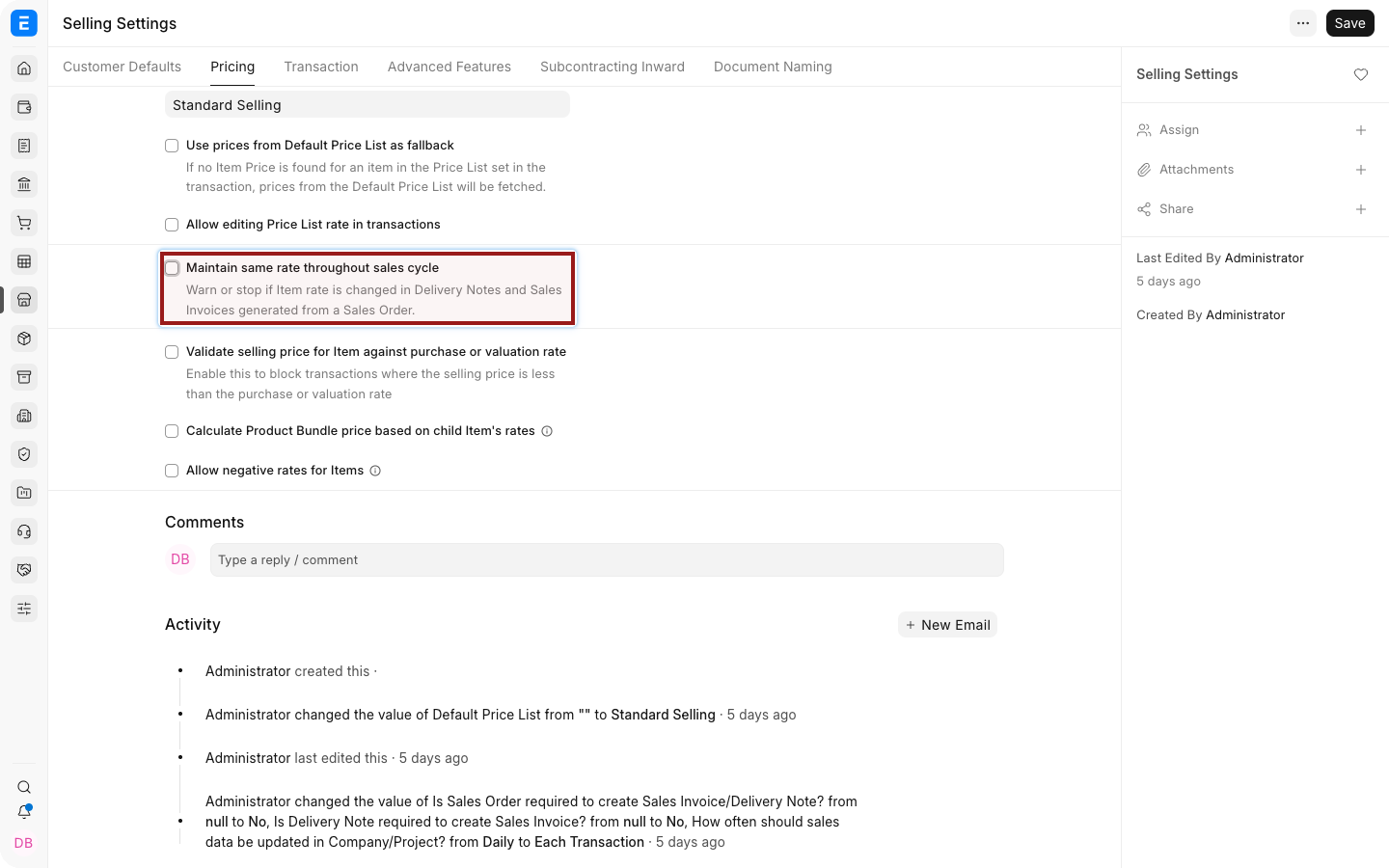
- Enable Maintain Same Rate Throughout Sales Cycle.
- Set Action If Same Rate Is Not Maintained to:
- Warn to allow saving after notifying the user.
- Stop to block the inconsistent rate.
- When Stop is selected, choose the role allowed to override the action if your version provides that field.
- Save.
Test the control
Section titled “Test the control”- Create and submit a Sales Order with an Item rate.
- Create a Delivery Note or Sales Invoice from the Sales Order.
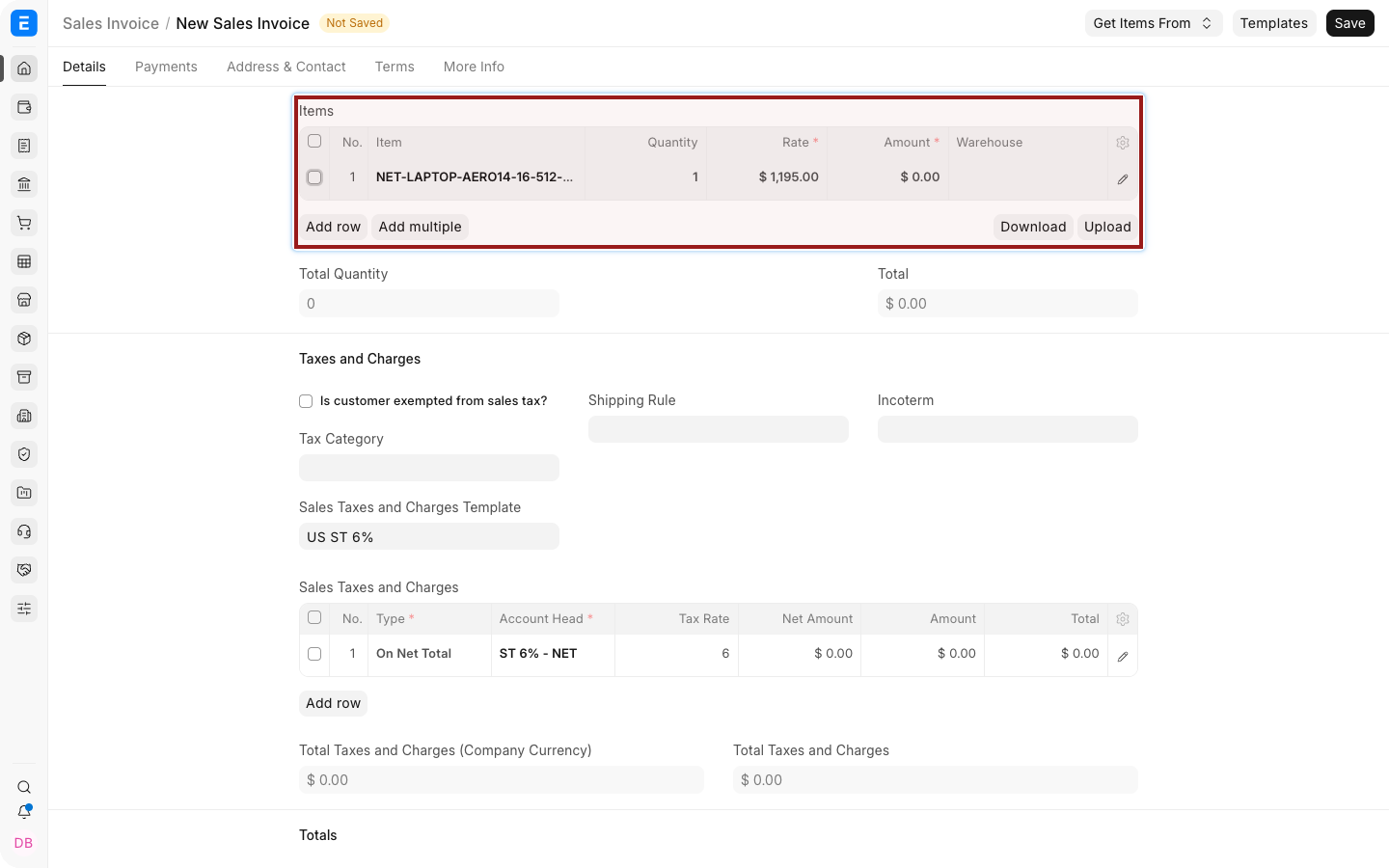
- Select the highlighted pencil icon to open the complete Item row.
- Change the Rate.
- Save and confirm that Bravo Hub ERP warns or stops the change according to Selling Settings.
The dot before an Item Code shows stock availability at a glance: green means in stock and red means out of stock.
When a rate legitimately changes
Section titled “When a rate legitimately changes”Use the workflow that preserves the audit trail:
- Amend the confirmed Sales Order when the commercial agreement changed before fulfilment.
- Use Update Items when the supported after-submit workflow fits the change.
- Create a Credit Note or return when correcting a submitted invoice.
- Use an authorized override only when policy permits it.
Do not silently change a downstream rate simply to make totals match.
How pricing sources interact
Section titled “How pricing sources interact”A transaction rate can be influenced by:
- Item Price and Price List.
- Pricing Rules.
- Promotional Schemes.
- Item-level margin or discount.
- Additional Discount.
- Currency conversion.
- A manually entered Rate when permissions allow it.
The same-rate validation compares the mapped sales-cycle rate. It does not prevent every possible upstream pricing configuration.
Important settings
Section titled “Important settings”| Setting | Effect |
|---|---|
| Maintain Same Rate Throughout Sales Cycle | Enables comparison against the upstream rate |
| Action: Warn | Shows a warning but permits the user to continue |
| Action: Stop | Blocks the rate change |
| Override Role | Lets authorized users bypass Stop when supported |
| Allow User to Edit Price List Rate | Controls editing of the Price List Rate field, not the complete sales-cycle policy |
Troubleshooting
Section titled “Troubleshooting”| Problem | What to check |
|---|---|
| No warning appears | Confirm the downstream document was mapped from the Sales Order and the setting is saved |
| Authorized user cannot override | Confirm the configured role and the user’s assigned roles |
| Rate changes before mapping | Review Item Prices, Pricing Rules, discounts, currency, and the source document |
| Return or credit correction is blocked | Use the appropriate return or amendment workflow |
| Users confuse Rate and Price List Rate | Explain the reference rate, margin, discount, and final transaction rate |
Frequently asked questions
Section titled “Frequently asked questions”Does the setting apply to unrelated standalone invoices?
Section titled “Does the setting apply to unrelated standalone invoices?”It is intended to validate rates through a linked sales cycle. A standalone invoice has no Sales Order rate to compare.
Should I choose Warn or Stop?
Section titled “Should I choose Warn or Stop?”Use Warn where exceptions are common and reviewed later. Use Stop where approval must happen before the document is saved.
Can a role override Stop?
Section titled “Can a role override Stop?”Yes, when the override-role field is available and configured in your Bravo Hub ERP version.
Does the setting stop Pricing Rules?
Section titled “Does the setting stop Pricing Rules?”No. Pricing Rules remain part of rate calculation. Test the combined workflow.