
Awesomebar Global Search
The Awesomebar is the fastest way to open a DocType, report, page, workspace, or new record from anywhere in Desk. It reduces menu navigation when you already know what you need.
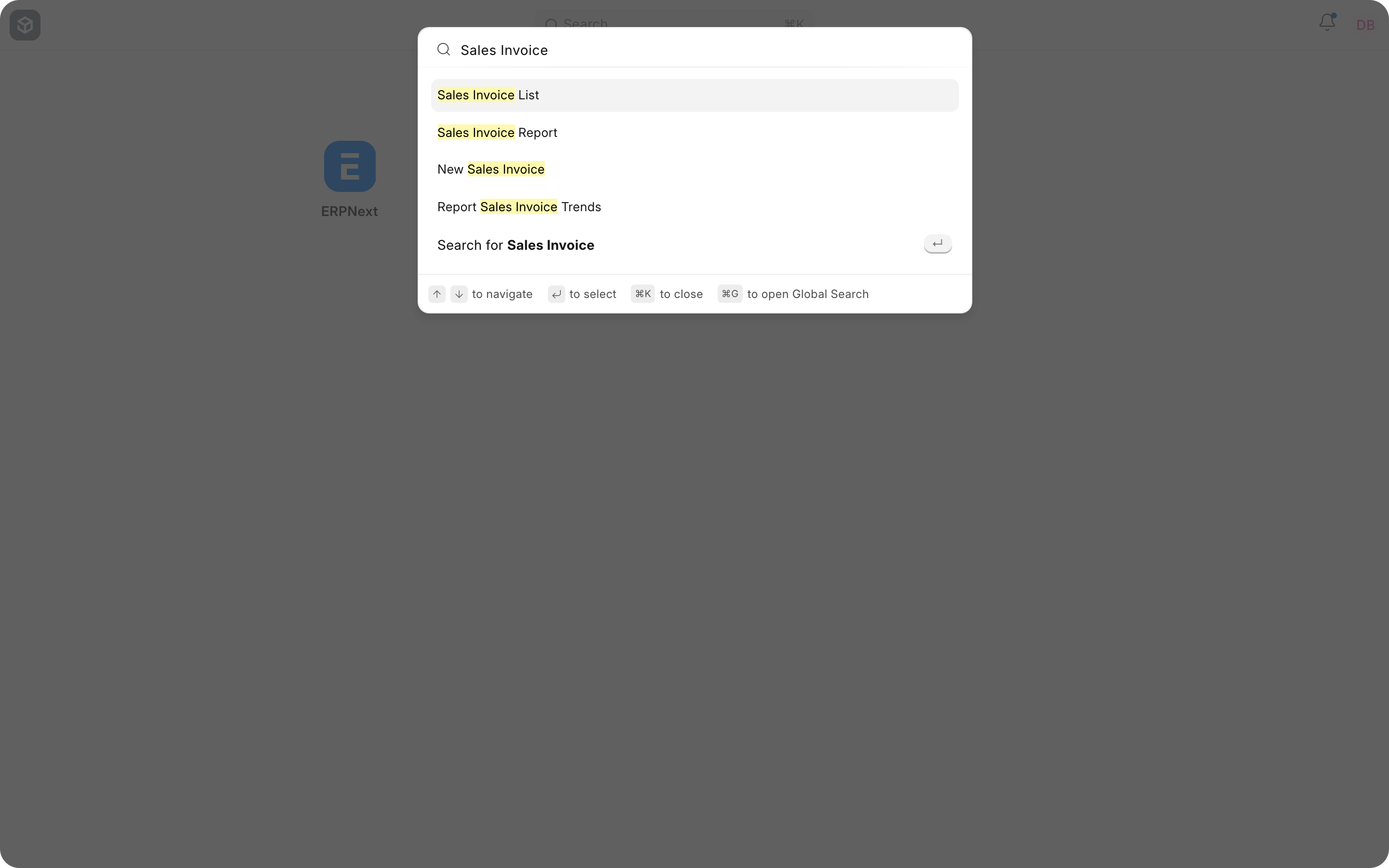
For example, a billing user can type Sales Invoice and choose the list, report, or new-document action directly from the same search.
Open and use the Awesomebar
Section titled “Open and use the Awesomebar”- Select the Search field at the top of Desk, or use the keyboard shortcut shown beside it.
- Type a DocType, report, page, or action.
- Use the arrow keys to move through results and press Enter to open the selected result.
Understand the results
Section titled “Understand the results”| Result | Use it to |
|---|---|
| List | Open all records of a DocType. |
| New | Create a new record directly. |
| Report | Open a matching report. |
| Page or Workspace | Navigate to a feature or module. |
| Search for | Run a broader global search for matching records. |
Use global record search
Section titled “Use global record search”When the direct results do not contain the record you need, choose the broader search action. Search availability depends on the DocType, indexed content, and your permissions. A user will not receive results for records they cannot access.
Troubleshooting
Section titled “Troubleshooting”A DocType or report is missing
Section titled “A DocType or report is missing”Confirm that the user has the required role and permission. Also check whether the module or workspace is hidden.
The expected record is not found
Section titled “The expected record is not found”Try a distinctive part of its name or identifier. Open the DocType list and apply filters when the record is not included in global search.
Frequently asked questions
Section titled “Frequently asked questions”Does Awesomebar search bypass permissions?
Section titled “Does Awesomebar search bypass permissions?”Results respect the current user’s access.
Can I create a document from the search?
Section titled “Can I create a document from the search?”Y
es. Select the New result when it is available and you have create permission.